> For the complete documentation index, see [llms.txt](https://docs.vectra.ai/llms.txt). Markdown versions of documentation pages are available by appending `.md` to page URLs; this page is available as [Markdown](https://docs.vectra.ai/configuration/setup/edr-integrations/sentinelone.md).
# SentinelOne
Integrate SentinelOne EDR with Vectra for Host Lockdown, host details, and Host ID enrichment.
## Introduction
SentinelOne integration enables [Host Lockdown](/configuration/response/lockdown/host-lockdown-edr.md) and ingests data that helps Vectra's automated [HostID](/reference/understanding-vectra-host-naming.md) to more accurately name hosts.
This integration works with both Respond UX (RUX) and Quadrant UX (QUX) deployments.
* If you are unsure of your deployment type, please see [Vectra Analyst User Experiences (Respond vs Quadrant)](/deployment/getting-started/analyst-ux-options-rux-vs-qux.md) .
## Configuration:
### **How does SentinelOne integrate with my Vectra platform?**
Integration with SentinelOne adds host context to aid in host identification during a security investigation. When Vectra NDR sees a host session come online, it polls SentinelOne for host information. Host information may include the following:
* Machine ID
* Machine name
* Operating system
* Isolation status
SentinelOne host context is available under the Host Details tab of individual Host entity pages.
### **How do I enable the SentinelOne integration in Vectra NDR?**
SentinelOne is configured as an EDR Integration in your Vectra deployment.
In your Vectra UI, navigate to *Configuration → SETUP → EDR Integrations → SentinelOne*:
* Select **Edit** on the far right-hand side within the **SentinelOne** row.
* Toggle **Enable integration with SentinelOne** to **On**.
 * Enter your SentinelOne **Management URL** and **API Token**. If you do not have this information, please check the section below on how to get this information correctly.
* You can optionally enable SSL verification of the destination by checking the box next to that option.

* Proxy support
* If you have a proxy configured in *Configuration → COVERAGE → Data Sources > Network > Brain Setup > Proxy*, then the **Use the configured proxy in Services** option will be displayed in the screenshot above.
* If you would like API communication from the Vectra Brain to SentinelOne to use the same proxy settings that Vectra uses for communication to the Vectra Cloud, then check this box.
* If you do not check this box, the Brain will attempt to communicate to SentinelOne directly and NOT use the configured proxy.
* Click **Save.**
* Once the credentials have been validated, the UI will provide confirmation that your configuration has been saved.
* Your SentinelOne EDR setup is now complete.
#### **Where can I find my SentinelOne Information to integrate with Vectra?**
To get credentials for SentinelOne for use with Vectra:
* Log into your SentinelOne Dashboard
* Navigate to *Settings → Users → Service Users → Actions → Create New Service User.*
* Enter your SentinelOne **Management URL** and **API Token**. If you do not have this information, please check the section below on how to get this information correctly.
* You can optionally enable SSL verification of the destination by checking the box next to that option.

* Proxy support
* If you have a proxy configured in *Configuration → COVERAGE → Data Sources > Network > Brain Setup > Proxy*, then the **Use the configured proxy in Services** option will be displayed in the screenshot above.
* If you would like API communication from the Vectra Brain to SentinelOne to use the same proxy settings that Vectra uses for communication to the Vectra Cloud, then check this box.
* If you do not check this box, the Brain will attempt to communicate to SentinelOne directly and NOT use the configured proxy.
* Click **Save.**
* Once the credentials have been validated, the UI will provide confirmation that your configuration has been saved.
* Your SentinelOne EDR setup is now complete.
#### **Where can I find my SentinelOne Information to integrate with Vectra?**
To get credentials for SentinelOne for use with Vectra:
* Log into your SentinelOne Dashboard
* Navigate to *Settings → Users → Service Users → Actions → Create New Service User.*
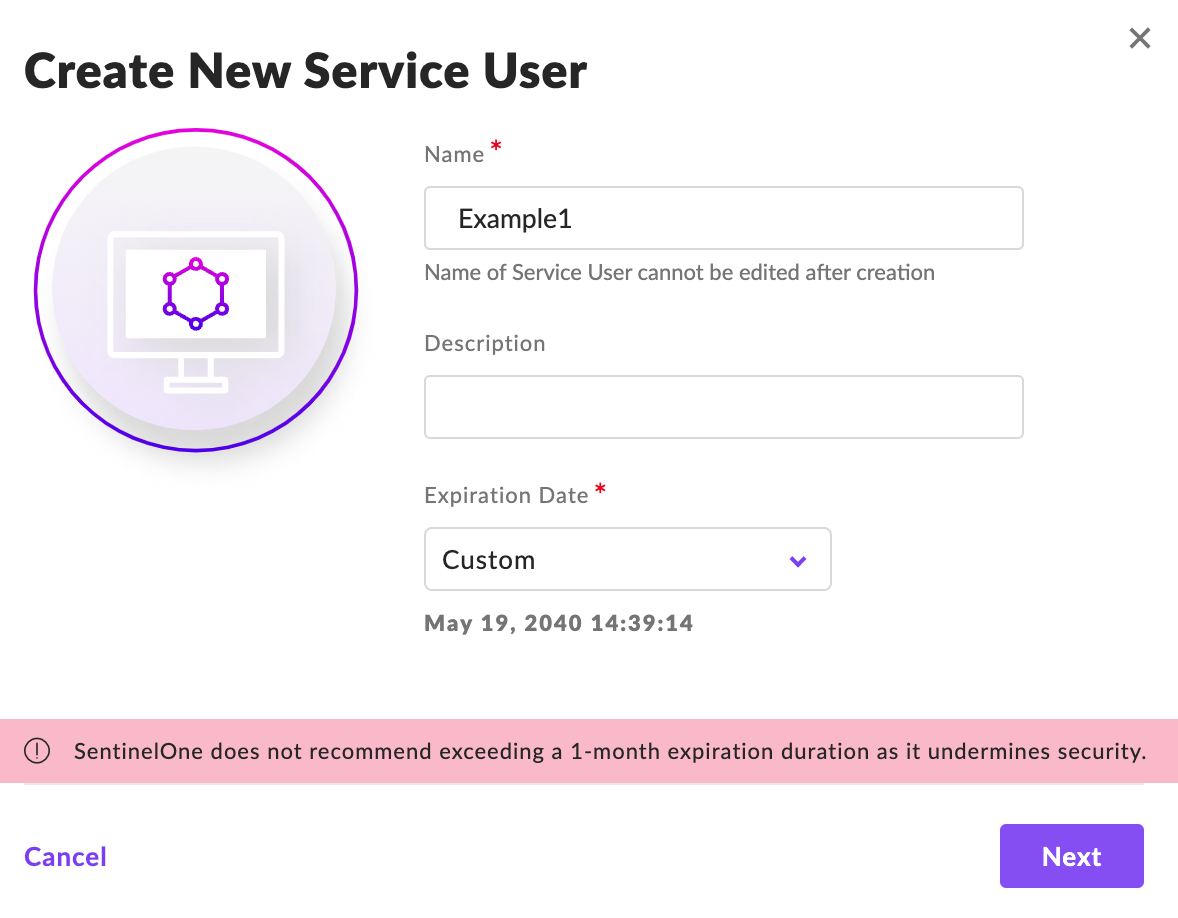 * It is recommended to use a service user instead of a normal user because service users can have a longer expiration than a normal user.
* It is up to the customer to manage the expiration of the user. Please set a reminder in the calendar of your choice to remind you to update the credentials for the integration before they expire.
* Give the new service user a name and a description (optional).
* Set the expiration date to something that complies with your internal policies and make note of the date so that you can update the credentials before they expire.
* You will next be on a screen where you will need to select the scope of access and permission level for the new service user.
* It is recommended to use a service user instead of a normal user because service users can have a longer expiration than a normal user.
* It is up to the customer to manage the expiration of the user. Please set a reminder in the calendar of your choice to remind you to update the credentials for the integration before they expire.
* Give the new service user a name and a description (optional).
* Set the expiration date to something that complies with your internal policies and make note of the date so that you can update the credentials before they expire.
* You will next be on a screen where you will need to select the scope of access and permission level for the new service user.
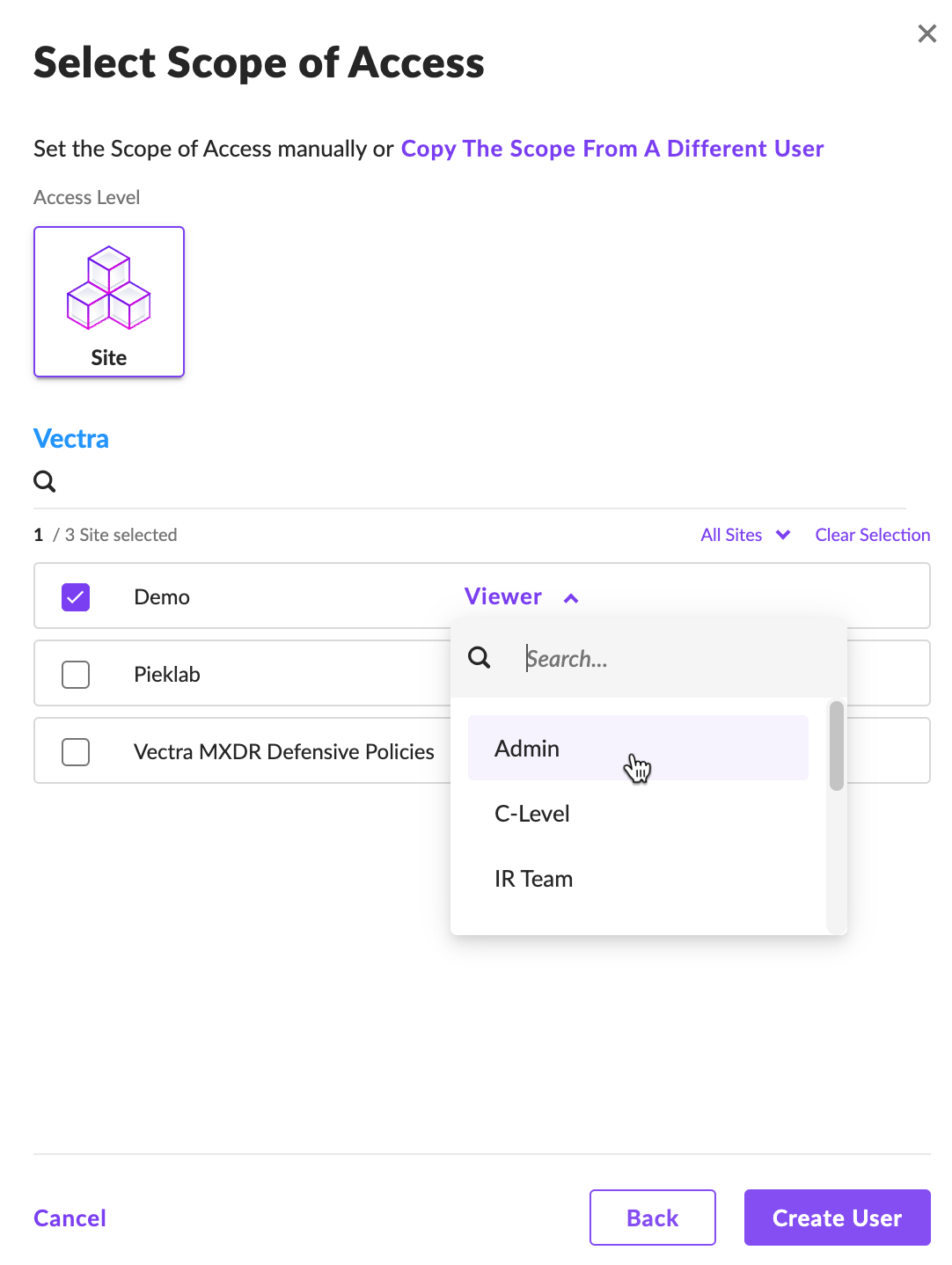 * Select the appropriate scope for your deployment and then click where it says **Viewer** and pick the **Admin** role for the service user.
* Note that the **Admin** role is required for the Host Lockdown feature, if that is not needed then a read only role will work.
* Click **Create User.**
* Select the appropriate scope for your deployment and then click where it says **Viewer** and pick the **Admin** role for the service user.
* Note that the **Admin** role is required for the Host Lockdown feature, if that is not needed then a read only role will work.
* Click **Create User.**
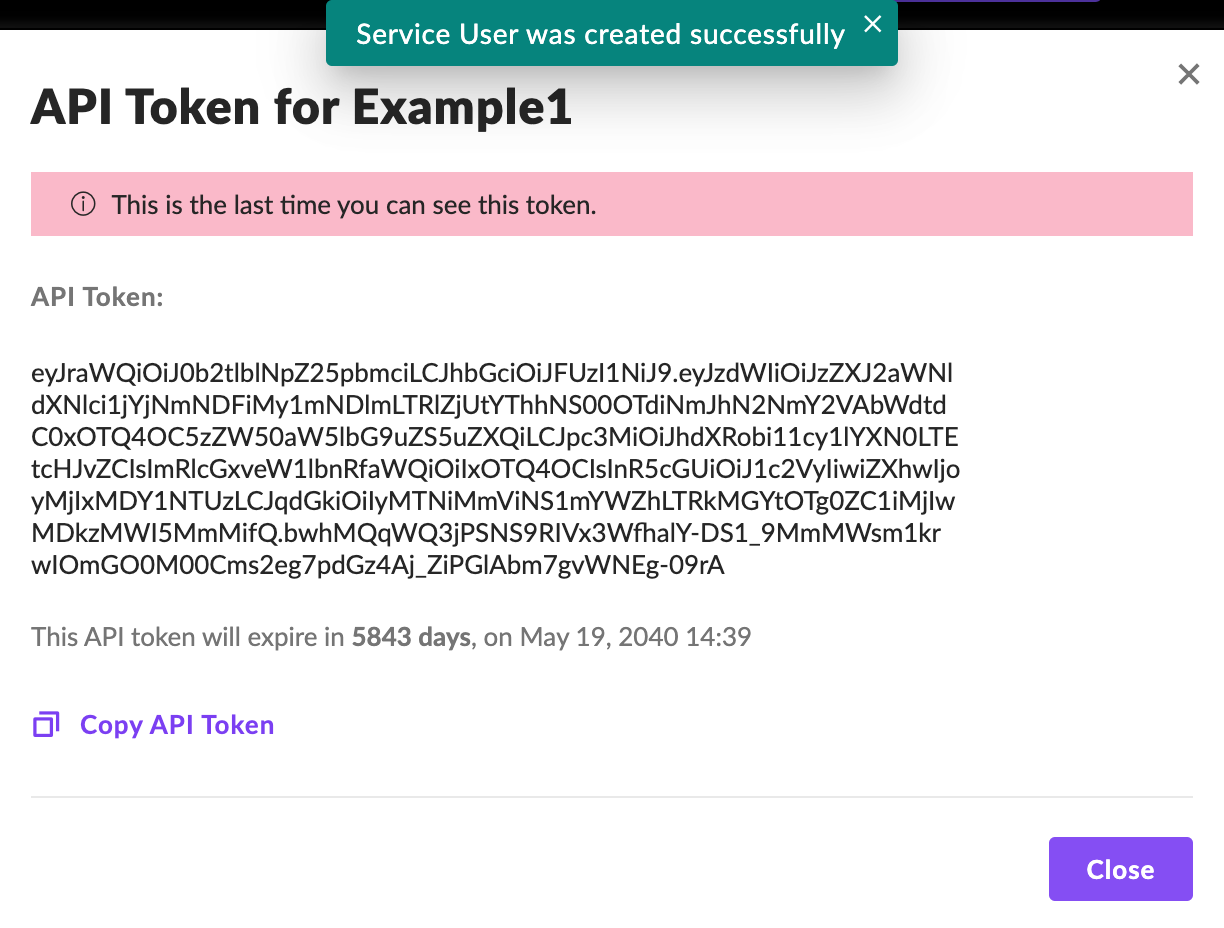 You can use the purple link to copy the API token. If you loose this token, you can regenerate a new one but this is the only time this token will ever be displayed.
* The only other information you will need is the IP or hostname for the login portal you are using for your SentinelOne login.
* In our case we were using their partner system, your **URL** for the Vectra side of the deployment will likely be different than in our 1st screenshot.
* Please note: Do NOT include the https\:// as you enter the IP or hostname, just put in the IP address or FQDN of your host.
* You now have all the information to set up the SentinelOne integration.
### **Can SentinelOne be used for Host Lockdown?**
Yes, for more details on Host Lockdown, please check this [article](/configuration/response/lockdown/host-lockdown-edr.md).
---
# Agent Instructions
This documentation is published with GitBook. GitBook is the documentation platform designed so that both humans and AI agents can read, navigate, and reason over technical content effectively. Learn more at gitbook.com.
## Querying This Documentation
If you need additional information that is not directly available in this page, you can query the documentation dynamically by asking a question.
Perform an HTTP GET request on the current page URL with the `ask` query parameter, and the optional `goal` query parameter:
```
GET https://docs.vectra.ai/configuration/setup/edr-integrations/sentinelone.md?ask=&goal=
```
`ask` is the immediate question: it should be specific, self-contained, and written in natural language.
`goal` is optional and describes the broader end goal you are ultimately trying to accomplish on behalf of the user. GitBook uses it to tailor the answer towards what is most useful for that goal.
The response will contain a direct answer to the question and relevant excerpts and sources from the documentation.
Use this mechanism when the answer is not explicitly present in the current page, you need clarification or additional context, or you want to retrieve related documentation sections.
You can use the purple link to copy the API token. If you loose this token, you can regenerate a new one but this is the only time this token will ever be displayed.
* The only other information you will need is the IP or hostname for the login portal you are using for your SentinelOne login.
* In our case we were using their partner system, your **URL** for the Vectra side of the deployment will likely be different than in our 1st screenshot.
* Please note: Do NOT include the https\:// as you enter the IP or hostname, just put in the IP address or FQDN of your host.
* You now have all the information to set up the SentinelOne integration.
### **Can SentinelOne be used for Host Lockdown?**
Yes, for more details on Host Lockdown, please check this [article](/configuration/response/lockdown/host-lockdown-edr.md).
---
# Agent Instructions
This documentation is published with GitBook. GitBook is the documentation platform designed so that both humans and AI agents can read, navigate, and reason over technical content effectively. Learn more at gitbook.com.
## Querying This Documentation
If you need additional information that is not directly available in this page, you can query the documentation dynamically by asking a question.
Perform an HTTP GET request on the current page URL with the `ask` query parameter, and the optional `goal` query parameter:
```
GET https://docs.vectra.ai/configuration/setup/edr-integrations/sentinelone.md?ask=&goal=
```
`ask` is the immediate question: it should be specific, self-contained, and written in natural language.
`goal` is optional and describes the broader end goal you are ultimately trying to accomplish on behalf of the user. GitBook uses it to tailor the answer towards what is most useful for that goal.
The response will contain a direct answer to the question and relevant excerpts and sources from the documentation.
Use this mechanism when the answer is not explicitly present in the current page, you need clarification or additional context, or you want to retrieve related documentation sections.