> For the complete documentation index, see [llms.txt](https://docs.vectra.ai/llms.txt). Markdown versions of documentation pages are available by appending `.md` to page URLs; this page is available as [Markdown](https://docs.vectra.ai/configuration/setup/edr-integrations/crowdstrike.md).
# Crowdstrike
Integrate CrowdStrike EDR with Vectra for EDR process stitching, Host Lockdown, host details, and Host ID enrichment.
## Why Integrate With Crowdstrike? (Benefits)
Integration with Crowdstrike Falcon is considered a best practice if your organization has endpoints running it. It provides a number of benefits such as:
**It helps by contributing artifacts to Host ID that enhance the accuracy and speed of Host identification.**
* Vectra's Host ID technology automatically identifies hosts in your environment which makes analyst workload easier by allowing them to track Detections to specific hosts rather than just the IP address a Host may be using at any given moment.
* The host details are pulled via API calls made from your Vectra Brain to the various Crowdstrike endpoints.
* For additional information regarding Host ID, please see [Understanding Vectra Detect Host Naming](/reference/understanding-vectra-host-naming.md).
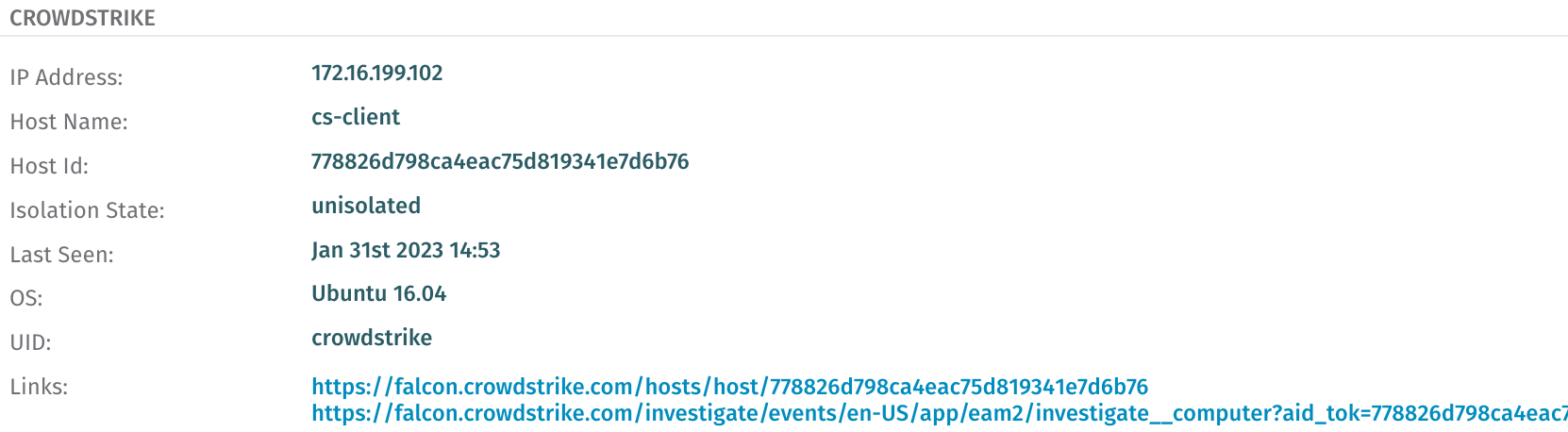
**Analysts can easily see details such as the below provided by Crowdstrike Falcon when examining Host details for a specific Host in the Vectra UI:**
**Analysts can easily jump into their Crowdstrike Falcon console via the links provided (see above example) to further dig into the specific Host.**
* The top link provides a link that drills into the specific **Host Management** view for the Host of interest in your Crowdstrike Falcon console.
* The bottom link provides a link that drills into the specific **Investigate Host** view for the Host of interest in your Crowdstrike Falcon console.
**It enables the "Host Lockdown" feature of Vectra for Hosts running Crowdstrike Falcon.**
* [Host Lockdown](/configuration/response/lockdown/host-lockdown-edr.md) is a feature of Detect that gives users the ability to temporarily disable network Hosts during a security investigation. Host Lockdown is enforced through the use of Crowdstrike Falcon's Host isolation capabilities.
* Host Lockdown can run in an automated or manual mode.
* In automated mode, action is taken once privilege, threat and certainty score thresholds have been passed.
* In manual mode, a security analyst can isolate a Host directly from a Detect Host page.
**NEW! It Enables EDR Process AI Stitching**
* **EDR Process Correlation** is Vectra AI's breakthrough capability that automatically identifies which process on an endpoint triggered suspicious network behavior detected by Vectra. This feature eliminates the manual correlation gap between Network Detection and Response (NDR) and Endpoint Detection and Response (EDR) systems, thus exposing root cause instantly.
* **Extended Crowdstrike API Permissions** are required to enable this capability. Read/Write permissions for NGSIEM are required to enable EDR Process Correlation. Additional details are available in the permissions section in this document. Previously configured API clients can be modified to extend the required permissions without needing to configure new client credentials within an existing Vectra Crowdstrike integration.
* **Temporary Limitation** prevents this feature from operating on multi-tenant Crowdstrike environments. If you see a dropdown or switcher to change between different tenants in the top-right corner of your Falcon console (near your username), then you are multi-tenant. This limitation will be lifted in Q1 2026.
## Requirements
### Selecting your Crowdstrike Falcon URL:
| | | |
| --------------------------------------------- | ------------------------ | ----------------------------------------------------------------------- |
| **If you log into CrowdStrike Falcon via...** | **You are using the...** | **Select this URL when setting up your CrowdStrike External Connector** |
| | US Commercial Cloud | api.crowdstrike.com |
| | US Commercial Cloud 2 | api.us-2.crowdstrike.com |
| | AWS GovCloud | api.laggar.gcw\.crowdstrike.com |
| | EU Cloud | api.eu-1.crowdstrike.com |
Later in the [Configuration](#how-do-i-configure-the-integration) section of this article, you will need to choose the proper URL in the Vectra UI.
### Network Communications Requirements (Firewall Rules)
* Traffic from the Brain FQDN or IPs should be permitted over HTTPS 443 to the selected target external connector.
* Vectra integrates with the CrowdStrike Query API.
* See below for additional information from Crowdstrike.
*
### Obtain Crowdstrike Falcon OAuth2 Credentials:
1. Navigate in your Falcon console to *Support and resources > Resources and tools > API clients and keys*:

2. From the API Clients and Keys screen, click on **Create API client**.

3. Give the client a name, description (optional), and grant it the following permissions:
* **Host Read** - Required for CrowdStrike device context that links to CrowdStrike and improves device identification.
* **Host Write** - Required for manual or automated response actions (Host Lockdown).
* **NGSIEM Read / NGSIEM Write** - Required for EDR process integration functionality.
* See the [Permissions](#what-permissions-are-required-in-crowdstrike) section for more details on the above requirements.
* Ensure that both Host and NGSIEM permissions are set as shown here before clicking **Create**.
{% hint style="warning" %}
**Multi-tenant CrowdStrike environments:** If your CrowdStrike Falcon environment uses parent and child tenants, grant the Vectra API client **Flight Control: Read** permission. Vectra uses this permission to query the applicable child tenant for EDR process-correlation data. Without it, the CrowdStrike connection and basic permission validation may succeed, but process context can fail to appear for detections.
{% endhint %}
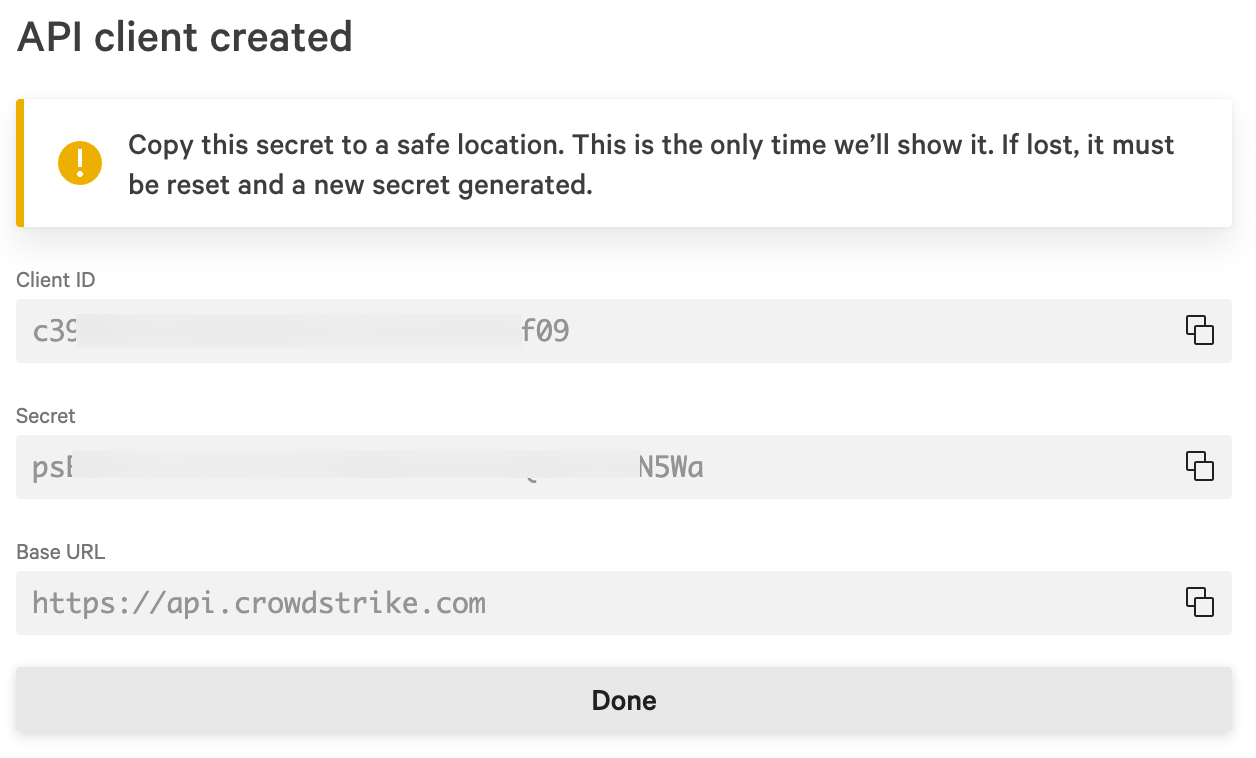
4. **Please record the Client ID and Secret.** You will later input these values into the Vectra External Connector setup dialog.
{% hint style="warning" %}
**Please Note:**
* This is the only time you will be able to view this secret in the Falcon UI.
* You must start over and create a new API client if you do not record the secret at this time.
{% endhint %}
### What permissions are required in CrowdStrike?
#### Editing API Client Permissions
* Existing API clients can be edited in your Falcon console to change the permissions if desired.
* You do not need to delete or recreate the API client if you still have the secret for input into the Vectra UI.
#### CrowdStrike API Client Permissions
* **Hosts Read** — Required for CrowdStrike device context that links to CrowdStrike and improves device identification.
* **Host Write** — Required for manual or automated response actions.
* **NGSIEM Read / NGSIEM Write** — Required for EDR process integration functionality.
#### NGSIEM Permissions
This is to support the automatic stitching of EDR process data to Vectra detections, exposing root cause processes.
* **Write permissions** are required to POST queries to CrowdStrike NGSIEM. No data is written to NGSIEM.
* **Read permissions** are required to GET the results from NGSIEM.
Benefits of this expanded integration include:
* Stronger NDR through enhanced EDR integration.
* Answers to what process caused an NDR detection.
* Automated investigation and correlation of relevant context.
## How Do I Configure The Integration?
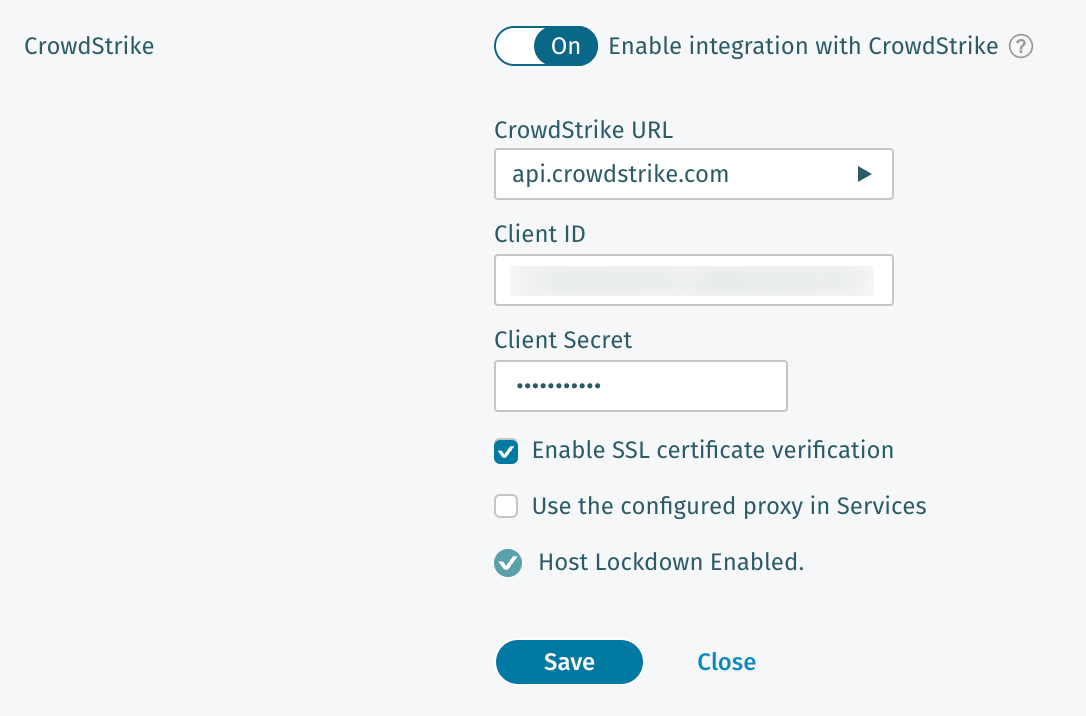
* To enable the integration, simply navigate to *Configuration → SETUP → EDR Integrations* and edit the CrowdStrike settings area:
* Toggle the integration to **On**.
* Select the proper CrowdStrike ULR per the earlier guidance provided in [#selecting-your-crowdstrike-falcon-url](#selecting-your-crowdstrike-falcon-url "mention").
* Paste the Client ID and Client Secret that you gathered earlier per the guidance provided in [#obtain-crowdstrike-falcon-oauth2-credentials](#obtain-crowdstrike-falcon-oauth2-credentials "mention").
* Choose whether you wish to require verification of the SSL certificate (recommended).
* Proxy support
* If you have a proxy configured in Configuration → COVERAGE → *Data Sources → Network → Brain Setup → Proxy & Status*, then the **Use the configured proxy in Services** option will be displayed.
* If you would like API communication from the Vectra Brain to your Crowdstrike URL to use the same proxy settings that Vectra uses for communication to the Vectra Cloud, then check this box.
* If you do not check this box, the Brain will attempt to communicate to Crowdstrike directly and will NOT use the configured proxy.
* **Save** your configuration.
## How Do I Enable / Configure Lockdown?
### Enabling the Host Lockdown feature
* Host Lockdown can be enabled via *Configuration → RESPONSE → Lockdown → Host Lockdown* for automatic lockdown based on a set of criteria.
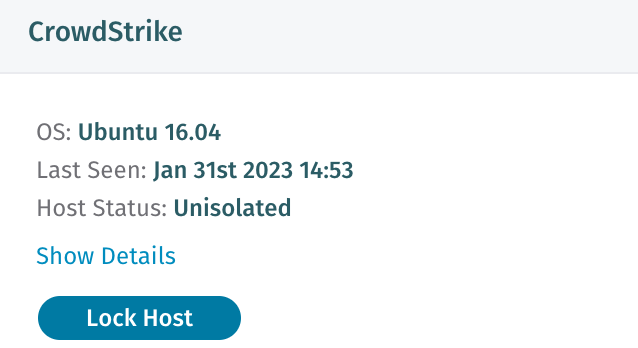
* Once configured, lockdown can also be done manually on a Host by navigating to the Host page and selecting the **Lock Host** button in the CrowdStrike widget if you choose to not enable automatic lockdown.
* If the **Host Write** permission is not enabled for the Crowdstrike API client, then Host Lockdown will not work.
* For more details about Host Lockdown, please see [Host Lockdown (EDR)](/configuration/response/lockdown/host-lockdown-edr.md).
## Appendix - Additional Related Information
* Some additional KBs that mention Crowdstrike and provide additional detail:
* [Understanding Vectra Detect Host Naming](/reference/understanding-vectra-host-naming.md)
* [Optimizing Vectra for use with VPN clients](/configuration/coverage/remote-users/optimizing-vectra-for-use-with-vpn-clients.md)
* [Vectra Platform Deployment Traffic Recommendations](/deployment/traffic-engineering-and-validation/network-traffic-recommendations.md)
* Landing page for Crowdstrike on Vectra's public website:
*
* [Solution Brief](https://content.vectra.ai/hubfs/downloadable-assets/ProductIntegration_Crowdstrike.pdf?_ga=2.141110645.654476414.1675099116-1306132048.1675099116&_gl=1*7zmkd4*_ga*MTMwNjEzMjA0OC4xNjc1MDk5MTE2*_ga_0F9PRG4D5J*MTY3NTEwNjYwOC4yLjEuMTY3NTEwNjc5MC4wLjAuMA)
* EDR Extended ID and Reporting
* This feature came out in Vectra Detect 6.4
* Vectra Detect can now identify hosts running security agents based on network traffic behaviors associated with popular endpoint detection and response (EDR) security agents.
* The Host details page will now display EDR agent information, whenever available, even if the EDR has not been configured as an External Connector.
* The **What’s on my network?** section of the Executive report has also been expanded to display hosts observed running EDR agents.
* This ID and Reporting is driven by analyzing network traffic for signs of communication with the various EDR systems that Vectra integrates with.
* If you see Crowdstrike in Host Details, it could be a result of this feature and NOT the CrowdStrike API level integration that is the main subject of this article.
* You should make sure the full integration is configured to enjoy all the [Benefits](#why-integrate-with-crowdstrike-benefits).
* A video demo of this feature is available here:
{% embed url="" %}
---
# Agent Instructions
This documentation is published with GitBook. GitBook is the documentation platform designed so that both humans and AI agents can read, navigate, and reason over technical content effectively. Learn more at gitbook.com.
## Querying This Documentation
If you need additional information that is not directly available in this page, you can query the documentation dynamically by asking a question.
Perform an HTTP GET request on the current page URL with the `ask` query parameter, and the optional `goal` query parameter:
```
GET https://docs.vectra.ai/configuration/setup/edr-integrations/crowdstrike.md?ask=&goal=
```
`ask` is the immediate question: it should be specific, self-contained, and written in natural language.
`goal` is optional and describes the broader end goal you are ultimately trying to accomplish on behalf of the user. GitBook uses it to tailor the answer towards what is most useful for that goal.
The response will contain a direct answer to the question and relevant excerpts and sources from the documentation.
Use this mechanism when the answer is not explicitly present in the current page, you need clarification or additional context, or you want to retrieve related documentation sections.

 {% hint style="warning" %}
**Multi-tenant CrowdStrike environments:** If your CrowdStrike Falcon environment uses parent and child tenants, grant the Vectra API client **Flight Control: Read** permission. Vectra uses this permission to query the applicable child tenant for EDR process-correlation data. Without it, the CrowdStrike connection and basic permission validation may succeed, but process context can fail to appear for detections.
{% endhint %}
4. **Please record the Client ID and Secret.** You will later input these values into the Vectra External Connector setup dialog.
{% hint style="warning" %}
**Multi-tenant CrowdStrike environments:** If your CrowdStrike Falcon environment uses parent and child tenants, grant the Vectra API client **Flight Control: Read** permission. Vectra uses this permission to query the applicable child tenant for EDR process-correlation data. Without it, the CrowdStrike connection and basic permission validation may succeed, but process context can fail to appear for detections.
{% endhint %}
4. **Please record the Client ID and Secret.** You will later input these values into the Vectra External Connector setup dialog.
 {% hint style="warning" %}
**Please Note:**
* This is the only time you will be able to view this secret in the Falcon UI.
* You must start over and create a new API client if you do not record the secret at this time.
{% endhint %}
### What permissions are required in CrowdStrike?
#### Editing API Client Permissions
* Existing API clients can be edited in your Falcon console to change the permissions if desired.
* You do not need to delete or recreate the API client if you still have the secret for input into the Vectra UI.
#### CrowdStrike API Client Permissions
* **Hosts Read** — Required for CrowdStrike device context that links to CrowdStrike and improves device identification.
* **Host Write** — Required for manual or automated response actions.
* **NGSIEM Read / NGSIEM Write** — Required for EDR process integration functionality.
#### NGSIEM Permissions
This is to support the automatic stitching of EDR process data to Vectra detections, exposing root cause processes.
* **Write permissions** are required to POST queries to CrowdStrike NGSIEM. No data is written to NGSIEM.
* **Read permissions** are required to GET the results from NGSIEM.
Benefits of this expanded integration include:
* Stronger NDR through enhanced EDR integration.
* Answers to what process caused an NDR detection.
* Automated investigation and correlation of relevant context.
## How Do I Configure The Integration?
* To enable the integration, simply navigate to *Configuration → SETUP → EDR Integrations* and edit the CrowdStrike settings area:
{% hint style="warning" %}
**Please Note:**
* This is the only time you will be able to view this secret in the Falcon UI.
* You must start over and create a new API client if you do not record the secret at this time.
{% endhint %}
### What permissions are required in CrowdStrike?
#### Editing API Client Permissions
* Existing API clients can be edited in your Falcon console to change the permissions if desired.
* You do not need to delete or recreate the API client if you still have the secret for input into the Vectra UI.
#### CrowdStrike API Client Permissions
* **Hosts Read** — Required for CrowdStrike device context that links to CrowdStrike and improves device identification.
* **Host Write** — Required for manual or automated response actions.
* **NGSIEM Read / NGSIEM Write** — Required for EDR process integration functionality.
#### NGSIEM Permissions
This is to support the automatic stitching of EDR process data to Vectra detections, exposing root cause processes.
* **Write permissions** are required to POST queries to CrowdStrike NGSIEM. No data is written to NGSIEM.
* **Read permissions** are required to GET the results from NGSIEM.
Benefits of this expanded integration include:
* Stronger NDR through enhanced EDR integration.
* Answers to what process caused an NDR detection.
* Automated investigation and correlation of relevant context.
## How Do I Configure The Integration?
* To enable the integration, simply navigate to *Configuration → SETUP → EDR Integrations* and edit the CrowdStrike settings area:
 * Toggle the integration to **On**.
* Select the proper CrowdStrike ULR per the earlier guidance provided in [#selecting-your-crowdstrike-falcon-url](#selecting-your-crowdstrike-falcon-url "mention").
* Paste the Client ID and Client Secret that you gathered earlier per the guidance provided in [#obtain-crowdstrike-falcon-oauth2-credentials](#obtain-crowdstrike-falcon-oauth2-credentials "mention").
* Choose whether you wish to require verification of the SSL certificate (recommended).
* Proxy support
* If you have a proxy configured in Configuration → COVERAGE → *Data Sources → Network → Brain Setup → Proxy & Status*, then the **Use the configured proxy in Services** option will be displayed.
* If you would like API communication from the Vectra Brain to your Crowdstrike URL to use the same proxy settings that Vectra uses for communication to the Vectra Cloud, then check this box.
* If you do not check this box, the Brain will attempt to communicate to Crowdstrike directly and will NOT use the configured proxy.
* **Save** your configuration.
## How Do I Enable / Configure Lockdown?
### Enabling the Host Lockdown feature
* Host Lockdown can be enabled via *Configuration → RESPONSE → Lockdown → Host Lockdown* for automatic lockdown based on a set of criteria.
* Once configured, lockdown can also be done manually on a Host by navigating to the Host page and selecting the **Lock Host** button in the CrowdStrike widget if you choose to not enable automatic lockdown.
* Toggle the integration to **On**.
* Select the proper CrowdStrike ULR per the earlier guidance provided in [#selecting-your-crowdstrike-falcon-url](#selecting-your-crowdstrike-falcon-url "mention").
* Paste the Client ID and Client Secret that you gathered earlier per the guidance provided in [#obtain-crowdstrike-falcon-oauth2-credentials](#obtain-crowdstrike-falcon-oauth2-credentials "mention").
* Choose whether you wish to require verification of the SSL certificate (recommended).
* Proxy support
* If you have a proxy configured in Configuration → COVERAGE → *Data Sources → Network → Brain Setup → Proxy & Status*, then the **Use the configured proxy in Services** option will be displayed.
* If you would like API communication from the Vectra Brain to your Crowdstrike URL to use the same proxy settings that Vectra uses for communication to the Vectra Cloud, then check this box.
* If you do not check this box, the Brain will attempt to communicate to Crowdstrike directly and will NOT use the configured proxy.
* **Save** your configuration.
## How Do I Enable / Configure Lockdown?
### Enabling the Host Lockdown feature
* Host Lockdown can be enabled via *Configuration → RESPONSE → Lockdown → Host Lockdown* for automatic lockdown based on a set of criteria.
* Once configured, lockdown can also be done manually on a Host by navigating to the Host page and selecting the **Lock Host** button in the CrowdStrike widget if you choose to not enable automatic lockdown.
 * If the **Host Write** permission is not enabled for the Crowdstrike API client, then Host Lockdown will not work.
* For more details about Host Lockdown, please see [Host Lockdown (EDR)](/configuration/response/lockdown/host-lockdown-edr.md).
## Appendix - Additional Related Information
* Some additional KBs that mention Crowdstrike and provide additional detail:
* [Understanding Vectra Detect Host Naming](/reference/understanding-vectra-host-naming.md)
* [Optimizing Vectra for use with VPN clients](/configuration/coverage/remote-users/optimizing-vectra-for-use-with-vpn-clients.md)
* [Vectra Platform Deployment Traffic Recommendations](/deployment/traffic-engineering-and-validation/network-traffic-recommendations.md)
* Landing page for Crowdstrike on Vectra's public website:
*
* If the **Host Write** permission is not enabled for the Crowdstrike API client, then Host Lockdown will not work.
* For more details about Host Lockdown, please see [Host Lockdown (EDR)](/configuration/response/lockdown/host-lockdown-edr.md).
## Appendix - Additional Related Information
* Some additional KBs that mention Crowdstrike and provide additional detail:
* [Understanding Vectra Detect Host Naming](/reference/understanding-vectra-host-naming.md)
* [Optimizing Vectra for use with VPN clients](/configuration/coverage/remote-users/optimizing-vectra-for-use-with-vpn-clients.md)
* [Vectra Platform Deployment Traffic Recommendations](/deployment/traffic-engineering-and-validation/network-traffic-recommendations.md)
* Landing page for Crowdstrike on Vectra's public website:
*