IDR for Azure AD & CDR for M365
Deployment quick start guide for both IDR for Azure AD & CDR for M365 covering both RUX and QUX deployments.
Introduction
It takes less than 10 minutes to set up data sources for Vectra’s CDR for M365 and IDR for Azure AD products. Once up and running, you will be able to see and stop attackers from abusing identities in Azure AD and M365. This document walks you through the steps for either a Respond UX (RUX) or Quadrant UX (QUX) deployment.
Please Note:
Vectra’s CDR for M365 and IDR for Azure AD are licensed Vectra products. Please ensure you have the appropriate licenses before enabling the M365 and Azure AD data source or are engaged in a trial with your Vectra AI account team. If you are not licensed or in a trial, please contact your Vectra AI account team to initiate a trial.
CDR for M365 was formerly known as Detect for M365.
IDR for Azure AD was formerly known as Detect for Azure AD.
The process is easy:
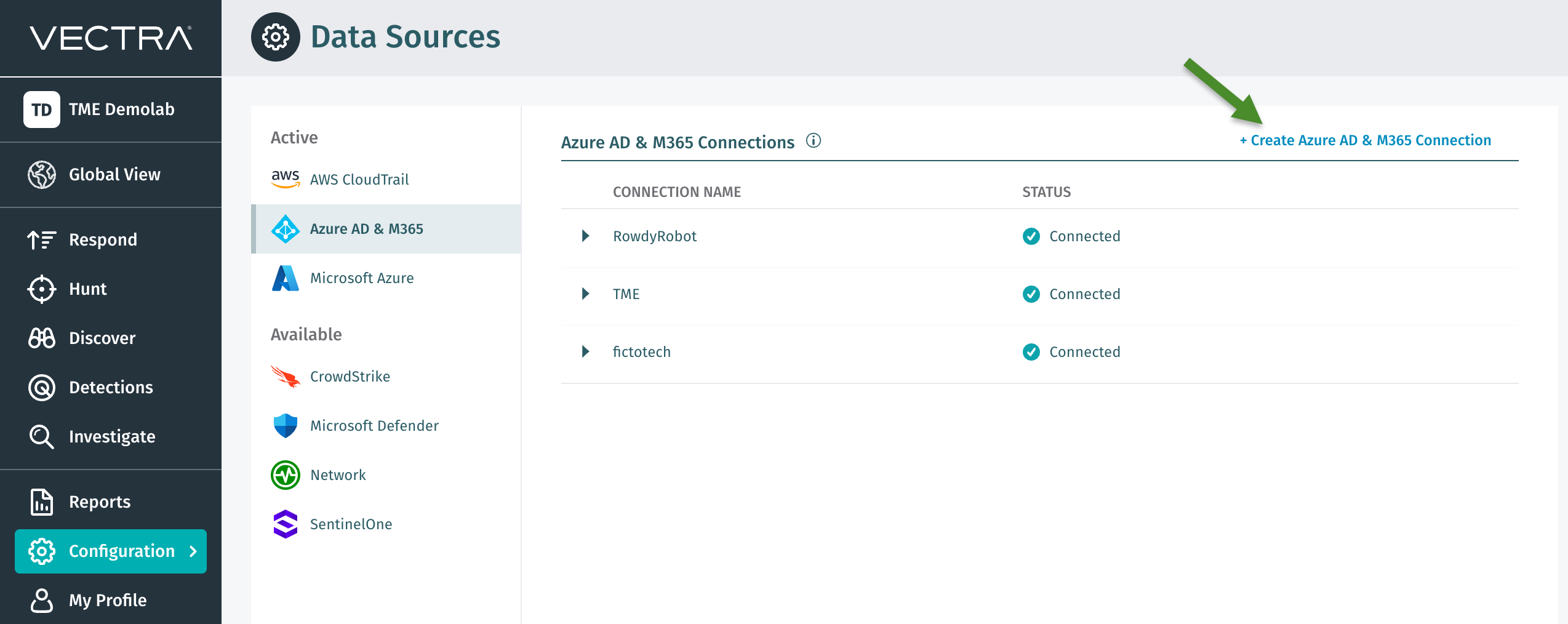
Create a data source connector in your Vectra UI.
Grant Vectra read-only access to your Azure AD and M365 data logs
Global Administrator permissions are required.
Please note: The user needs to be a true Global Administrator and not receive the permissions via group membership.
QUX Customers:
You must complete the Network Setup before the Onboarding.
RUX UX Customers:
You can proceed directly to the Onboarding.
Please see Vectra Analyst User Experiences (Respond vs Quadrant) if you are usure of your deployment type.
Please Note:
If you are using a proxy to connect to the internet and the proxy you are using does not support CORS, then the connection setup link may not work.
If you are currently using QUX and planning to migrate to RUX, be aware that the M365 sensor will only be automatically migrated when the RUX tenant was provisioned in the same region that your existing data source connector is deployed in. Otherwise, you will must to deploy a new connector in the region where the RUX tenant was deployed and a new seven day learning period will be required.
Additional Information related to the following topics are presented at the end of this document.
Network Setup (QUX only)
This is only required for customers using the Quadrant UX. For customers using the Respond UX, there is no need to complete network setup.
Your Vectra Brain must be able to securely access Vectra’s managed resources over TCP/443 HTTPS connections to report detection events to your Vectra UI. Please configure your firewall and access rules accordingly.
Please Note!
During initial configuration, ALL endpoints in the below chart must be allowed, after the data source connector is deployed, the endpoints not associated to the region of your deployment can be blocked.
This is because the data source connector dialog must populate the dropdown with the available choices and needs connection to them to display them. Only the selected region is actually used in your deployment.
FQDN Specific FW Rules
IP Specific FW Rules
Required For
https://authgateway.uw2.public.app.prod.vectra-svc.ai/
54.245.33.175
52.42.70.176
100.21.109.72
52.26.91.157
Data Sources deployed in US
https://authgateway.ew1.public.app.prod.vectra-svc.ai/
54.171.40.108
54.246.213.148
54.75.47.147
Data Sources deployed in EU
https://authgateway.ec2.public.app.prod.vectra-svc.ai
16.62.18.237
16.62.142.98
51.96.54.201
Data Sources deployed in Switzerland
https://authgateway.cc1.public.app.prod.vectra-svc.ai/
3.96.112.208
52.60.211.221
15.222.69.161
Data Sources deployed in Canada
https://authgateway.as2.public.app.prod.vectra-svc.ai/
13.54.11.66
13.55.79.24
13.55.106.102
Data Sources deployed in Australia
Onboarding
Connection Setup
Move through the following steps to create a Data Source Connector in your Vectra UI.
Create Data Source Connector
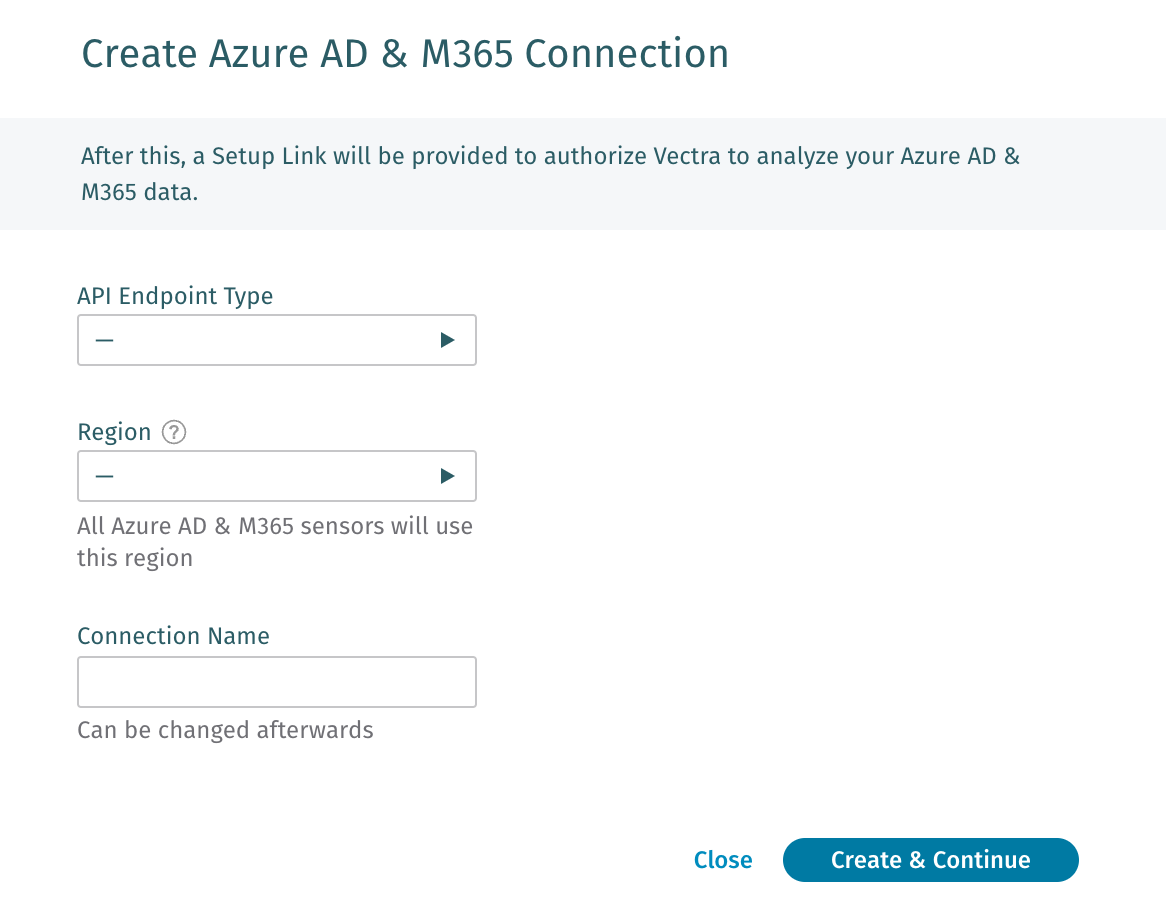
For both RUX and QUX deployments, choose your API Endpoint Type.
Standard, GCC, or GCC High
Only QUX deployments will be presented with a Region selection box.
Please provide the region where data should reside.
Note that all Vectra data source connectors must reside in the same geographic region.
Respond UX customers do not need to select a region because one was already selected during initial setup of their RUX tenant.
Provided a name for your connector and then Create & Continue.

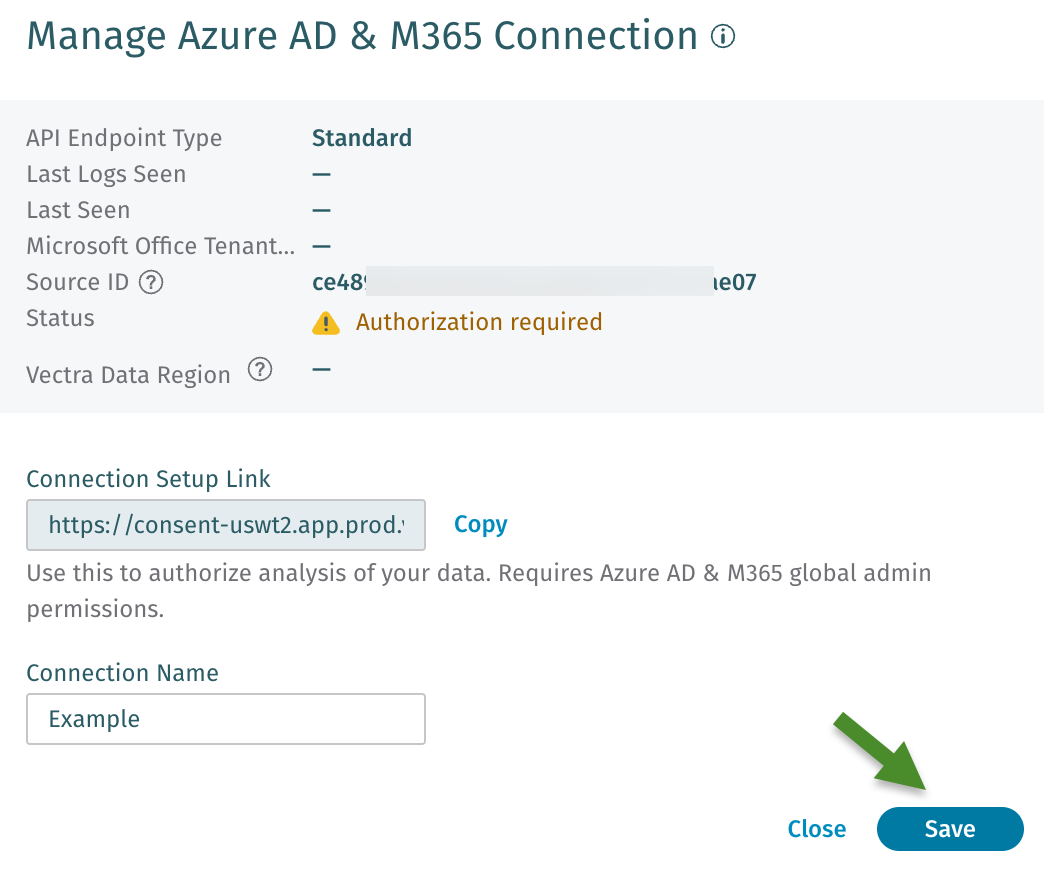
Copy the "Connection Setup Link"
Click the Copy link to copy the connection setup link so that you can provide it to a Global Administrator to authorize read-only access to your data.
You can click Save, to save your connection and move on to authorize read-only data access.
Please note: If you are using a proxy to connect to the internet and the proxy you are using does not support CORS, then the connection setup link may not work.

Authorize Read-Only Data Access
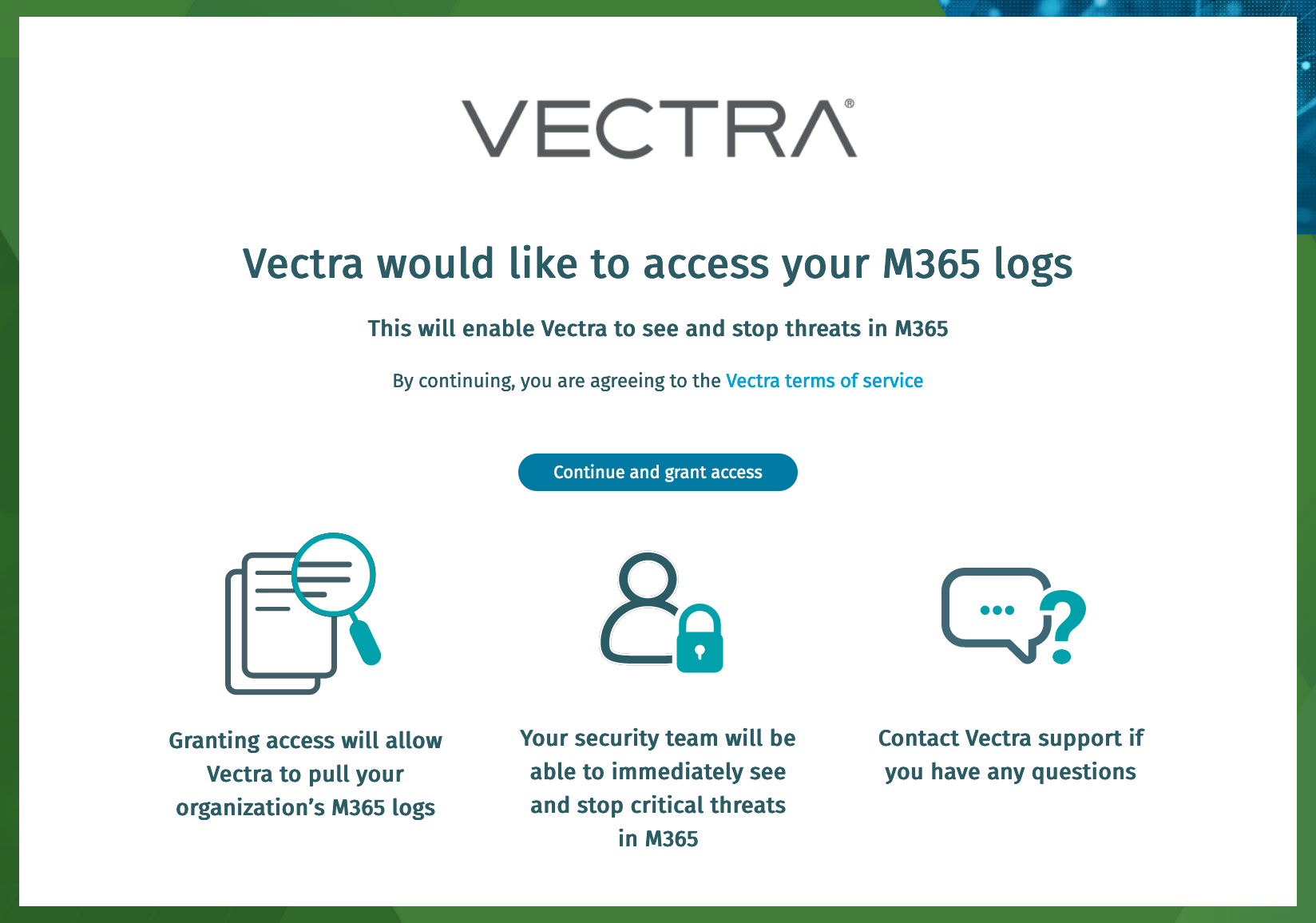
After completing the connection setup, have your Azure AD Global Admininistrator follow the Connection Setup Link you copied earlier and authorize Vectra to collect logs.
Review the read-only access required by the Vectra AI - IDR for Azure AD and CDR for M365 Enterprise Application (Service Principal) to validate your permissions.
ActivityFeed.Read(Office Management API)ActivityFeed.ReadDLP(Office Management API)Directory.Read.ALL(Graph API for Azure AD logs)AuditLog.Read.All(Graph API for Azure AD logs)User.ReadAdded by default by Microsoft – this is not part of the ongoing app permissions, it is used only during this initial consent flow.
Click Accept and you are done with the configuration.

Validate Data Collection
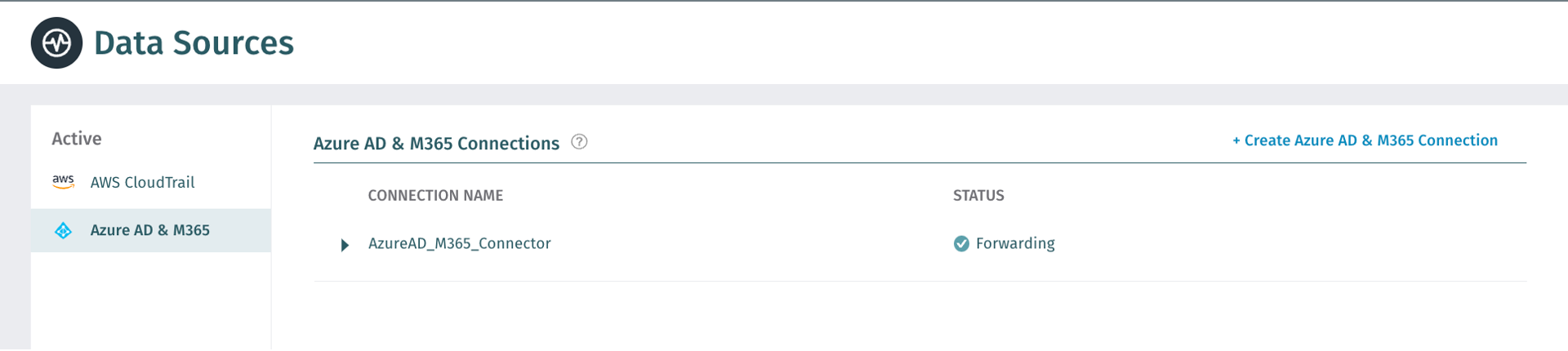
Once access is authorized the Status for your new data source connector should report Forwarding. This status may take 10 to 15 minutes to appear while the initial data is collected.

Additional Information
Summary of Data and Access Requirements
The Management API is used to collect Audit.AzureActiveDirectory, Audit.Exchange Audit.SharePoint, Audit.General, and DLP.All logs.
Auditing via the Management Activity API is required for Vectra to provide coverage:
Additional details about the data collected can be found here:
The Microsoft Graph API is used to collect directoryAudits and signIns logs.
Additional details about the data collected can be found here:
Opting Out of CDR for M365 and IDR for Azure AD
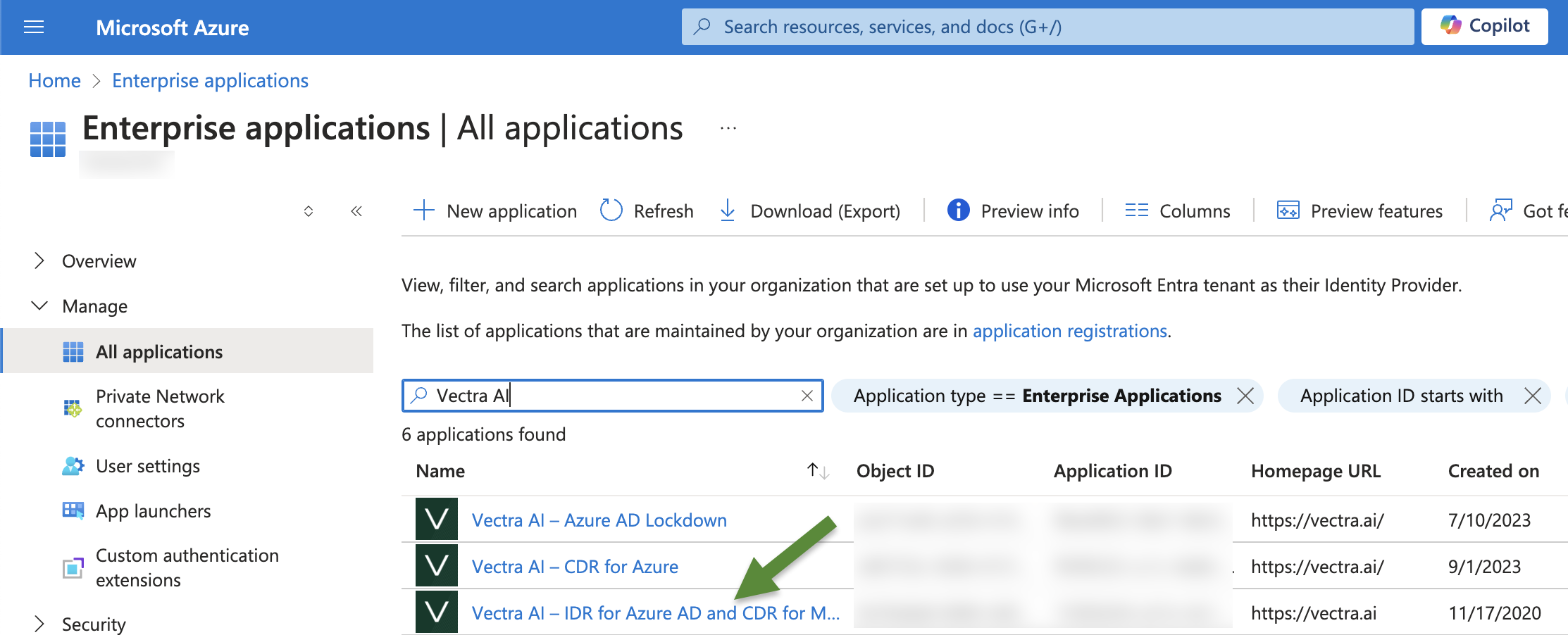
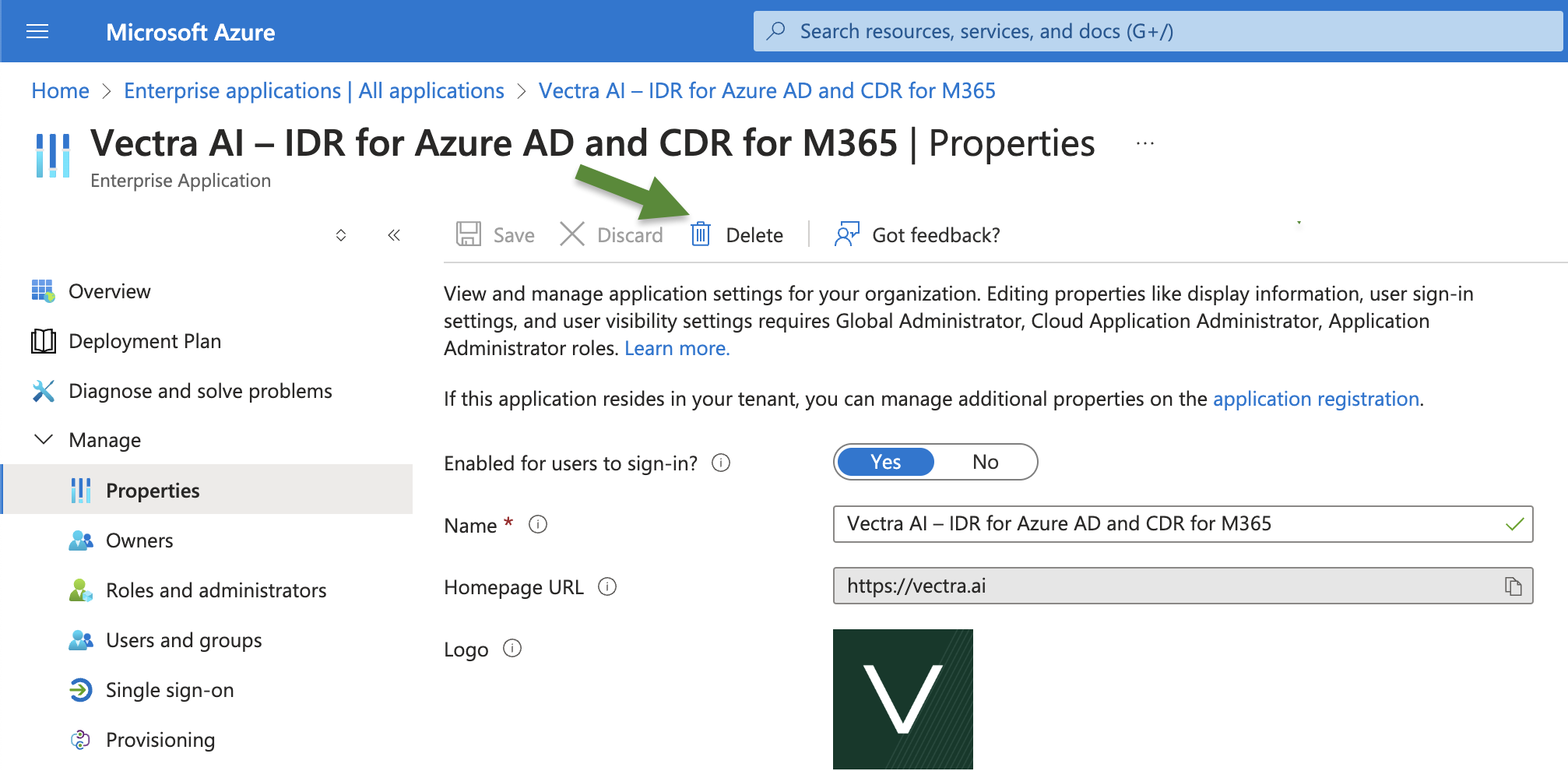
If you wish to stop using CDR for M65 and IDR for Azure AD, any Application Admin / Global Admin can delete the application from the Enterprise Applications page in the Microsoft Entra ID part of the Azure portal.
Find the Vectra Enterprise Application
As an Application Administrator or Global Administrator login to portal.azure.com
Navigate to Microsoft Entra ID and click on Enterprise applications from the left navigation bar.
Search for Vectra AI.

Modifying Vectra’s OAuth Application Settings
The OAuth application used to collect data has been configured in alignment with Microsoft’s best practices. Changes to the application’s settings can disrupt Vectra’s access to the necessary logs and prevent detections. Customers may change the Visible to users toggle to off if desired.
Detection Learning Times
Vectra uses multiple modeling techniques to detect attacker behaviors in your Azure AD and M365 environment. Some Vectra detections are designed to alert on threats immediately and can find active attacker behaviors in the first few hours of a deployment. Other detections may require an initial baseline period to become operational. All detections complete their initial baseline period after at most seven days. Detections that leverage baselines continue to learn after the initial period and improve their performance over time.
Last updated
Was this helpful?