 ### IdP Configuration
The specific steps for configuration with your IdP differ from provider to provider.
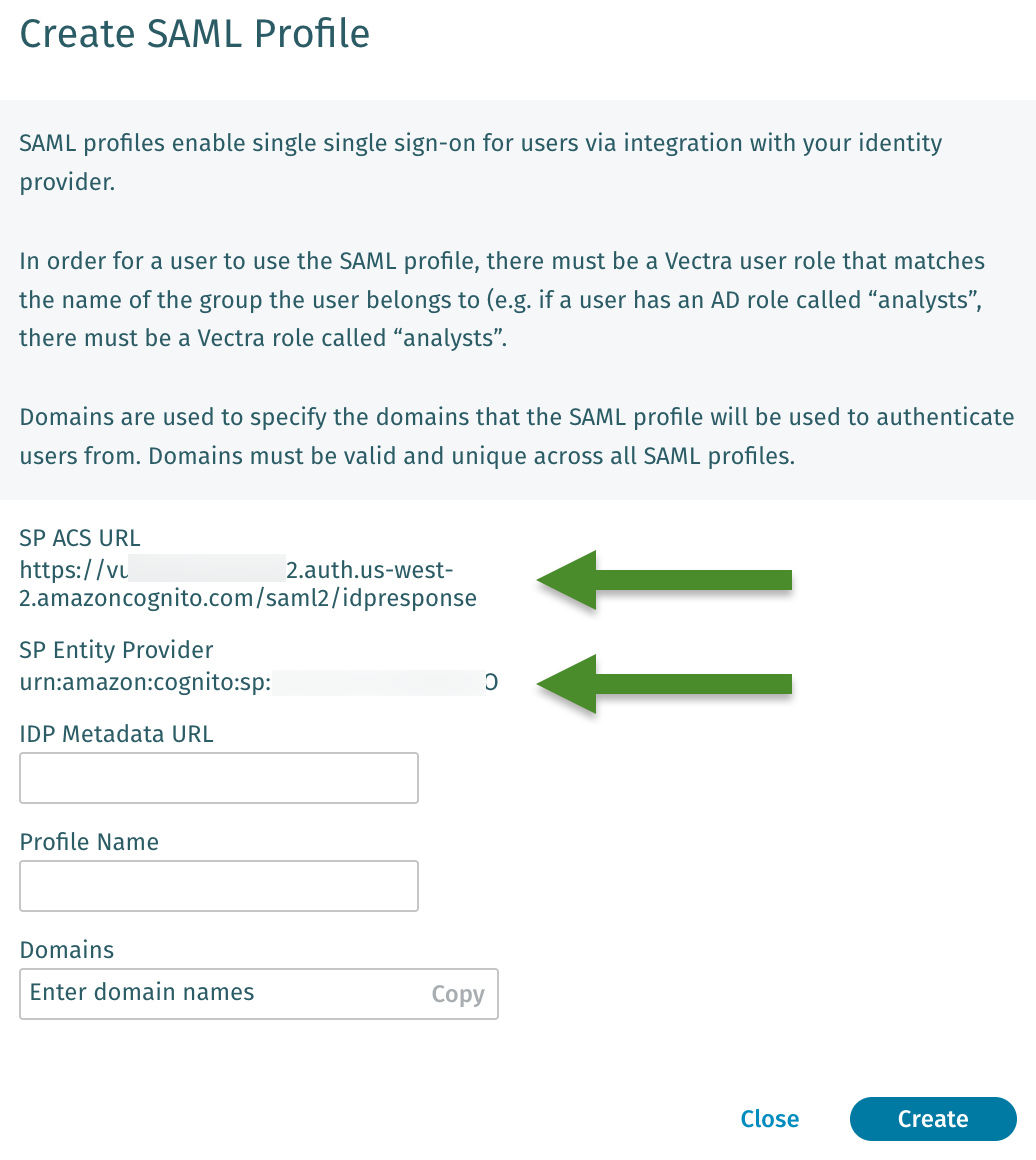
* Use the SP ACS URL and SP Entity Provider from the previous step to identify Vectra as a Service Provider in your IdP.
{% hint style="info" %}
**Please Note:**
* The below claims should be named exactly as seen in between the quotes (not including the quotes).
* Your IdP may have other required claims such as a UUID, etc. These are fine to include back to Vectra but the below are what Vectra requires.
{% endhint %}
#### Required Claims to Configure in Your IdP
{% hint style="info" %}
**IMPORTANT**
It is important to correctly configure the claims returned from the IdP since during a mismatch, depending on the particular browser's behavior, it may or may not be clear what the cause of a failed login is. The below claims have to match precisely.
{% endhint %}
* `emailaddress`
* This will need to be email address of the user that you will allow into Vectra SaaS.
* `name`
* The display name of the user you wish to map.
* `role`
* This will be the standardized name of the Vectra SaaS role for the user.
* The *Configuration → ACCESS → Roles* interface will present two fields
* **Role Name** - This is the name of the role in Vectra.
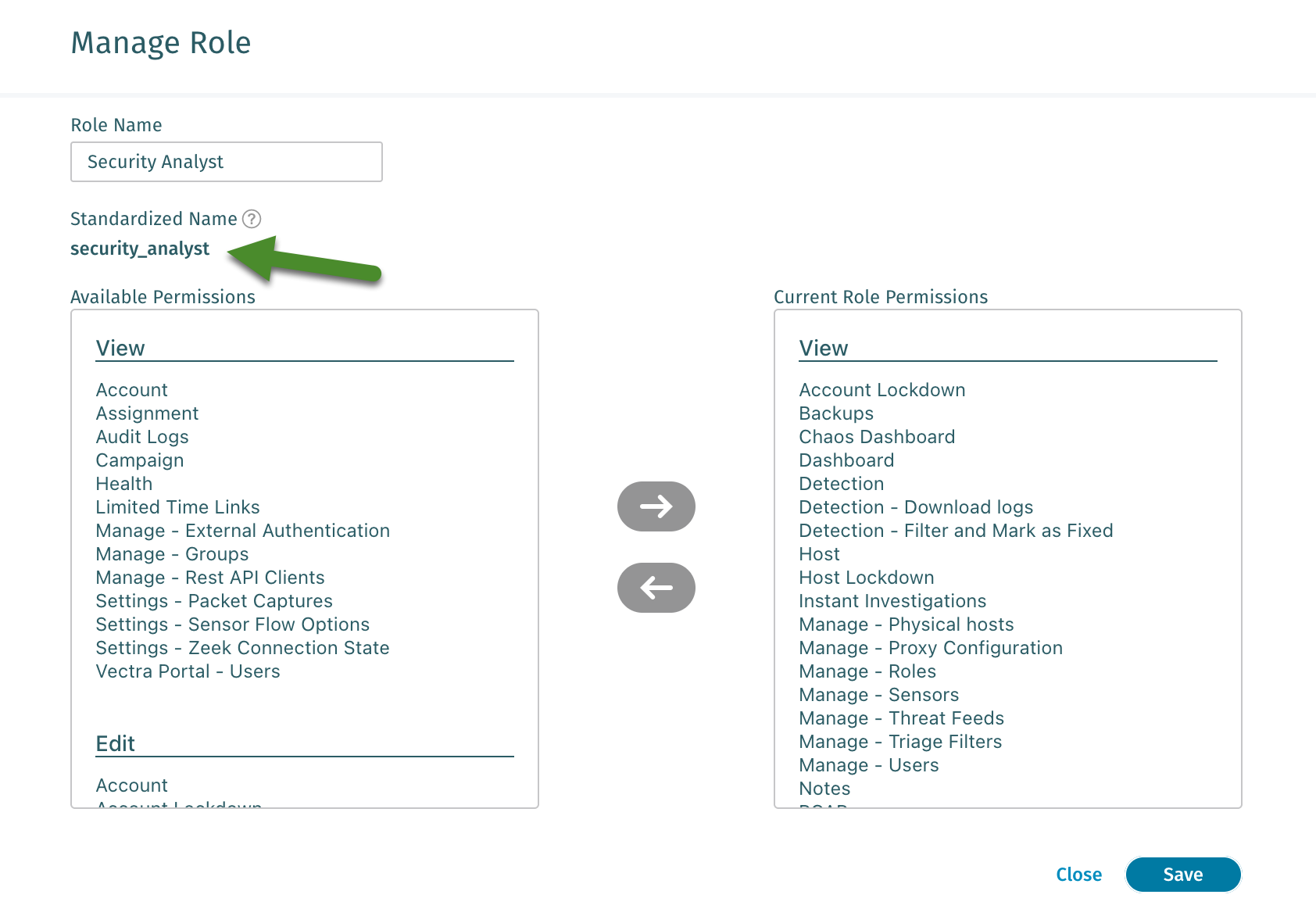
* **Standardized Name** - This is the standardized name of the role and is required to be in the `role` claim coming from your IdP.

{% hint style="warning" %}
**Please Note:**
* Claims with the role name only will cause a failed login, the standardized name must be used instead!
* Only a single value is accepted for this value. If multiple roles are sent, the first one Vectra sees will be assumed to be the correct role to map the user to.
{% endhint %}
#### Metadata Retrieval
* Vectra will require the IdP metadata URL to allow download of the federation metadata that includes the signing certificate.
* The name of this URL will vary by IdP. For example, Azure AD refers to this as the **App Federation Metadata URL**
**How to find the IdP metadata URL for various IdPs:**
### IdP Configuration
The specific steps for configuration with your IdP differ from provider to provider.
* Use the SP ACS URL and SP Entity Provider from the previous step to identify Vectra as a Service Provider in your IdP.
{% hint style="info" %}
**Please Note:**
* The below claims should be named exactly as seen in between the quotes (not including the quotes).
* Your IdP may have other required claims such as a UUID, etc. These are fine to include back to Vectra but the below are what Vectra requires.
{% endhint %}
#### Required Claims to Configure in Your IdP
{% hint style="info" %}
**IMPORTANT**
It is important to correctly configure the claims returned from the IdP since during a mismatch, depending on the particular browser's behavior, it may or may not be clear what the cause of a failed login is. The below claims have to match precisely.
{% endhint %}
* `emailaddress`
* This will need to be email address of the user that you will allow into Vectra SaaS.
* `name`
* The display name of the user you wish to map.
* `role`
* This will be the standardized name of the Vectra SaaS role for the user.
* The *Configuration → ACCESS → Roles* interface will present two fields
* **Role Name** - This is the name of the role in Vectra.
* **Standardized Name** - This is the standardized name of the role and is required to be in the `role` claim coming from your IdP.

{% hint style="warning" %}
**Please Note:**
* Claims with the role name only will cause a failed login, the standardized name must be used instead!
* Only a single value is accepted for this value. If multiple roles are sent, the first one Vectra sees will be assumed to be the correct role to map the user to.
{% endhint %}
#### Metadata Retrieval
* Vectra will require the IdP metadata URL to allow download of the federation metadata that includes the signing certificate.
* The name of this URL will vary by IdP. For example, Azure AD refers to this as the **App Federation Metadata URL**
**How to find the IdP metadata URL for various IdPs:**
| IdP | Metadata URL Instructions |
|---|---|
| Azure AD | Go to Enterprise Applications in the Azure AD portal, find and select your app you have configured for SAML use, in the Manage section, select Single sign-on to open the Single sign-on pane, in the SAML Signing Certificate section, find the App Federation Metadata Url and copy it. |
| ADFS | You can download the SAML metadata document for your ADFS federation server from the following address: https://<yourservername>/FederationMetadata/2007-06/FederationMetadata.xml |
| Okta | Go to the Admin section of the Okta dashboard. Choose the application, select the Sign On section, and look under the Settings for SAML. The URL should look like: https://<app-domain>.oktapreview.com/app/<application-ID>/sso/saml/metadata |
| Auth0 | In the Auth0 dashboard, choose Clients, and then choose Settings. Scroll down, choose Show Advanced Settings, and then look for your SAML Metadata URL. It should look like: https://<your-domain-prefix>.auth0.com/samlp/metadata/<your-Auth0-client-ID> |
| Ping Identity | https://documentation.pingidentity.com/pingfederate/pf81/index.shtml#pf_c_connectionfederationmetadata.html |
 * Default Vectra standardized role names are as follows:
* `admins`
* `read_only`
* `restricted_admins`
* `security_analyst`
* `setting_admins`
* `super_admins`
* At this time, the creation of custom roles is not supported in the Respond UX.
#### **IdP Completion**
{% hint style="success" %}
Once you have completed setting up your Vectra tenant as a Service Provider in your IdP (having configured all the required claims), mapped your users and groups to Vectra standardized role names, and have your IdP Metadata URL copied you are ready to move on.
{% endhint %}
### Completing Vectra Configuration
* After IdP configuration and copying the IdP Metadata URL you can complete the configuration back in the Respond UX.
* Switch back to the browser tab or window with your Respond UX.
* Paste the IdP Metadata URL into the **Create SAML Profile** dialog box.
* Fill in the **Profile Name** with a name of your choice.
* Fill in the **Domains** field with the domains that should map to the SAML IdP you are configuring.
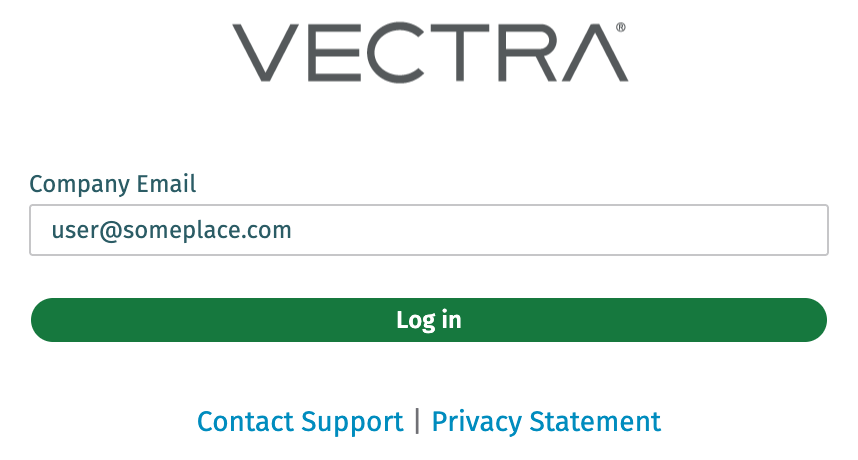
* When multiple SAML profiles are configured, users will enter an email address after clicking **Login with SSO**.
* Based on the user input and mapped domains, the user will be redirected to the appropriate IdP for authentication and then redirected back to Vectra with a SAML assertion.
* Default Vectra standardized role names are as follows:
* `admins`
* `read_only`
* `restricted_admins`
* `security_analyst`
* `setting_admins`
* `super_admins`
* At this time, the creation of custom roles is not supported in the Respond UX.
#### **IdP Completion**
{% hint style="success" %}
Once you have completed setting up your Vectra tenant as a Service Provider in your IdP (having configured all the required claims), mapped your users and groups to Vectra standardized role names, and have your IdP Metadata URL copied you are ready to move on.
{% endhint %}
### Completing Vectra Configuration
* After IdP configuration and copying the IdP Metadata URL you can complete the configuration back in the Respond UX.
* Switch back to the browser tab or window with your Respond UX.
* Paste the IdP Metadata URL into the **Create SAML Profile** dialog box.
* Fill in the **Profile Name** with a name of your choice.
* Fill in the **Domains** field with the domains that should map to the SAML IdP you are configuring.
* When multiple SAML profiles are configured, users will enter an email address after clicking **Login with SSO**.
* Based on the user input and mapped domains, the user will be redirected to the appropriate IdP for authentication and then redirected back to Vectra with a SAML assertion.
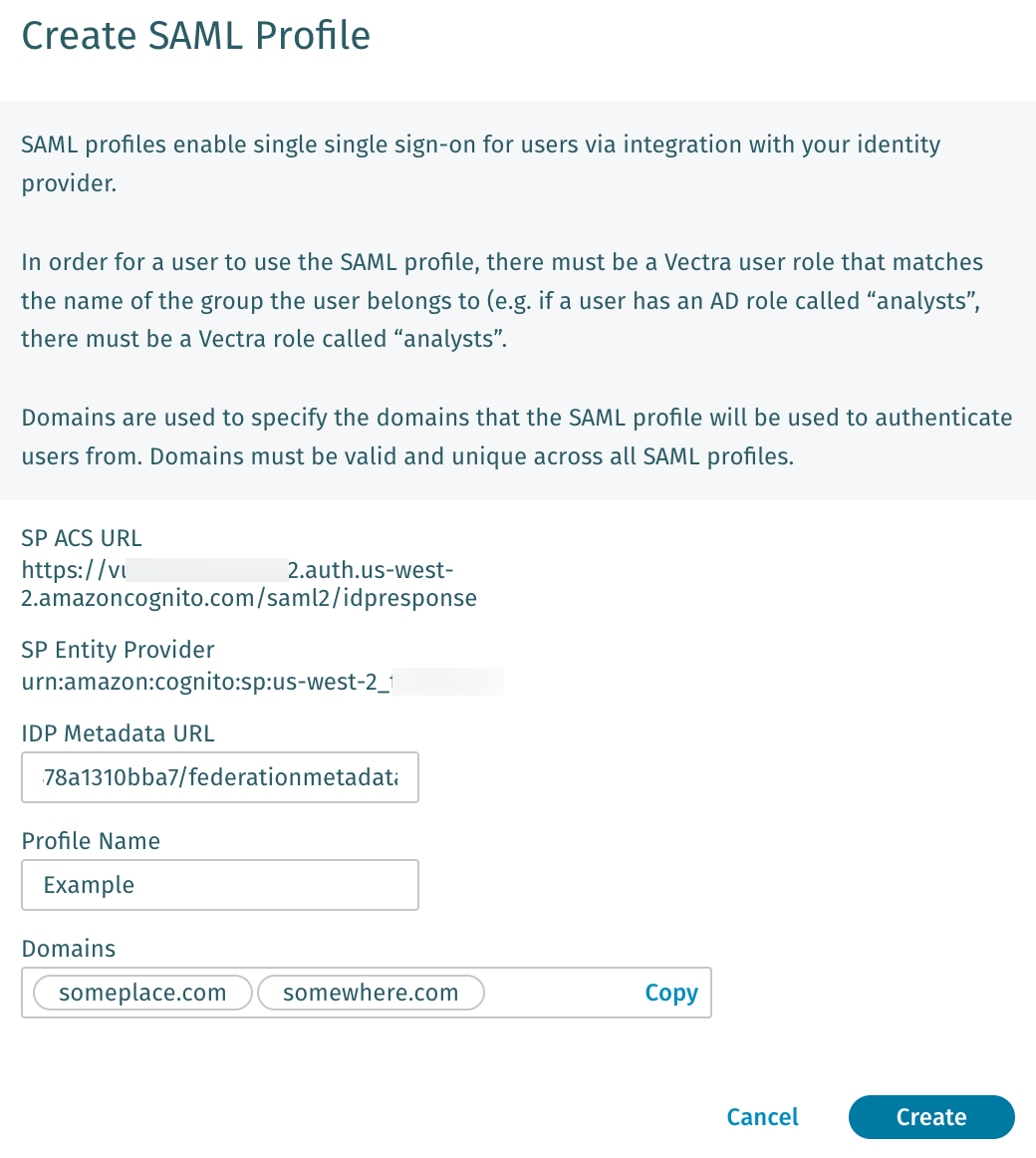 * Click **Create**.
* Your SAML profile is now complete and will show in the Respond UX. Clicking on it will show the details similar to the below (this will vary by vendor and details provided).
* Click **Create**.
* Your SAML profile is now complete and will show in the Respond UX. Clicking on it will show the details similar to the below (this will vary by vendor and details provided).
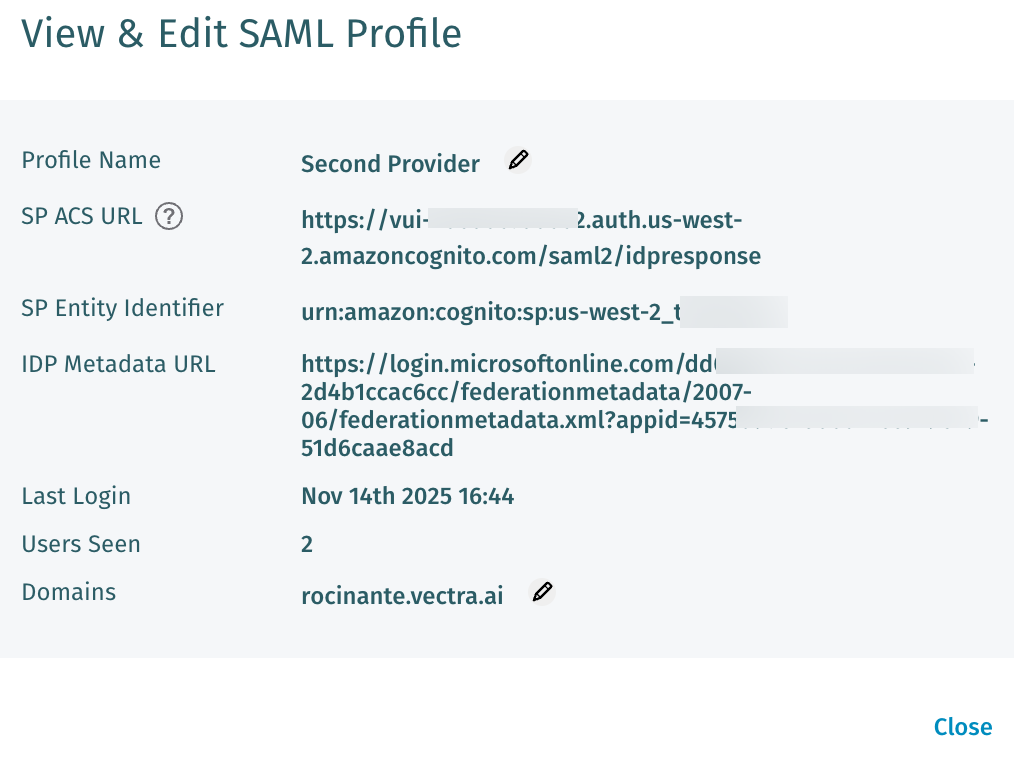 * As you can see above, the Profile Name and Domains list can be edited for profiles that have already been configured.
* You can click the **View** link on a profile in the SAML Profiles list in your UI to get back to this screen.
## Testing
* Once configuration is complete on both the Service Provider (Vectra) and IdP side, you are ready to test SAML SSO to Vectra.
* Keep in mind that only users and groups who are mapped to standardized Vectra role names in your IdP will succeed.
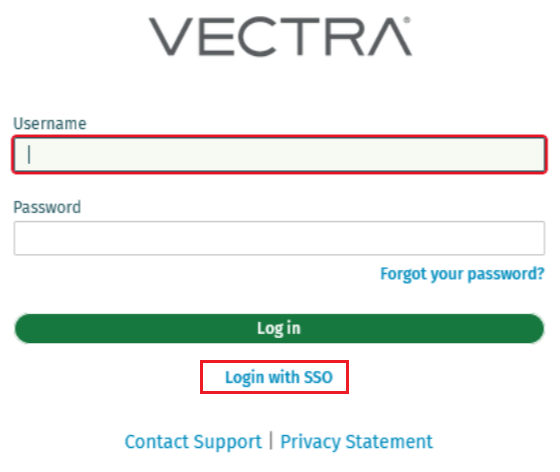
* Click the **Login with SSO** button on the login page for your Vectra tenant.

* If you are already authenticated to your IdP, and have a mapping to a standardized role that exists in Vectra, you should be logged in without requiring any additional steps.
* If you are need to authenticate to your IdP, you will be asked for a email address when multiple profiles are configured and redirected to your IdP for authentication and then redirected back to Vectra and presented the UI mapped role permissions applied.
* As you can see above, the Profile Name and Domains list can be edited for profiles that have already been configured.
* You can click the **View** link on a profile in the SAML Profiles list in your UI to get back to this screen.
## Testing
* Once configuration is complete on both the Service Provider (Vectra) and IdP side, you are ready to test SAML SSO to Vectra.
* Keep in mind that only users and groups who are mapped to standardized Vectra role names in your IdP will succeed.
* Click the **Login with SSO** button on the login page for your Vectra tenant.

* If you are already authenticated to your IdP, and have a mapping to a standardized role that exists in Vectra, you should be logged in without requiring any additional steps.
* If you are need to authenticate to your IdP, you will be asked for a email address when multiple profiles are configured and redirected to your IdP for authentication and then redirected back to Vectra and presented the UI mapped role permissions applied.