> For the complete documentation index, see [llms.txt](https://docs.vectra.ai/llms.txt). Markdown versions of documentation pages are available by appending `.md` to page URLs; this page is available as [Markdown](https://docs.vectra.ai/configuration/access/saml-sso-rux/okta-saml-rux.md).
# Okta SAML (RUX)
Enabling RUX (Respond UX) SAML SSO with Okta as the Identity Provider (IdP).
{% hint style="warning" %}
**Please Note:**
This article is **ONLY** for customers configuring SAML SSO for **Respond UX (RUX)** deployments using Okta **as the IdP**.
If you are configuring Okta SAML for the Quadrant UX, please see [Okta SAML (QUX)](/configuration/access/saml-sso-qux/okta-saml-qux.md) instead of this article.
While similar, there are some differences in the implementation for customers using the Quadrant UX. If you are unsure which UX you are using, please see: [Vectra Analyst User Experiences (Respond vs Quadrant) for more information](/deployment/getting-started/analyst-ux-options-rux-vs-qux.md).
The Respond UX requires different SAML claim names than the Quadrant UX when setting up SAML 2.0 based SSO but the claim creation process in the IdP is similar.
{% endhint %}
## Introduction
* Customers can setup SSO federation to multiple SAML 2.0-based identity providers (IdP).
* For most customers, only a single IdP is required.
* Once federated, already authenticated users will have one-click login in to the Vectra Respond UX.
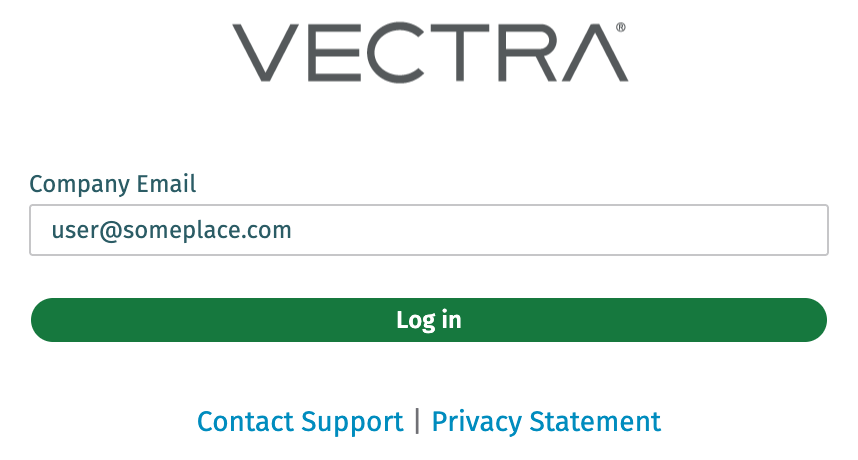
* If multiple IdPs are configured, and the user is not already authenticated, the user will need to enter their email address so the domain name mapping can direct the user to the appropriate IdP.
* Features like password policies and multi-factor authentication will be enforced by the IdP.
* Once authenticated, users are assigned the Vectra role defined for their user or group in the IdP.
* This will map to a role (and permissions) as defined in the Vectra UI.
## Multiple SAML Profile Support
Vectra now supports multiple SAML profiles. Not all customers will require this, and NO changes are required for existing single IdP SAML configurations.
{% hint style="info" %}
**Please Note:**
* Existing customers do **NOT** need to do anything if they will continue to only have a single SAML IdP configured.
* Any new profile that is added, for new or existing customers, will now need to have a **Domains** list configured as part of the Vectra SAML profile.
* If you add a 2nd profile to an existing deployment that did **NOT** have a **Domains** list configured previously, you **MUST** edit that existing profile to add the **Domains** mapping for that IdP.
* Nothing changes on the IdP side of the configuration.
* When multiple profiles are configured, users will be asked to enter their email address to be redirected to the appropriate IdP when they click **Login with SSO** on the Vectra login screen.
{% endhint %}
## RUX SAML SSO - Notes of Interest
* **Please ensure the users are only mapped to one Vectra Role in the IdP.**
* At this time, if a user is mapped to more than 1 role in the IdP, the user may not successfully log in with the desired role.
* IdP initiated flows are **NOT** supported.
* While these flows may work, they are not recommended because they are highly susceptible to Man-in-the-Middle attack using stolen SAML assertions.
* Single Log Out (SLO) and IdP initiated log out are **NOT** supported.
* When a user logs out of the Respond UX, they are taken to a screen where they can log in locally or click a link to **Log in via SSO**.
* At this time, a user who successfully authenticates through their IdP to Vectra will have a session that is good for one day.
* Local user login that bypasses the SAML flow is still available by adding `/signIn?local=True` to the end of your Respond UX login URL.
* Example: `https://[unique_customer_id].uw2.portal.vectra.ai/signIn?local=True`
* If you are publishing the URLs of applications used in your environment on a dedicated app/page, you can publish the URL associated with the **Login with SSO** link to ensure users always use this path
* Token Encryption is currently **NOT** supported.
## SAML Service Provider (SP) Initiated Flow
* This example flow diagram uses Azure as the IdP but SSO should work with any SAML 2.0 compliant IdP.
* Please note that all communication that is associated with the SAML login process is brokered by the User Agent (user's browser). Vectra never needs to communicate with the IdP during authentication.
* Vectra does communicate with the IdP to retrieve the required federation metadata during configuration and refreshes that metadata periodically to ensure new certificates are ingested from the IdP when expiration is near.

## Overview of Required Steps to Setup SSO with Okta
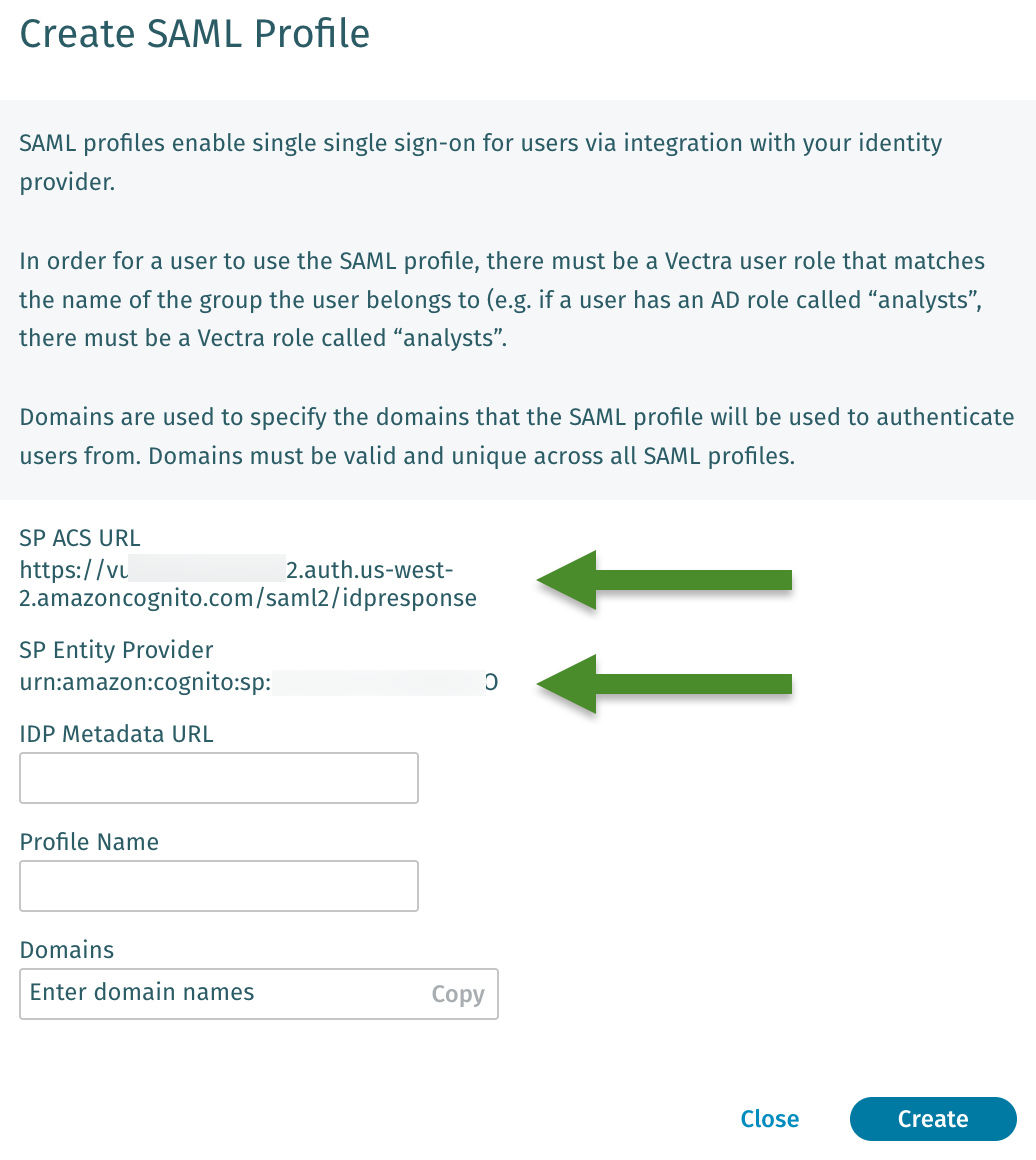
1. Start creating a SAML Profile in Vectra Respond UX and retrieve the **SP ACS URL** and **SP Entity Identifier**.
2. Create a SAML App in Okta for Vectra using the **SP ACS URL** and **SP Entity Identifier** you just retrieved.
* **SP ACS URL** = **Single sign-on URL** in Okta
* **SP Entity Identifier** = **Audience URI (SP Entity ID)** in Okta
3. In *Okta → Directory → Profile Editor*, choose your newly created app and add a required attribute for the Vectra Role to assign to your groups or users that you plan to allow logging in to the Vectra Respond UX.
* It is suggested to use `vectra_role` for the variable name.
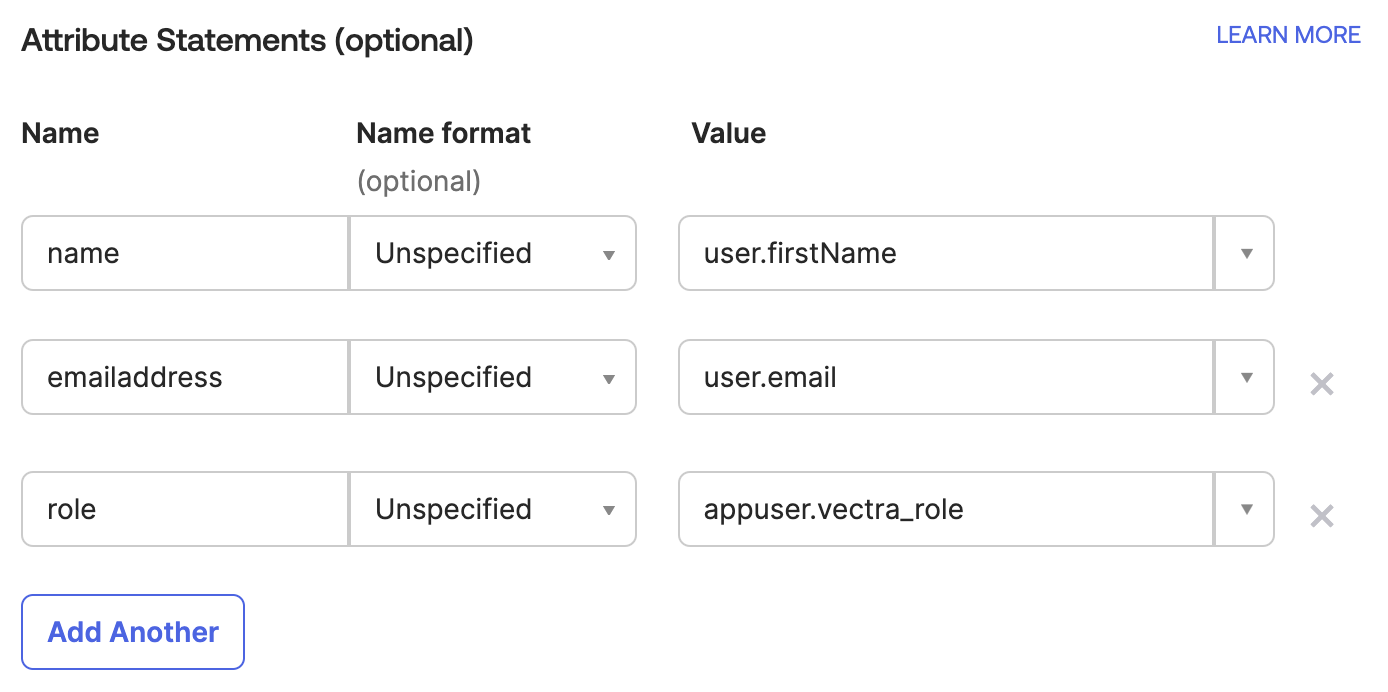
4. In *Okta → Applications → your newly created app → General → Edit SAML Settings*, add Attribute statements for these **REQUIRED** attributes that Vectra **MUST** see in SAML assertions:
* `name` - Map to `user.firstName`
* `emailaddress` - Map to `user.email`
* `role` - Map to `appuser.vectra_role`
* If you didn't use `vectra_role` as the variable name, use whatever variable name you created in step 3 but precede it by `appuser.` as in our example
5. In *Okta → Applications → Assignments*, assign users or groups to your newly created app.
* For each user or group you add, enter the standardized Vectra role name that you want to map to the user or group.
6. Retrieve the Metadata URL from Okta SAML app and complete the SAML config on the Vectra side.
{% hint style="info" %}
**Please Note:**
* At this point the Vectra configuration is complete.
* If you need to login with a local user account after SSO is configured you can edit your Vectra URL:
* Local user login that bypasses the SAML flow is still available by adding `/signIn?local=True` to the end of your Respond UX login URL.
* Example: `https://[unique_customer_id].uw2.portal.vectra.ai/signIn?local=True`
* It is recommended to warn any existing users that you will be implementing SSO and that local login will be available using the modified URL should any issues arise.
{% endhint %}
## 1. Start Creating SAML Profile in Vectra Respond UX
* First we'll need to create the SAML Authentication Profile.
* Additional profiles can be configured if multiple IdPs are required for your deployment.
* Open a new browser tab and log in as you normally do and navigate to *Configuration → ACCESS → External Authentication.*
* Click on **Create** in the SAML Profiles section.

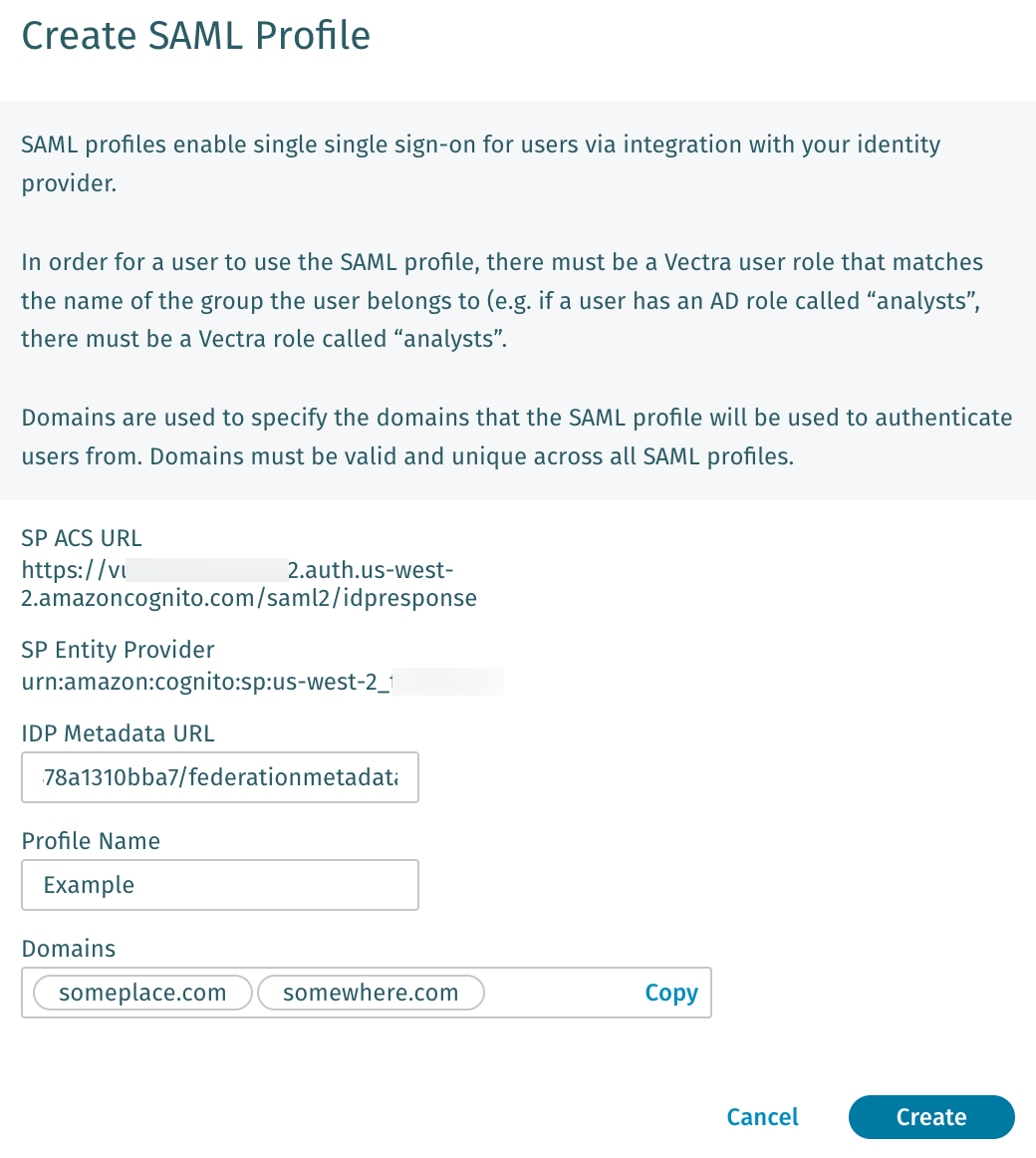
* A dialog will open and the SP ACS URL and SP Entity Provider will be displayed there for entry into the corresponding fields in the IdP. Make note of these values for later use with your IdP.
* The SP is the Service Provider (Vectra SaaS)
{% hint style="info" %}
**Please Note:**
* Not every IdP uses the same terminology to refer to these fields.
* As an example, in Okta, Vectra's **SP Entity Provider** URI should be used for the **Single sign-on URL** in Okta and Vectra's **SP ACS URL** should be used for the **Audience URI (SP Entity ID)** in Okta
{% endhint %}
* Leave this tab in your browser open and proceed in another tab or window to your IdP configuration so that you can retrieve the IdP Metadata URL needed to complete the Vectra RUX configuration.
## 2. Create SAML App in Okta
* Navigate in Okta to *Applications → Applications* and click on **Create App Integration**.
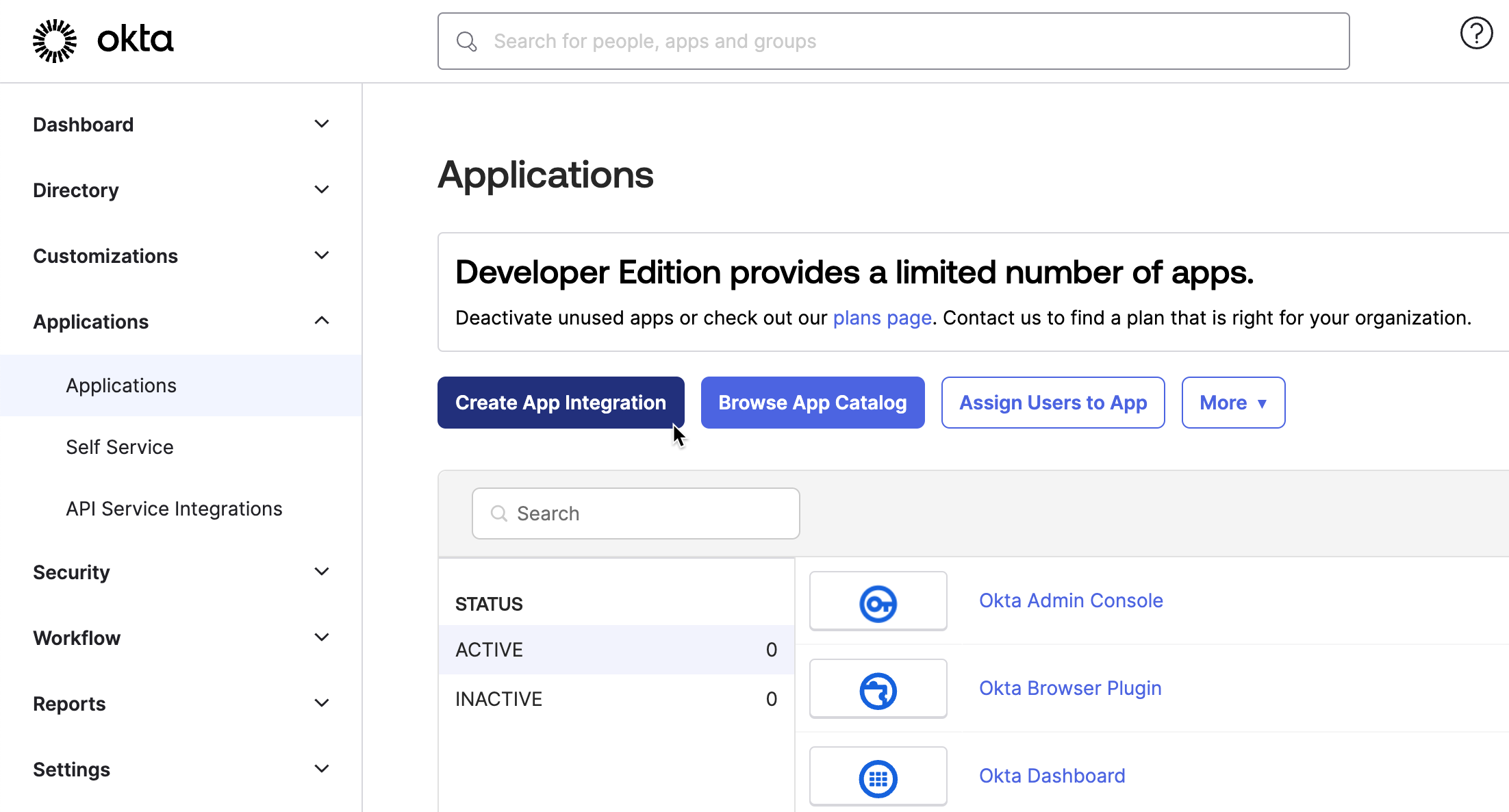
* Choose SAML 2.0 and click **Next**.
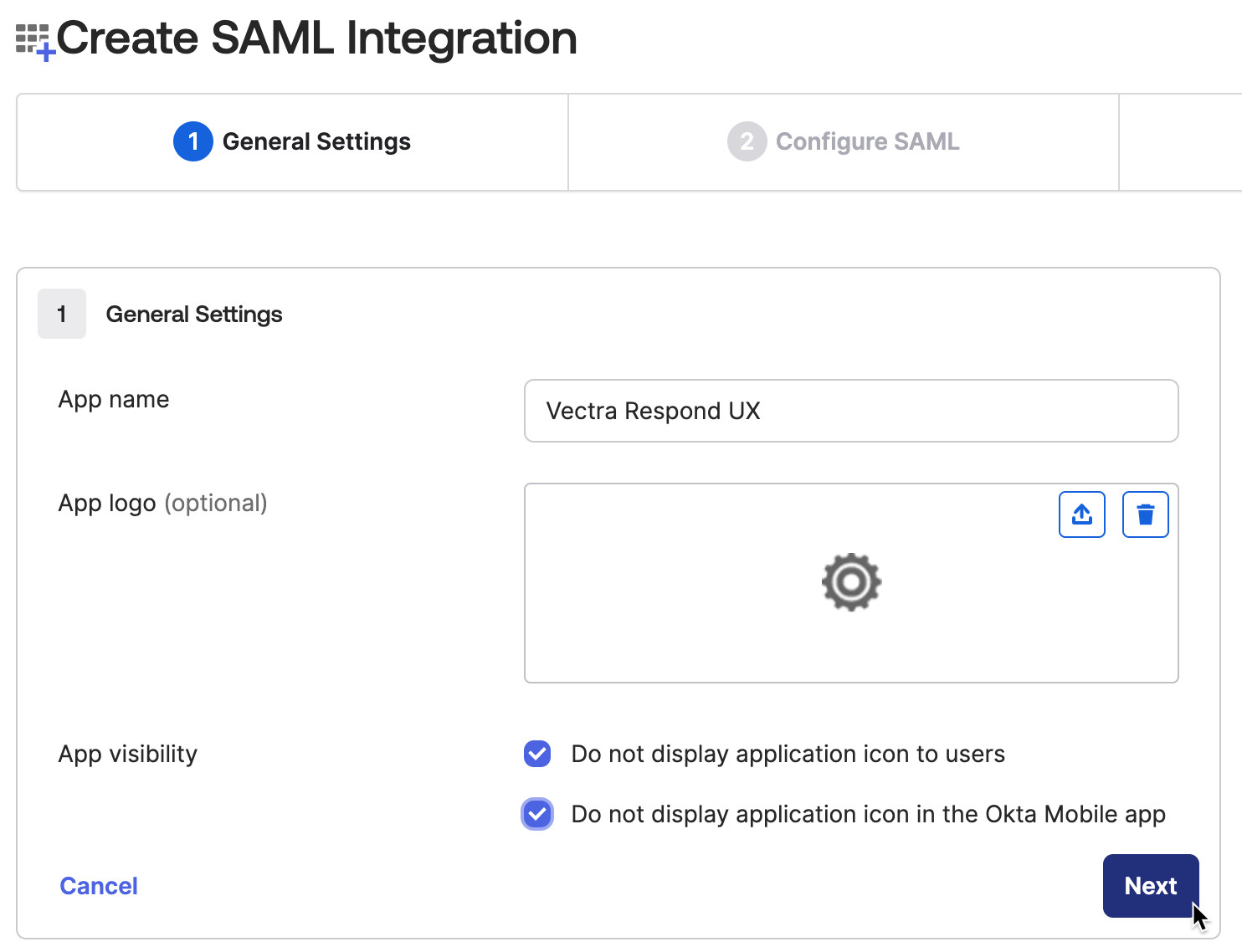
* On the **Create SAML Integration** General Settings tab, enter a name for the application such as **Vectra Respond UX**.
* We've configure the App Visibility settings to not show the app to Okta users to discourage IdP initiated login attempts as they are not supported per the earlier guidance in this article.
* Once done filling in this page, click **Next**.
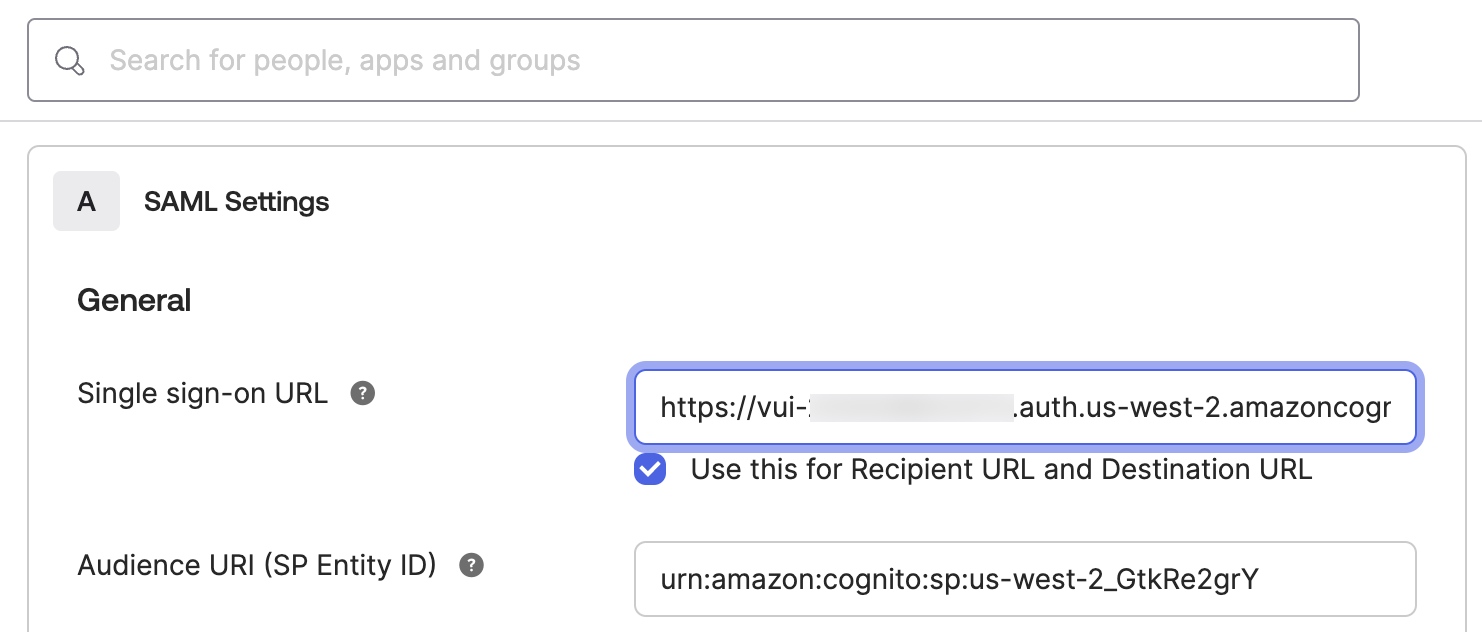
* On the **Configure SAML** tab enter the **SP ACS URL** and **SP Entity Provider** you retrieved from Vectra earlier as follows:
* **SP ACS URL** = **Single sign-on URL** in Okta
* **SP Entity Identifier** = **Audience URI (SP Entity ID)** in Okta
* All other settings on this page can be left at their defaults.
* Click **Next** at the bottom of the page.
* On the final **Feedback** tab, enter what you wish to provide feedback to Okta and click **Finish**.
## 3. Add Vectra role attribute to your Okta SAML app you just created
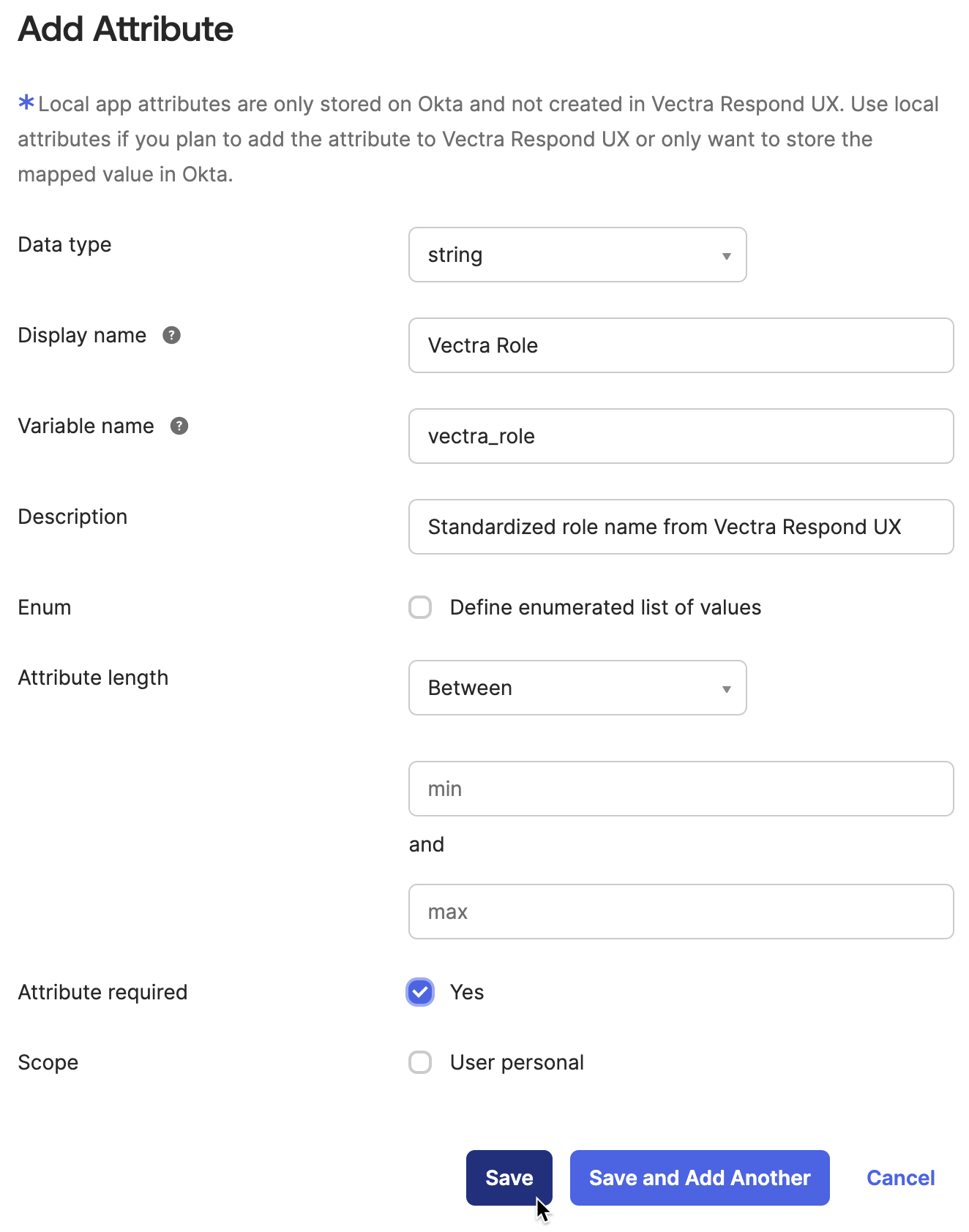
Now we need to create a new Okta directory profile attribute for your SAML app you just created. This new attribute will hold the Vectra Role and is required.
* In Okta, navigate to *Directory → Profile Editor → Your new app* and click **+ New Attribute**.
* Data type: String (default).
* Display name: **Vectra Role** or whatever you want to call the attribute.
* Variable name: `vectra_role` or whatever you want to call the variable.
* Description: enter an optional description.
* Attribute required: Yes
* All other field can be left at their defaults.
* Click **Save**.
## 4. Add Vectra Required Attribute Statements to Your Okta SAML App.
Vectra requires specific attributes in the SAML assertion and Okta needs to be configured for these in your newly created SAML app.
* In Okta, navigate to *Applications → Applications → your newly created SAML app → General Tab* and click **Edit** on **SAML Settings** and add Attribute statements for these **REQUIRED** attributes that Vectra **MUST** see in SAML assertions:
* `name` - Map to `user.firstName`
* `emailaddress` - Map to `user.email`
* `role` - Map to `appuser.vectra_role`
* If you didn't use `vectra_role` as the variable name, use whatever variable name you created in step 3 but precede it by `appuser.` as in our example
* These should be added to the **Attribute Statements (Optional)** area, not the **Group Attribute Statements (Optional)** area below that.
* Click **Next** and then **Finish** on the next screen.
## 5. Assign Okta Users or Groups to Your SAML App
Existing Okta users or groups can be assigned to the app. Since we now have a required attribute that doesn't normally exist in the Okta directory added to the app, when the user or group is assigned to the app, Okta will prompt you to enter the Vectra Role (only input the standardized role name (see below from Vectra) that you want assigned to that user or group.
#### **Vectra Standardized Role Names (Required)**
* Later portions of this overall step will require the Vectra Standardized Role Name.
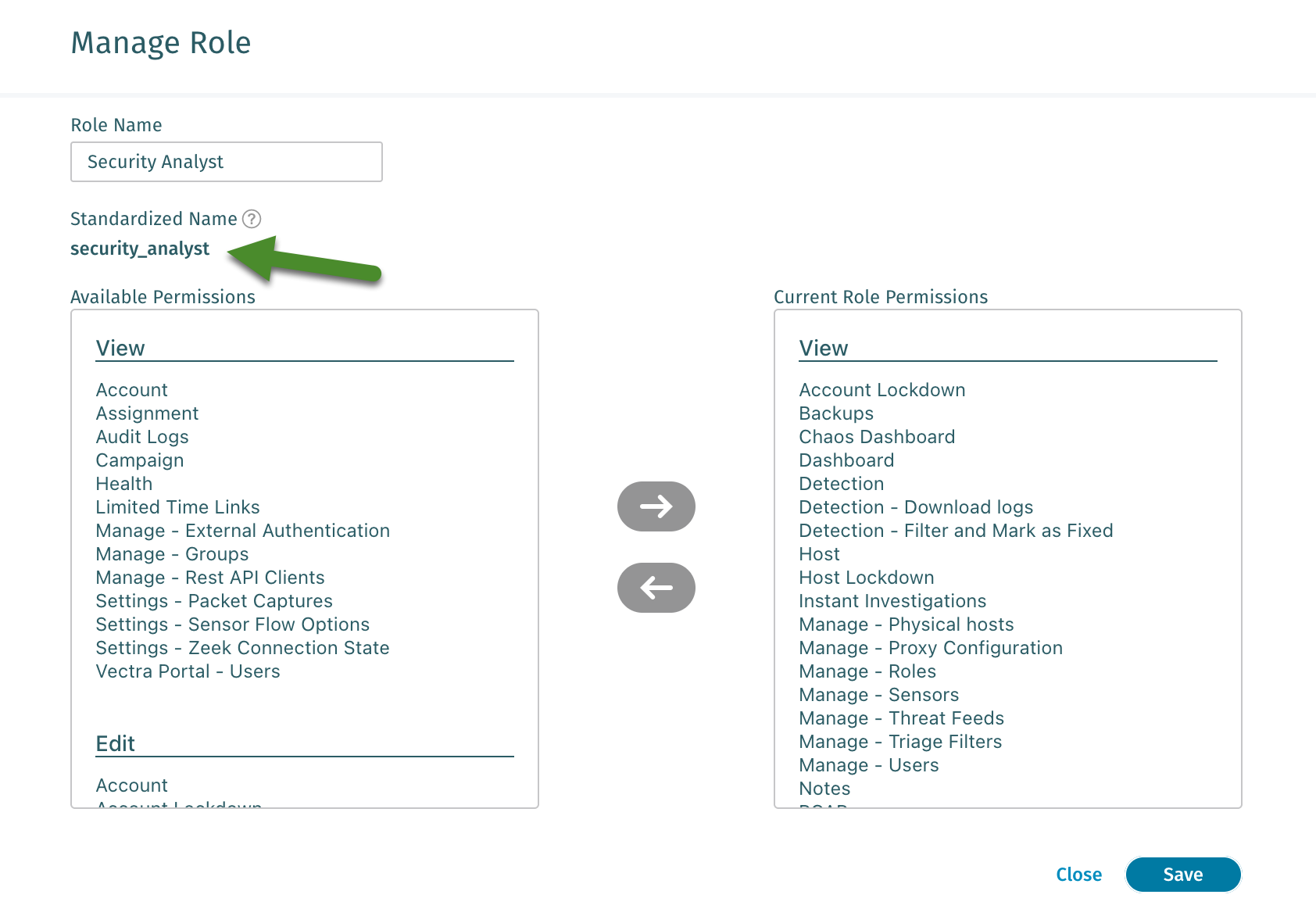
* To see the standardized role names in the Vectra Respond UX, navigate to the Configuration → ACCESS → Roles screen.
* Click on each role that your SAML users will be using and make note of the specific **Standardized Name** for each role.
* For example, the Security Analyst role has a Standardized name of `security_analys`t.
* Default standardized role names are as follows:
* `admins`
* `read_only`
* `restricted_admins`
* `security_analyst`
* `setting_admins`
* `super_admins`
* At this time, the creation of custom roles is not supported in the Respond UX.
{% hint style="info" %}
**Please Note:**
Only a single value is accepted for the Role on the Vectra side when the SAML assertion is presented by the user agent.
* If multiple roles are sent, the 1st one Vectra sees will be assumed to be the correct role to map the user to.
{% endhint %}
#### **Okta Users and Groups - Utilizing existing or creating new and assigning to the SAML app**
* If you wish to use existing users and groups that already exist in Okta to determine which users will get access to Vectra, that is fine.
* To create new users or groups in Okta specifically for use with the Vectra Respond UX, simply create those users or groups as you usually do in Okta.
* Now we will move on to assigning the users or groups to the SAML app. This will cause Okta to ask for the Vectra Role (using the Standardized Role Name)
* The process to add a user to the application is essentially the same as adding a group but you operate on the user object instead of the group.
* In our example below we will use a group.
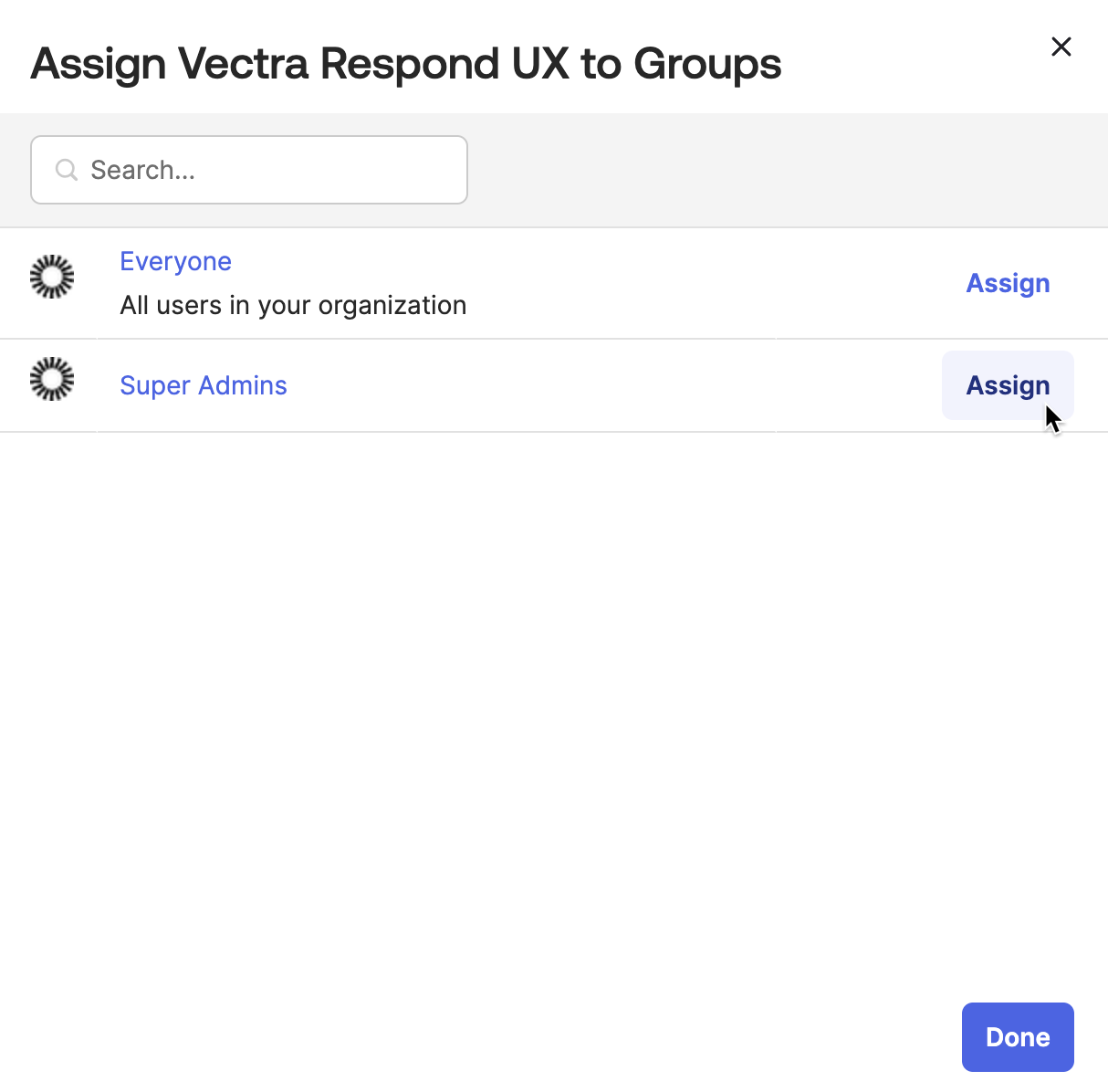
* In Okta, navigate to *Applications → Applications → your SAML app* and click **Assign** and then **Assign to Groups**.

* In the pop up window that follows, select your group that you wish to assign to the SAML application.
* In our case, we have pre-created a **Super Admins** group that we wish to use for our Vectra Super Admins.
* Click **Assign** on the Okta group.
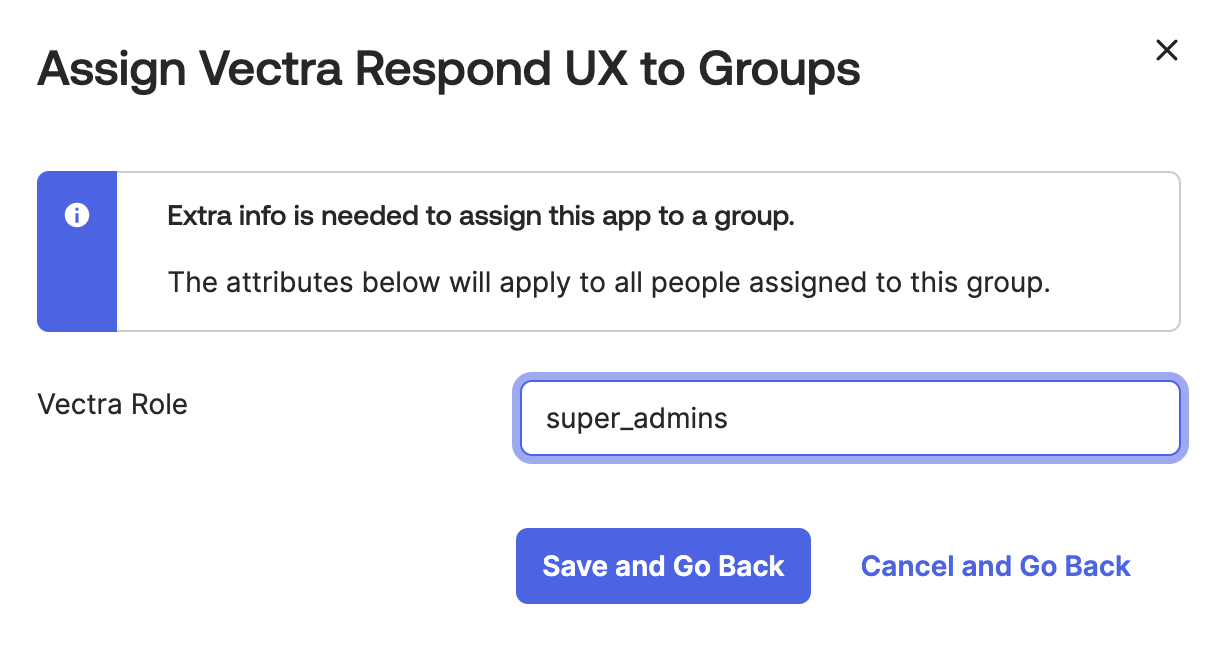
* Input the Vectra Standardize Role name you collected earlier in this overall step.
* You **MUST** put the Standardized Role name in exactly as you saw it in Vectra.
* In our example, we are inputting `super_admins`.
* Click **Save and Go Back**.
* Complete this same process for any remaining Groups or Users you wish to assign to the SAML application.
## 6. Retrieve Metadata URL from Okta and Complete SAML Configuration in Vectra
Vectra needs the Metadata URL from your Okta SAML app to download the federation metadata that includes the signing certificate to be able to complete the SAML profile in Vectra.
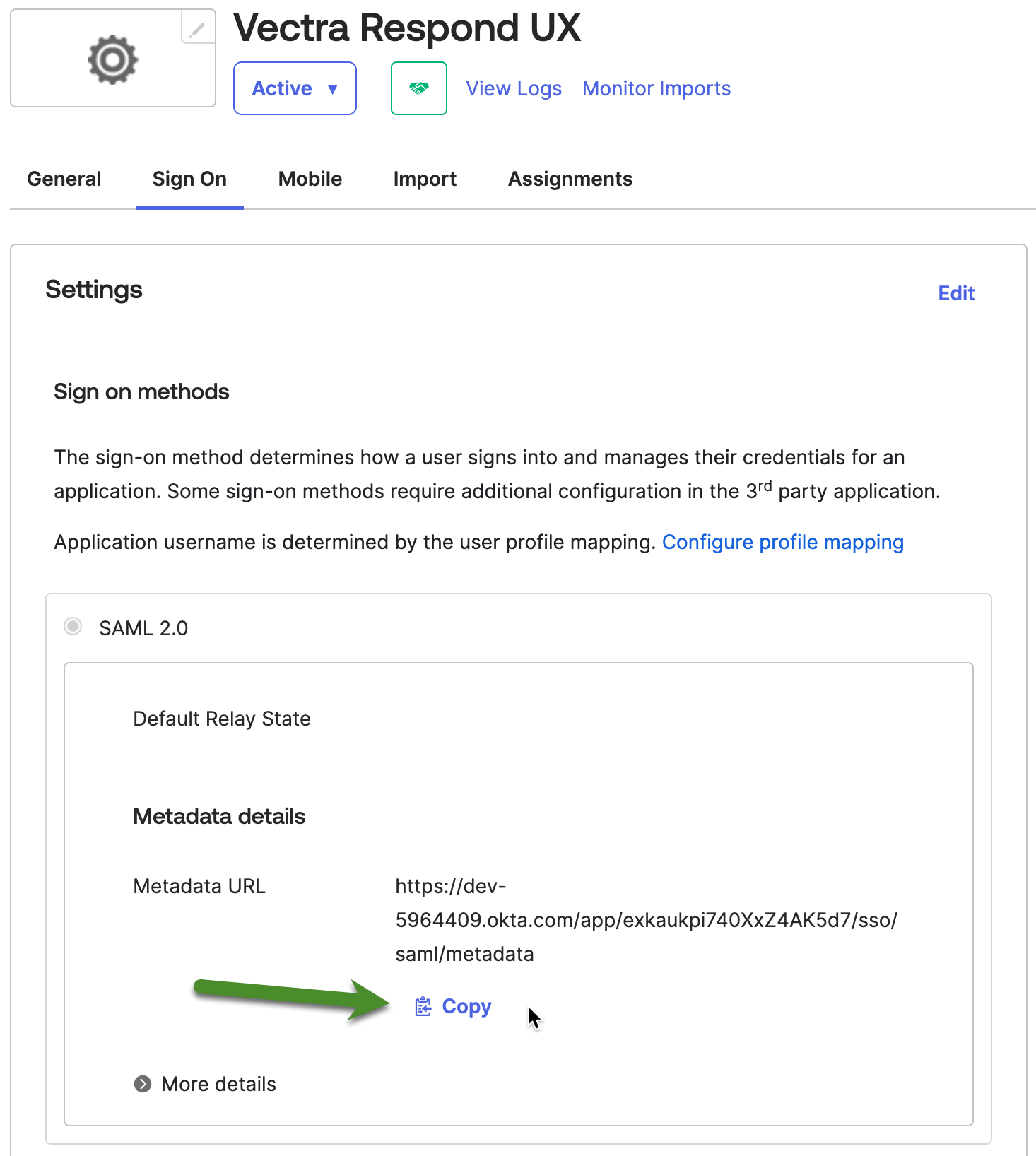
* In Okta, navigate to *Applications → Applications → your SAML app* and click on the **Copy** button in the *Metadata Details → Metadata URL* section.
* After copying the IdP Metadata URL you can complete the configuration back in the Respond UX.
* Switch back to the browser tab or window with your Respond UX.
* After IdP configuration and copying the IdP Metadata URL you can complete the configuration back in the Respond UX.
* Switch back to the browser tab or window with your Respond UX.
* Paste the IdP Metadata URL into the **Create SAML Profile** dialog box.
* Fill in the **Profile Name** with a name of your choice.
* Fill in the **Domains** field with the domains that should map to the SAML IdP you are configuring.
* When multiple SAML profiles are configured, users will enter an email address after clicking **Login with SSO**.
* Based on the user input and mapped domains, the user will be redirected to the appropriate IdP for authentication and then redirected back to Vectra with a SAML assertion.
* Click **Create**.
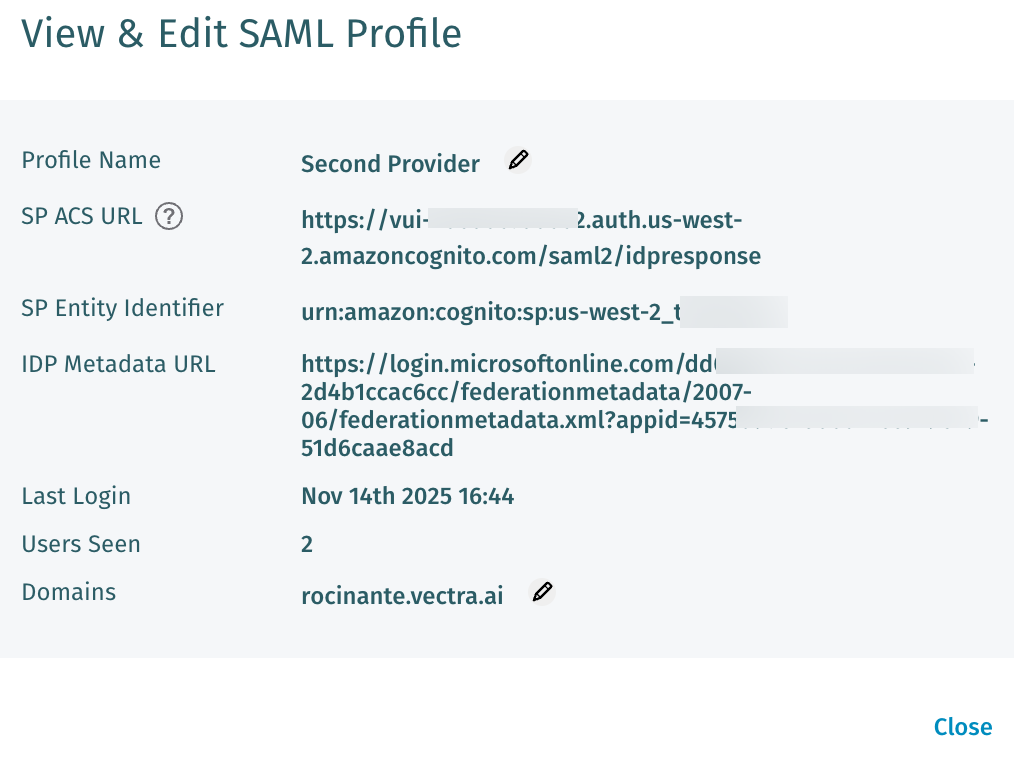
* Your SAML profile is now complete and will show in the Respond UX. Clicking on it will show the details similar to the below (this will vary by vendor and details provided).
* As you can see above, the Profile Name and Domains list can be edited for profiles that have already been configured.
* You can click the **View** link on a profile in the SAML Profiles list in your UI to get back to this screen.
## Testing
* Once configuration is complete on both the Service Provider (Vectra) and IdP side, you are ready to test SAML SSO to Vectra.
* Keep in mind that only users and groups who are mapped to standardized Vectra role names in your IdP will succeed.
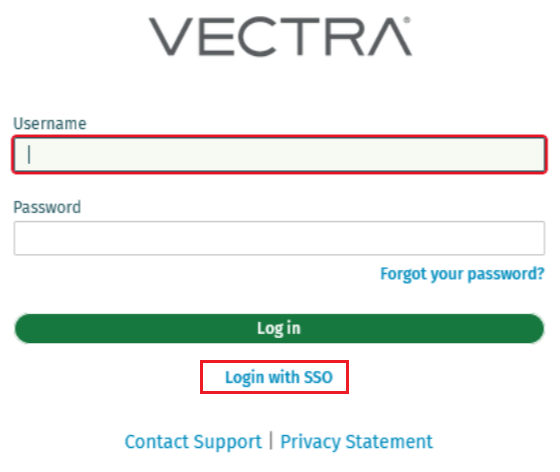
* Click the **Login with SSO** button on the login page for your Vectra tenant.

* If you are already authenticated to your IdP, and have a mapping to a standardized role that exists in Vectra, you should be logged in without requiring any additional steps.
* If you are need to authenticate to your IdP, you will be asked for a email address when multiple profiles are configured and redirected to your IdP for authentication and then redirected back to Vectra and presented the UI mapped role permissions applied.
---
# Agent Instructions
This documentation is published with GitBook. GitBook is the documentation platform designed so that both humans and AI agents can read, navigate, and reason over technical content effectively. Learn more at gitbook.com.
## Querying This Documentation
If you need additional information that is not directly available in this page, you can query the documentation dynamically by asking a question.
Perform an HTTP GET request on the current page URL with the `ask` query parameter, and the optional `goal` query parameter:
```
GET https://docs.vectra.ai/configuration/access/saml-sso-rux/okta-saml-rux.md?ask=&goal=
```
`ask` is the immediate question: it should be specific, self-contained, and written in natural language.
`goal` is optional and describes the broader end goal you are ultimately trying to accomplish on behalf of the user. GitBook uses it to tailor the answer towards what is most useful for that goal.
The response will contain a direct answer to the question and relevant excerpts and sources from the documentation.
Use this mechanism when the answer is not explicitly present in the current page, you need clarification or additional context, or you want to retrieve related documentation sections.
 ## 2. Create SAML App in Okta
* Navigate in Okta to *Applications → Applications* and click on **Create App Integration**.

* Choose SAML 2.0 and click **Next**.
* On the **Create SAML Integration** General Settings tab, enter a name for the application such as **Vectra Respond UX**.
* We've configure the App Visibility settings to not show the app to Okta users to discourage IdP initiated login attempts as they are not supported per the earlier guidance in this article.
* Once done filling in this page, click **Next**.
## 2. Create SAML App in Okta
* Navigate in Okta to *Applications → Applications* and click on **Create App Integration**.

* Choose SAML 2.0 and click **Next**.
* On the **Create SAML Integration** General Settings tab, enter a name for the application such as **Vectra Respond UX**.
* We've configure the App Visibility settings to not show the app to Okta users to discourage IdP initiated login attempts as they are not supported per the earlier guidance in this article.
* Once done filling in this page, click **Next**.
 * On the **Configure SAML** tab enter the **SP ACS URL** and **SP Entity Provider** you retrieved from Vectra earlier as follows:
* **SP ACS URL** = **Single sign-on URL** in Okta
* **SP Entity Identifier** = **Audience URI (SP Entity ID)** in Okta
* All other settings on this page can be left at their defaults.
* Click **Next** at the bottom of the page.
* On the **Configure SAML** tab enter the **SP ACS URL** and **SP Entity Provider** you retrieved from Vectra earlier as follows:
* **SP ACS URL** = **Single sign-on URL** in Okta
* **SP Entity Identifier** = **Audience URI (SP Entity ID)** in Okta
* All other settings on this page can be left at their defaults.
* Click **Next** at the bottom of the page.
 * On the final **Feedback** tab, enter what you wish to provide feedback to Okta and click **Finish**.
## 3. Add Vectra role attribute to your Okta SAML app you just created
Now we need to create a new Okta directory profile attribute for your SAML app you just created. This new attribute will hold the Vectra Role and is required.
* In Okta, navigate to *Directory → Profile Editor → Your new app* and click **+ New Attribute**.
* Data type: String (default).
* Display name: **Vectra Role** or whatever you want to call the attribute.
* Variable name: `vectra_role` or whatever you want to call the variable.
* Description: enter an optional description.
* Attribute required: Yes
* All other field can be left at their defaults.
* Click **Save**.
* On the final **Feedback** tab, enter what you wish to provide feedback to Okta and click **Finish**.
## 3. Add Vectra role attribute to your Okta SAML app you just created
Now we need to create a new Okta directory profile attribute for your SAML app you just created. This new attribute will hold the Vectra Role and is required.
* In Okta, navigate to *Directory → Profile Editor → Your new app* and click **+ New Attribute**.
* Data type: String (default).
* Display name: **Vectra Role** or whatever you want to call the attribute.
* Variable name: `vectra_role` or whatever you want to call the variable.
* Description: enter an optional description.
* Attribute required: Yes
* All other field can be left at their defaults.
* Click **Save**.
 ## 4. Add Vectra Required Attribute Statements to Your Okta SAML App.
Vectra requires specific attributes in the SAML assertion and Okta needs to be configured for these in your newly created SAML app.
* In Okta, navigate to *Applications → Applications → your newly created SAML app → General Tab* and click **Edit** on **SAML Settings** and add Attribute statements for these **REQUIRED** attributes that Vectra **MUST** see in SAML assertions:
* `name` - Map to `user.firstName`
* `emailaddress` - Map to `user.email`
* `role` - Map to `appuser.vectra_role`
* If you didn't use `vectra_role` as the variable name, use whatever variable name you created in step 3 but precede it by `appuser.` as in our example
* These should be added to the **Attribute Statements (Optional)** area, not the **Group Attribute Statements (Optional)** area below that.
* Click **Next** and then **Finish** on the next screen.
## 4. Add Vectra Required Attribute Statements to Your Okta SAML App.
Vectra requires specific attributes in the SAML assertion and Okta needs to be configured for these in your newly created SAML app.
* In Okta, navigate to *Applications → Applications → your newly created SAML app → General Tab* and click **Edit** on **SAML Settings** and add Attribute statements for these **REQUIRED** attributes that Vectra **MUST** see in SAML assertions:
* `name` - Map to `user.firstName`
* `emailaddress` - Map to `user.email`
* `role` - Map to `appuser.vectra_role`
* If you didn't use `vectra_role` as the variable name, use whatever variable name you created in step 3 but precede it by `appuser.` as in our example
* These should be added to the **Attribute Statements (Optional)** area, not the **Group Attribute Statements (Optional)** area below that.
* Click **Next** and then **Finish** on the next screen.
 ## 5. Assign Okta Users or Groups to Your SAML App
Existing Okta users or groups can be assigned to the app. Since we now have a required attribute that doesn't normally exist in the Okta directory added to the app, when the user or group is assigned to the app, Okta will prompt you to enter the Vectra Role (only input the standardized role name (see below from Vectra) that you want assigned to that user or group.
#### **Vectra Standardized Role Names (Required)**
* Later portions of this overall step will require the Vectra Standardized Role Name.
* To see the standardized role names in the Vectra Respond UX, navigate to the Configuration → ACCESS → Roles screen.
* Click on each role that your SAML users will be using and make note of the specific **Standardized Name** for each role.
* For example, the Security Analyst role has a Standardized name of `security_analys`t.

* Default standardized role names are as follows:
* `admins`
* `read_only`
* `restricted_admins`
* `security_analyst`
* `setting_admins`
* `super_admins`
* At this time, the creation of custom roles is not supported in the Respond UX.
{% hint style="info" %}
**Please Note:**
Only a single value is accepted for the Role on the Vectra side when the SAML assertion is presented by the user agent.
* If multiple roles are sent, the 1st one Vectra sees will be assumed to be the correct role to map the user to.
{% endhint %}
#### **Okta Users and Groups - Utilizing existing or creating new and assigning to the SAML app**
* If you wish to use existing users and groups that already exist in Okta to determine which users will get access to Vectra, that is fine.
* To create new users or groups in Okta specifically for use with the Vectra Respond UX, simply create those users or groups as you usually do in Okta.
* Now we will move on to assigning the users or groups to the SAML app. This will cause Okta to ask for the Vectra Role (using the Standardized Role Name)
* The process to add a user to the application is essentially the same as adding a group but you operate on the user object instead of the group.
* In our example below we will use a group.
* In Okta, navigate to *Applications → Applications → your SAML app* and click **Assign** and then **Assign to Groups**.

* In the pop up window that follows, select your group that you wish to assign to the SAML application.
* In our case, we have pre-created a **Super Admins** group that we wish to use for our Vectra Super Admins.
* Click **Assign** on the Okta group.
## 5. Assign Okta Users or Groups to Your SAML App
Existing Okta users or groups can be assigned to the app. Since we now have a required attribute that doesn't normally exist in the Okta directory added to the app, when the user or group is assigned to the app, Okta will prompt you to enter the Vectra Role (only input the standardized role name (see below from Vectra) that you want assigned to that user or group.
#### **Vectra Standardized Role Names (Required)**
* Later portions of this overall step will require the Vectra Standardized Role Name.
* To see the standardized role names in the Vectra Respond UX, navigate to the Configuration → ACCESS → Roles screen.
* Click on each role that your SAML users will be using and make note of the specific **Standardized Name** for each role.
* For example, the Security Analyst role has a Standardized name of `security_analys`t.

* Default standardized role names are as follows:
* `admins`
* `read_only`
* `restricted_admins`
* `security_analyst`
* `setting_admins`
* `super_admins`
* At this time, the creation of custom roles is not supported in the Respond UX.
{% hint style="info" %}
**Please Note:**
Only a single value is accepted for the Role on the Vectra side when the SAML assertion is presented by the user agent.
* If multiple roles are sent, the 1st one Vectra sees will be assumed to be the correct role to map the user to.
{% endhint %}
#### **Okta Users and Groups - Utilizing existing or creating new and assigning to the SAML app**
* If you wish to use existing users and groups that already exist in Okta to determine which users will get access to Vectra, that is fine.
* To create new users or groups in Okta specifically for use with the Vectra Respond UX, simply create those users or groups as you usually do in Okta.
* Now we will move on to assigning the users or groups to the SAML app. This will cause Okta to ask for the Vectra Role (using the Standardized Role Name)
* The process to add a user to the application is essentially the same as adding a group but you operate on the user object instead of the group.
* In our example below we will use a group.
* In Okta, navigate to *Applications → Applications → your SAML app* and click **Assign** and then **Assign to Groups**.

* In the pop up window that follows, select your group that you wish to assign to the SAML application.
* In our case, we have pre-created a **Super Admins** group that we wish to use for our Vectra Super Admins.
* Click **Assign** on the Okta group.
 * Input the Vectra Standardize Role name you collected earlier in this overall step.
* You **MUST** put the Standardized Role name in exactly as you saw it in Vectra.
* In our example, we are inputting `super_admins`.
* Click **Save and Go Back**.
* Input the Vectra Standardize Role name you collected earlier in this overall step.
* You **MUST** put the Standardized Role name in exactly as you saw it in Vectra.
* In our example, we are inputting `super_admins`.
* Click **Save and Go Back**.
 * Complete this same process for any remaining Groups or Users you wish to assign to the SAML application.
## 6. Retrieve Metadata URL from Okta and Complete SAML Configuration in Vectra
Vectra needs the Metadata URL from your Okta SAML app to download the federation metadata that includes the signing certificate to be able to complete the SAML profile in Vectra.
* In Okta, navigate to *Applications → Applications → your SAML app* and click on the **Copy** button in the *Metadata Details → Metadata URL* section.
* Complete this same process for any remaining Groups or Users you wish to assign to the SAML application.
## 6. Retrieve Metadata URL from Okta and Complete SAML Configuration in Vectra
Vectra needs the Metadata URL from your Okta SAML app to download the federation metadata that includes the signing certificate to be able to complete the SAML profile in Vectra.
* In Okta, navigate to *Applications → Applications → your SAML app* and click on the **Copy** button in the *Metadata Details → Metadata URL* section.
 * After copying the IdP Metadata URL you can complete the configuration back in the Respond UX.
* Switch back to the browser tab or window with your Respond UX.
* After IdP configuration and copying the IdP Metadata URL you can complete the configuration back in the Respond UX.
* Switch back to the browser tab or window with your Respond UX.
* Paste the IdP Metadata URL into the **Create SAML Profile** dialog box.
* Fill in the **Profile Name** with a name of your choice.
* Fill in the **Domains** field with the domains that should map to the SAML IdP you are configuring.
* When multiple SAML profiles are configured, users will enter an email address after clicking **Login with SSO**.
* Based on the user input and mapped domains, the user will be redirected to the appropriate IdP for authentication and then redirected back to Vectra with a SAML assertion.
* After copying the IdP Metadata URL you can complete the configuration back in the Respond UX.
* Switch back to the browser tab or window with your Respond UX.
* After IdP configuration and copying the IdP Metadata URL you can complete the configuration back in the Respond UX.
* Switch back to the browser tab or window with your Respond UX.
* Paste the IdP Metadata URL into the **Create SAML Profile** dialog box.
* Fill in the **Profile Name** with a name of your choice.
* Fill in the **Domains** field with the domains that should map to the SAML IdP you are configuring.
* When multiple SAML profiles are configured, users will enter an email address after clicking **Login with SSO**.
* Based on the user input and mapped domains, the user will be redirected to the appropriate IdP for authentication and then redirected back to Vectra with a SAML assertion.
 * Click **Create**.
* Your SAML profile is now complete and will show in the Respond UX. Clicking on it will show the details similar to the below (this will vary by vendor and details provided).
* Click **Create**.
* Your SAML profile is now complete and will show in the Respond UX. Clicking on it will show the details similar to the below (this will vary by vendor and details provided).
 * As you can see above, the Profile Name and Domains list can be edited for profiles that have already been configured.
* You can click the **View** link on a profile in the SAML Profiles list in your UI to get back to this screen.
## Testing
* Once configuration is complete on both the Service Provider (Vectra) and IdP side, you are ready to test SAML SSO to Vectra.
* Keep in mind that only users and groups who are mapped to standardized Vectra role names in your IdP will succeed.
* Click the **Login with SSO** button on the login page for your Vectra tenant.

* If you are already authenticated to your IdP, and have a mapping to a standardized role that exists in Vectra, you should be logged in without requiring any additional steps.
* If you are need to authenticate to your IdP, you will be asked for a email address when multiple profiles are configured and redirected to your IdP for authentication and then redirected back to Vectra and presented the UI mapped role permissions applied.
* As you can see above, the Profile Name and Domains list can be edited for profiles that have already been configured.
* You can click the **View** link on a profile in the SAML Profiles list in your UI to get back to this screen.
## Testing
* Once configuration is complete on both the Service Provider (Vectra) and IdP side, you are ready to test SAML SSO to Vectra.
* Keep in mind that only users and groups who are mapped to standardized Vectra role names in your IdP will succeed.
* Click the **Login with SSO** button on the login page for your Vectra tenant.

* If you are already authenticated to your IdP, and have a mapping to a standardized role that exists in Vectra, you should be logged in without requiring any additional steps.
* If you are need to authenticate to your IdP, you will be asked for a email address when multiple profiles are configured and redirected to your IdP for authentication and then redirected back to Vectra and presented the UI mapped role permissions applied.