Ping Identity SAML (QUX)
Ping Identity SAML Support
Ping Identity offers several different products. Vectra has validated SAML SSO functionality using PingOne. PingFederate should also work but our validation was done specifically using PingOne. Vectra's SAML implementation is based on the SAML 2.0 standard and should work with any IdP. A non-vendor specific article is available here:
SAML 2.0-based Single Sign-On to Vectra's Quadrant UX
Customers can setup SSO federation to a SAML 2.0-based identity provider.
Once federated, already authenticated users will get automatically logged in to the Quadrant UX
Unauthenticated users will get redirected to their IdP’s login portal.
Features like password policies and multi-factor authentication will be enforced by the IdP.
Once authenticated, users are assigned the application role defined in the IdP.
This will map to a role (and permissions) defined in the Quadrant UX.
SAML SSO Support - Notes of Interest
Local login using username/password after SAML configuration is still supported via a different URL constructed as follows:
https**:**//<ip_or_hostname>/accounts/login/?local=True
Please ensure the users are only mapped to one Vectra Role in the IdP.
If a user is mapped to more than 1 role, the user may not be assigned the preferred role.
IdP initiated flows are NOT supported.
While these flows may work, they are not recommended because they are highly susceptible to Man-in-the-Middle attacks using stolen SAML assertions.
Single Log Out (SLO) and IdP initiated log out are not supported.
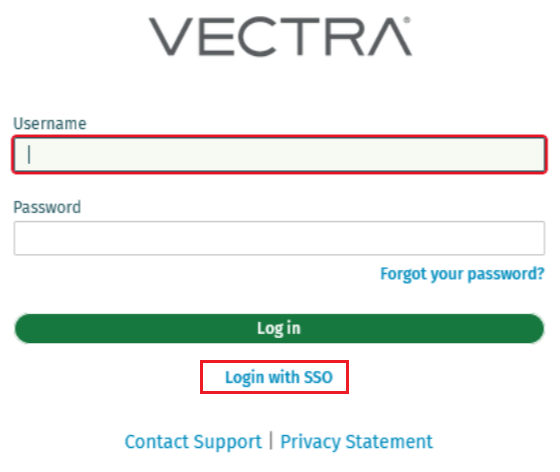
When a user logs out of the Detect UI, they are taken to a screen where they can log in locally or click a link to "Log in via SSO".
API keys are not supported for SAML users.
For API use, Vectra recommends local accounts or other external authentication sources where the role tied to a user is managed inside of Vectra's UI.
The SessionNotOnOrAfter SAML parameter is supported to invalidate user sessions and require a user to re-authenticate.
SAML Service Provider (SP) Initiated Flow
This example flow diagram uses Azure as the IdP but SSO should work with any SAML 2.0 compliant IdP.
Please note that all communication is brokered by the User Agent (user's browser). Vectra never needs to communicate with the IdP.

Steps to integrate PingOne with Vectra
First we'll need to create the SAML Authentication Profile.
Open a new browser tab and log in as you normally do and navigate to Manage > External Authentication
Click on “Create” in the SAML Profiles section

A dialog will open and the SP ACS URL and SP Entity Provider will be displayed there for entry into the corresponding fields in the PingOne.
The SP is the Service Provider (Vectra)

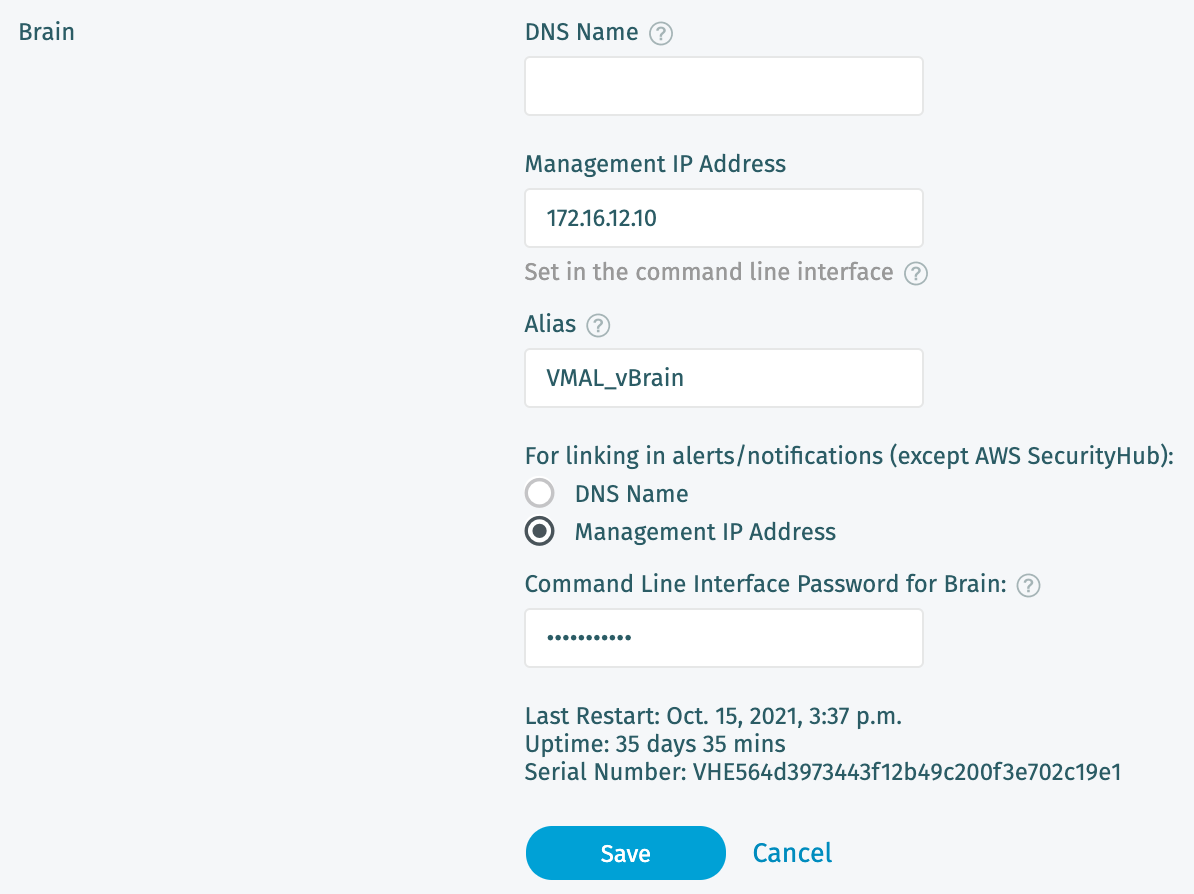
Some customer situations require hostname based entries instead of IP based entries for the SP ACS URL and SP Entity Provider. Vectra supports both. Which type is populated here is controlled by a setting in Data Sources > Network > Brain Setup > Brain in the Vectra Platform (Brain) UI:
If you have a configured DNS name for your platform and check the "DNS Name" radio button for the "For linking in alerts/notifications (except AWS SecurityHub)" section, this will populate the SP entries using hostname instead of IP.
Please also note that the "DNS Name" should be in lowercase in this area and any place you see it in your IdP.

PingOne Configuration Guidance
PingOne Groups / Vectra Standardized Roles Setup
PingOne does not allow admins to create roles, but the only thing that matters is that the claims passed in a SAML assertion contain the proper attributes that Vectra needs for a user.
In the next major step below, you will create groups using each Vectra standardized role name as the group name in Ping and then later map the required attribute for Vectra to the "Group Names" that were configured.
Other required attributes are already standard when a user is created in Ping and are the "Given Name" and "Email Address".
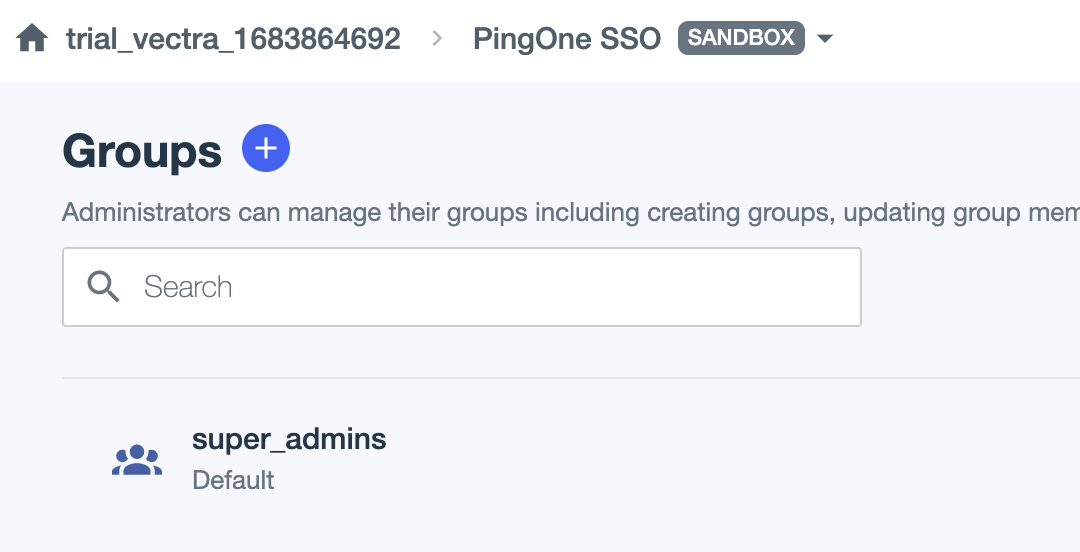
In PingOne, go to Identifies > Groups and add groups taking care to ensure the "Group Name" exactly matches all Vectra standardize role names that the customer will be using.
Default standardized role names are as follows:
admins
read_only
restricted_admins
security_analyst
setting_admins
super_admins
Any custom roles that you define in Vectra will have their own unique standardized role names that can be used as well.
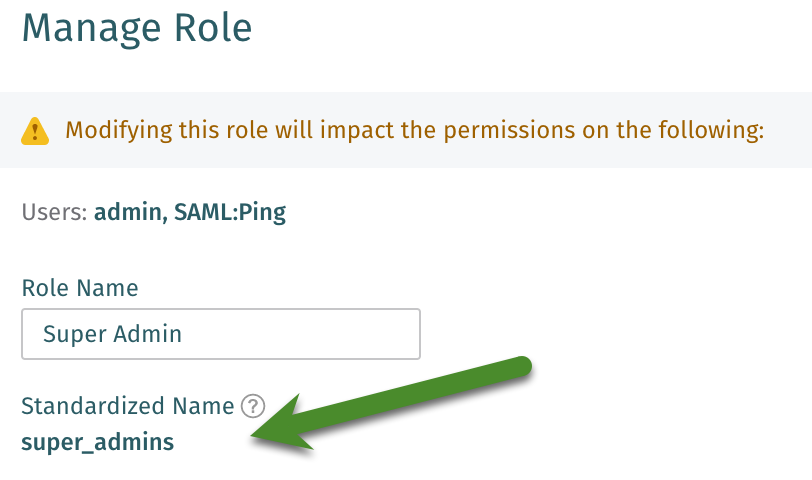
Standardized role name are found in the Vectra appliance UI at Manage > Roles and then edit any role to see the "Standardized Name":


When done you should have at least one group to test with:
Create groups in a similar manner for all Vectra roles that you will be using.
Finally, map all your PingOne users that will require access to the Vectra UI to the appropriate group.
PingOne SAML Setup
In Ping Federate, go to Connections > Applications and create a new application.
Enter the application name:
e.g. "Test SSO on-prem".
The Description field should also be filled in with something explaining the use of the application.
Choose SAML Application and click "Save" and then "Configure".

On the next page there are three options:
Import Metadata - Not supported by Vectra.
Import from URL - Not supported by Vectra.
Manually Enter - Select this option.
On your appliance UI go to Manage > External Authentication, and select "Create" within the SAML Profile section.
This will show the two required URLs to be entered into Ping.
Note - we're not ready to create the profile yet, we need to finish some setup in Ping first.
Enter the SP ACS URL from the Vectra UI into ACS URLs field in Ping.
Enter the SP Entity Identifier from the Vectra UI into the Entity ID field Ping.

On Click "Save" in Ping.
In your Ping application go to "Attribute Mapping" and click on the pencil to edit.
Add the following attribute mappings to the default s*aml_subject *that Ping provides.
http**://schemas.xmlsoap.**org/ws/2005/05/identity/claims/name
Given Name
http**:**//schemas.xmlsoap.orq/ws/2005/05/identity/claims/emailaddress
Email Address
https**://schema.vectra.**ai/role
Group Names
Click "Save" in Ping.
In Ping, go to Configuration and "Download Metadata" for use in the next step.

Enable the SAML application created in Ping Federate
This toggle is available under Connections > Applications > the Application you created:


Completing Configuration in the Vectra UI
After PingOne configuration, downloading the IdP Metadata XML file, and enabling the application, you can complete the configuration in the Vectra UI.
Click "Select a file" next to "Upload IDP Metadata XML File" in the "Create SAML Profile" window.
Fill in the "Profile Name" with "PingOne" or any name you desire and click "Create".

Testing
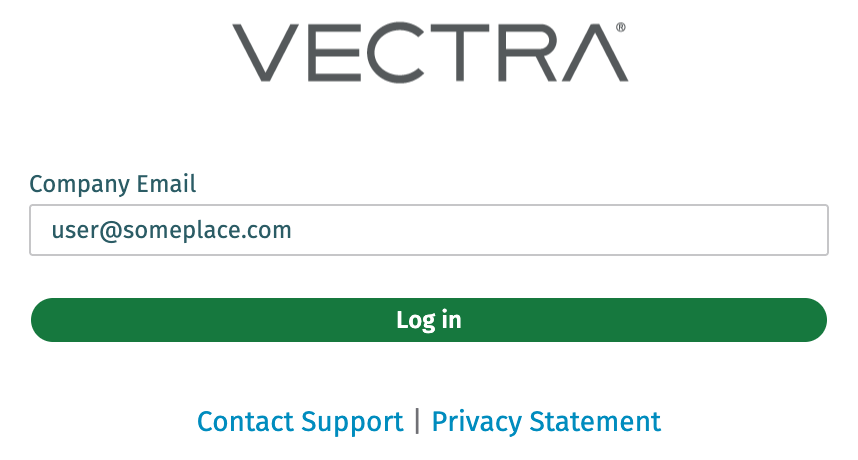
Once configuration is complete on both the Service Provider (Vectra) and PingOne side, you can test SSO by simply browsing to your normal login URL for Vectra.
If you are already authenticated to PingOne, and have a mapping to a standardized role that exists in Vectra, you should be logged in without requiring any additional steps.
If you are need to authenticate to PingOne, you will be redirected for authentication and then redirected back to Vectra.
Local login using username/password after SAML configuration is still supported via a different URL constructed as follows:
https**:**//<ip_or_hostname>/accounts/login/?local=True
For users not participating in SSO, please ensure they have this new URL to login to Vectra.
After login, you can see your status under My Profile

If you have rights to the Manage > Users screen, you can see all user logins:

Last updated
Was this helpful?