Traffic validation (ENTV)

Use ENTV to validate Sensor traffic quality and troubleshoot capture issues.

Summary

The Enhanced Network Traffic Validation (ENTV) feature became available at the CLI of Vectra Brains in v7.8. The graphical user interface (GUI) for ENTV shipped for RUX deployments in June 2025 and is available for QUX deployments starting in the v9.3 release. If you are unsure of your deployment type, please see Vectra Analyst User Experiences (Respond vs Quadrant).

ENTV allows customers to see information related to the network traffic observed by sensors paired to the Brain appliance. This information is used to determine if the network traffic being observed meets quality standards required for detection and further processing. This article gives an overview of the feature, terminology, and advice on how to get started.

Frequently Asked Questions (FAQ)

How is the WebUI different than the downloadable report?

  • The ENTV WebUI presents the same data as the downloadable report but highlights the most common and critical troubleshooting items for quick access. If you need additional detail, you can download the full report. The WebUI is designed to improve usability and eliminate the need to parse raw JSON manually.

What do the labels in the WebUI mean?

  • Each metric in the WebUI has a tooltip icon beside the label. Hovering over the icon will show a brief explanation of what the data means. Since the WebUI and downloadable report use the same metrics, you can also refer to the chart below for additional definitions. The labels in the WebUI and downloadable report are named similarly for consistency.

What do the colored values on the WebUI indicate?

  • Vectra has defined thresholds for certain data points in the WebUI based on their importance and the likelihood of impacting system functionality. Red or yellow indicators suggest potential issues that should be reviewed with your Vectra CSM or Account team. The thresholds for these metrics are based on rules of thumb and best practices but should not be considered absolutes. If in doubt, please contact Vectra for advice.

    • Yellow indicates a warning level - depending on your configuration and network, it may or may not be possible or necessary to eliminate all yellow warnings.

    • Red indicates a critical level - it is recommended to address issues in these areas.

Who should I contact with questions regarding the WebUI/Report data?

  • Your Vectra CSM or Account team is available and happy to help with any questions you may have.

Overview

Enhanced Network Traffic Validation allows customers to see information related to the network traffic observed by Sensors paired to the Brain. This information is used to determine if the network traffic being observed meets quality standards required for detection and further processing. ENTV analyzes the network traffic Sensors are monitoring and reports statistics over a selectable time range in the past 24 hours.

ENTV is useful for debugging Detect for Network's integration into the customer environment. It can help identify issues like TCP or DNS asymmetry, incorrect or unnecessary traffic being observed, and other traffic problems that can diminish effectiveness such as duplicate packets or unsupported encapsulations. ENTV can also help to validate expected protocol mixes on a per sensor or subnet basis. When validating ENTV data, it is important to have someone from the network team available to assist who may understand what should be seen by Vectra's Sensors.

ENTV vs Topo and NTV Stats

New customers can ignore this section and just focus on ENTV and other tooling mentioned in the General Network Traffic Validation Process below. ENTV replaces older tools such as NTV Stats and Topo that you may have run previously. NTV Stats and Topo were available to customers on unpublished URLS on your Vectra Brain appliances. These tools were often shared with customers by Vectra SEs. For customers using the Respond UX served from the Vectra cloud platform, ENTV is the only similar tool available. NTV Stats and Topo are still available when using the Quadrant UX served by the Vectra appliance platform but may be fully deprecated in the future. It is recommended to only use ENTV moving forward as Topo and NTV Stats are not actively maintained.

Using the ENTV GUI (WebUI)

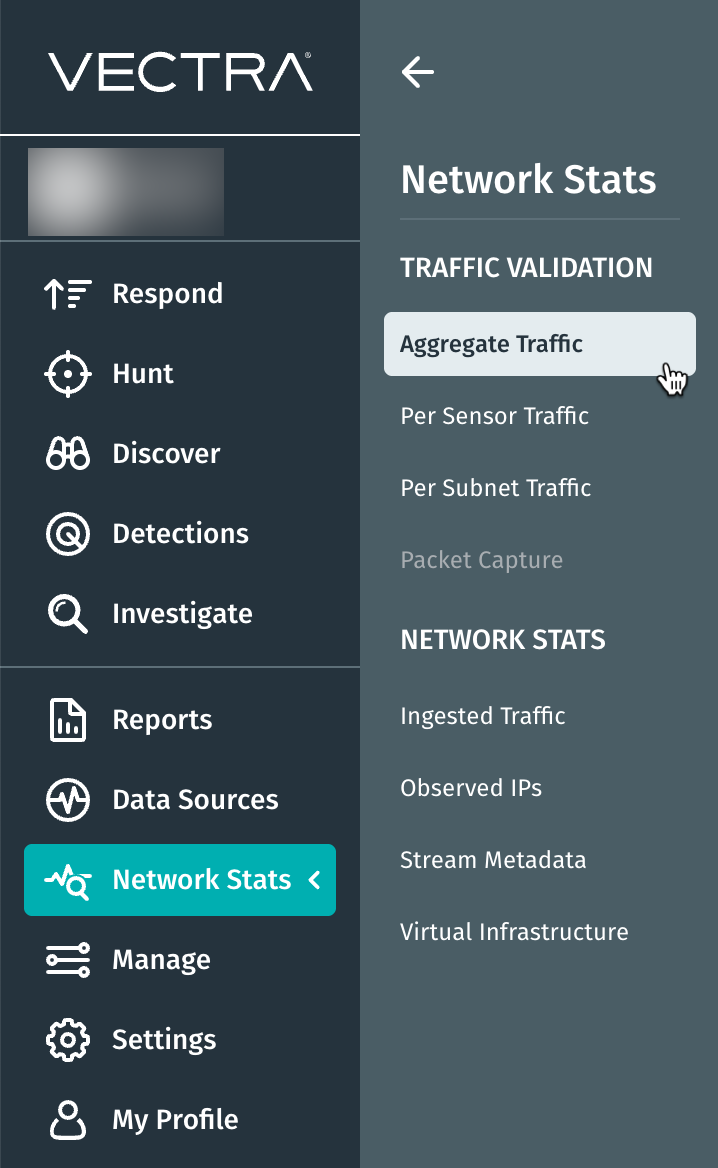
  • Navigate to Network Stats in your Vectra GUI. This is in the Traffic Validation section.

  • Here you will find three new options:

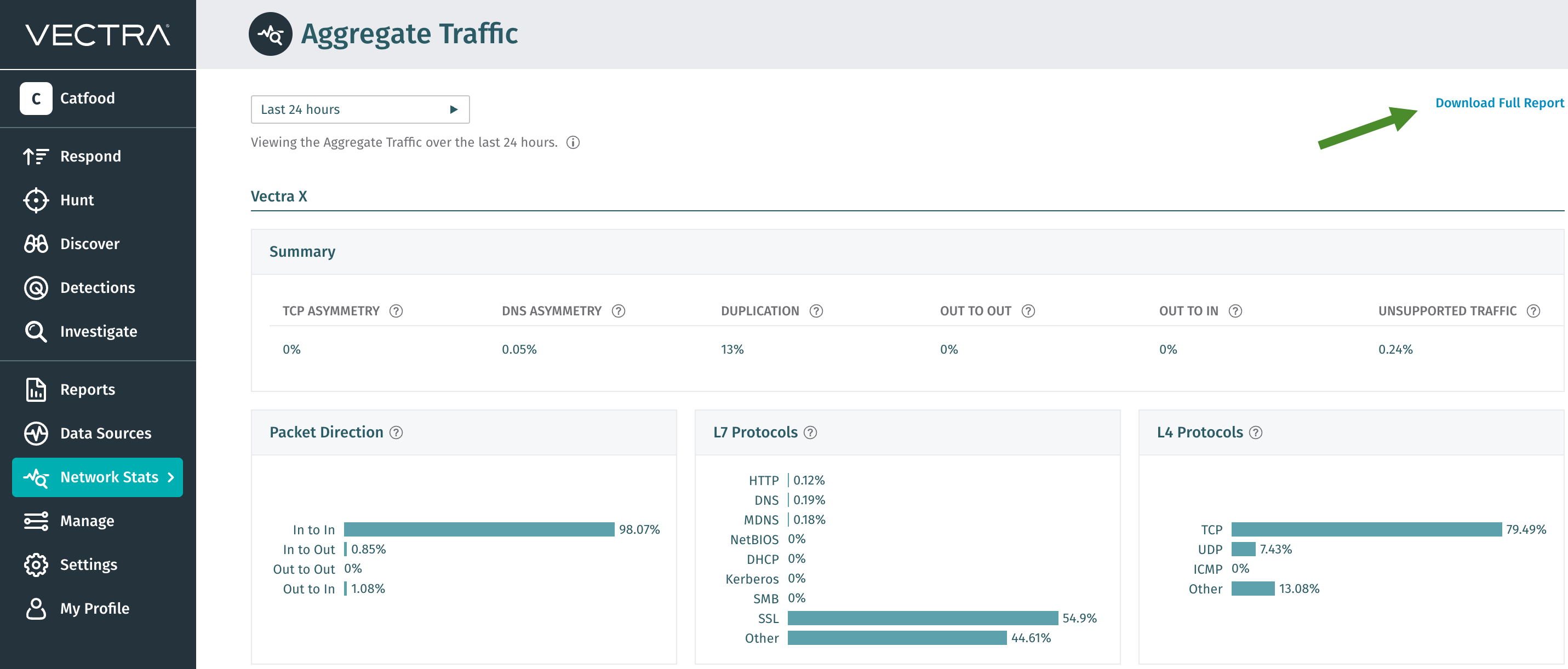
    • Aggregate Traffic - shows data from all paired network sensors

      • Summary

      • Packet Direction

      • L7 Protocols

      • L4 Protocols

      • Top VLANS for Duplication

      • Unprocessed Traffic

    • Per Sensor Traffic - shows data on a per sensor basis

      • Summary

      • Top flows for the following

        • TCP Asymmetry

        • DNS Asymmetry

        • Out to Out

        • Out to In

      • Packet Direction

      • L7 Protocols

      • L4 Protocols

      • Unprocessed Traffic

    • Per Subnet Traffic - shows data on a per /24 subnet basis

      • Flow Direction - shows the amount of traffic in the subnet that is communicating with the Internet, between subnets (Inter-subnet), and within the specified subnet (Intra-subnet)

  • Some widgets on the various pages will allow downloading of just the data being presented in the widget. For example:

  • In the above example, clicking on the download icon (pointed to by the green arrow) will download a .json of just the Top Flows (all options such as TCP Asymmetry, DNS Asymmetry, Out to Out, and Out to In will be included).

Downloading a JSON Report from the GUI

While the CLI allows you to customize the output (see below), you can generate and download a full report of ENTV data using the GUI.

  • Navigate to Network Stats > Aggregate Traffic in your Vectra GUI. This is in the Traffic Validation section.

  • Click Download Full Report.

  • The page will pivot to a Traffic on Network Sensors page.

  • Use the Generate a new Report button to create a new report if the Report Generated message at the bottom indicates a date too far in the past for your desired use.

    • This should complete in less than 15 minutes for all deployments.

    • Actual completion time will vary based on the size of your deployment.

    • You can come back later to find the new report ready for download.

  • Use the Download Report button to download the report.

General Network Traffic Validation Process

Once you have paired Sensors to your Brain and directed traffic to the capture ports on the Sensors, the next step is to validate that traffic flow and identify if there are any issues that may need to be addressed with the capture configuration.

  • Validate that packets are being observed at the capture port of the Sensors:

    • Log in to the Sensor(s) CLI using the "vectra" account and execute the "show traffic stats" command.

    • Additional information about this command is available in the Troubleshooting interface and Ethernet errors article.

  • ​Execute this command several times in a row and if you see Packets Received going up, then you know you are receiving packets and can move on to using ENTV to validate what your Sensor is passing on to the Brain for further processing.

  • show traffic stats -e will show extended statistics that may be helpful in troubleshooting physical or other low layer issues.

  • It can take a few minutes for traffic observed to be reflected in your user interface at Network Stats but once available, this area of the UI will also show network related statistics.

  • ENTV retains metrics for 24 hours, by default it returns results aggregated over the last hour.

    • You may wish to wait until your Sensors have collected data for a while to get a good picture of what they are seeing before digging in to ENTV analysis.

  • Use ENTV to show any alarms (red or yellow in the GUI) that are present

    • Alarms represent metrics that are out spec with norms set by Vectra.

    • These thresholds may be altered by Vectra as part of the software update process so we do not specify baselines in this article.

  • When alarms are present, dig into ENTV data on a page and widget basis depending on what you are looking for (what you want to investigate).

  • Once the issues have been identified, work with your network team and Vectra to determine the best path forward.

ENTV CLI Command Syntax

Using the ENTV CLI

The ENTV CLI is only available on Vectra Brain appliances. While Sensors that are paired to the Brain produce the data used by ENTV, querying ENTV is only possible from Brains. ENTV produces more statistics than what is easy for a human to digest at a glance.

  • Running alarms for all pages, Sensors, and subnets

    • Use the --all-alarms switch.

  • Hurray!! We have no alarms present and do not need to dig in further unless curious.

  • To output metrics and alarms for only a specific page use the --run-alarms switch when specifying a page name with the --page-name <Page Name> switch.

  • To check for alarms on only a specific page, use the --only-alarms switch when specifying a page name with the --page-name <Page Name> switch.

Metrics Used in Alarms (Alarm Definitions)

  • tcp_asymmetry

    • A substantial percentage of TCP traffic is only observed in one direction. Both directions of a session need to be observed on the same sensor. Consider repositioning what traffic is sent to the sensor.

  • dns_asymmetry

    • A substantial percentage of DNS traffic is only observed in one direction. Both directions of a session need to be observed on the same sensor. Consider repositioning what traffic is sent to the sensor.

  • out_to_in

    • A substantial percentage of traffic is coming from non-internal IP addresses. This could indicate a sensor is listening to DMZ traffic, or that some WAN IPs should be considered internal if they are controlled/owned by the customer's remote office. See sensor-expanded for out_to_in details.

  • out_to_out

    • A non-zero percentage of traffic has no internal source or destination. Consider reconfiguring internal subnets to include this traffic or not including this traffic to the sensor. See sensor-expanded for out_to_out details.

  • traffic_errors

    • A substantial percentage of traffic is being dropped due to either unsupported transport/network/encapsulation protocols, corrupted traffic, or performance issues. See aggregate page, asymmetry widget.

  • unsupported_pct

    • A substantial percentage of traffic has ethertypes that Vectra cannot process. Please consider a different encapsulation strategy for packets forwarded to the sensor. See encapsulation details under aggregate page, unsupported-encapsulations widget.

Time

ENTV retains metrics for 24 hours. By default, it returns results aggregated over the last hour. You can query within the 24 window for a specific end-time and period using the following arguments:

  • --end-time

    • (ISO 8601 format i.e. 2023-05-10T08:15:00 )

  • --report-len

    • (number of seconds)

Metrics are sent from Sensors at 5 minute intervals. It is recommended to make report_len >= 300 to ensure at least one set of values is captured.

Pages and Widgets

To keep related information together, statistics are divided into pages and those pages may further be divided into widgets.

Page
Widget
Description

aggregate

-

Broadest overview page, containing all aggregate widgets plus duplication information. Statistics are combined across all sensors with information about asymmetry, unsupported encapsulations, directionality, duplication, and protocol analysis. This contains the main summary base_stats and two supporting reports sensors, and top_flows_duplication.

The base_stats main summary report contains aggregate network data, in these sections:

  • l7_protos - ISO model level 7 protocol packet counts and percentages.

  • l4_protos - ISO model level 4 protocol packet counts and percentages.

  • misc_metrics

    • duplicate_pct - percent of total traffic that is duplicate.

      • If a substantial percentage of duplicate traffic is observed, the Brain can deduplicate metadata received from multiple sensors but this consumes resources that could be used to process higher loads of non-duplicate traffic. Consider finding the source of duplication and resolve it upstream from the Vectra Sensors.

    • duplicate_pkt - total packet count of traffic that is duplicate.

    • tcp_destruct_with_holes - indicates a count of TCP streams that have one or more missing packets in them. This should not be possible according to the TCP protocol, and so it is likely that the customer sensor has missed one or more packets.

    • total_packet_counts - total packets included in the sample traffic that ENTV captured for this report.

  • flow_dir – percents and packet counts for traffic flows in a given direction.

  • unsupported_encapsulations - percent of packets with unsupported ethertypes.

  • nic_errors - errors that occurred from DPDK on the Network Interface Card itself on a given sensor.

    • These are grouped by sensor_luid and include the nic_name.

    • ierrors - Very infrequent typically (almost never happen). Malformed low-level packet count, like runt ethers or wrong CRCs, which are usually caught before hitting the NIC.

    • imissed - Notably, imissed indicates packets that were dropped due to the NIC being overloaded (too much traffic). If there are NIC errors, this is usually where it happens.

    • rx_nombuf - Number of failures to initialize memory buffers in mempools. Rarely happen.

  • traffic_errors - the percentage of packets that the system was unable to process.

    • unsupported_traffic

      • unsupported_ip_proto_drops

      • non_ip_drops

    • unsupported_traffic_pct - percentage of packets not processed because of unsupported transport or network protocol.

    • internal_constraints_main

      • Percentage of packets not processed because of performance constraints (traffic needs to be reduced, too much IP fragmentation) or due to packet truncation. Generally represents drops that can more easily corrected by adjusting customer environment.

      • fwdd_hw_drops (forwarding-daemon hardware drops - this is Hardware Drops: NIC Overflow in the GUI) - sum of packets dropped due to imissed and rx_nombuf from all network interfaces for a given sensor

      • fwdd_sw_drops (forwarding-daemon software drops - this is Software Drops: Ingestion Overload in the GUI) - sum of packets dropped because internal processes were unable to keep up (talk to Vectra support).

      • ip_fragmentation_mem_alloc_drops

      • pkt_too_short_drops

The sensors supporting report breaks down statistics per-sensor sensor_list, as well as combined statistics across all sensors aggregate. For the details of those sections, see the summary widget below, since it fetches the same data.

The top_flows_duplication supporting report gives percents and counts for flows of duplicated packets within the network.

aggregate

summary

Summary includes:

  • dns_asymmetry

  • out_to_in

  • out_to_out

  • tcp_asymmetry

  • traffic_errors - the percentage of packets that the system was unable to process. Look at the following fields for breakdown of cause:

    • unsupported_traffic_errors - percentage of packets not processed because of unsupported transport or network protocol.

    • internal_constraints_main_errors - percentage of packets not processed because of performance constraints (traffic needs to be reduced, too much IP fragmentation) or due to packet truncation. Generally represents drops that can more easily corrected by adjusting customer environment.

    • unsupported_encapsulations - percent of packets with unsupported ethertypes. Check unsupported-encapsulations widget for details.

aggregate

unsupported-encapsulations

Metrics about ethertypes observed that we don't support, broken down by ethertype:

  • unsupported_pct - percent of all packets have unsupported ethertypes. Check pct_of_unsupported and the sensor-collapsed page for details.

  • unsupported_ethertypes - a list of observed ethertypes that are not supported. Notably, check the pct_of_unsupported field on each entry for the percent of unsupported ethertypes that are that particular ethertype.

aggregate

flow-direction

Metrics about packets bucketed by source_destination: in_in_pct (percent), in_in_pkt (packet count), in_out_pct, in_out_pkt , out_in_pct, out_in_pkt , and out_out_pct, out_out_pkt.

aggregate

l4-protocols

Percent / count of packets that are TCP, UDP, ICMP, or other.

aggregate

l7-protocols

Percent / count of packets that are HTTP, DNS, SSL, Kerberos, or other.

aggregate

duplication

Percent of duplicate packets, bucketed by VLAN with most duplicate traffic.

pct_of_anomalous - the contribution of this particular VLAN to the overall duplication.

aggregate

protos-and-directions

This is a composite widget. It will return the aggregate page's flow-direction , l4_protos , and l7_protos widgets' output in a list.

sensor-collapsed

-

Per-sensor summary statistics for all sensors. Per-sensor statistics are in the sensor_list sub-section, while combined statistics are in the aggregate sub-section. Each section contains summary percent summary_pcts and summary packet summary_pkts sections, for the following keys:

  • dns_asymmetry

  • out_to_in

  • out_to_out

  • tcp_asymmetry

  • traffic_errors

  • unsupported_traffic_errors

  • internal_constraints_main_errors

  • internal_constraints_other_errors

  • unsupported_encapsulations

sensor-expanded

-

Per-sensor detailed statistics.

Requires --sensor <LUID>" parameter, which may be set to --all for statistics on all sensors.

For a given sensor, reports are:

  • base_stats: same as the aggregate page above's base_stats report, but only for this sensor.

  • A set of top flows reports, which list the top N flows that exhibit different kinds of problems. Each has the same format. Those reports are:

    • top_flows_tcp_asymmetry

    • top_flows_dns_asymmetry

    • top_flows_out_to_out

    • top_flows_out_to_in

Top flow report format:

  • A total_anomalous_pct value that gives the percentage of all flows that match this criteria

  • A tops_list array that lists out the flows, which contains report-specific entries. The entry contains, among other things, a pct_of_anomalous value that indicates how much of the problem this particular element is responsible for.

sensor-expanded

tcp-asymmetry

For a given --sensor , return top flows that exhibit TCP asymmetry.

sensor-expanded

dns-asymmetry

For a given --sensor , return top flows that exhibit DNS asymmetry.

sensor-expanded

out-to-in

For a given --sensor , return top flows in the out-to-in direction.

sensor-expanded

out-to-out

For a given --sensor , return top flows in the out-to-out direction.

sensor-expanded

unsupported-encapsulations

For a given --sensor , return unsupported encapsulation statistics, including a list of unsupported ethertypes. See above section on unsupported encapsulations for more information.

sensor-expanded

flow-direction

For a given --sensor , return percents and packet counts for flow directions (in/out → in/out).

sensor-expanded

l4-protocols

For a given --sensor , return ISO model level 4 protocol packet counts and percentages.

sensor-expanded

l7-protocols

For a given --sensor , return ISO model level 7 protocol packet counts and percentages.

sensor-expanded

protos-and-directions

This is a composite widget. For a given --sensor , return the output of the flow-direction, l4-protocols, and l7-protocols widgets.

subnet-collapsed

-

Information about top subnets. The subnet_list sub-section is a list of subnets. Each contains:

  • latest_host_count - how many hosts were observed on this subnet, as counted in the host session table. The number of hosts that are active fluctuates, and this value gives how many there were the last time we checked.

  • tcp_asymmetry - tcp asymmetry on this subnet.

  • sensors - list of sensors (by luid) that observed this subnet.

subnet-expanded

-

Per-subnet detailed statistics.

Requires "--subnet <SUBNET>" parameter, which may be set to "__all__" for all subnets.

For a given subnet, the report contains:

  • internet - percent of traffic that communicates outside an internal subnet.

  • intra_subnet - percent of traffic that does not leave the subnet.

  • inter_subnet - percent of traffic that leaves the subnet.

Tips

  • Sensor Luid's can be seen at the Brain CLI using the show sensors command.

    • This will show the name of the Sensor which, if set by the admin, will typically be more familiar than the Luid.

Last updated

Was this helpful?