> For the complete documentation index, see [llms.txt](https://docs.vectra.ai/llms.txt). Markdown versions of documentation pages are available by appending `.md` to page URLs; this page is available as [Markdown](https://docs.vectra.ai/deployment/traffic-engineering-and-validation/using-vectra-packet-capture-pcap.md).
# Using Vectra packet capture (PCAP)
How to capture PCAPs on Vectra Sensors and download them from your Vectra UI.
## Enablement
### How is packet capture licensed?
* Packet capture functionality is not tied to any specific Vectra license. If you have a Vectra Brain and network Sensor deployed (even a mixed mode Brain), the Selective PCAP feature is available.
* Selective PCAP is available for use in both RUX (Respond UX) and QUX (Quadrant UX) deployments.
* Any active Vectra license is sufficient.
### How is packet capture enabled?
* There are no steps to enable packet capture functionality.
* Simply browse to *Network Stats → TRAFFIC VALIDATION → Packet Capture* in the Vectra UI associated with your deployment to configure a new packet capture.
### How can I control which users have permission to view or create packet captures?
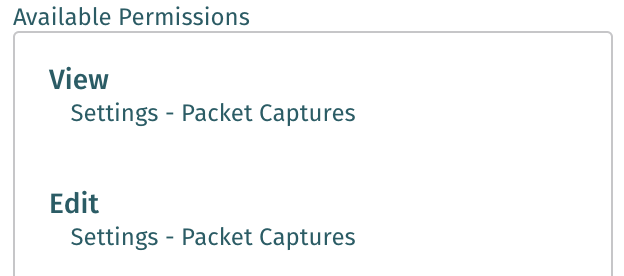
* Users are assigned roles in the Vectra UI. The **Settings - Packet Captures** permission controls this feature.
* Adding or removing this permission to either the **View** or **Edit** area of a role will control whether or not a user can view existing or create new packet captures. Below is a screenshot showing these permissions from the *Configuration → ACCESS > Roles* screen.
 ### Do all Vectra network Sensors support packet capture?
* Packet capture is supported by physical, virtual, and cloud Sensors.
* The only exception is that the c5n.18xlarge AWS Sensor is not supported because it does not have a rolling capture buffer.
### What firewall rules are required for packet capture?
* In QUX deployments, as long as your Sensors are paired with your Brain and communicating normally, Selective PCAP will function.
* In RUX deployments, just like in QUX deployments, Sensors must be paired with your Brain and communicating normally.
* Additionally, per the [Firewall Requirements for Vectra Deployments](/deployment/getting-started/firewall-requirements.md), the **Auth Gateways** are used to upload the PCAP to the Vectra Cloud and the **Customer File Upload** endpoints are used when the user wishes to retrieve a PCAP from the Vectra Cloud.
## Technical Details
### How are packet captures processed and stored?
* Packet captures are configured in the Vectra UI and executed on individual Sensors.
* Once a packet capture is completed, it is then forwarded to the Brain for storage for up to 7 days.
* In RUX deployments, PCAPs are also forwarded to the Vectra Cloud and stored for up to 24 hours.
* The 24 hour storage in the Vectra Cloud does NOT impact the overall retention of 7 days for PCAPS.
* This 24 hour limit only applies to the temporary storage in the Vectra Cloud so that RUX users can easily download the PCAP.
* Upon visiting the Packet Capture page in RUX, any PCAPs that are not in the Vectra Cloud will be transferred to the Vectra Cloud for future download.
* This can cause the status of the PCAP to change to **Transferring** even it it had completed previously as the PCAP is transferred to the Vectra Cloud.
### What are the size limitations for packet captures?
* An individual packet capture job is limited to 500 MB.
* The Brain reserves 5 GB of space to store packet captures.
### What happens when the Brain runs out of space to store packet captures?
* Older captures are automatically deleted to make room for new captures when the Brain hits the 5GB storage limit.
### How long are packet captures stored on the Brain?
* Packet captures are retained for up to 7 days on the Brain before being automatically deleted.
* The Brain is not meant to be a permanent store for any packet captures that you may have configured.
### For longer retention, where should packet captures be stored?
* Captures can be downloaded from the Vectra UI to any location that is accessible to the user who is performing the download in their browser.
## Using Packet Capture
### How do I create a packet capture?
* Navigate to *Network Stats > TRAFFIC VALIDATION → Packet Capture* and click the **Create PCAP** button.
* Initially, the table below the button will be empty. Capture jobs will be displayed in this table after they are created.

* A dialog box will open where you can configure a new packet capture:
### Do all Vectra network Sensors support packet capture?
* Packet capture is supported by physical, virtual, and cloud Sensors.
* The only exception is that the c5n.18xlarge AWS Sensor is not supported because it does not have a rolling capture buffer.
### What firewall rules are required for packet capture?
* In QUX deployments, as long as your Sensors are paired with your Brain and communicating normally, Selective PCAP will function.
* In RUX deployments, just like in QUX deployments, Sensors must be paired with your Brain and communicating normally.
* Additionally, per the [Firewall Requirements for Vectra Deployments](/deployment/getting-started/firewall-requirements.md), the **Auth Gateways** are used to upload the PCAP to the Vectra Cloud and the **Customer File Upload** endpoints are used when the user wishes to retrieve a PCAP from the Vectra Cloud.
## Technical Details
### How are packet captures processed and stored?
* Packet captures are configured in the Vectra UI and executed on individual Sensors.
* Once a packet capture is completed, it is then forwarded to the Brain for storage for up to 7 days.
* In RUX deployments, PCAPs are also forwarded to the Vectra Cloud and stored for up to 24 hours.
* The 24 hour storage in the Vectra Cloud does NOT impact the overall retention of 7 days for PCAPS.
* This 24 hour limit only applies to the temporary storage in the Vectra Cloud so that RUX users can easily download the PCAP.
* Upon visiting the Packet Capture page in RUX, any PCAPs that are not in the Vectra Cloud will be transferred to the Vectra Cloud for future download.
* This can cause the status of the PCAP to change to **Transferring** even it it had completed previously as the PCAP is transferred to the Vectra Cloud.
### What are the size limitations for packet captures?
* An individual packet capture job is limited to 500 MB.
* The Brain reserves 5 GB of space to store packet captures.
### What happens when the Brain runs out of space to store packet captures?
* Older captures are automatically deleted to make room for new captures when the Brain hits the 5GB storage limit.
### How long are packet captures stored on the Brain?
* Packet captures are retained for up to 7 days on the Brain before being automatically deleted.
* The Brain is not meant to be a permanent store for any packet captures that you may have configured.
### For longer retention, where should packet captures be stored?
* Captures can be downloaded from the Vectra UI to any location that is accessible to the user who is performing the download in their browser.
## Using Packet Capture
### How do I create a packet capture?
* Navigate to *Network Stats > TRAFFIC VALIDATION → Packet Capture* and click the **Create PCAP** button.
* Initially, the table below the button will be empty. Capture jobs will be displayed in this table after they are created.

* A dialog box will open where you can configure a new packet capture:
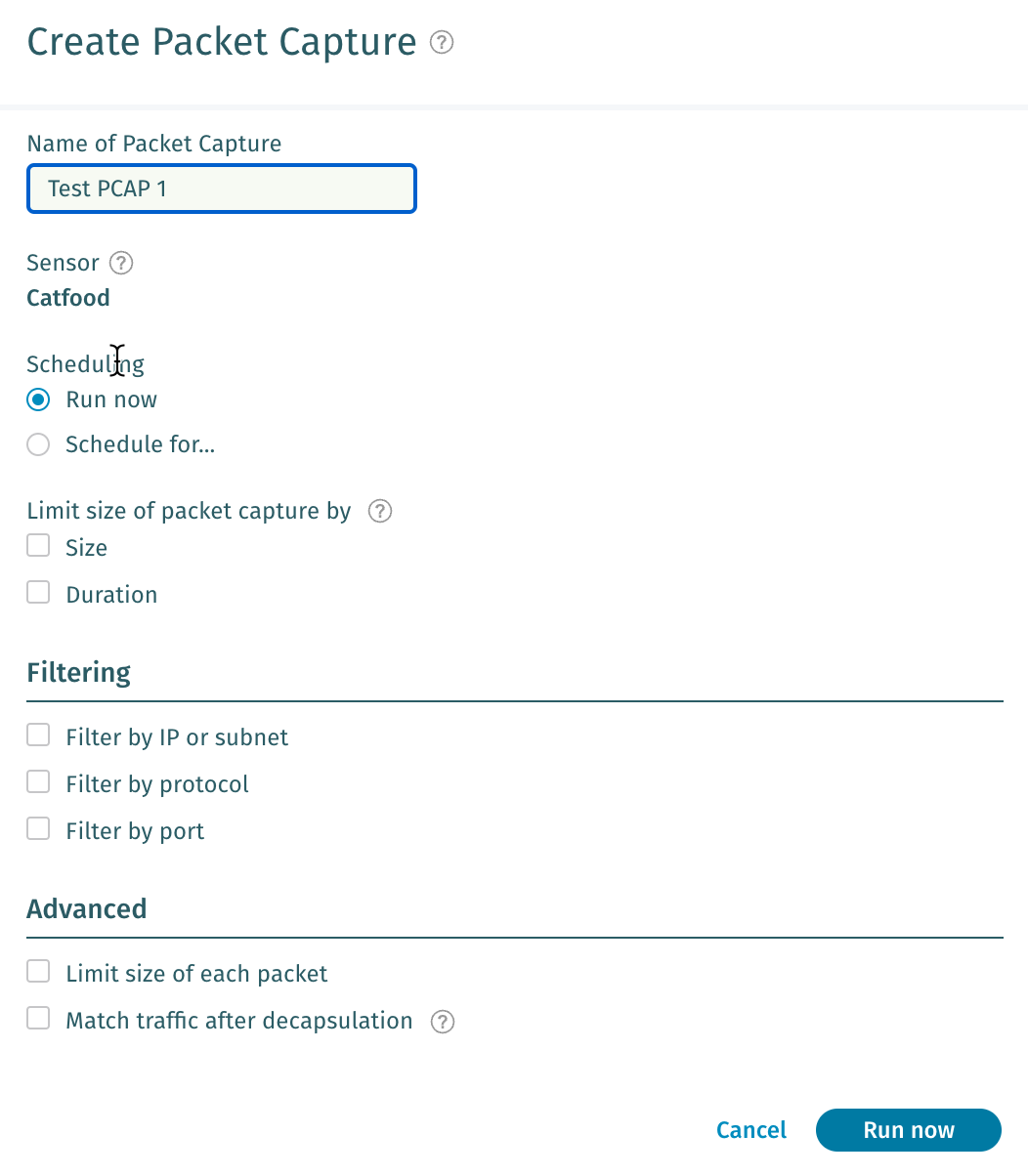 * Select the desired options and click **Run now**.
* If you choose the **Schedule for...** radio button under **Scheduling**, the bottom button to instead becomes **Schedule packet capture**.
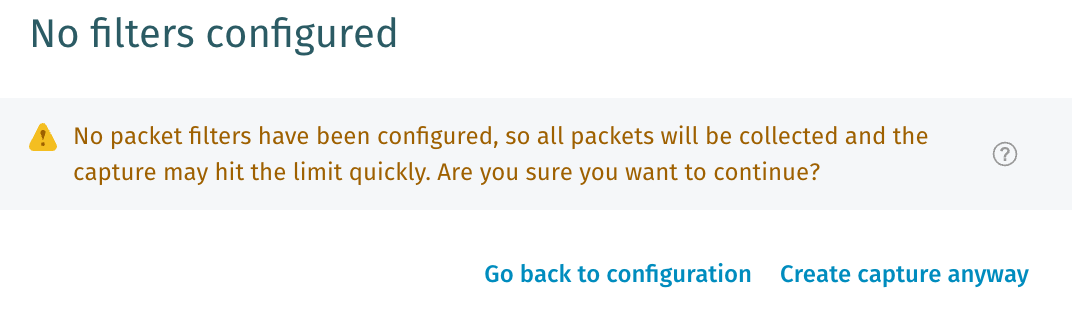
* The simplest configuration is to just give a name for the capture and then click **Run Now** with no filters or other options selected.
* You will be given a warning...
* Select the desired options and click **Run now**.
* If you choose the **Schedule for...** radio button under **Scheduling**, the bottom button to instead becomes **Schedule packet capture**.
* The simplest configuration is to just give a name for the capture and then click **Run Now** with no filters or other options selected.
* You will be given a warning...
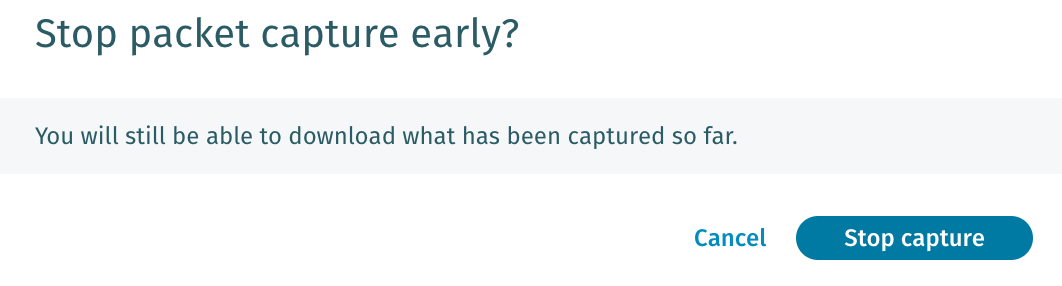
 * Once a capture is running, you can wait for it to complete or you can stop it early by clicking the **Stop capturing** button on your job.

* If you stop a capture before completion, you will still be able to download what has been captured so far.
* Once a capture is running, you can wait for it to complete or you can stop it early by clicking the **Stop capturing** button on your job.

* If you stop a capture before completion, you will still be able to download what has been captured so far.
 ### What does each configuration option do?
* Name of Packet Capture
* This is simply the name that refers to this capture job.
* Sensor
* Selects the Sensor that you want to configure for this packet capture.
* Traffic will be captured from every capture interface on the Sensor. The management interface does not support packet capture.
* Scheduling
* Run now
* Begins packet capture as soon as possible after clicking the "Run now" button.
* Schedule for...
* Brings up a date picker where you select a date and time for the packet capture to begin.
* Limit size of packet capture by
* Options can be applied individually or together. Whichever limit is hit 1st will stop the capture.
* Size
* Maximum size of packet capture in MB.
* Duration
* Maximum time for the packet capture to run in minutes and seconds
* Filtering
* Options can be applied individually or together. Any filter will limit the capture to contain only packets that match the filter.
* Any specified subnet will use standard CIDR notation. For example 192.168.10.1/24 would be a valid entry.
* Filter by IP or subnet
* You can choose to only capture traffic to/from a specific IP or subnet (specified in standard CIDR notation)
* You can also choose to only capture traffic between a pair of IPs or subnets
* Filter by protocol
* Selecting this option allows you to limit captures to only contain TCP, UDP, ICMP or any other single protocol specified by protocol number.
* A list of protocol numbers is available here:
*
* Filter by port
* Selecting this option allows you to limit captures to only a certain port.
* A list of port numbers is available here:
*
* Advanced
* Options can be applied individually or together.
* Limit size of each packet
* This option allows you to capture partial packets and functions similarly to the TCPDUMP snaplen or snapshot length parameter
* The selection must be between 64 and 9198 bytes
* Match traffic after decapsulation
* Vectra can decapsulate the following protocols
* GENEVE
* VXLAN
* GRE
* VLAN
* 802.1AD also known as double VLAN or QinQ
* If your Sensor is receiving encapsulated traffic, this setting controls if the selected filters are applied before or after decapsulation of those protocols.
### What other limitations should I be aware of when configuring a packet capture?
* While you can have many packet capture jobs configured, only one job can run on a Sensor at a given time.
* For example, if you schedule a packet capture for 10:00 AM and another for 10:05 AM but the 10:00 AM job hasn't completed at 10:05, the 10:05 job will never begin.
* The system will create a status message similar to the below (the **running on ...** refers to the Sensor LUID for the Sensor the job was intended to run on).

* Multiple entries are not supported for the following filters
* IP or subnet (CIDR), Protocol number, Port
* An example of a workaround if you want to do packet capture from 2 different ports, you can configure 2 separate packet captures to capture from 2 different ports or capture all the traffic with no limitation on ports.
* Packet captures, once completed on the Sensor, are not immediately available for download. They must be transferred to the Brain where the user can download the PCAP for analysis in the tool of their choice. The transfer happens automatically after a capture is completed.
* Note: Packets at Layer 2 will not show up as they are dropped.
* Please refer to Article Does [Vectra detect ARP poisoning/flooding](https://support.vectra.ai/vectra/article/KB-VS-1170) for more information.
### What status messages can appear for configured packet captures?
* Scheduled for date/time
* Date and time the packet capture is scheduled to begin.
* Starting
* Packet capture process is beginning.
* In Progress
* Packet capture is happening on the Sensor.
* Transferring
* Packet capture is being transferred from the Sensor to the Brain (RUX and QUX deployments).
* Packet capture is being transferred from the Brain to the Vectra Cloud (RUX deployments).
* Available for Download
* Packet capture is available to be downloaded from the Brain (QUX deployments).
* Packet capture is available to be downloaded from the Vectra Cloud (RUX deployments)
* Available for Download, but will be deleted in \[x] hours
* This status is similar to "Available for Download" but the packet capture is schedule to be deleted in less than 24 hours.
* Capture stopped by user
* A packet capture was in process but was stopped by the user before completion.
* Capture did not start because another capture was running on \[Sensor LUID]
* Only a single packet capture can run at any given time.
* Contact Support about Capture id: \[capture id]
* Something has gone wrong and you should contact Vectra support.
### How can I interact with the packet capture jobs?
* Once you have configured or completed any packet captures, the table under *Network Stats > TRAFFIC VALIDATION → Packet Capture* will populate with entries for each completed or scheduled job.
* Moving your mouse over an entry will display action buttons on the right side:

* You can delete a job using the trash can icon.
* The eye allows you to view the configuration of a job.
* The pencil allows you to edit a job.
* The copy icon copies the configuration of a job and opens a new **Create Packet Capture** dialog with the options already selected that matched the job you copied. You can then change the options and execute or schedule the new job.
---
# Agent Instructions
This documentation is published with GitBook. GitBook is the documentation platform designed so that both humans and AI agents can read, navigate, and reason over technical content effectively. Learn more at gitbook.com.
## Querying This Documentation
If you need additional information that is not directly available in this page, you can query the documentation dynamically by asking a question.
Perform an HTTP GET request on the current page URL with the `ask` query parameter, and the optional `goal` query parameter:
```
GET https://docs.vectra.ai/deployment/traffic-engineering-and-validation/using-vectra-packet-capture-pcap.md?ask=&goal=
```
`ask` is the immediate question: it should be specific, self-contained, and written in natural language.
`goal` is optional and describes the broader end goal you are ultimately trying to accomplish on behalf of the user. GitBook uses it to tailor the answer towards what is most useful for that goal.
The response will contain a direct answer to the question and relevant excerpts and sources from the documentation.
Use this mechanism when the answer is not explicitly present in the current page, you need clarification or additional context, or you want to retrieve related documentation sections.
### What does each configuration option do?
* Name of Packet Capture
* This is simply the name that refers to this capture job.
* Sensor
* Selects the Sensor that you want to configure for this packet capture.
* Traffic will be captured from every capture interface on the Sensor. The management interface does not support packet capture.
* Scheduling
* Run now
* Begins packet capture as soon as possible after clicking the "Run now" button.
* Schedule for...
* Brings up a date picker where you select a date and time for the packet capture to begin.
* Limit size of packet capture by
* Options can be applied individually or together. Whichever limit is hit 1st will stop the capture.
* Size
* Maximum size of packet capture in MB.
* Duration
* Maximum time for the packet capture to run in minutes and seconds
* Filtering
* Options can be applied individually or together. Any filter will limit the capture to contain only packets that match the filter.
* Any specified subnet will use standard CIDR notation. For example 192.168.10.1/24 would be a valid entry.
* Filter by IP or subnet
* You can choose to only capture traffic to/from a specific IP or subnet (specified in standard CIDR notation)
* You can also choose to only capture traffic between a pair of IPs or subnets
* Filter by protocol
* Selecting this option allows you to limit captures to only contain TCP, UDP, ICMP or any other single protocol specified by protocol number.
* A list of protocol numbers is available here:
*
* Filter by port
* Selecting this option allows you to limit captures to only a certain port.
* A list of port numbers is available here:
*
* Advanced
* Options can be applied individually or together.
* Limit size of each packet
* This option allows you to capture partial packets and functions similarly to the TCPDUMP snaplen or snapshot length parameter
* The selection must be between 64 and 9198 bytes
* Match traffic after decapsulation
* Vectra can decapsulate the following protocols
* GENEVE
* VXLAN
* GRE
* VLAN
* 802.1AD also known as double VLAN or QinQ
* If your Sensor is receiving encapsulated traffic, this setting controls if the selected filters are applied before or after decapsulation of those protocols.
### What other limitations should I be aware of when configuring a packet capture?
* While you can have many packet capture jobs configured, only one job can run on a Sensor at a given time.
* For example, if you schedule a packet capture for 10:00 AM and another for 10:05 AM but the 10:00 AM job hasn't completed at 10:05, the 10:05 job will never begin.
* The system will create a status message similar to the below (the **running on ...** refers to the Sensor LUID for the Sensor the job was intended to run on).

* Multiple entries are not supported for the following filters
* IP or subnet (CIDR), Protocol number, Port
* An example of a workaround if you want to do packet capture from 2 different ports, you can configure 2 separate packet captures to capture from 2 different ports or capture all the traffic with no limitation on ports.
* Packet captures, once completed on the Sensor, are not immediately available for download. They must be transferred to the Brain where the user can download the PCAP for analysis in the tool of their choice. The transfer happens automatically after a capture is completed.
* Note: Packets at Layer 2 will not show up as they are dropped.
* Please refer to Article Does [Vectra detect ARP poisoning/flooding](https://support.vectra.ai/vectra/article/KB-VS-1170) for more information.
### What status messages can appear for configured packet captures?
* Scheduled for date/time
* Date and time the packet capture is scheduled to begin.
* Starting
* Packet capture process is beginning.
* In Progress
* Packet capture is happening on the Sensor.
* Transferring
* Packet capture is being transferred from the Sensor to the Brain (RUX and QUX deployments).
* Packet capture is being transferred from the Brain to the Vectra Cloud (RUX deployments).
* Available for Download
* Packet capture is available to be downloaded from the Brain (QUX deployments).
* Packet capture is available to be downloaded from the Vectra Cloud (RUX deployments)
* Available for Download, but will be deleted in \[x] hours
* This status is similar to "Available for Download" but the packet capture is schedule to be deleted in less than 24 hours.
* Capture stopped by user
* A packet capture was in process but was stopped by the user before completion.
* Capture did not start because another capture was running on \[Sensor LUID]
* Only a single packet capture can run at any given time.
* Contact Support about Capture id: \[capture id]
* Something has gone wrong and you should contact Vectra support.
### How can I interact with the packet capture jobs?
* Once you have configured or completed any packet captures, the table under *Network Stats > TRAFFIC VALIDATION → Packet Capture* will populate with entries for each completed or scheduled job.
* Moving your mouse over an entry will display action buttons on the right side:

* You can delete a job using the trash can icon.
* The eye allows you to view the configuration of a job.
* The pencil allows you to edit a job.
* The copy icon copies the configuration of a job and opens a new **Create Packet Capture** dialog with the options already selected that matched the job you copied. You can then change the options and execute or schedule the new job.
---
# Agent Instructions
This documentation is published with GitBook. GitBook is the documentation platform designed so that both humans and AI agents can read, navigate, and reason over technical content effectively. Learn more at gitbook.com.
## Querying This Documentation
If you need additional information that is not directly available in this page, you can query the documentation dynamically by asking a question.
Perform an HTTP GET request on the current page URL with the `ask` query parameter, and the optional `goal` query parameter:
```
GET https://docs.vectra.ai/deployment/traffic-engineering-and-validation/using-vectra-packet-capture-pcap.md?ask=&goal=
```
`ask` is the immediate question: it should be specific, self-contained, and written in natural language.
`goal` is optional and describes the broader end goal you are ultimately trying to accomplish on behalf of the user. GitBook uses it to tailor the answer towards what is most useful for that goal.
The response will contain a direct answer to the question and relevant excerpts and sources from the documentation.
Use this mechanism when the answer is not explicitly present in the current page, you need clarification or additional context, or you want to retrieve related documentation sections.