> For the complete documentation index, see [llms.txt](https://docs.vectra.ai/llms.txt). Markdown versions of documentation pages are available by appending `.md` to page URLs; this page is available as [Markdown](https://docs.vectra.ai/deployment/ndr-virtual-cloud-appliances/aws-vsensor/introduction-and-requirements.md).
# Introduction and requirements
Prerequisites and sizing guidance for deploying Vectra AWS vSensors, including sizing, SRT setup, VPC/subnet planning, and security group requirements.
## Introduction
This document describes the pre-requisites, specifications, and steps required to deploy a Vectra Sensor in an AWS account to monitor cloud Infrastructure-as-a-Service workloads. These Sensors can be paired to Vectra Brains of any type (physical, virtual, cloud) if the required connectivity is in place.
The input to an AWS Sensor can be Amazon VPC traffic mirroring set up on an Amazon elastic network interface or from a VXLAN-based 3rd party packet brokers.
AWS vSensors can be used in both Respond UX and Quadrant UX deployments. For more detail on Respond UX vs Quadrant UX please see [Vectra Analyst User Experiences (Respond vs Quadrant)](/deployment/getting-started/analyst-ux-options-rux-vs-qux.md). One of the below guides should be the starting point for your overall Vectra deployment:
* [Respond UX Deployment Guide](/deployment/getting-started/respond-ux-deployment-guide.md)
* [Quadrant UX Deployment Guide](/deployment/getting-started/quadrant-ux-deployment.md)
For additional guidance for AWS IaaS deployments of Vectra, see the following:
* [Vectra AWS IaaS Best Practices Guide](/deployment/ndr-virtual-cloud-appliances/aws-best-practices.md)
* [Vectra AWS Brain Deployment Guide](/deployment/ndr-virtual-cloud-appliances/aws-brain.md)
## Requirements and Preparation
### Supported AWS Regions
Please see [Supported regions for AWS vSensor deployment](/deployment/ndr-virtual-cloud-appliances/aws-vsensor/aws-vsensor-faqs.md#supported-regions-for-vectra-aws-vsensor-deployment) in the [AWS vSensor FAQs](/deployment/ndr-virtual-cloud-appliances/aws-vsensor/aws-vsensor-faqs.md) if when deploying from the AWS Marketplace you do not see your desired region. Most regions customers require are already supported.
Vectra periodically updates supported regions. If your desired region is not available, please contact your Vectra account team to request it.
### Sensor Registration Token (SRT)
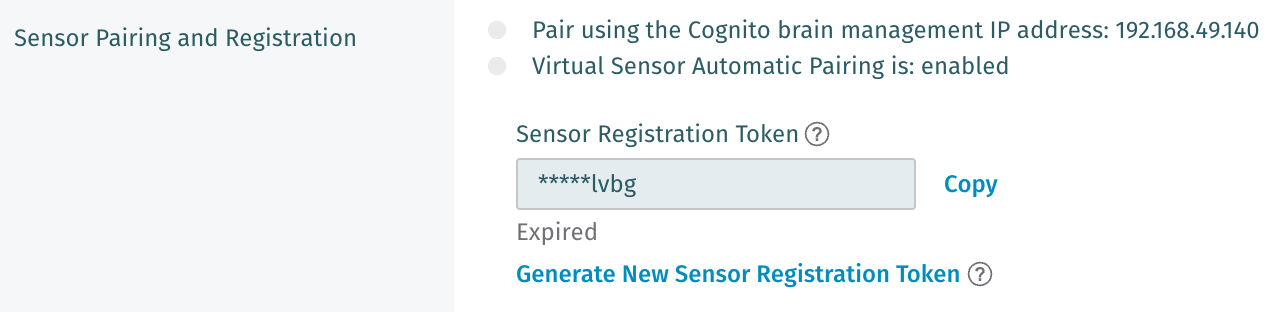
The ***Configuration***** → *****COVERAGE***** → *****Data Sources → Network → Sensors*** area of your Vectra UI allows you to pair and manage network Sensors, configure a number of options related to Sensor pairing and registration, and change the CLI `vectra` user password for paired devices (Sensors and Stream). Navigate in this area to ***Sensor Configuration > Sensor Pairing and Registration.***
* During Sensor deployment a valid Sensor registration token must be presented to the Brain so that the Sensor can become **Available** to Pair. This token can be created in the Vectra UI or at the CLI of the Brain. It is valid for 24 hours and can be regenerated at any time.
* For full details on pairing processes, please see [pairing appliances](/deployment/appliance-operations/pairing-appliances.md).
* If you have a valid token, you can **Copy** it here for later use using the link.
* Otherwise, click the **Generate New Sensor Registration Token** link.
* Use this token for Sensor deployment (tokens expire 24 hours after generation).
### Sensor Sizing
AWS Sensors are available in a variety of sizes:
* r5.large / r5n.large – 1 Gbps
* r5.xlarge / r5n.xlarge – 2 Gbps
* r5.2xlarge / r5n.2xlarge – 4 Gbps
* r5.4xlarge / r5n.4xlarge – 8 Gbps
* c5n.18xlarge – up to \~10 Gbps (Contact your Vectra sales team for guidance)
The r5n instances guarantee networking performance and as a result it is recommended, but may not be available in all AWS regions. The r5 instances deliver the same performance without the guarantee. The c5n.18xlarge instance is a dedicated instance which also has the benefit of a 100 session traffic mirror destination limit vs the 10 session limit on the other instances. The c5n.18xlarge may not hit 10 Gbps in some scenarios as there are many factors to consider. Please engage your Vectra sales team for additional guidance for your specific network architecture.
Vectra periodically updates our AWS Marketplace listing to include additional instance choices. Please work with your Vectra account team for guidance on new options.
The Sensor instances can be deployed either stand alone, or with a Network Load Balancer (Vectra currently supports 1 Sensor per NLB). Currently, multiple Sensors cannot be deployed in a single Auto Scale Group.
{% hint style="info" %}
**Please Note:**
Vectra product and engineering teams monitor the changing landscape of available IaaS cloud instance types. Occassionally customers will ask if a specific new instance type is supported.
There are a number of factors that can cause Vectra AI to stay with a specific instance type versus a newer one such as:
* Cost increase vs performance increase - sometimes a newer instance, for example, might cost 17% more but only increase performance by 10%.
* Availability - not all new instance types are always available in all the locations that Vectra AI supports.
Please reach out to your account team if you have questions about specific instance types that aren't supported.
{% endhint %}
### SSH Key Pair
An SSH key pair will need to be created for the Sensor to allow an administrator to SSH to the CLI as the “vectra” user. The public key will be set in the CloudFormation template during deployment. Guidance for key pair generation is here: [Amazon EC2 key pairs and Linux instances](https://docs.aws.amazon.com/AWSEC2/latest/UserGuide/ec2-key-pairs.html?icmpid=docs_ec2_console)
* After the Sensor is deployed, you can login to the Sensor CLI via SSH using the private key:
* You may need to make the key readable to you using a command such as:
* `chmod 400 VectraSensorPrivateKey.pem`
* Example login command:
* `ssh -i vectra@SensorHostnameOrIP`
### VPC and Subnets
You will either need to create a new VPC and Management / Traffic Subnets for use with the Sensor you are deploying or re-use an existing one. You will choose these when filling out the CloudFormation template. Some AWS documentation is available at the following links:
* [What is Amazon VPC?](https://docs.aws.amazon.com/vpc/latest/userguide/what-is-amazon-vpc.html)
* [Overview of VPCs and subnets](https://docs.aws.amazon.com/vpc/latest/userguide/VPC_Subnets.html)
* [Create VPCs and subnets](https://docs.aws.amazon.com/vpc/latest/userguide/build-create-work-with.html)
### Security Groups
The CloudFormation template will create empty security groups, or you may select existing security groups to use.
* **mgtSecurityGroup** - Used for the management interface of the Sensor.
* This security group must allow inbound TCP/22 from the Brain and allow outbound TCP/443 and TCP/22 to the Brain for management.
* **trafficSecurityGroup** - Used for the traffic capture interface of the Sensor.
* In case of ingesting from a packet broker, ensure that VxLAN traffic is permitted inbound on UDP/4789.
* If deploying a Network Load Balancer in front of the Sensor, inbound TCP/80 must also be permitted from the NLB for the health-check from the load balancer to succeed.
---
# Agent Instructions
This documentation is published with GitBook. GitBook is the documentation platform designed so that both humans and AI agents can read, navigate, and reason over technical content effectively. Learn more at gitbook.com.
## Querying This Documentation
If you need additional information that is not directly available in this page, you can query the documentation dynamically by asking a question.
Perform an HTTP GET request on the current page URL with the `ask` query parameter, and the optional `goal` query parameter:
```
GET https://docs.vectra.ai/deployment/ndr-virtual-cloud-appliances/aws-vsensor/introduction-and-requirements.md?ask=&goal=
```
`ask` is the immediate question: it should be specific, self-contained, and written in natural language.
`goal` is optional and describes the broader end goal you are ultimately trying to accomplish on behalf of the user. GitBook uses it to tailor the answer towards what is most useful for that goal.
The response will contain a direct answer to the question and relevant excerpts and sources from the documentation.
Use this mechanism when the answer is not explicitly present in the current page, you need clarification or additional context, or you want to retrieve related documentation sections.