> For the complete documentation index, see [llms.txt](https://docs.vectra.ai/llms.txt). Markdown versions of documentation pages are available by appending `.md` to page URLs; this page is available as [Markdown](https://docs.vectra.ai/deployment/ndr-virtual-cloud-appliances/aws-best-practices.md).
# AWS best practices
AWS configuration and operational best practices for Vectra appliances and integrations.
## Vectra for AWS
Various Public Cloud providers are offering technologies that allow Security Architects to deploy Vectra® into the public cloud. However, architecting solutions like Vectra in the cloud are very different from architecting and deploying an on-premises version of the solution. This paper will look at some of the issues and challenges you may encounter as you are building your Vectra deployment.
## Differences Between On-Premises and the Cloud
The Vectra Brain itself functions similarly when deployed on-premises and in the Public IaaS Cloud. However, collection of the packet data required is quite different. When deployed on-premises, Vectra uses physical and/or virtual Sensors to collect packet data from network taps or spans. In the Public Cloud Vectra can’t use physical taps and spans as they are not available. Instead, the options are:
* Cloud Virtual Taps
* Cloud Workload Agents
* Cloud Packet Brokers
By utilizing one or more of these technologies, it’s easy to extend the reach of Vectra from an on-premises deployment into a hybrid deployment that covers the premises as well as one or more Public Cloud providers.
## Developing a Deployment Architecture
When determining how to deploy Vectra into your organization’s AWS environment, we need to evaluate four major items:
1. Sizing and placement of the Brain
2. Sizing, number, and placement of the Sensors
3. Establishing and maintaining the traffic mirrors
4. Integration with Amazon AWS Services
Let’s look at each of these aspects in a bit more detail.
## Sizing and Placement of the Brain
Within a Vectra deployment, the main system that manages the complete operation of the solution is called the Brain. The Brain consumes the metadata that the Sensors generate, produces Detections from that metadata, and serves the UI in Quadrant UX deployments, etc. In Respond UX deployments, the UI is served from Vectra’s cloud but still communicates with the Brain.
Generally, when architecting a solution, consideration is needed around the Brain placement and connectivity first. The Brain requires that it be protected, as any other security related system, in your environment. However, Sensors require access to the Brain to upload collected metadata. The required connectivity is HTTPS and SSH from the Sensors to the Brain.
From a connectivity perspective, the Brain requires several types of access to be allowed. First from the Sensors to the Brain:
* SSH - FROM the Sensor TO the Brain on TCP/22
* HTTPS - FROM the Sensor TO the Brain on TCP/443
Connections are established from the Sensor to the Brain but data flows both ways and for troubleshooting reasons it is recommended to enable SSH and HTTPs bidirectionally between the Sensor and the Brain.
Additionally, we would want to allow:
* Access to the Internet to download updates and share health statistics, etc.
* [https://update2.vectranetworks.com](https://update2.vectranetworks.com/)
* [https://api.vectranetworks.com](https://api.vectranetworks.com/)
* UI access for the security team
* HTTP to the Brain (only needed if a redirect to HTTPS is desired)
* HTTPS to the Brain (for GUI access in Quadrant UX deployments only)
* API access between other tools and systems
* HTTPS
* Access to the AWS Management Layer API
* HTTPS
For full connectivity details for a complete deployment see: [Firewall requirements for Vectra appliances](/deployment/getting-started/firewall-requirements.md)
When determining what size Brain should be deployed, this decision should be based on the amount of aggregate traffic that will be captured by the Brain’s paired Sensors that will then be sent as metadata to the Brain for analysis. Vectra offers a variety of different configurations for the AWS Brain to support different customer requirements.
* Please see current options for AWS Brains in the [appliance specifications](/deployment/getting-started/appliance-specifications.md#virtual-brains-iaas).
We will explore placement in more depth below.
## Sizing and Placement of Sensors
While only a single Brain is generally deployed (backup Brains or multiple Brains feeding a SIEM are exceptions), multiple Sensors in a variety of locations may be required to provide complete coverage. Sensors are available in an assortment of forms such as physical, virtual (VMware, Hyper-V, KVM, and Nutanix), and cloud (AWS, Azure, and GCP). All these Sensors can be combined in any way required to provide complete coverage, and all these Sensors can be paired to either an on-premises or a cloud Brain.
Generally, the decision on adding an additional cloud Sensor – or not – depends on several points:
* The number of remaining traffic mirror sessions on the existing Sensors.
* The quantity of mirror data each workload is generating.
* The amount of data transferred (data transfer charges) vs. cost of another Sensor.
Let’s look at these in a little more depth. The number of remaining traffic mirror sessions relates to the existing soft limits that are in place. The limit is based on the destination type for the mirror packets.
| **Traffic Mirror Destination** | **Max Session Limit** |
| ------------------------------- | --------------------- |
| Standard Non-Dedicated Instance | 10 Sessions |
| Dedicated Instance | 100 Sessions |
| Network Load Balancer | Unlimited |
AWS Sensors are available in a variety of sizes. Please see current options for AWS vSensors in the [appliance specifications](/deployment/getting-started/appliance-specifications.md#virtual-sensors-iaas).
Vectra periodically updates our AWS Marketplace listing to include additional instance choices. Please work with your Vectra account team for guidance on new options.
The Sensor instances can be deployed either stand alone, or with a Network Load Balancer (Vectra currently supports 1 Sensor per NLB). Currently, multiple Sensors cannot be deployed in a single Auto Scale Group.
Based on the chart above, and with an understanding of how much traffic an existing workload generates, we can make the decisions on spinning up additional Sensors vs. adding additional traffic mirrors to existing Sensors. We will discuss this in much greater depth below.
## Example Deployment Scenarios
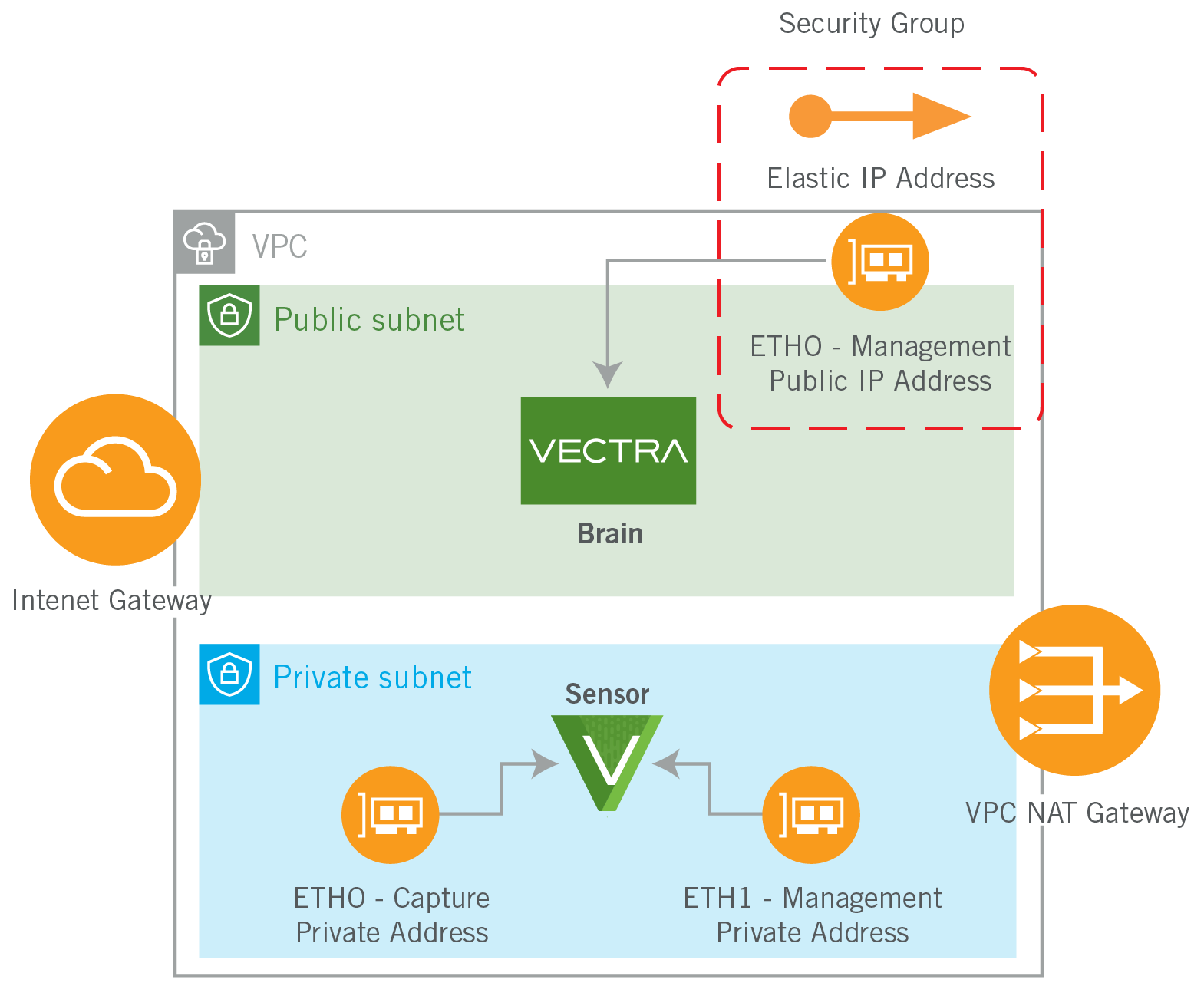
### Single VPC
Architecture
* In this architecture we are looking at a single VPC as a standalone enclave that may be hosting a single application stack.
* The Brain is made publicly accessible since there is no other way to provide private access in this scenario.
* The ENI of the Brain must be protected in this case using security groups/NACLS to limit access.
* The Brain could also be placed in the private subnet if there was another access method to allow access to the Brain UI, for example a VPN.
* In this example there is a NAT gateway to allow outgoing connections from the Brain.
* The Sensor is deployed to the Private subnet in this configuration as access is never required from the outside.
* This allows us to protect the appliance from attack.
* All Traffic Mirrors are pointed at ETH0 of the Sensor.
* This ENI is configured to allow incoming VXLAN.
* All Brain/Sensor interactions are sourced from ETH1 of the Sensor.
* Configure a Security Group on that ENI that allows communications between the Brain and Sensor only.
Recommendations
* Ensure protection of your Brain appliance by creating automated backups to an S3 bucket or other destination.
* If the number of workloads is approaching the soft limits for traffic mirrors, you can add an NLB to this configuration to remove that limit.
Traffic Mirrors
* Since this is a small environment, it’s likely Cloud Engineers would choose to manually deploy the Traffic Mirrors manually in the environment.
* To read more details, see Appendix A.
* As changes to an environment like this are likely small, maintaining the mirrors might be a manual operation going forward.
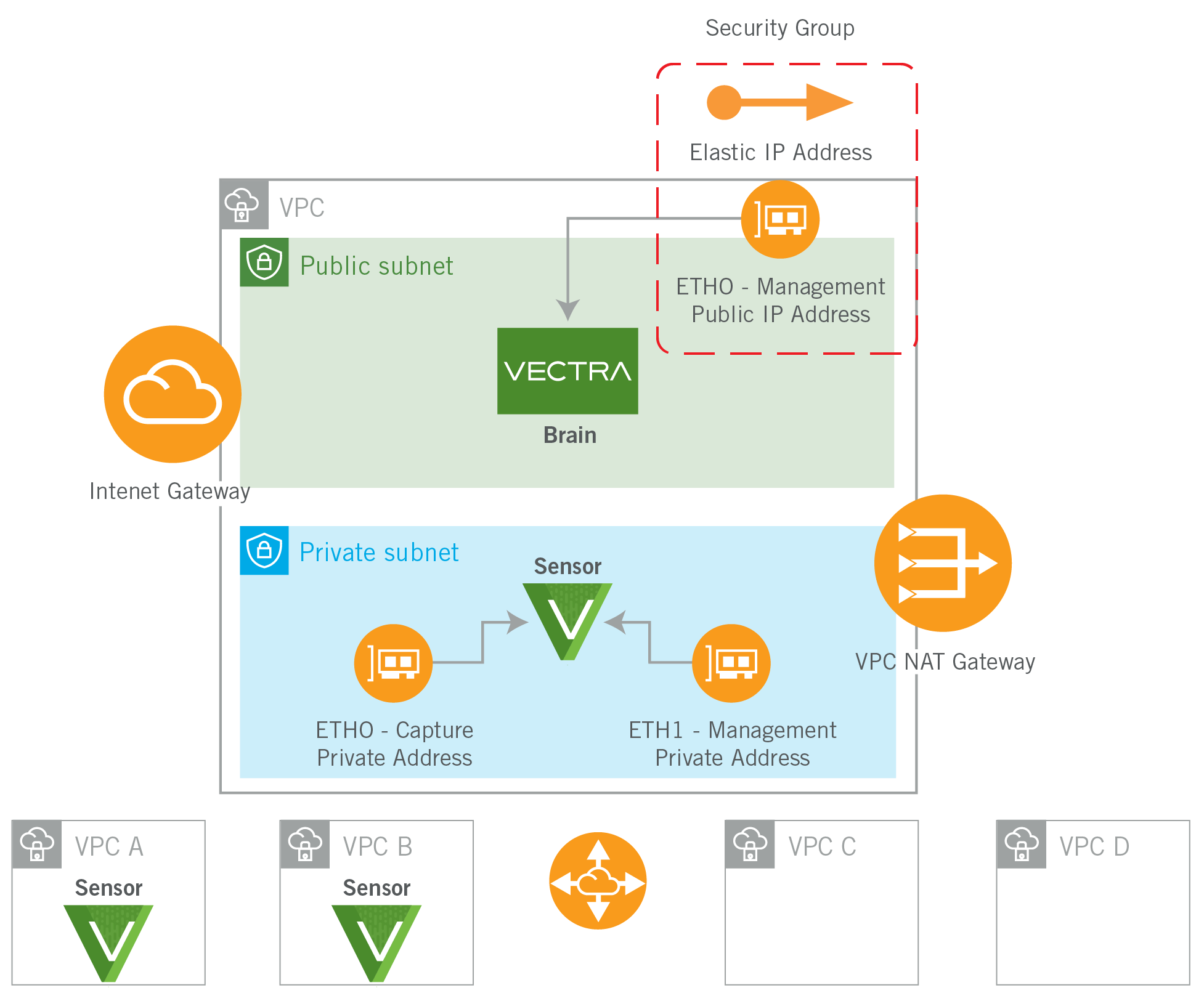
### Multi VPC
#### Architecture
This is an expanded architecture from the example above. In this architecture, we added some more VPCs, some VPC Peering Connections and Routes to allow all the VPCs to communicate. However, we only added two Sensors to the four new VPCs:
* Based on an evaluation of the workloads running in all four new VPCs it was determined that new Sensors would be required in two of those VPCs. The decision criteria were:
* The volume of traffic (approaching 3Gbps)
* The large number of workloads in those VPCs
* Since the volume of traffic from the other two VPCs was very low, those workloads could be supported by the original Sensor.
* As the number of VPC Traffic Mirrors on the original Sensor increases, make sure that you do not attempt to pass the soft limits on Mirror Sessions.
* If necessary, you can redeploy the original Sensor and add an NLB to remove that limit completely.
* More and more VPCs and Sensors can be added up to the maximum capacity of the selected Brain appliance.
* If a larger Brain is needed, a shutdown, change to larger instance type, and start will work.
#### Recommendations
* In larger environments like this it’s likely there are other types of access to the environment, for example a client VPN.
* If that is available, the first change is to take the Brain out of the public subnet and protect it in a private isolated subnet.
* However, make sure the Brain has access to the internet via a NAT or other method.
* Sensors can continue to be added in this fashion up to a maximum number based on the Brain appliance deployed:
* r5d.2xlarge total of 15 Sensors
* r5d.4xlarge total of 25 Sensors
* r5d.8xlarge total of 100 Sensors
* r5.16xlarge total of 500 Sensors
#### Traffic Mirrors
* In larger environments like this, the velocity of change is much higher. Therefore, we will want to look at automation to help us make sure that workloads that require a Traffic Mirror have one.
* One simple option is Vectra’s AWS Traffic Mirroring Session Manager available from GitHub at
* This is some simple Python that will allow Cloud Engineers to create all missing Traffic Mirrors with a single script.
* It can be run anytime or run automatically to ensure that all workloads are covered.
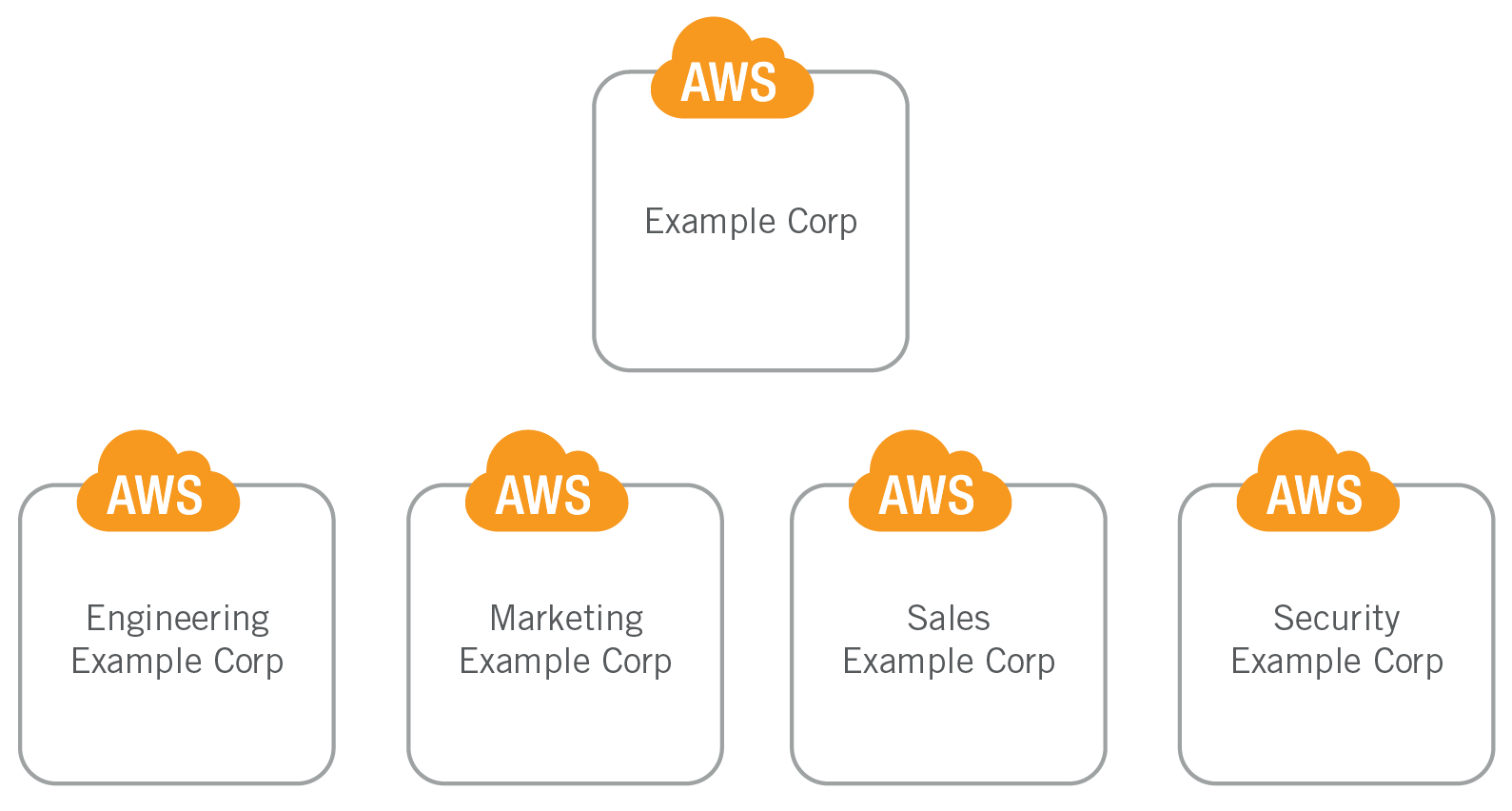
### Multi Account
#### Architecture
As an organization’s cloud journey progresses, they inevitably add more and more accounts. These are designed to reduce blast radius of an incident, increase security, and allow for easier cost allocation. Vectra can easily handle a multi account configuration.
As you combine multiple accounts to build a larger AWS footprint, you will use services like Organizations, Landing Zones, and the AWS Resource Access Manager. We will use the same services to extend Vectra to this larger environment.
* To support this multi-account structure, we will use the AWS Resource Access Manager to share out the Traffic Mirror Targets of the Sensors that will be deployed into the environment.
* In this case in the Security Account.
* To support an unlimited number of incoming Mirror Sessions, each Sensor will have a Network Load Balancer placed in front of it.
* AWS Config Custom Rules can be used to ensure that traffic mirrors are enabled on all workloads.
#### Recommendations
At this level of Cloud use it’s safe to assume site to site VPN or Direct Connect use. Therefore, we can consider the use of a Physical and/or Cloud Brain based on requirements. This would allow us to build:
1. A configuration where we centralize all Cloud and on-premises metadata on a Cloud Brain
2. A configuration where we centralize all Cloud and on-premises metadata on an on-premises Brain.
3. A distributed solution where each environment is kept local to itself. In these cases, we will generally centralize on a SIEM or another log aggregator.
Traffic Mirrors
At this size of implementation, we need to look at full automation to ensure all workloads have the required Traffic Mirrors. Here we will use an AWS supplied Lambda to enforce this for us. The project is available for download from:
*
By deploying this lambda, you can monitor all EC2 Instance Launch Events and the Lambda will create the traffic mirror automatically.
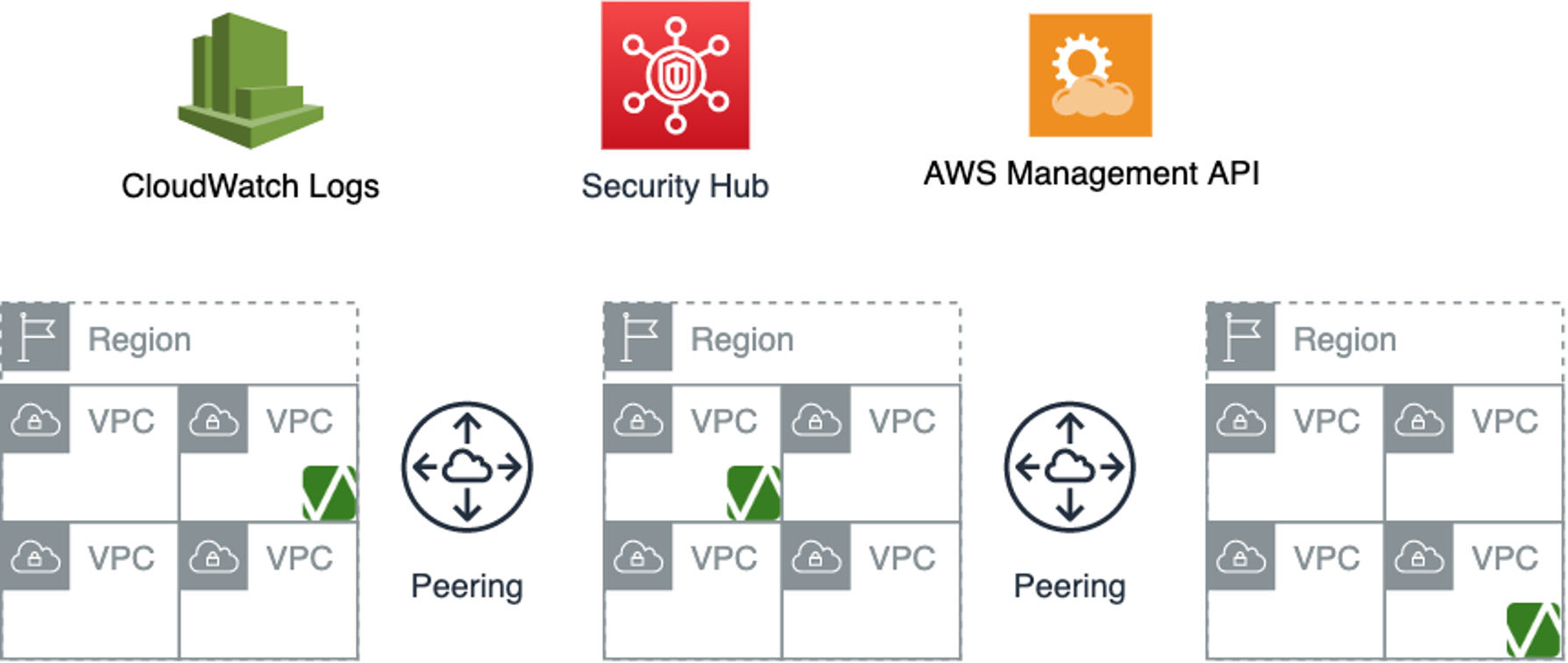
### Multi Region
#### Architecture
As environments grow to cover larger and larger geographies, it’s going to be more difficult (and less efficient) to use a single Brain. You have a lot of freedom as to where to place each Brain within your architecture. Some things to think about are:
* Often from a Security and access perspective, it’s a good idea to use things like a Shared Services or Management VPC.
* These are often used to allow access to larger pieces of the infrastructure.
* Sensors will need to be deployed to multiple AZs and VPCs within the region to support all the workloads.
* Keep costs of cross AZ data transfer charges in mind as you build out your infrastructure.
* The data transfer between a Brain and Sensor is about 0.5% of the traffic captured by the Sensor
#### Recommendations
The larger your environment, the more you will want to use additional AWS integrations that Vectra offers. These include:
* AWS Management API – When Vectra is running on-premises the Sensors will capture “local” network objects.
* Things like DHCP request and response packets, Client web browser cookies, Kerberos logins and other things that are generally NOT available to us in the Cloud.
* These objects drive the Vectra Host ID protocol which is core to its operation.
* To allow Host ID to function in the cloud we make ec2::Describe\* calls against the AWS API. These calls allow Vectra to collect identifying information about your workloads in the cloud. Things like:
* Instance ID
* Instance Type
* Operating System
* Subnet ID
* Tags and more
* CloudWatch Logs – Our CloudWatch Logs integration allows Vectra to send all system audit and health log events into CloudWatch Logs.
* Any issues can be remediated using CloudWatch Events and Lambda, Step Functions, SNS, SQS or other method.
* Security Hub – This integration allows Vectra to send Third Party Findings into AWS Security Hub.
* These findings can then also generate actions. This is only available for Quadrant UX deployments.
#### Traffic Mirrors
At this scale, we can assume that this cloud is managed mostly / completely via tooling, and so should your Traffic Mirrors. Both AWS CloudFormation and [HashiCorp Terraform](https://www.hashicorp.com/products/terraform) support creating VPC Traffic Mirrors as part of system provisioning or updates.
### Hybrid Cloud
#### Architecture
This is the pinnacle of cloud architecture: an on-premises cloud combined with multiple public cloud providers, all driven by full automation. It’s hard to give any specific advice at this level of Public/Private Cloud. Everything that we have discussed previously remains valid. It comes down to understanding Vectra capabilities and limitations and building within those.
Please do not hesitate to contact us for additional assistance.
## Integrating with AWS Services
Vectra is writing an expanding list of integrations into Amazon Web Services itself. This allows us to more deeply integrate both solutions. We will explore four main topics below. Security Groups, IAM, CloudWatch, and Security Hub.
### Security Groups
When you deploy Vectra appliances with CloudFormation, each appliance will create some ENIs and possibly some security groups as well. Here are the defaults for all appliances:
| **Appliance** | **Name of Interface** | **Default Security Group Suffix** |
| ------------- | --------------------- | --------------------------------- |
| Vectra Brain | eth0 | MgtSecurityGroup |
| Vectra Sensor | eth0 | TrafficSecurityGroup |
| Vectra Sensor | eth1 | MgtSecurityGroup |
| Vectra Stream | eth0 | MgtSecurityGroup |
The full security group name is a combination of your CloudFormation stack name plus the suffix. For example, if you deploy a Brain and the stack name is test-stack the security group name will be ‘test-stack-mgtsecuritygroup’.
You can also supply the id of a security group that you would like the template to use. In that case simply replace the AWS::NoValue with the security group id i.e. ‘sg-0d58928f23e33f59d‘.
All default security groups that the CloudFormation templates build are blank. Therefore, no traffic will pass until we add some rules to the groups. Here are the recommended minimum rule sets for all appliances:
Brain Security Group Settings eth0 – Incoming – Minimum Required
| **Type** | **Protocol** | **Port Range** | **Source** |
| -------- | ------------ | -------------- | ---------------------------- |
| HTTP | TCP | 80 | All Users |
| HTTPS | TCP | 443 | All Users / Sensors / Stream |
| SSH | TCP | 22 | All Sensors / All Stream |
Sensor Security Group Settings eth0 – Incoming – Minimum Required
| **Type** | **Protocol** | **Port Range** | **Source** |
| ---------- | ------------ | -------------- | ---------- |
| Custom UDP | UDP | 4789 | 0.0.0.0/0 |
Sensor Security Group Settings eth1 – Incoming – Minimum Required
| **Type** | **Protocol** | **Port Range** | **Source** |
| -------- | ------------ | -------------- | ----------- |
| SSH | TCP | 22 | IP of Brain |
Stream Security Group Settings eth0 – Incoming – Minimum Required
| **Type** | **Protocol** | **Port Range** | **Source** |
| -------- | ------------ | -------------- | ----------- |
| HTTP | TCP | 80 | IP of Brain |
| HTTPS | TCP | 443 | IP of Brain |
| SSH | TCP | 22 | IP of Brain |
We have not specified outgoing rules for the security groups, as we typically use the default of 0.0.0.0/0
### IAM – Users, Roles, and Policies
Adding AWS IAM users, roles, and policies enables additional context and integrations to further enable analysts. The below integrations can technically be done from any Brain to AWS (not only from those Brains deployed in AWS). Customers may have a Brains deployed elsewhere that also monitor Hosts deployed in AWS. Security Hub publishing will only publish Host scores involving AWS workloads. CloudWatch health and audit logs are typically only desired in AWS for customers whose Brain is deployed in AWS. Integrations:
* Host ID
* Adding relevant context (Host ID, OS, instance ID, tags, etc) about Amazon EC2 hosts when observed by Vectra.
* While technically optional, it is a best practice is to enable this integration when you have Hosts deployed in AWS that are monitored by Vectra. Detections in Vectra are tied to a Host or an Account. To be more easily actionable and for some algorithms to support learning, Detections must be attributable to a Host (including statically defined hosts), rather than a generic Host IP address or other similar network artifact – especially as many of these network artifacts are transient in the cloud. To this end, the Vectra platform (Brain) can directly query the describe instance APIs in AWS to extract the instance identifier, tags, Amazon VPC and other metadata for Amazon EC2 VMs.
* The AWS account may be set up as a standalone account or as a federated organization with a parent account and multiple child accounts.
* AWS Security Hub
* The Vectra Brain can natively publish Host scores involving AWS workloads in AWS Security Findings Format (ASFF) to the AWS Security Hub service. This is optional and for Quadrant UX deployments only.
* Cloudwatch
* Publishing health and audit logs to Amazon CoudWatch. This is optional.
Vectra makes CloudFormation templates available to enable easy creation of the users, roles and policies required. The templates are available from Vectra support as attachments to the [Vectra AWS Brain Deployment Guide](/deployment/ndr-virtual-cloud-appliances/aws-brain.md) support article. The files can also be downloaded from your Brain after deployment from the following locations:
* https\://\/resources/HostIdTemplate.yaml/serve\_file
* https\://\/resources/HostIdFederatedParentTemplate.yaml/serve\_file
* https\://\/resources/HostIdFederatedChildTemplate.yaml/serve\_file
* https\://\/resources/SecurityHubTemplate.yaml/serve\_file
* https\://\/resources/CloudwatchLogsTemplate.yaml/serve\_file
Full details for the configuration of these integrations are in the [Vectra AWS Brain Deployment Guide](/deployment/ndr-virtual-cloud-appliances/aws-brain.md).
Let’s look at the policy for the VectraCognitoHostIDv1 user first (HostIdTemplate.yaml):
AWSTemplateFormatVersion: '2010-09-09'
Description: Vectra HostID User version 1
Resources:
user:
Properties:
Policies:
\- PolicyDocument:
Statement:
\- Action:
\- iam:ListAccountAliases
\- iam:SimulatePrincipalPolicy
\- ec2:DescribeInstances
\- ec2:DescribeRegions
\- ec2:DescribeSubnets
\- ec2:DescribeTrafficMirrorTargets
\- ec2:DescribeTrafficMirrorSessions
\- ec2:DescribeVpcPeeringConnections
\- ec2:DescribeVpcs
\- sts:GetCallerIdentity
Effect: Allow
Resource:
\- '\*'
Version: '2012-10-17'
PolicyName: vectra\_hostid\_permissions
UserName: VectraCognitoHostIDv1
Type: AWS::IAM::User
You see that all the rights we are requesting a Describe\*calls against ec2:\* resources. This allows Vectra to collect and display host information like this:
This is tracked for every workload in EC2 and is updated automatically throughout the day.
The policy for the CloudWatchLogs user is as shown (CloudwatchLogsTemplate.yaml):
AWSTemplateFormatVersion: '2010-09-09'
Description: Vectra Cloudwatch Logs User version 1.3
Resources:
user:
Properties:
Policies:
\- PolicyDocument:
Statement:
\- Action:
\- logs:CreateLogStream
\- logs:DeleteLogStream
\- logs:DescribeLogStreams
\- logs:GetLogEvents
\- logs:PutLogEvents
\- logs:DeleteLogGroup
\- logs:GetLogEvents
\- logs:PutRetentionPolicy
Effect: Allow
Resource:
\- !Join
\- ''
\- - 'arn:'
\- !Ref 'AWS::Partition'
\- :logs:\*:\*:log-group\:/vectra/cognito/\*
\- !Join
\- ''
\- - 'arn:'
\- !Ref 'AWS::Partition'
\- :logs:\*:\*:log-group\:/vectra/cognito/\*:log-stream:\*
Sid: CreateDeleteAndRetrieveVectraCloudwatchGroupLogEvents
\- Action:
\- iam:SimulatePrincipalPolicy
\- logs:DeleteLogGroup
\- logs:CreateLogGroup
\- sts:GetCallerIdentity
Effect: Allow
Resource:
\- '\*'
Sid: CreateVectraLogs
Version: '2012-10-17'
PolicyName: vectra\_cloudwatch\_log\_permissions
UserName: VectraCognitoCloudwatchLogsv1
Type: AWS::IAM::User
This policy allows Vectra to send its access and healthlogs into CloudWatch Logs. The data in CloudWatch logs looks like this:
Lastly is the Security Hub policy document (SecurityHubTemplate.yaml):
AWSTemplateFormatVersion: '2010-09-09'
Description: Vectra Security Hub User version 1.2
Resources:
user:
Properties:
Policies:
\- PolicyDocument:
Statement:
\- Action:
\- securityhub:BatchImportFindings
\- securityhub:GetFindings
\- securityhub:UpdateFindings
Effect: Allow
Resource:
\- '\*'
Sid: CreateDeleteAndRetrieveSecurityHubFindings
\- Action:
\- sts:GetCallerIdentity
\- iam:SimulatePrincipalPolicy
\- securityhub:DescribeProducts
\- securityhub:ListEnabledProductsForImport
Effect: Allow
Resource:
\- '\*'
Sid: GetCallerIdentity
\- Action:
\- securityhub:EnableImportFindingsForProduct
\- securityhub:DisableImportFindingsForProduct
Effect: Allow
Resource:
\- !Join
\- ''
\- - 'arn:'
\- !Ref 'AWS::Partition'
\- ':securityhub:\*:'
\- !Ref 'AWS::AccountId'
\- :hub/default
Sid: EnableVectraProduct
Version: '2012-10-17'
PolicyName: vectra\_security\_hub\_permissions
UserName: VectraCognitoSecurityHubv1
Type: AWS::IAM::User
This policy allows Vectra to create Host Scoring events within AWS security Hub. An example is below:
### Fitting into your DevOps Workflow
Automation is key to a successful cloud workflow; however, automation that does not account for security can easily open the environment for attack. The Vectra platform can take part in your automation in a number of ways, including:
* Automated deployment of VPC Traffic Mirrors with CloudFormation and Terraform.
* Automated deployment of VPC Traffic Mirrors with Lambda.
* Automated remediation driven by AWS and Vectra events.
* Integration with Slack for ChatSecOps.
* Vectra Rest API.
### Automated Deployment of VPC Traffic Mirrors
VPC Traffic Mirrors can be added as workloads are deployed with both CloudFormation and Terraform. Let’s look at both.
In CloudFormation you want to add the AWS::EC2::TrafficMirrorSession object to your templates to create a mirror session. The syntax is like this:
This configuration is fully documented here.
In Terraform, we need to create an aws\_ec2\_traffic\_mirror\_session within our configuration. That looks something like this:
The Terraform configuration is fully documented here:
### Automated Deployment of VPC Traffic Mirrors with Lambda
One of the best features of the AWS Cloud is its event driven nature. We can hook events of interest and then perform an automation when one of those events happen. Lambda is a great way of performing an action when triggered by an event, like starting a new EC2 instance.
That is exactly what Amazon released with this project:
The code can be downloaded from GitHub. It uses Python 3 and the AWS SAM or Serverless Application Model to deploy a Lambda that will attach a VPC Traffic Mirror to every newly launched instance, automatically.
### Integration with Slack for ChatSecOps
Another way to integrate Vectra into your DevOps workflow is to integrate Vectra and Slack or other chat system. This would allow your team to send commands into Vectra and receive notifications and alerts into the chat system from Vectra. An example of this integration is available as [CogBot and is available here](https://github.com/vectranetworks/CogBot).
### Vectra REST API
Vectra provides separate APIs for use with Respond UX or Quadrant UX deployments. The Respond UX offers a unified view with AI-driven Prioritization and a single urgency score for all entities (hosts, accounts, etc) across all data sources (network, public cloud, SaaS, etc). The Quadrant UX is the classic experience that existing Vectra NDR (formerly Detect for Network) customers are familiar with. It offers separate threat and certainty scores with separate host and account prioritization.
Please see the following resources on the Vectra support site:
* Respond UX
* [v3.4 API guide (RUX)](/configuration/access/api-rux/v34-api-guide-rux.md)
* Quadrant UX
* [How to query Vectra REST API using Postman platform](/configuration/access/api-qux/v25-postman-quick-start-guide-using-token-auth.md)
* [REST API Guide v2.5](/configuration/access/api-qux/v25-api-guide-qux.md)
* [Vectra Public Postman Collection](https://www.postman.com/planetary-trinity-669963/workspace/vectra-ai/collection/7429442-509c593b-8de4-4aa3-ac05-e07934eb9f17)
## Appendix A – Establishing Traffic Mirrors
It is the VPC Traffic Mirror functionality that Amazon Web Services released in June 2019 that allows Vectra to function within the AWS cloud. The VPC Traffic Mirror function emulates a more traditional SPAN or TAP that companies have been using on-premises for decades, now in the cloud. The traffic is delivered encapsulated in VXLAN packets delivered by Amazon Web Services directly to the TMT or Traffic Mirror Target. Additional information about VPC Traffic Mirroring is available here:
There are a few caveats with the current implementation that we should discuss. Some points to keep in mind:
* Not all Nitro based instances are supported as a traffic mirror source:
*
* Traffic mirrors need to be deployed manually, or they can be automated:
* As a part of your deployment tooling, supported by both CloudFormation and Terraform.
* They can be added as part of a lambda automation that is triggered by EC2 events:
*
* They can be added by some Python code:
*
* A packet can only be delivered once.
* This means that if there is more than one packet mirror destination, a packet can only be delivered to ONE destination.
* That is determined by the session number setting in the mirror session itself.
* Lower values take precedence.
*
It is expected that these shortcomings will be addressed in the next few quarters.
To configure the VPC traffic mirror, you need to setup three different objects within AWS. Our recommendation is that you configure them in the following order:
1. Create a single Mirror Filter.
2. Create a Mirror Target for each Sensor or network load balancer you have deployed.
3. Create a Mirror Session for each workload you would like to monitor.
Create a Mirror Filter
The VPC Traffic Mirror Filter will determine what packets from the source workload will be mirrored to the Traffic Mirror Target.
To create a Mirror Filter in one of your AWS accounts, select VPC, then Mirror Filters under Traffic Mirroring. You can provide a Name Description for the filter. The logic of the filter is most important. We recommend you check amazon-dns under Network Services – optional. Then create an inbound and outbound rule with these values.
* Rule action – accept
* Protocol – All Protocols
* Source CIDR – 0.0.0.0/0
* Destination CIDR – 0.0.0.0/0
This one Mirror Filter can be used for all the mirrors in your deployment.
Click create to commit this Traffic Filter. This filter will copy all the traffic from the source ENI to the TMT.
Creating a Mirror Target
Mirror Targets need to be created for each Sensor you deploy. The Mirror Target, once created, will create a TMT or a Traffic Mirror Target object. The TMT will then be used for each Mirror Session created.
If we look at a Sensor you will see there are two ENIs on each one.
On the Vectra AWS Sensor each interface serves the following purpose:
| **Interface** | **Purpose** | **Default Security Group** |
| ------------- | -------------------- | ------------------------------ |
| eth0 | Capture Interface | Sensor-TrafficSecurityGroup |
| eth1 | Management Interface | Sensor-ManagementSecurityGroup |
Create the Mirror Target using the Name and Description of your choice and point it to either the Network Interface or Network Load Balancer of your Sensor.
Creating a Mirror Session
Traffic Mirror Sessions are what instructs AWS to actually send traffic from the instances to the configured Mirror Target.
* Select a Name and Description
* Select a Mirror Source (ENI of the instance that will send its traffic)
* Select the Mirror Target you have created for your Sensor
* Session can just be set to “1” and all other options left blank
* Select the Mirror Filter you created earlier and then click “Create”
---
# Agent Instructions
This documentation is published with GitBook. GitBook is the documentation platform designed so that both humans and AI agents can read, navigate, and reason over technical content effectively. Learn more at gitbook.com.
## Querying This Documentation
If you need additional information that is not directly available in this page, you can query the documentation by asking a question.
Perform an HTTP GET request on the following URL with the `ask` and `goal` query parameters:
```
GET https://docs.vectra.ai/deployment/ndr-virtual-cloud-appliances/aws-best-practices.md?ask=&goal=
```
`ask` is the immediate question: it should be specific, self-contained, and written in natural language.
`goal` is what the user is ultimately trying to achieve, the reason they need the answer. Sharing it helps GitBook give you a better, more relevant answer. A goal is most helpful when it describes the outcome the user wants rather than restating the question. For example, with `ask=how do I create an API token`, a goal like `automate deployments from our CI pipeline` lets GitBook tailor the answer to that use case.
The response will contain a direct answer to the question and relevant excerpts and sources from the documentation.
Use this mechanism when the answer is not explicitly present in the current page, you need clarification or additional context, or you want to retrieve related documentation sections.