> For the complete documentation index, see [llms.txt](https://docs.vectra.ai/llms.txt). Markdown versions of documentation pages are available by appending `.md` to page URLs; this page is available as [Markdown](https://docs.vectra.ai/deployment/getting-started/respond-ux-deployment/siem-connector-syslog-intermediary.md).
# SIEM connector (syslog intermediary)
How to configure a syslog intermediary server to poll the RUX API and then send data via syslog to a downstream collector.
## Introduction
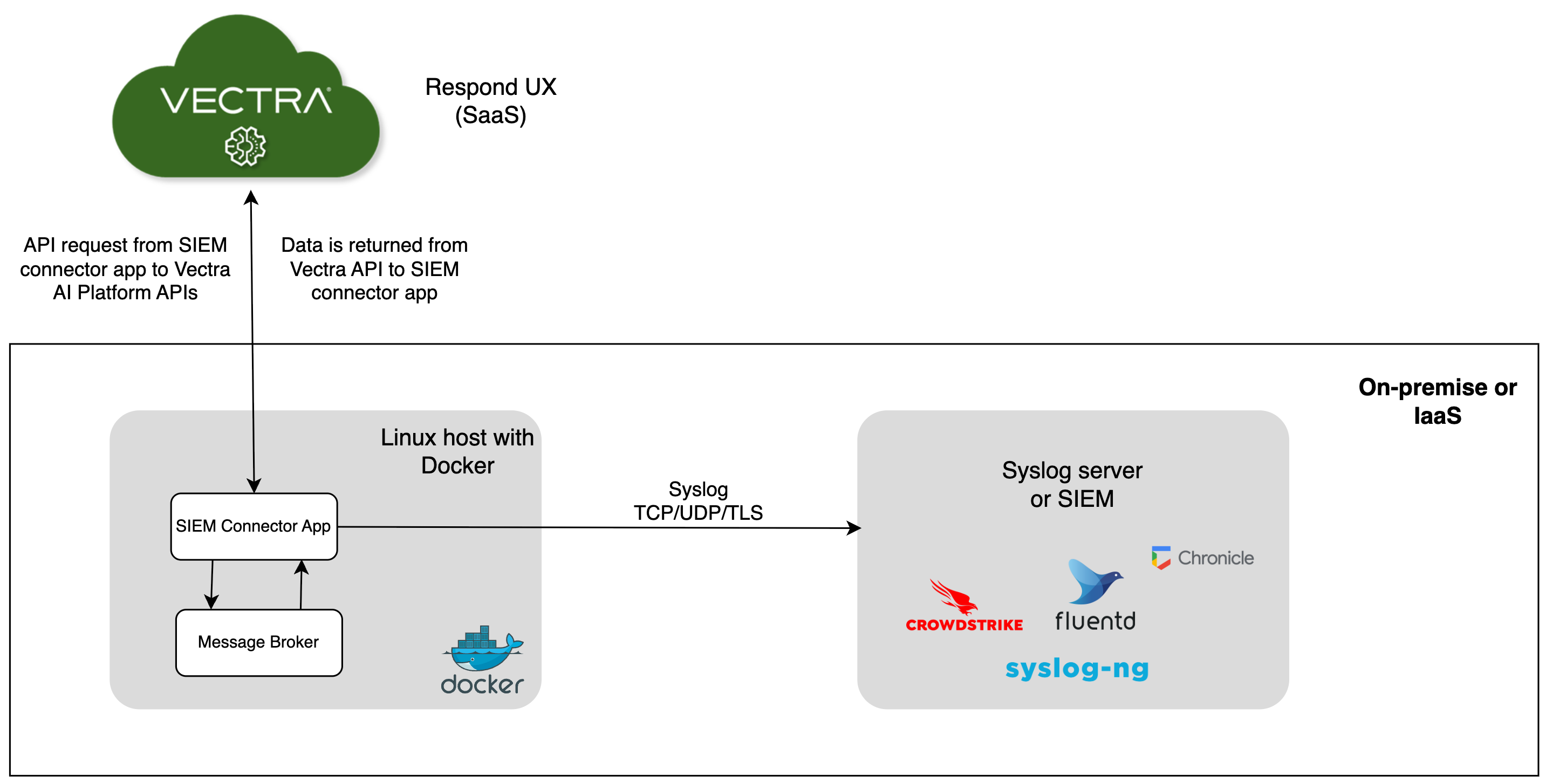
As per the article summary, when using the Respond UX (RUX) to access the Vectra AI Platform, syslog is not natively supported and event retrieval is supported via API. If syslog output of Vectra events is required, the SIEM Connector installed in the customer environment can provide syslog output. It provides organizations with a turnkey solution to connect any log management solution or SIEM that supports syslog to the Vectra AI Platform (RUX).
This connector allows:
* Pulling data from the [Vectra Respond UX API](/configuration/access/api-rux/v33-api-guide-rux.md) at regular intervals.
* Storing and sending events to any syslog-aware solution.
* Support of TCP, UDP or TLS for syslog transport.
The events that are being pulled by the SIEM Connector are:
* Entity scoring events
* Detections events
* Audit events
All events are in JSON format. Only syslog headers are being added to the payload before being sent out.
## Native SIEM/SOAR Integrations
It is highly recommended to use a native integration that works with the RUX API when possible. Only use the SIEM connector when a API-based integration is not possible. Several integrations using the API have already been published such as:
* [Crowdstrike Falcon Next-Gen SIEM](https://falcon.crowdstrike.com/documentation/page/a7373282/vectra-respond-ux) (credentials for Crowstrike Falcon required to access Crowdstrike docs at link)
* [Splunk Integration Guide for Vectra XDR (Respond UX)](/configuration/response/siem/splunk-siem-vectra-integration-guide-start-here-for-rux.md)
* [QRadar Integration Guide for Vectra XDR (Respond UX)](/configuration/response/siem/qradar-siem-integration-rux.md)
* [Azure Sentinel Integration Guide for Vectra XDR (Respond UX)](/configuration/response/siem/azure-sentinel-siem-integration-rux.md)
* [Splunk SOAR Integration Guide for Vectra XDR](/configuration/response/soar/splunk-soar-integration-rux.md)
* [Palo Alto XSOAR Integration Guide for Vectra XDR](/configuration/response/soar/palo-alto-xsoar-integration-rux.md)
* [ServiceNow SIR Integration Guide for Vectra XDR](/configuration/response/soar/servicenow-sir-soar-integration-rux.md)
* [ServiceNow ITSM Integration Guide for Vectra XDR](/configuration/response/ticketing/servicenow-itsm-ticketing-integration-rux.md)
* [Google SecOps Integration Guide for Vectra XDR (Respond UX)](/configuration/response/siem/google-secops-siem-integration-rux.md)
## Solution Overview
## Pre-requisites
Below are the prerequisites for setting up the Vectra SIEM connector.
* Users must have a Linux based server to provide as a host for the Docker container.
* Users must have access to a Vectra Respond UX tenant with `client_id` and `client_secret` for API authentication using the role Auditor.
* Additional information about the API is available here: [Vectra SaaS API Guide v3.4](/configuration/access/api-rux/v33-api-guide-rux.md)
* Users must configure a syslog destination server to receive data over UDP, TCP or TLS.
* **Docker (version 24.0.5 minimum)**
* Refer to for installation instructions.
* ****`$ docker version` - Will show the version to allow you to validate it.
* **Docker compose (version 2.20.2 minimum)**
* Refer to for installation instructions.
* `$ docker compose version` - Will show the version to allow you to validate it.
## Minimum System Requirements
To run the connector, the following are the minimum requirements where you will run the connector:
* 4 GB of RAM
* 20 GB of free storage
## Compatibility Matrix
| Compatibility Point | Version Supported |
| ----------------------------- | ----------------------- |
| Vectra AI Platform (SaaS) API | v3.3 and higher |
| Operating System | Windows, Linux (Ubuntu) |
## Download and Initial Setup
The connector is available in the "vectranetworks" GitHub: [Click here](https://github.com/vectranetworks/siem-connector/blob/main)\
Clone the repo to get started:
```ckeditor_codeblock
git clone https://github.com/vectranetworks/siem-connector.git
```
## Configuration
### Vectra API Configuration
The information relative to the API are being passed to the container through the [docker-compose file](https://github.com/vectranetworks/siem-connector/blob/main). Below is the relevant part for this configuration:
```ckeditor_codeblock
environment:
BASE_URL:
CLIENT_ID:
CLIENT_SECRET:
```
### Optional Configuration - No Triage
The default image retrieves all detection details including those that have been triaged. To prevent triaged detections from being ingested, modify line 19 of `docker-compose.yml` as follows and save before launching.
```
image: tmevectra/vectra-saas-siem-connector:no_triage
```
### Target Configuration
Then, provide destination server details and cron schedules for each APIs in the `config.json` file:
```ckeditor_codeblock
{
"configuration": {
"server": [
{
"name": "",
"server_protocol": "",
"server_host": "",
"server_port":
}
],
"scheduler": {
"audit": "",
"detections": "",
"entity_scoring": ""
},
"retry_count":
}
}
```
#### Description of each field:
| | | |
| --------------------------------------------- | ------------------------------------------------------------------------------------------------------------------------------------------------------------------------------------------------------------------------------------------ | ---------------------------------------------- |
| **Field** | **Description** | **Possible Values** |
|
Server Details
| | |
| name | Destination server name | alphabets, number, \_ , -(Minimum 1 character) |
| server\_protocol | Protocol supported by destination server | TCP, UDP, TLS, tcp, udp, tls |
| server\_host | Destination server host or IP address | Valid IP or hostname |
| server\_port | Destination server port which is able to receive data on configured protocol | Min: 1Max: 65535 |
|
Scheduler Details
| | |
| audit, detections, entity\_scoring | API will fetch events on provided respective cron intervals | Valid cron expression |
| retry\_count | Number of times the connector will retry before exiting in case the server is not reachable (If a negative value is given, the connector will continue retrying until server is reachable). It is not recommended to use a negative value. | Positive or negative integer |
| | | |
The *recommended* configuration for **cron** is to pull every minute and set a *retry\_count* to 2:
```ckeditor_codeblock
"scheduler": {
"audit": "* * * * *",
"detections": "* * * * *",
"entity_scoring": "* * * * *"
},
"retry_count": 2
```
If desired, some guidance around setting cron expressions is available here:
In case of TLS servers, provide a TLS configured server `certificate.pem` file in the `cert` folder.
{% hint style="info" %}
**Please Note:**
Certificate file name should be the same as the server name provided in `config.json`.
{% endhint %}
## Connector Management
### Start the Connector
The docker-compose configuration defines the two containers that are required for this solution:
* `rabbitmq` RabbitMQ as a queue mechanism which handles tasks and data preservation.
* `vectra-saas` Contains a Vectra Syslog Connector (python application) which will fetch data from Vectra API and push data to the configured syslog server.
Both images are being pulled from Docker Hub. There is no need to build the image for `vectra-saas` locally. To start the connector, run:
```ckeditor_codeblock
docker compose up -d
```
### Stop the Connector
In case you need to stop the connector, run:
```ckeditor_codeblock
docker compose stop
```
This would be required for example if the config file is modified.
### Terminate the Connector
In case you need to terminate the connector (this removes containers):
```ckeditor_codeblock
docker compose down
```
### Restart Policy
In case of any failure or restart of the server, the containers would be automatically restarted. This is controlled by docker-compose with the [restart policy.](https://docs.docker.com/config/containers/start-containers-automatically/)
## Output's log format
It follows [RFC 5234](https://www.rfc-editor.org/rfc/rfc5424.html) specifications. The Syslog message that is sent out has the following format:
```ckeditor_codeblock
:
```
Description:
* *PRI*: Facility and Severity. It is set to <14> (Facility=user-level and Severity=info)
* *TIMESTAMP*: Formalized timestamp
* *HOSTNAME*: The HOSTNAME is static and set to VECTRA-SYSLOG-CONNECTOR.
* *MSG*: JSON payload pulled from Vectra's AI Platform API
Example of a detection event:
```ckeditor_codeblock
<14>2023-11-02T00:18:01Z VECTRA-SYSLOG-CONNECTOR: {"id": 1098, "category": "reconnaissance", "threat": 40, "certainty": 40, "triaged": false, "detection_type": "AWS Suspect Escalation Reconnaissance", "d_type_vname": "AWS Suspect Escalation Reconnaissance", "detection_href": "https://.cc1.portal.vectra.ai/detections/128?detail_id=1098", "entity_id": 31, "entity_type": "account", "type": "account", "url": "https://.cc1.portal.vectra.ai/accounts/31", "severity": 4, "event_timestamp": "2023-09-14T16:56:07Z", "detection_id": 128, "entity_uid": "AWS:", "detail": {"event_name": "ListAttachedRolePolicies", "event_id": "7e905780-ed55-40b1-bb79-ae82e4287a47", "account_id": "", "src_external_host": {"ip": "74.201.86.232", "name": null}, "assumed_role": "SecurityAuditExtended", "access_key_id": "", "aws_region": "us-east-1", "request_parameters": "{\"roleName\":\"AWSServiceRoleForApplicationAutoScaling_ECSService\"}", "response_elements": null, "error_code": null, "error_message": null, "role_sequence": ["AWS:", "SecurityAuditExtended"], "user_agent": "aws-sdk-go-v2/1.20.1 os/linux lang/go#1.20.7 md/GOOS#linux md/GOARCH#amd64 api/iam#1.22.2", "identity_type": "AWS External Account", "last_timestamp": "2023-09-14T16:33:22Z"}}
```
## Logs and Common Error Messages
When using docker compose, it automatically maps a volume to access logs from the host (in same directory). They will be located in the `logs` folder and a new file will be created every day. This contains all the application logs and will be required to troubleshoot any issues that occurr. Some common errors are described below:
### Connection Refused Error
*Summary*: When syslog server is not reachable then connector will give the error of connector refused.

### Vectra API Down Error Message
*Summary*: If the credentials are incorrect or the vectra APIs are offline, the connector will display the **Vectra API server is down** error.
### Validation Errors
*Case 1*: If the provided IP of the syslog server is invalid then it will give the IP validation error.\
\
\&#xNAN;*Case 2*: If provided cron expressions are invalid then it will give the cron expression validation error.
### Too Many Requests Error
*Summary*: The connection will display the **Too Many Requests** warning if the Vectra API is too busy to authenticate.\
After 30 seconds, the connector will retry three times in the **Too many Requests** scenario.
### No Such File or Directory
*Summary*: The connector will fail with the **No such file or directory** error if the server name and certificate name are different in TLS protocol.
## Alternate Setup
Depending on your preferences and architecture, you could setup this connector without using `docker compose`. Vectra provides the source code to allow anyone to fork it and customize it the way they need. In addition to that, we provide the **`Dockerfile`** in the **`vectra-connector`** folder to either:
* Create the image locally without relying on Docker Hub
* Customize the image for your need.
## Resources
* Github project:
---
# Agent Instructions
This documentation is published with GitBook. GitBook is the documentation platform designed so that both humans and AI agents can read, navigate, and reason over technical content effectively. Learn more at gitbook.com.
## Querying This Documentation
If you need additional information that is not directly available in this page, you can query the documentation dynamically by asking a question.
Perform an HTTP GET request on the current page URL with the `ask` query parameter, and the optional `goal` query parameter:
```
GET https://docs.vectra.ai/deployment/getting-started/respond-ux-deployment/siem-connector-syslog-intermediary.md?ask=&goal=
```
`ask` is the immediate question: it should be specific, self-contained, and written in natural language.
`goal` is optional and describes the broader end goal you are ultimately trying to accomplish on behalf of the user. GitBook uses it to tailor the answer towards what is most useful for that goal.
The response will contain a direct answer to the question and relevant excerpts and sources from the documentation.
Use this mechanism when the answer is not explicitly present in the current page, you need clarification or additional context, or you want to retrieve related documentation sections.