Splunk SIEM / Vectra integration guide (start here for RUX)
Start here for Splunk integration with Vectra Respond UX, including supported add-ons/apps, install matrix, API client setup, and data inputs.
As stated in the summary, this article only applies to customers using Vectra's Respond UX. If you are using the Quadrant UX please see the Splunk Integration Guide for Vectra AI. If you are unsure of which UX you are using, please see Vectra Analyst User Experiences (Respond vs Quadrant).
Integration Overview
Vectra AI provides Add-ons and Apps to seamlessly integrate with Splunk and Splunk Enterprise Security. Vectra provides 2 main data sources for Splunk:
Detection Data and Entity Scoring from Vectra XDR
Vectra XDR uses a patent-pending combination of data science, machine learning and behavioral analysis to reveal the fundamental characteristics of malicious threat behavior. The Vectra platform captures packets and logs across public cloud, SaaS, federated identity and data center networks to surface and prioritize threats. These high fidelity insights can be pulled via API to integrate seamlessly with your workflows and operations.
Network Metadata from Vectra Stream
Leveraging the same platform, Vectra provides the ability to export network metadata collected by the Vectra Sensors deployed through the environment to Splunk. This data provides an in-depth view of any communication observed in your environment and enables you to perform investigation & threat hunting. A list of protocols supported and attributes extracted is available here.
Vectra XDR Add-On and Apps for Splunk
Vectra XDR
Vectra XDR Technology Add-on
Add-on
10.1, 10.0, 9.4, 9.3, 9.2
Yes
Yes
Vectra Respond UX
JSON
Vectra XDR App
App
10.1, 10.0, 9.4, 9.3, 9.2
n/a
Yes
Vectra Respond UX
n/a
Vectra Stream
Installation Matrix
Search Head
Add-on and App
Both must be installed for distributed or standalone Splunk
Indexer
Add-on only
Do not install on Indexer if using Heavy Forwarders
Heavy Forwarder
Add-on only
Must be installed here if using Heavy Forwarders
Universal Forwarder
None
Please Note!! In the scenario of a standalone Splunk setup (all-in-one), install both the add-on and the app.
Prerequisites
Valid Splunk account to be able to access & download apps in Splunkbase.
Supported version of Splunk or Splunk Enterprise.
Applications dependencies listed in the Add-ons and apps table must be fulfilled.
Create index(es).
Vectra recommends to have a dedicated index for Vectra XDR and another dedicated index if also using Vectra Stream.
Integration of Splunk with Vectra XDR
There are 3 main steps required to integrate Splunk with Vectra XDR:
Creating API clients in the Vectra Respond UX to be used by the Technology Add-on (TA).
Installation and configuration of "Vectra XDR Technology Add-on".
The Vectra XDR Technology Add-on for Splunk pulls entity scoring data, detection data, audit data, lockdown data and health data from the Vectra platform, does CIM mapping on detection and audit data and maps the entity scoring, detection data fields to corresponding Vectra Syslog event fields.
If you have any prior version of a Vectra TA for use with an existing Quadrant UX based deployment of Vectra, you can keep that as a separate deployment but both the TA and App for Vectra XDR using the Respond UX must be installed separately. You cannot upgrade from a prior version to this version.
Installation of "Vectra XDR App".
The Vectra XDR App for Splunk builds a dashboard from data provided by Vectra XDR Technology Add-on for Splunk.
1. Creating API Clients for Splunk Integration
It is a requirement to create individual API clients for each endpoint required for the integration. This is done for several reasons:
Different endpoints required for integration are polled individually.
These different endpoints required differing levels of permissions within Vectra.
It helps with performance and scale when accessing the various API endpoints.
Troubleshooting is easier when different API clients are used for the various endpoints.
API Clients Required for Integration
Please create the following API clients for use with Vectra's Splunk integration:
ro_splunk_entity_scoring
Read only role for Splunk polling entity_scoring endpoint
ro_splunk_detections
Read only role for Splunk polling detections endpoint
ro_splunk_lockdown
Read only role for Splunk polling lockdown endpoint
audit_splunk_audits
Auditor role for Splunk polling audits endpoint
audit_splunk_health
Auditor role for Splunk polling health endpoint
Creating API Clients
To create each of the API clients listed above:
Log in to your Vectra Respond UX, navigate to Manage > API Clients, and click "Add API Client".

Enter a name for the client you are creating, select the role, optionally enter a description and then click "Generate Credentials".

On the "API Client Created" screen, copy the Client ID and Secret Key to a safe place for later configuration in Splunk and then click "Done".
!! Please note that this is the only time you can copy the secret key. If you do not copy the key now, you will need to delete your API client and start over creating that client.

When you have created all 5 required API clients, you screen should look similar to this:

2. Installation and Configuration of "Vectra XDR Technology Add-on"
Installation of Add-on
Download the App package from Splunk.
From the UI, navigate to Apps > Manage Apps.
In the top right corner select "Install app from file".
Click "Choose file" and select the "Vectra XDR Technology Add-on" installation file.
Click "Upload" and follow the prompts.
or
Install from the "Find more Apps" section provided in the Splunk Home Dashboard
or
Download the App package.
Extract the downloaded app package directly into the $SPLUNK_HOME/etc/apps/ folder.
Configuration of Add-on
Navigate to Vectra XDR Technology Add-on > Configuration > Account.
Add Accounts for each of the API Clients that you configured earlier. When done you should have something similar to the below:

If a proxy is required in your Splunk environment, configure this in the Proxy tab of the Add-on Configuration.

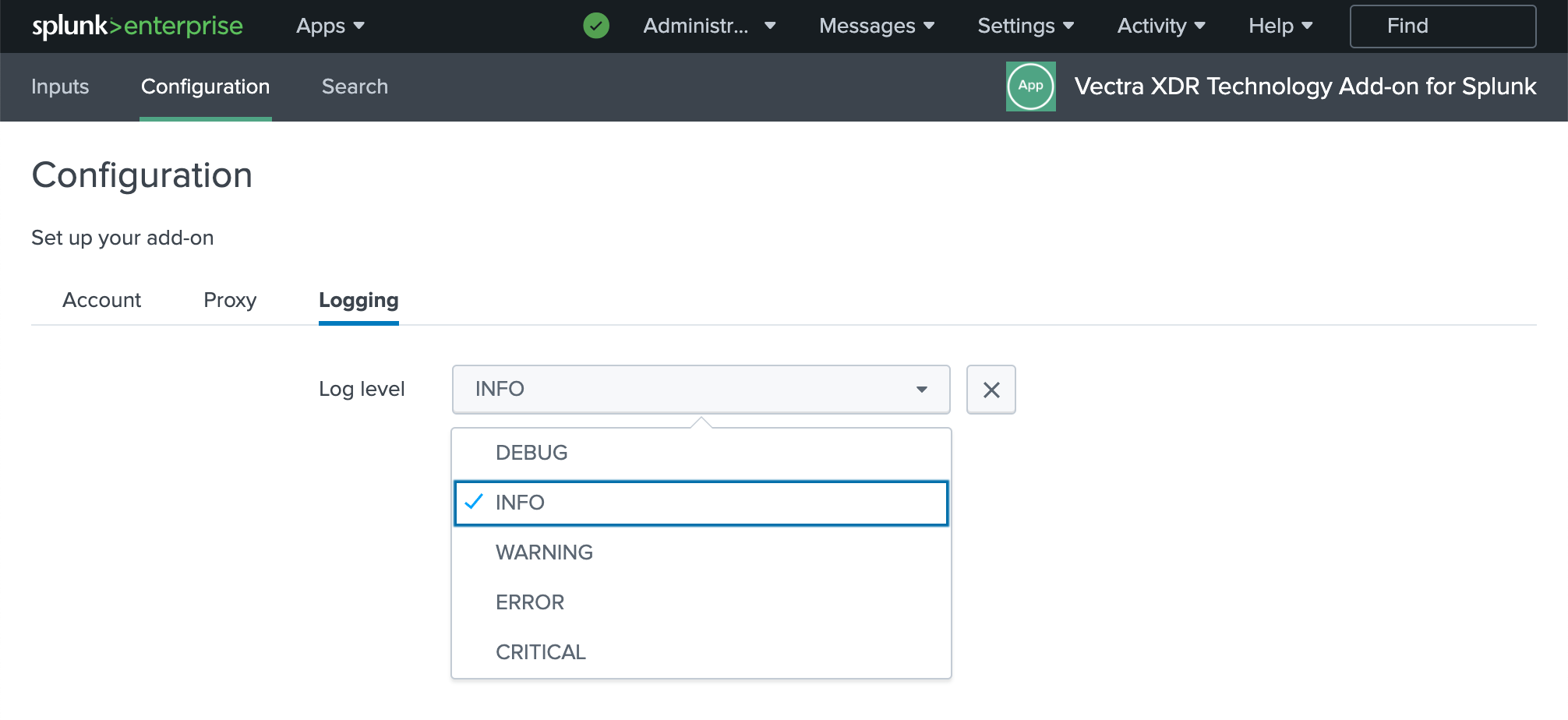
Choose a desired Logging level (If unsure, Vectra recommends "Info").

Configuration of Data Inputs:
Add a Data Input for each account you added earlier.
Name - should be related to each account.
Interval - 60 seconds is typically recommended for all inputs except the Health endpoint.
Health input should be 900 seconds as the health data is refreshed every 15 min on the Vectra side.
Index - should be the index you created for use with this Add-on.
Historical Data - this is optional and will pull the previous 24 hours of data if enabled.
This may be useful in smaller environments to get immediate feedback to see proper functioning.
Health and Lockdown do not have a Historical Data option.
Status - Enabled/Disabled.
Vectra SaaS Account - Accounts you configured earlier.
When done you should have an Inputs table that looks something like this:

Uninstall & Clean Up Steps
* Remove $SPLUNK_HOME/etc/apps/TA-Vectra-XDR * Remove $SPLUNK_HOME/var/log/Splunk/ta_vectra_xdr_*.log**. * To reflect the cleanup changes in UI, Restart Splunk Enterprise instance.
Troubleshooting
General Checks
To troubleshoot Vectra XDR Technology Add-on for Splunk, check
$SPLUNK_HOME/var/log/Splunk/ta_vectra_xdr*.log or user can search `index="_internal" source=*ta_vectra_xdr*.log` query to see all the logs in UI.
Also, user can use `index="_internal" source=*ta_vectra_xdr*.log ERROR` query to see ERROR logs in the Splunk UI.
Note that all log files of this Add-on will be generated in `$SPLUNK_HOME/var/log/Splunk/` directory.
Add-on icons are not showing up
The Add-on does not require restart after the installation in order for all functionalities to work.
However, the icons will be visible after one Splunk restart post installation.
Data Collection
If data collection is not working then ensure that the internet is active (On a proxy machine, if proxy is enabled).
Check `ta_vectra_xdr_entity_scoring_input_<input_name>.log` file for entity scoring events, `ta_vectra_xdr_detections_input_<input_name>.log` file for detection events, `ta_vectra_xdr_audits_input_<input_name>.log` file for audit events, `ta_vectra_xdr_lockdown_input_<input_name>.log` file for lockdown events, `ta_vectra_xdr_health_input_<input_name>.log` file for health events, for any relevant error messages.
3. Installation of "Vectra XDR App"
Installation
Download the App package from Splunk.
From the UI, navigate to Apps > Manage Apps.
In the top right corner, select "Install app from file".
Select "Choose File" and select the App package.
Select "Upload" and follow the prompts.
or
Install directly from the "Find More Apps" section provided in the Splunk Home Dashboard.
Configuration
There is no specific configuration required unless you have selected an index other than "main" in the Data Input > Configuration section. If you have selected an index other than "main" then do the following:
Go to Settings > Advanced search > Search macros.
Select "Vectra XDR App for Splunk" in App context.
Update the "vectra_xdr_index_macro" macro.
Troubleshooting
To check the data collected by data collection in index use query like "index=<your_index_name> sourcetype=vectra☁️lockdown/vectra☁️audits/vectra☁️detections/vectra☁️entity:scoring/vectra☁️health".
To troubleshoot Vectra XDR App for Splunk please check $SPLUNK_HOME/var/log/splunk/ta_vectra_xdr_\.log\ files.
If the dashboard is not getting populated make sure index in macro.conf is updated correctly.
Uninstall & Clean Up Steps
Remove $SPLUNK_HOME/etc/apps/Vectra-XDR-App
To reflect the cleanup changes in UI, Restart Splunk Enterprise instance.
Integration of Splunk with Vectra Stream
There are 3 main steps required to integrate Splunk with Vectra Stream:
Installation and configuration of "Technology Add-on for Vectra Stream (JSON) ".
Installation of "Vectra Cognito Stream " App.
Configuring Vectra Stream to send metadata to Splunk using Publisher of "Raw JSON" using Protocol of "TCP" to the server IP/Hostname and port number of your choice where Splunk will be listening.
For details please see the Splunk Integration Guide for Vectra AI .
Last updated
Was this helpful?