Active Directory Account Lockdown

Applicability

This article covers Account Lockdown for Active Directory which is supported for both Respond UX (RUX) and Quadrant UX (QUX) deployments. Azure Active Directory Account Lockdown is a different feature that is available only for deployments using Vectra's Respond UX. Please see Azure Active Directory Account Lockdown FAQ (Respond UX) ​​​​​​for details on how to Lockdown Azure AD accounts. If you are unsure of which UX you have, please see Vectra Analyst User Experiences (Respond vs Quadrant) for additional guidance.

Overview

What is Account Lockdown?

  • Account Lockdown enables analysts to temporarily disable network accounts during a security investigation. Account Lockdown enables enforcement action, via the disabling of Active Directory accounts.

  • It can run in an automated or manual mode. In the automated mode, action is taken once all applicable thresholds have been exceeded.

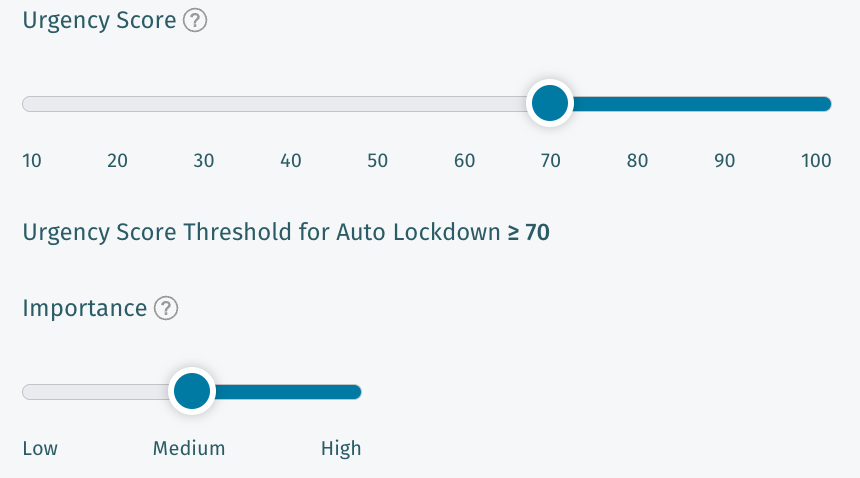
    • ​​​​​​For RUX deployments, the relevant thresholds are the urgency score of the account entity and the importance.

    • For QUX deployments, the relevant thresholds are the threat and certainty score of the account entity along with its observed privilege.

Why is disabling a network account necessary during a security investigation?

  • Disabling a network account prevents an attack from progressing further along the kill chain. It prevents the malicious user from logging into any additional systems, potentially limiting the blast radius of an on-going attack.

How does Account Lockdown work?

  • Account Lockdown requires integration with your Active Directory (AD) server(s). When an Account Lockdown is performed, Vectra NDR will notify AD to disable the account.

  • Please note that this is different from an Active Directory account lockout, which can only be invoked by a domain controller.

Are there any custom configuration options available for Account Lockdown?

  • Yes, in v8.2 and higher of Vectra software, some custom configuration options have been made available via a request to Vectra Support. Please see Account Lockdown Custom Configuration Options for details and changes required to support these options:

    • Using "AccountExpires" instead of "userAccountControl" means that instead of disabling an account, Vectra will set the expiration of the account to 24 hours before the Account Lockdown was initiated which blocks any future login attempts.

    • The option to require the AD Info field to be populated allows you to add freeform information, such as a ticket number or other notes, to AD when performing an Account Lockdown.

  • PLEASE NOTE!!

    • It is important to follow the additional instructions in the article linked above because different permissions are required in AD when using either or both of these options.

Usage

How do I enable Account Lockdown?

  • First you must enable AD Integration following the configuration advice provided in Configuring Active Directory(AD) integration with Vectra NDR.

    • PLEASE NOTE: If an AD account does not have a UPN (User Principal Name) configured, the account cannot be locked down.

      • Please ensure all accounts that you may to lock down have a UPN configured.

    • In your Vectra UI, navigate to Settings > External Connectors > Active Directory & Lockdown.

      • AD Integration and Account Lockdown are both configured in this same area.

      • From here you can enable the Account Lockdown feature itself, along with automatic Lockdown and its required thresholds.

    • If you choose to enable Automatic Lockdown, you will have the option to configure the automatic Lockdown period, which can range from 1 hour up to 24 hours, in pre-configured time ranges, and set the account entity specific thresholds.

      • After automatic Lockdown has been enabled, anytime an account's thresholds are ALL exceeded, the account will be disabled in Active Directory for the configured time range.

      • Please note that viewing and configuring the automatic Lockdown settings will require the Vectra user to have "Edit" permission for "Settings-Active Directory" enabled in their Vectra role.

Example RUX Thresholds:

  • In this example, the account entity must have a Urgency Score of at least 70 and an Importance of at least Medium.

Example QUX Thresholds:

  • In this example, the account entity must have a Threat score of at least 75, a Certainty score of at least 75, and an Observed privilege of at least 5.

How does an Account get locked down?

  • There are two main ways to utilize Account Lockdown:

    1. Manually, where an account is locked by a Vectra user.

    2. Automatically, where Vectra NDR (formerly known as Vectra Detect for Network) can be configured to automatically lock accounts based on configured thresholds.

How do I manually lockdown an account?

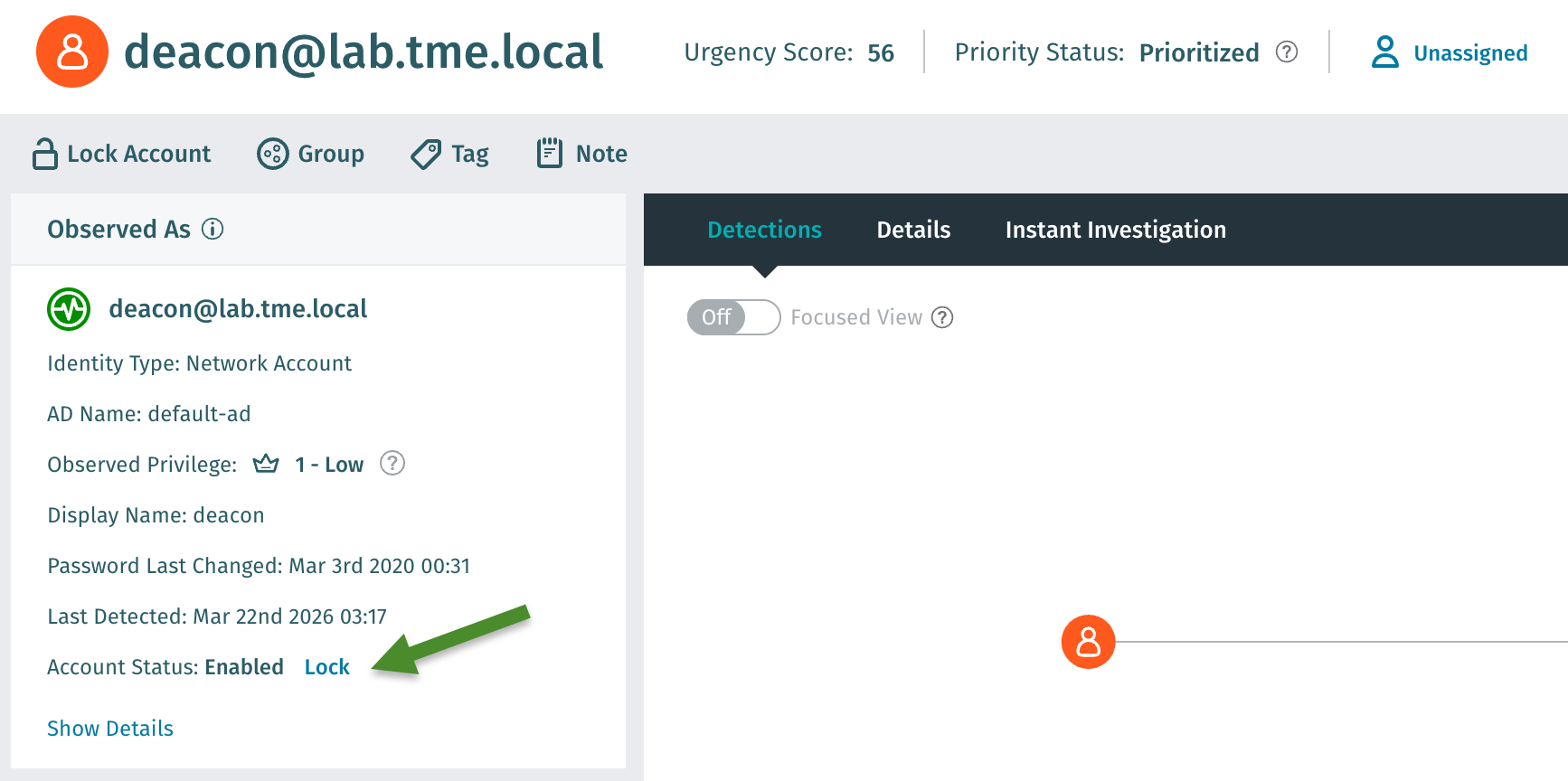
  • Accounts will have a new Account Lockdown widget in the sidebar of individual account pages. From here you can enable or disable Lockdown. Accounts can be manually locked from 1 hour up to 24 hours, in pre-configured time ranges. To Lockdown an account, simply click the Disable Account button and select a pre-configured time range from the dropdown. The account will automatically be re-enabled once the selected time range has expired. Please note that enabling or disabling manual lockdown on an account will require the Vectra user to have the Edit Account Lockdown RBAC permission enabled.

Where can I check the Lockdown status of an account?

  • All accounts will have a new Account Lockdown widget in the sidebar of individual account pages. From here you can see the account's current Lockdown status. If an account is locked down, the status will show time until the account is re-enabled and the username of the Vectra NDR user that enabled Lockdown for that account. There is also an API endpoint (see examples later in this document) where you can pull a list of all current accounts that have been disabled via Lockdown. Please note that viewing Lockdown status will require the Detect user to have the View Account Lockdown RBAC permission enabled.

Can Account Lockdown access be managed by RBAC permissions?

  • There are 2 sets of permissions associated with Account Lockdown:

    • Configuration of Account Lockdown:

      • View Settings - Active Directory - controls who can view the Active Directory External Connector settings, which includes all of the new Lockdown settings.

      • Edit Settings - Active Directory - controls who can edit the Active Directory External Connector settings, which includes all of the new Lockdown settings.

    • Use of Account Lockdown:

      • Edit Account Lockdown: This allows users to manually lock or unlock individual accounts.

    • By default (assuming roles have not been modified), all of the above are automatically granted to the roles of Super Admin and Admin

If an account gets locked down, will existing/open sessions be terminated?

  • No. Once an account gets disabled via Lockdown, existing user sessions will still be valid. Disabling an account via lockdown only impacts subsequent login attempts.

What type of permissions are required on the AD query account to utilize Account Lockdown?

  • The Active Directory query account requires read and write permissions on the userAccountControl attribute. Please see Configuring Active Directory(AD) integration with Vectra NDR for details on setting up the required AD integration to support Account Lockdown.

    • Please note: It is critical that the user used for AD integration can modify its own userAccountControl attribute. This modification is used by the Vectra Brain to validate the Account Lockdown integration is configured correctly.

  • Some third party sources for more details on setting the required permissions are:

    • https://thebackroomtech.com/2009/07/01/howto-delegate-the-enabledisable-accounts-permission-in-active-directory/

    • https://docs.microsoft.com/en-US/troubleshoot/windows-server/identity/useraccountcontrol-manipulate-account-properties

    • https://briandesmond.com/blog/delegating-enable-disable-account-rights-in-active-directory/

Once an account has been locked down, how can it be re-enabled?

  • Accounts only re-enable via the following methods:

    • Admin manually re-enables account via Vectra's UI

    • Disable timer expires

    • Account is re-enabled outside of Vectra's UI (via AD for example)

If I update my automatic lockdown thresholds, will all accounts be re-evaluated?

  • No, adjusting the Lockdown thresholds will not retroactively apply to existing account scores, only when new account scores are calculated.

Is there API support for Account Lockdown?

Can I configure a Lockdown whitelist so strategic accounts never get disabled?

  • No. An account-based triage rule can be used to address this use case if needed.

If an account is locked out through Vectra NDR (automated or manual) but enabled outside of Vectra NDR (through AD) how does that appear in Vectra NDR?

  • Vectra pulls the current state of the account in AD and displays the proper state of the account as it exists in AD.

Notifications

Will the end user be notified when an account is locked down?

  • No, the end user is not notified whenever their account is disabled.

Will administrators be notified when an account is locked down?

  • Yes, NDR admins will see email and syslog (syslog is only supported for QUX deployments) notifications when lockdown is enabled or disabled. Please note that in order to receive Account Lockdown email notifications, Account alert emails notification must be enabled under Settings / Notifications.

RUX Sample Email:

Where can I see a sample syslog notification for Lockdown?

  • Account Lockdown Sample Syslog (QUX only, RUX does not support Syslog)

Last updated

Was this helpful?