> For the complete documentation index, see [llms.txt](https://docs.vectra.ai/llms.txt). Markdown versions of documentation pages are available by appending `.md` to page URLs; this page is available as [Markdown](https://docs.vectra.ai/configuration/setup/external-connectors/active-directory.md).
# Active Directory
Integrate Active Directory with Vectra NDR for host identity context in RUX and QUX deployments.
## Feature Description
Vectra integration with your Active Directory service will assist in the identification of Hosts and Accounts on your network. Enabling this feature will also provide Active Directory context, such as group membership, organization, and password-expiry status for Accounts; and owner, operating system, and machine information for Hosts. Active Directory Context can be found under individual Account and Host detail tabs and is configured in *Configuration → SETUP → External Connectors*. In addition, enabling AD integration will also allow you to enable Account Lockdown for AD.
| AD Attributes Used by the Integration | |
| ------------------------------------- | --------------------------------------------------------------------------------------------------------------------------------------------------------------------------------------------------------------------------------------------------------------------------------------------------------------------------------------------------- |
| Accounts | distinguishedName, cn, description, objectClass, displayName,
userPrincipleName, objectSid, department, l, telephoneNumber,
pwdLastSet, location, manager, memberOf, mail, title
|
| Hosts | distinguishedName, cn, description, objectClass, displayName,
userPrincipleName, objectSid, department, l, telephoneNumber,
pwdLastSet, location, manager, memberOf, mail, title, dNSHostName,
managedBy, machineRole, operatingSystem, networkAddress,
physicalLocationObject, nETBIOSName, servicePrincipalName,
macAddress
|
### Support for Multiple Active Directory Instances
Up to 20 AD instances can be configured as sources for Vectra to interact with for context retrieval or Account Lockdown use. This is useful for large customers who may have several sub organizations that have their own AD implementations but share a common security team. This also comes into play with many companies during acquisition of other companies where they will operate separate AD infrastructures for some period of time, or indefinitely.
Please keep the following in mind when working with multiple AD sources:
* When you configure more than one AD integration, each integration will required the same setup steps below to be executed in each AD and in Vectra.
* Once one source has been configured, simply click **+ Add Active Directory** in Vectra to add more ADs:

* A maximum of 20 ADs can be configured.
* If an account exists in multiple ADs, an Account Lockdown will lock the account in any configured AD that it is present in.
* If you choose to enable dirsync as per the [#sync-options](#sync-options "mention") section below, it will apply to all configured ADs.
* Additional account or host context data is shown by AD source it is found in. See example below:

### Additional Resources:
* [Account LockDown FAQ](/configuration/response/lockdown/active-directory-account-lockdown.md) - See this for additional details about Account Lockdown.
* [Account Lockdown Custom Configuration Options](/configuration/response/lockdown/active-directory-account-lockdown-custom-configuration.md) (available in v8.2+)
* [Automatic Account Linking with AD Context](/configuration/setup/account-association.md)
## AD Configuration Instructions
### Requirements
The Brain should be able to reach your LDAP server (default tcp/389)\
to check network connectivity from the brain to the server:
```language-markup
debug connectivity
```
Service account with password to be input into Vectra
* Account needs to be created as a DN (distinguishedNname) and not a UPN (userPrincipalName)
* Password should not be required to be changed by Vectra on initial logon.
* Account should have top of forest view or as high as possible base to see all necessary accounts.
* Account requires ability to read all properties for descendent user and computer objects.
* Account requires "Write userAccountControl" permission if you plan to enable Account Lockdown.
* Optional and only required if you will be configuring Dirsync as your sync option:
* Dirsync is described in more detail at the end of this article in the [#sync-options](#sync-options "mention") section.
* Account will also require "Replicating Directory Changes".
When using AD integration in conjunction with Lockdown functionality, we assume a standard AD deployment with inheritance for permissions enabled.
* In order to lock down an account, your bind user must be able to update the User Account Control of the account you want to lockdown.
{% hint style="info" %}
**PLEASE NOTE:**
If an AD account does not have a UPN (User Principal Name) configured, the account cannot be locked down.
Please ensure all accounts that you may to lock down have a UPN configured.
{% endhint %}
### Steps
Create a service account on Active Directory using **Active Directory Users and Computers**.

Go to your container of choice, **right-click/New/User**.

Our account will be called `svc vectra`

Enter a strong password and untick **User must change password at next logon** as the type of login Vectra will make is non-interactive. Depending on your security policy, you might or might not want to select **Password never expires**. If your security policy won't allow for a password that never expires, make sure to update the user password in your Vectra UI when the password is updated on AD.
Click on **Next** then **Finish**.

Now that the account is created one needs to assign this account to the top of the Forest, or as high as possible to give us visibility to all users and computer accounts, and give the svc vectra access to read several attributes and to write to one attribute.
In **Active Directory Users and Computers** click on **View → Advanced Features**.

**Right-click on your forest**, and click **Properties**. On the Forest's properties window, got to the **Security** tab, then click on **Add**.

Type the name of the user account created on the previous steps and click on **Search**. Click **OK**.

Select the **account that we just added** and click on **Advanced**

Select **the same account as in the previous step** and click Edit**.**

On **Applies to:** scroll all the way to the end and select **Descendant User Object.**

Under the **Permissions** and **Properties** sections **Read all Properties** should be selected by default. If not, you are going to have to give permission to the individual attributes listed at the table at the beginning of this article.

Under **Properties** Scroll down until you find **Write userAccountControl** and check the box next to it. This is only required if you will be enabling Account Lockdown.
Click **OK**.

Under **Applies to** select **Descendant Computer Object** and make sure that **Read all properties** is ticked under **Permissions** and **Properties**.

{% hint style="warning" %}
**Required only when using Dirsync:**
The next step is optional and only required if you will be configuring Dirsync as your sync option. Dirsync is described in more detail in the [#sync-options](#sync-options "mention") section near the end of this article.
{% endhint %}
* Click on **Ok** twice.
* While still editing the security options for your **svc vectra** account, find the **Replicating Directory Changes** permission and check the **Allow** option.
* Click **Ok**.

* If you are **NOT** using Dirsync, just click **OK** 3 times to exit the dialog.
## Vectra Configuration Instructions
After logging into your Vectra UI, go to *Configuration → SETUP → External Connectors → Active Directory.*
Click the pencil icon or **Edit** button to edit the settings for the feature.

Click the slider to toggle the integration **On** and then click +**Add Active Directory** to add an AD server.

Fill out the configuration information required for your deployment using the information from the [#field-descriptions](#field-descriptions "mention") below.
Repeat this process if you are adding multiple ADs.
You will also need to repeat the earlier [#a-d-configuration-instructions](#a-d-configuration-instructions "mention") when adding multiple ADs to create a service account in each AD you are adding.
If you are configuring AD Account Lockdown or Automatic Account Linking, see the following KBs for more detail:
* [Account LockDown FAQ](/configuration/response/lockdown/active-directory-account-lockdown.md)
* [Automatic Account Linking with AD Context](/configuration/setup/account-association.md)
### Field Descriptions
#### Vectra Account Bind DN
Object inside AD that you bind to for permissions to perform queries.
If you don't know how to retrieve the bindDN, go to **Active Directory Users and Computers**. Find the service account and go to its properties. Find the **Attribute Editor** tab and look for the attribute `distinguishedName`. Select the `distinguishedName` attribute and click on **View**. You can now copy the attribute value and paste it into Vectra's UI.
Else, open powershell in a terminal window and give the command:
`get-ADUser -Identity `
It should provide an output with the DistinguishedName.
```ckeditor_codeblock
PS C:\path\to\somewhere> get-ADUser -Identity vectra.user
DistinguishedName : CN=Vectra User,OU=some OU,OU=Domain,DC=DOMAIN,DC=LOCAL
Enabled : True
GivenName : Vectra
Name : Vectra User
ObjectClass : user
ObjectGUID : 2a4b5c7d-789f-098e-ab26-6a6b0f8e9c8c
SamAccountName : vectra.user
SID : S-1-5-21-12357896-0258741369-3217896540-02588
Surname : User
UserPrincipalName : vectra.user@DOMAIN.LOCAL
```
**Example 1:**\
Vectra Account Bind Dn: `CN=svc vectra,CN=Users,DC=CSForest,DC=com`
**Example 2:**\
Vectra Account Bind Dn: `CN=Vectra User,OU=some OU,OU=Domain,DC=DOMAIN,DC=LOCAL`
#### Active Directory Password
Password associated with the above object
#### USE TLS (STARTTLS)
When selecting this option, TLS will be used to secure communications between Vectra and the AD server, and additional choices will appear:
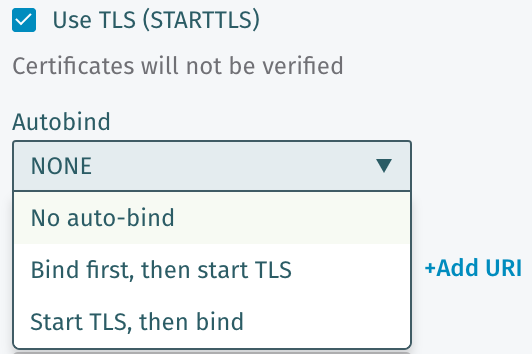 The Autobind options will control the order of binding (authenticating) and starting TLS
* **No auto-bind:** This should be the default choice for all customers unless you have a specific need. With this selected, Vectra starts TLS first and then uses the credentials to bind to the directory.
* **Bind first, then start TLS:** Some customers may have a specific configuration that requires binding before starting TLS. Only select this option if you require it.
* **Start TLS, then bind:** If the normal **No auto-bind** setting doesn't work but you still would like to start TLS before binding, try this option as it may allow TLS to work with some servers that do not support the normal option.
#### URI
The URI of your AD server.\
Examples: `ldap.mydomain.org` or `ldap://domain.local`
#### Base DN
Location from where a server will search for objects. Make sure that you enter a base high enough that will allow us to see all computers and user objects. If allowing to search the whole forest, please enter the full domain.
i.e. Enter `dc=CSForest,dc=com`, and not `dc=com` only otherwise, AD will reply with a referral error and you will see a generic error message on the UI.
**Example 1:**\
BaseDn: `DC=CSForest,DC=com`
**Example 2:**\
BaseDn: `OU=Domain,DC=DOMAIN,DC=LOCAL`
#### Query Timeout
Set the amount of time (in seconds) to wait before timing out a query.
#### Connection Timeout
Set the amount of time (in seconds) to wait before timing out an idle connection to AD.
## Sync Options
Vectra normally syncs with your Active Directory in chunks at varying intervals over the course of 24 hours. Queries are paginated to reduce the load on your AD server. Larger environments may need to sync more frequently to successfully gather all directory information. If the load on your AD server you have chosen to use for AD Integration with Vectra becomes too much, you can change to a Dirsync method that only syncs changes hourly after an initial full sync.
* In general, in large environments, normal AD sync will use more memory on the AD server than Dirsync.
* Dirsync may cause more network load than normal AD sync though if there are frequent object changes in the environment.
* Unless there are issues with AD server load, Vectra recommends using normal AD sync.
### Dirsync Details
Dirsync is available in version 7.8 and higher of Vectra Brain appliance code. Dirsync in an option for a sync method that changes only the sync method, not the configuration in the UI that was described above. Dirsync is configured separately using the CLI of your Brain with these commands:
```ckeditor_codeblock
vscli > show dirsync
Dirsync:
Status: disable
vscli > set dirsync --help
Usage: set dirsync [OPTIONS] {enable|disable}
toggle dirsync feature flag
Options:
-h, --help Show this message and exit.
vscli > dirsync full_sync --help
Usage: dirsync full_sync [OPTIONS]
Force full sync
Options:
-h, --help Show this message and exit.
vscli > set dirsync enable
Dirsync:
Status: enable
vscli > set dirsync disable
Dirsync:
Status: disable
vscli > dirsync full_sync
Dirsync:
Status: sync initiated
```
* To enable Dirsync, configure *Configuration → SETUP → External Connectors → Active Directory* with your Bind DN, password, and other options.
* Once the GUI configuration is done, normal sync using LDAP will commence over a 24 hour period.
* Go to the CLI of your Brain and `set dirsync enable` to enable Dirsync.
* A full sync will start and then subsequent syncs will be much smaller and based on how many changes have occurred in your directory.
* When Dirsync is enabled, your Brain appliance will query AD for changes hourly.
{% hint style="warning" %}
**Please Note:**
The option to force a full sync will delete everything in the cache and start over. This should only be done at the direction of Vectra support.
{% endhint %}
## LDAP vs LDAPs
LDAPS (default on port tcp/636) is deprecated and is not supported. more on [LDAPS deprecation](https://www.openldap.org/faq/data/cache/605.html)
LDAP over TLS, known as STARTTLS (same LDAP port, by default tcp/389) is supported. This method allow to negotiate a TLS tunnel on top of the tcp connection, once established. ref: - See #4.12 extended operation.
The server/network environment should be configured accordingly to support STARTTLS.
---
# Agent Instructions
This documentation is published with GitBook. GitBook is the documentation platform designed so that both humans and AI agents can read, navigate, and reason over technical content effectively. Learn more at gitbook.com.
## Querying This Documentation
If you need additional information that is not directly available in this page, you can query the documentation dynamically by asking a question.
Perform an HTTP GET request on the current page URL with the `ask` query parameter, and the optional `goal` query parameter:
```
GET https://docs.vectra.ai/configuration/setup/external-connectors/active-directory.md?ask=&goal=
```
`ask` is the immediate question: it should be specific, self-contained, and written in natural language.
`goal` is optional and describes the broader end goal you are ultimately trying to accomplish on behalf of the user. GitBook uses it to tailor the answer towards what is most useful for that goal.
The response will contain a direct answer to the question and relevant excerpts and sources from the documentation.
Use this mechanism when the answer is not explicitly present in the current page, you need clarification or additional context, or you want to retrieve related documentation sections.
The Autobind options will control the order of binding (authenticating) and starting TLS
* **No auto-bind:** This should be the default choice for all customers unless you have a specific need. With this selected, Vectra starts TLS first and then uses the credentials to bind to the directory.
* **Bind first, then start TLS:** Some customers may have a specific configuration that requires binding before starting TLS. Only select this option if you require it.
* **Start TLS, then bind:** If the normal **No auto-bind** setting doesn't work but you still would like to start TLS before binding, try this option as it may allow TLS to work with some servers that do not support the normal option.
#### URI
The URI of your AD server.\
Examples: `ldap.mydomain.org` or `ldap://domain.local`
#### Base DN
Location from where a server will search for objects. Make sure that you enter a base high enough that will allow us to see all computers and user objects. If allowing to search the whole forest, please enter the full domain.
i.e. Enter `dc=CSForest,dc=com`, and not `dc=com` only otherwise, AD will reply with a referral error and you will see a generic error message on the UI.
**Example 1:**\
BaseDn: `DC=CSForest,DC=com`
**Example 2:**\
BaseDn: `OU=Domain,DC=DOMAIN,DC=LOCAL`
#### Query Timeout
Set the amount of time (in seconds) to wait before timing out a query.
#### Connection Timeout
Set the amount of time (in seconds) to wait before timing out an idle connection to AD.
## Sync Options
Vectra normally syncs with your Active Directory in chunks at varying intervals over the course of 24 hours. Queries are paginated to reduce the load on your AD server. Larger environments may need to sync more frequently to successfully gather all directory information. If the load on your AD server you have chosen to use for AD Integration with Vectra becomes too much, you can change to a Dirsync method that only syncs changes hourly after an initial full sync.
* In general, in large environments, normal AD sync will use more memory on the AD server than Dirsync.
* Dirsync may cause more network load than normal AD sync though if there are frequent object changes in the environment.
* Unless there are issues with AD server load, Vectra recommends using normal AD sync.
### Dirsync Details
Dirsync is available in version 7.8 and higher of Vectra Brain appliance code. Dirsync in an option for a sync method that changes only the sync method, not the configuration in the UI that was described above. Dirsync is configured separately using the CLI of your Brain with these commands:
```ckeditor_codeblock
vscli > show dirsync
Dirsync:
Status: disable
vscli > set dirsync --help
Usage: set dirsync [OPTIONS] {enable|disable}
toggle dirsync feature flag
Options:
-h, --help Show this message and exit.
vscli > dirsync full_sync --help
Usage: dirsync full_sync [OPTIONS]
Force full sync
Options:
-h, --help Show this message and exit.
vscli > set dirsync enable
Dirsync:
Status: enable
vscli > set dirsync disable
Dirsync:
Status: disable
vscli > dirsync full_sync
Dirsync:
Status: sync initiated
```
* To enable Dirsync, configure *Configuration → SETUP → External Connectors → Active Directory* with your Bind DN, password, and other options.
* Once the GUI configuration is done, normal sync using LDAP will commence over a 24 hour period.
* Go to the CLI of your Brain and `set dirsync enable` to enable Dirsync.
* A full sync will start and then subsequent syncs will be much smaller and based on how many changes have occurred in your directory.
* When Dirsync is enabled, your Brain appliance will query AD for changes hourly.
{% hint style="warning" %}
**Please Note:**
The option to force a full sync will delete everything in the cache and start over. This should only be done at the direction of Vectra support.
{% endhint %}
## LDAP vs LDAPs
LDAPS (default on port tcp/636) is deprecated and is not supported. more on [LDAPS deprecation](https://www.openldap.org/faq/data/cache/605.html)
LDAP over TLS, known as STARTTLS (same LDAP port, by default tcp/389) is supported. This method allow to negotiate a TLS tunnel on top of the tcp connection, once established. ref: - See #4.12 extended operation.
The server/network environment should be configured accordingly to support STARTTLS.
---
# Agent Instructions
This documentation is published with GitBook. GitBook is the documentation platform designed so that both humans and AI agents can read, navigate, and reason over technical content effectively. Learn more at gitbook.com.
## Querying This Documentation
If you need additional information that is not directly available in this page, you can query the documentation dynamically by asking a question.
Perform an HTTP GET request on the current page URL with the `ask` query parameter, and the optional `goal` query parameter:
```
GET https://docs.vectra.ai/configuration/setup/external-connectors/active-directory.md?ask=&goal=
```
`ask` is the immediate question: it should be specific, self-contained, and written in natural language.
`goal` is optional and describes the broader end goal you are ultimately trying to accomplish on behalf of the user. GitBook uses it to tailor the answer towards what is most useful for that goal.
The response will contain a direct answer to the question and relevant excerpts and sources from the documentation.
Use this mechanism when the answer is not explicitly present in the current page, you need clarification or additional context, or you want to retrieve related documentation sections.