Pairing Sensors or Stream

Pair Sensors or Stream to an AWS Brain after provisioning.

AWS Sensor or Stream Pairing

The same content available on this documentation site under Deployment → Appliance Operations → Pairing appliances is shown below.

An AWS Brain can pair with any type of Sensor or Stream appliance. They can be physical, or virtual in cloud or traditional hypervisor environments.

Please note that AWS vSensors and Stream appliances do NOT support online pairing and that content below that is specific to physical Sensors or traditional hypervisor based vSensors does not apply to AWS vSensors or Stream.

About Sensor and Stream Pairing

Sensors and Stream appliances behave the same way from a pairing perspective. Because of this, you may see the Sensor term used in this document, your Vectra UI, or at the CLI of a Vectra appliance when sometimes the appliance in question is a Stream appliance.

Multiple Sensors can be attached to a single Brain while the Brain supports a single Stream appliance at a time. The exact limits for how many appliances can be paired to your Brain will depend on the Brain model or configuration. Please see appliance specifications for details.

circle-info

Please Note:

  • From this point forward, the term "Sensor" will be used to represent both Sensor or Stream appliance types in this document.

Pairing Overview

Pairing is the process that allows Sensors to communicate with the Brain. All network sessions between an appliance and the Brain are initiated from the Sensor side.

There are three basic ways to pair a Sensor or Stream appliance with a Brain:

Using a Sensor Registration Token (SRT) works for any appliance type and is required for Sensors deployed in IaaS cloud environments such as AWS, Azure, and GCP.

  • A Sensor Registration Token (SRT) is generated on the Brain and then configured on the Sensor or Stream appliance.

  • Once the Sensor is configured with a Brain IP address or hostname, it will annouce itself to the Brain if powered on.

  • The Brain will recognize the validity of the token and allow the Sensor to become available for pairing.

  • A user will initiate pairing or use auto pairing (2nd tab above) if enabled.

Pairing is also supported in air-gapped environments and physical appliances can also be paired "offline" when required. For details please see Pairing in an Air-Gapped Environment vs Pairing Offline.

Pairing by Hostname vs IP Address

Sensors need to know the location of the Brain appliance so that they know what hostname or IP address to communicate with. Pairing by hostname is generally preferred over pairing by IP address for the following reasons:

  • Failover scenarios are easier to manage because a replacement Brain can be setup with the same hostname as the original Brain even if the IP address will be different. Paired Sensors will be able to automatically re-pair with the new Brain once the DNS is changed (if the old Brain is offline, see pairing to new or changed Brains for more details). This is because the backup contains Sensor state information.

  • If your Brain appliance is configured with a DHCP address for its management port instead of a static IP address and you have paired by hostname, even if the IP address of the Brain changes, Sensors will still be able to communicate with the Brain they are paired to.

Sensor Pairing and Registration Settings

The ConfigurationCOVERAGEData Sources → Network → Sensors area of your Vectra UI allows you to pair and manage network Sensors, configure a number of options related to Sensor pairing and registration, and change the CLI vectra user password for paired devices (Sensors and Stream). For more details, please see the Respond UX deployment or Quadrant UX deployment guides.

Navigate in this area to Sensor Configuration > Sensor Pairing and Registration.

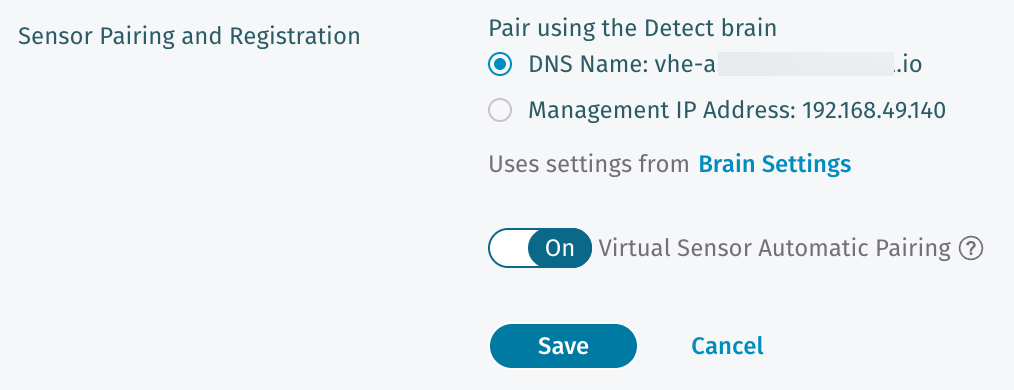
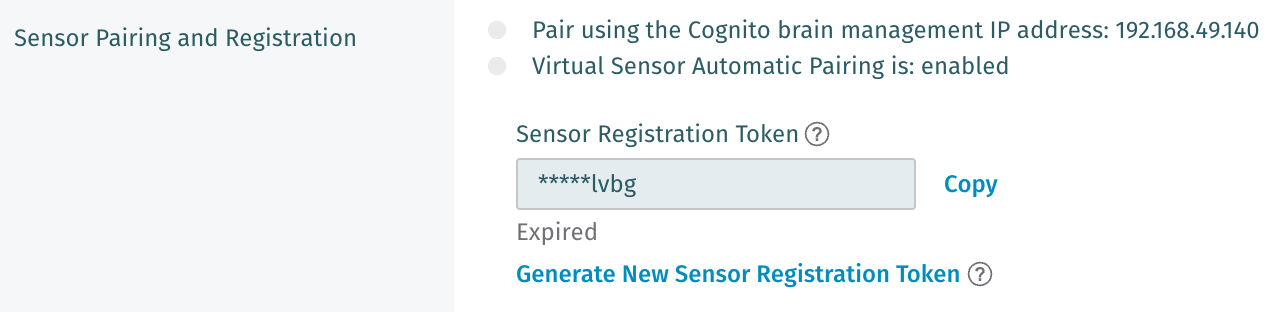
Editing this area will allow you to alter the default way a Sensor will attempt to pair with a Vectra Brain and allow you to enable or disable Virtual Sensor Automatic Pairing (Auto Pairing). Additionally, this area provides a link to generate a new Sensor Registration Token (SRT) or to copy an existing SRT.

Pair using the Detect Brain

  • If you have a DNS name configured in Configuration → COVERAGE → Data Sources → Network → Brain Setup → Brain, then the Pair using the Detect brain area will provide a choice between the configured DNS name and the management IP address (MGT1).

  • If you do not have a DNS name configured, there will only be one option present using the configured IP for the management interface of your Brain.

    • It may take a few minutes after adding a DNS name in your Brain setup for the choice to appear in this area.

  • This setting only affects the default pairing mode for Sensors used in future pairing operations.

    • Any previously paired devices will remain paired in the same manner they were originally paired.

    • Regardless of setting, the set brain command available at the CLI of the Sensor will allow you to attempt pairing via hostname or IP.

  • Should you choose to change the pairing method for previously paired devices, you will need to unpair the previously paired devices and re-pair them.

Virtual Sensor Automatic Pairing "Auto Pairing"

  • This setting allows you to choose if you want to automatically pair (auto pairing) with Sensors that have a valid Sensor Registration Token (SRT) configured.

    • Even though the setting name implies that this will only impact virtual Sensors, any Sensor, including physical appliances can auto pair if a valid SRT is configured when pairing is attempted.

  • It is recommended to allow auto pairing during initial setup or during large Sensor rollouts.

  • When you are done deploying vSensors, you may turn this off to enhance security posture.

Sensor Registration Token (SRT)

  • Use this area to see the status of SRTs (how long before an SRT expires), copy a SRT, and to generate new SRTs.

  • SRTs are used to validate Sensors attempting to register to a Brain and reset after 24 hours.

  • SRTs are used in the Registration Token field in the Sensor deployment template for Sensors deployed in IaaS clouds such as AWS, Azure, and GCP.

  • While the SRT is required for cloud Sensor deployment, it is optional for physical Sensors and virtual Sensors.

  • Use of a SRT will allow you to pair a Sensor with any Brain in your organization. This can be useful for disaster recovery scenarios where a device may have been paired to another Brain previously.

SRT Retrieval and Generation at the CLI

SRT retrieval and generation can also be accomplished at the CLI of your Brain. For details on how to access the CLI of your Brain, please see SSH login process for CLI or console access on appliances.

chevron-rightPlease expand for CLI SRT retrieval and generation example.hashtag

Use the show registration-token command as shown below:

Configuring the Brain Location and SRT on a Sensor

Sensors can have the Brain location (Hostname or IP Address) used for pairing configured automatically or manually. Additionally, the Sensor Registration Token (SRT) can be set to allow a Sensor to pair with any Brain type as long as the SRT is valid.

Automatic Configuration Scenarios

vSensors for traditional hypervisors

  • These are used in platforms such as VMware, Nutanix, KVM, Hyper-V, etc.

  • When a vSensor image is downloaded from your Brain, it is preconfigured with the location of the Brain it was downloaded from.

  • The location encoded into the image is based on the hostname or IP address that was selected in the Sensor Pairing and Registration settings area above.

  • The SRT is not required as registration information is encoded into the vSensor image that was downloaded.

  • If desired, the Brain location and SRT can be changed by following the manual configuration steps.

Physical Sensors

  • An online Vectra Brain will update the Vectra cloud with its location.

  • The location is based on if you have selected to pair via the management IP or hostname in the Sensor Pairing and Registration settings area above.

  • When an online Sensor connects to the Vectra cloud, the location will be provided to the Sensor so that it can announce itself as available for pairing to the Brain.

  • If desired, the Brain location and SRT can be changed by following the manual configuration steps.

Manual Configuration Scenarios

vSensors for IaaS clouds such as AWS, Azure, and GCP

  • Since all cloud vSensors are either deployed from the cloud provider marketplace or via a generic image shared directly to you prior to deployment, all cloud vSensor images are identical and are not preconfigured with registration information or a Brain location.

  • The Brain location and Sensor Registration Token are configured as part of the deployment process for each cloud vSensor. This is typically done through a customizing a template in the cloud provider or a editing a template prior to deployment using a CLI command.

  • Post deployment

    • If you are able to reach the command line of the vSensor and log in, the Brain location and SRT can be changed by following the manual configuration steps.

vSensors for traditional hypervisors

  • These are used in platforms such as VMware, Nutanix, KVM, Hyper-V, etc.

  • As discussed in the automatic configuration scenarios above, these vSensor images are preconfigured with registration information and Brain location unique to the Brain that the image was downloaded from, and cannot normally be paired to other Brains in your environment unless a new Brain location and SRT are configured.

  • If desired, the Brain location and SRT can be changed by following the manual configuration steps.

Physical Sensors

Manual Configuration Steps

To manually configure a Sensor with a Brain location or Sensor Registration Token (SRT) you must first access the command line interface (CLI) of the Sensor. For details on how to access the CLI of your vSensor, please see SSH login process for CLI or console access on appliances.

chevron-rightPlease expand for manual configuration details.hashtag

Showing and Setting Brain Location

Use the show brain and set brain commands as shown below:

Showing and Setting the SRT

Use the show registration-token and set registration-token commands as shown below:

Pairing Sensors

Communications Requirements

In order to pair with a Brain, per the firewall requirements, Sensors must be able to reach the Brain over the below ports. It is recommended to enable these ports bidirectionally to aid in troubleshooting.

  • TCP/443 (HTTPS) - Used for Sensor discovery and initial pairing connection.

  • TCP/22 (SSH) - Used for Paired Sensor connections.

Additionally, for online pairing (physical Sensors only), both the Sensor and Brain must be able to communicate with:

  • update2.vectranetworks.com or 54.200.156.238 over TCP/443 (HTTPS)

Pairing Timing Expectations

Some processes related to pairing happen on regular intervals and are not immediate. It is normal for a Sensor to take a few minutes to show up in the Vectra UI as Available and move through different pairing states. For example, check in to the Vectra cloud happens every 5 minutes for a physical Sensor that has not yet communicated with the Vectra cloud. Other processes related to pairing can also take some time.

If a Sensor does not appear in the Brain Configuration → Data Sources → Network → Sensors page, check that the vSensor has IP connectivity and that TCP port 443 (HTTPS) is permitted through your firewall.

If pairing has begun, i.e. you see Pairing in the UI or CLI, and pairing has not completed in 5 to 10 minutes, the most likely scenario is that firewall rules are not allowing TCP/22 (SSH) from the Sensor to the Brain. In such a scenario, you should click the cancel pairing button in the UI, which will reset the Sensor status to Available, address connectivity issues, and reinitiate the pairing process.

For more near real-time status than what is shown in the UI served from Vectra's cloud in RUX deployments, or the UI served locally from your Brain in QUX deployments, the show sensors command can be used at the CLI of the Brain.

Sensor Pairing States and Status

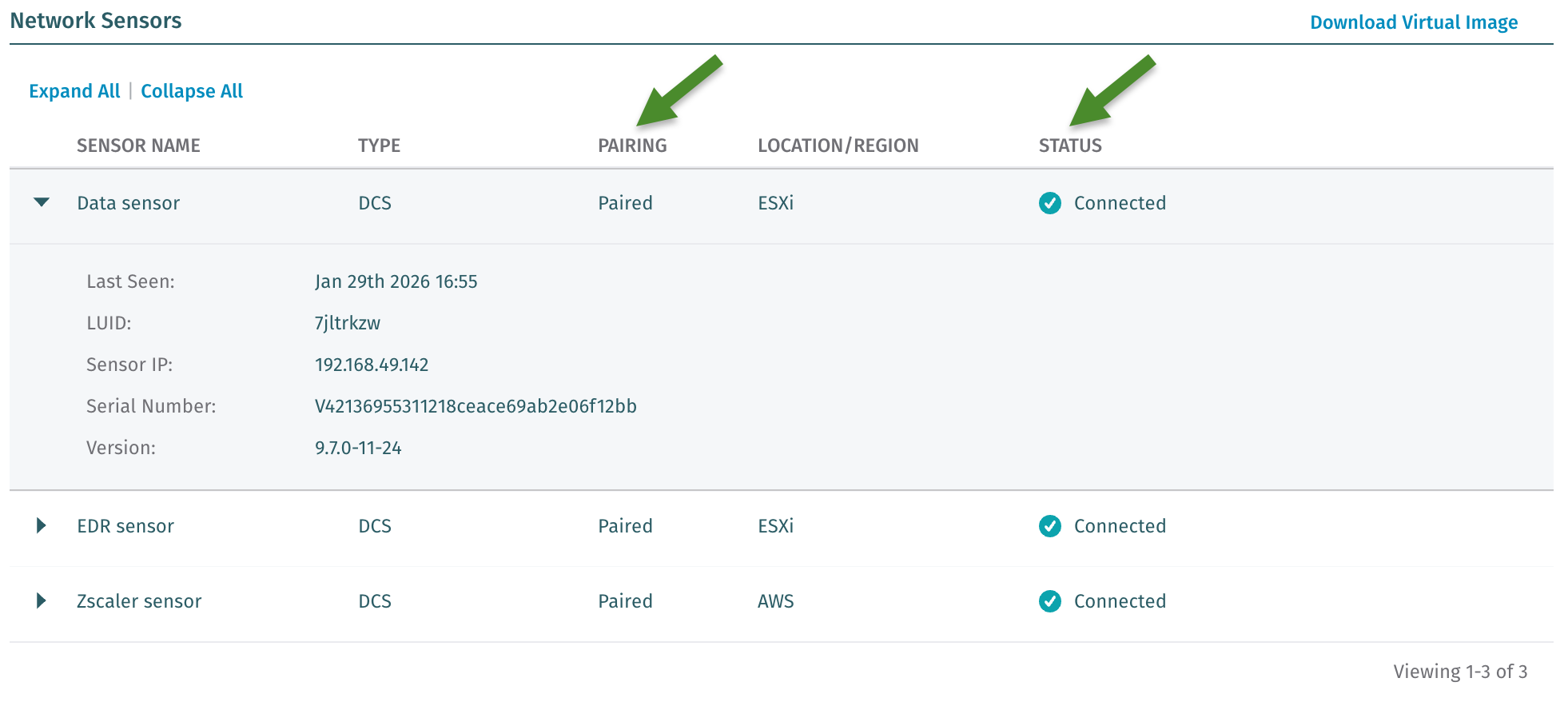
Admins can see the list of Sensors in the Vectra UI under ConfigurationData Sources → Network → Sensors. The Brain will attempt to query the Vectra cloud at https://update2.vectranetworks.com as the page loads.

Sensor Pairing States

  • Available

    • Physical Sensor has contacted the Vectra cloud and Brain successfully and is available for pairing.

    • Physical Sensor with valid SRT has announced itself successfully to the Brain and is available for Pairing.

    • vSensor (cloud or traditional hypervisor deployed) has announced itself successfully to the Brain and is available for pairing.

  • Pairing

    • A pairing request has been sent to the Vectra cloud from the Brain for online physical Sensors.

    • Any other Sensor type with a valid SRT is in the process of pairing.

  • Paired

    • A Sensor has successfully paired with the Brain.

  • Unpairing

    • A Sensor is in the process of unpairing.

Sensor Status

  • Connected

  • Not Connected

  • Unpairing

Pairing states and the list of Sensors can also been at the CLI of your Brain appliance. For details on how to access the CLI of your Brain, please see SSH login process for CLI or console access on appliances.

chevron-rightPlease expand for example using the show sensors CLI command.hashtag
Sensor Registration Token Pairing

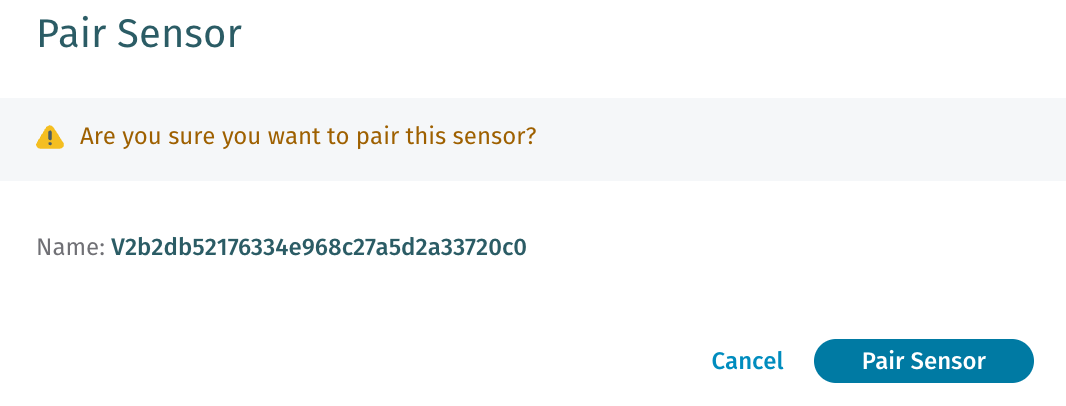
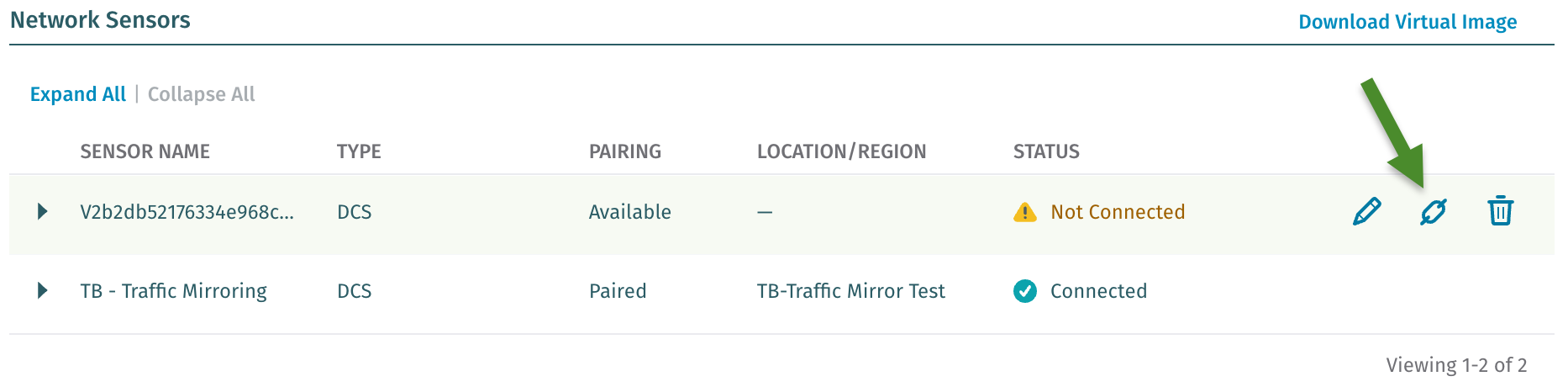
When a Sensor is configured with a valid Sensor Registration Token (SRT), once a Sensor of any type is able to reach the Brain (see communications requirements), and shows as Available, click the pairing button as shown in the above screenshot to open a pairing dialog box.

Click Pair Sensor to begin pairing. The Sensor will move through Pairing, and Paired states automatically and then finally show Connected as a status when the Sensor is ready to begin forwarding data to the Brain for analysis.

Auto Pairing

If auto pairing is enabled, and the Sensor has a valid Sensor Registration Token, once the Brain sees the Sensor as available, pairing will be completed automatically.

Once a Brain sees the Sensor as Available, Sensors will move through Available, Pairing, and Paired states automatically and then finally show Connected as a status when the Sensor is ready to begin forwarding data to the Brain for analysis.

circle-info

Please Note:

  • Physical appliances cannot engage in auto-pairing immediately out of the box. They must first be configured with a valid Sensor Registration Token (SRT).

  • If a physical appliance shows as Available for pairing, and the admin initiates pairing, pairing will complete automatically if online pairing is possible.

Online Pairing (Physical Sensors Only)

Screenshot is from a vSensor. The TYPE would show the model number for physical appliances.

Out of the box, physical Sensors will attempt to reach out to the Vectra cloud once they are online.

Once a physical Sensor/Stream appliance shows as Available in your Vectra UI, click the pairing button as shown in the above screenshot to open a pairing dialog box.

circle-info

When a physical appliance cannot reach Vectra's updater service because a proxy is required in the customer’s environment to reach outside destinations, the set brain command should be used to set the Brain IP or hostname that the Sensor or Stream appliance will attempt to pair with. Sensors do not support proxy configuration.

You will then be presented with a dialog box where you can start the pairing process.

  • Click the Pair Sensor button to begin pairing.

  • The Brain will update the Vectra Cloud with its MGT1 IP address or hostname (depending on if you have selected to pair by hostname or IP and posts a request for the Sensor to initiate the pairing process.

  • If the Sensor has access to the Vectra Cloud, upon its next check in (every 5 min), it will now retrieve the location of the Brain from the Vectra cloud and attempt to connect to the Brain.

  • If the Sensor does not have access to the Vectra Cloud or is unable to contact the Brain (e.g. the Sensor cannot reach the Brain's IP address in a NAT or proxy environment), the Sensor should be manually instructed to pair with the Brain from the Sensor CLI using the set brain command using an IP address for the Brain's MGT1 that will reach the Brain's NAT address from the Sensor or hostname of the Brain.

The Sensor will move through Pairing, and Paired states automatically and then finally show Connected as a status when the Sensor is ready to begin forwarding data to the Brain for analysis.

Online Pairing Summary:

Appliance serial numbers and keying information are associated with customer accounts during provisioning. Under normal circumstances, if both the Brain and physical Sensor or Stream can reach Vectra’s updater service at https://update2.vectranetworks.com, the following high-level diagram explains the standard pairing process:

Pairing in an Air-Gapped Environment vs Offline Pairing

While true air gap environments are typically relatively rare, customers may still need to deploy in environments where none of the components in your deployment can reach the Vectra cloud. A cloud deployed vSensor that can't reach the internet from its VPC could still be consided an air gap deployment from that perspective.

Air-Gapped Pairing

Physical Appliances

While Vectra NDR and Stream can function in full air gapped environments, this does mean that a Sensor Registration Token (SRT) will be required to pair physical Sensors.

Traditional Hypervisor vSensors

Traditional hypervisor based vSensors are not impacted because the virtual machine image downloaded from the Brain comes with the keying information needed to allow vSensors to communicate to the Brain. As long as the vSensors can contact the Brain they can pair automatically or via user initiated pairing. They can also use a SRT to authenticate pairing.

Cloud vSensors

Similarly, cloud vSensors are required to use a SRT for pairing and only need to be able to contact the Brain to pair and do not need to talk to the Vectra cloud.

To pair in an air gap environment:

  • Retrieve or generate a current Sensor Registration Token.

  • Perform the set registration-token <token> command at the Sensor CLI.

  • Finally perform the set brain <IP or Hostname> command at the Sensor CLI.

    • set brain should also delete existing brain location information but if there are any issues, the del brain command at the Sensor CLI can be used.

  • The Sensor should become Available for pairing on the Brain.

Offline Pairing (Physical Sensors Only)

In offline pairing scenarios, if a Sensor is behind a proxy or firewall and cannot connect to the Vectra cloud, then a Sensor Registration Token (SRT) will be required to complete pairing.

The Pair Sensor button can be used to begin pairing. A valid Sensor Registration Token (SRT) must be configured. You must also configure the Brain location with the set brain command at the CLI of the Sensor.

Additional Pairing Guidance

Stream Appliance "Sensor" Pairing Details

As discussed in about Sensor and Stream pairing, Stream devices pair in the same manner as Sensor devices. There are some post pairing differences:

A Stream appliance does not show in the Vectra UI on the normal Sensor management screen located at Configuration → Data Sources → Network → Sensors. Pairing status for a Stream appliance is available in Configuration > Setup > Stream in the Pairing Status area:

A Stream appliance will show its' status if you use the show sensors command at the CLI.

Post Pairing Guidance

Once paired, Sensors will attempt to synchronize software versions by downloading the latest update from the Brain and immediately applying it. The Sensor may become temporarily unavailable while this update is applied. This should only take a few minutes to complete.

Certain vSensor CLI functions and traffic functions will become available only after the vSensor has fully updated. Depending on the specific version of the vSensor, you may see errors or warnings when running CLI functions during the period of time when the vSensor is still updating.

Sensors can be renamed or have their location labeled as desired by clicking on the pencil icon on the right of the vSensor and editing the details.

Pairing to New or Changed Brains

Pairing to Brain With Changed Location

If the Brain location must be changed there are two processes that can be used to associated existing Sensors with a new Brain:

Preferred Method:

  • Change the Brain IP address or hostname.

  • Redirect all Sensors to the new Brain location using the set brain command at the CLI of the Sensor.

    • Previously paired Sensors can simply be redirected because the Brain already has the required registration information for these Sensors.

      • This is also the same for new or different Brains restored from Backups.

    • Unpaired Sensors can use the Sensor Registration Token if needed.

      • For example: The new Brain isn’t restored from backup, is air-gapped, etc

Alternate Method:

You can also unpair all Sensors, change the Brain location (hostname or IP address), and then pair all Sensors again. This could cause some buffered data on the Sensors to be lost.

Pairing to a Different Brain

  • If you have a Brain that will not be restored from backup that you wish to pair an existing Sensor to, this is possible via the use of a Sensor Registration Token.

    • Retrieve or generate a current Sensor Registration Token.

    • Perform the set registration-token <token> command at the Sensor CLI.

    • Finally perform the set brain <IP or Hostname> command at the Sensor CLI.

      • set brain should also delete existing brain location information but if there are any issues, the del brain command at the Sensor CLI can be used.

    • The Sensor should become Available for pairing on the new Brain and will pair automatically if auto pairing is enabled.

Terminating Existing Sensor / Brain Tunnels

In all cases, existing tunnels have to terminate to re-establish connection to a new Brain. This can be accomplished a few different ways.

  • Naturally, because the original Brain is no longer reachable due to firewall change, hardware or software failure, etc.

  • Using the set brain command at the CLI will terminate an existing tunnel and attempt to start pairing with a new Brain.

    • del brain can be used to break the tunnel but not set a new Brain location.

  • In normal operation, the Sensor can simply be unpaired from its existing Brain. To use the Unpair option, the Brain must be connected to the Vectra Cloud and the Sensor must be powered on with an active tunnel to the original Brain.

    • Navigate to Configuration → COVERAGE → Data Sources → Network → Sensors, click on the Sensor you wish to unpair and click on the Unpair button.

    • After unpairing which could take a few minutes, the status of the Sensor should change to Available.

  • Using the Force Unpair option in your Vectra UI for the target Sensor.

    • This will unpair the Sensor from the original Brain and when the Sensor attempts communication to the original Brain the tunnel will not function.

    • Force Unpair is the same as deleting for a vSensor. You cannot delete a physical Sensor (talk to Vectra Support if this is required).

Last updated

Was this helpful?