> For the complete documentation index, see [llms.txt](https://docs.vectra.ai/llms.txt). Markdown versions of documentation pages are available by appending `.md` to page URLs; this page is available as [Markdown](https://docs.vectra.ai/configuration/tuning/triage-best-practices.md).
# Triage best practices
Use triage filters to manage known detection behavior, improve scoring precision, and reduce repetitive alert review.
## Introduction
Triage enables teams to manage known, expected, or previously reviewed detection behaviors in a structured and auditable way. By creating targeted filters, security teams ensure the platform reflects what truly matters, improving the precision of scoring and prioritization without suppressing visibility or requiring manual alert review.
Filters can be created directly from detections or authored from the *Configuration → TUNING → Triage Filters* page. Each filter can be scoped using flexible conditions such as detection type, group, IP range, domain, port, or other detection specific details. Detections that match triage filters do not contribute to host or account entity scoring.
Security team members are not in it alone. In addition to analyst-created triage filters, the platform's AI-Triage automatically reviews detection events to triage benign behavior based on observed patterns and context. Note that this capability has been successful in automatically triaging multitudes of benign detections for Vectra customers without impacting the identification of threats.
Additional triage or entity assignment related KB articles:
* [AI-Triage in Detail](/operations/general/ai-triage-in-detail.md)
* [Creating triage filters using the Rest API](/configuration/tuning/creating-triage-filters-via-api.md)
* [New Close Workflow](/operations/analyst-guidance/new-close-workflow.md)
## When and Why to Triage
* Triage filters are analyst insights that are disseminated to the rest of the team. They are a logical outcome of the investigation process. They don’t change the underlying AI/ML models but rather label authorized detection behaviors with analyst assessment. This helps to address the behavioral overlap between attackers and authorized behaviors that can’t automatically be recognized as benign.
* Triaging detections eliminates scoring impact to the entities the detections are attributed to.
* It is suggested to begin regular triage rule creation as a standard part of process after two weeks when initial learning is complete for all models.
* Triage filters can also be built prior to detections being present, but details available from detections will ease filter creation.
* Treat triage filtering as part of ongoing detection management, not a one-time setup. Regular reviews help maintain relevance and effectiveness.
* Creating triage filters in Vectra also reduces administrative effort in any downstream system such as a SIEM or SOAR tool that interacts with Vectra data.
## Sometimes the Best Action Is to Leave a Behavior Alone
Unlike traditional security products, leaving a behavior alone is sometimes the best course of action. This may seem counterintuitive but consider the following example:
Typically, Alice waits for Vectra to prioritize entities that require analyst attention. Today she has finished looking at prioritized entities and was reviewing individual detections to see if there were behaviors that could be triaged. She comes across an Abnormal Ad Activity detection on Bob’s machine. Reviewing the behavior and the attached PCAP she is sure that Bob’s machine became compromised, likely through a drive-by download. The activity only lasted about an hour and neither the Vectra deployment nor any other security appliances are alerting on, or prioritizing Bob’s machine. This was likely a temporary compromise that ended when Bob closed his browser. Alice recognizes this as bad behavior but doesn’t think her company’s limited resources should be spent on Bob’s activities just yet. She makes a few notes on the behavior and host.
The next day Alice notices that there are 2 new Abnormal Ad Activity behaviors from Bob’s machine; one from when after Alice left for the day and one from the morning. After reviewing the behaviors, she confirms that all 3 behaviors are related. This appears to be an ongoing issue. She starts response procedures and finds the source of the infection, a malicious advertisement on a popular blog that affected Bob due to outdated Java on his machine.
The above example is meant to illustrate that sometimes it is better to wait and get more information.
## General Filter Creation Guidance
* Use groups to ease filter creation and maintenance.
* When you have more than 3 IPs, accounts, hosts, or domains, it often makes sense to use a group to help define triage filter conditions.
* Simply update group membership to update any triage filters that use groups.
* Dynamic groups based on regex are supported. See the [Dynamic Groups FAQ](/configuration/tuning/dynamic-groups.md) for details.
* Avoid filters that apply to **All Hosts** unless the behavior is environment-wide and clearly low risk.
* Prefer host or IP groups for safer scoping.
* Use custom filter rules instead of whitelist filters whenever possible.
* Custom filters retain visibility while adjusting scoring while whitelist filters hide detections from the UI.
* Maintain clarity with consistent label formats for every triage filter.
* Use descriptions in filter rules for longer explanations
* It is not recommended to make triage filters for **Info** detections.
* Info detections report new and novel events without impacting scoring.
* Awareness of new and novel events support better situational awareness and provide additional context when observed with other alerts.
## Triage Actions / Terminology
Terminology will vary based on where you are in your Vectra UI and if you have enabled the new “New Close Workflow” in *Configuration → SETUP → General Settings > New Close Workflow*. If you are unsure of your deployment type, please see [Vectra Analyst User Experiences (Respond vs Quadrant)](/deployment/getting-started/analyst-ux-options-rux-vs-qux.md).
**"AI-Filtered"**
Also known as **Filtered by AI**, when seeing this on a detection, it means that Vectra’s AI-Triage has automatically created a filter rule for this behavior.
**Triage Filter Rule**
Triage filter rules, also known as custom filters, are rules that are applied to detections as they are being created by the system. These rules will also get applied to existing **Active** detections when saved. Some actions, such as changing group membership or changing the conditions of a filter rule can cause triage impact to be recalculated and update entity scoring as a result. This is the most commonly used option for Vectra customers. Detections can be filtered by **Filtered by a rule** to show only detections that were filtered by a triage filter rule.
**Whitelist Filter Rule**
Whitelist filters are NOT recommended to be used because the detections they impact are entirely hidden from the Vectra UI. It is generally recommended to create a normal triage filter instead of a whitelist filter. Analysts often benefit from seeing the normal behaviors done by machines that have already been analyzed by others. This knowledge can help in their analysis of other behaviors that may be occurring on the entity.
**Filter Just This Detection**
Individual detections can be filtered or closed so that the detection will no longer impact the score for an entity. This can be done in bulk or by individual detection.
**Close as Remediated or Mark as Fixed**
Both are intended to be used when some action has been taken that is meant to stop the behavior from reoccurring in the environment. Perhaps an infected machine was reimaged, or a discussion was had with a user where they were told they should not scan the server subnet.
**Close as Benign**
Use this option when you want to eliminate scoring impact for a detection, but no action was taken to stop the behavior from reoccurring in the environment. A potential use case could be a red teaming event happened and since this was approved behavior, what is desired now is simply to remove the scoring impact for the entities that were involved.
**Closed, Triaged, Filtered Detections Remain Active**
The net effect is that the detections that were closed will no longer contribute to scoring of the attributed entity. These detections remain **Active** as the state in the system after these actions were taken but do not show at **Active** for the status in the UI. They will show as Closed as Remediated, **Closed as Benign,** etc . The detections will become **Inactive** in 7 to 30 days (varies by model).
## Frequently Asked Questions (FAQ)
**When I create a new filter, does it apply retroactively?**
* Any new filter that is created will immediately apply to new detections. Other still active detections that may match the criteria of a filter will be filtered after the appliance can review all previous detections. Inactive unfiltered detections that existed before the filter can be manually triaged, closed, or tagged in the detection details page.
**What happens to entity scores when filters are involved?**
* If a detection is triaged, it will no longer impact the associated entity score.
**What are the available conditions for triage filter creation?**
* The specific conditions available for each detection type will vary because Vectra detections cover a wide variety of behaviors across different protocols and logs.
**Is it possible to specify an IP range or subnet for the external/target IP? What about domains?**
* Yes, you can use CIDR notation to specify ranges or subnets, if needed (i.e.129.164.100.0/24).
* Wildcards can also be used to specify external destination domains (i.e \*.vectra.ai).
**Can I specify multiple IP addresses in a filter?**
* Yes. However, we recommend utilizing IP groups if more than 3 individual IPs or IP ranges need to be added.
* Groups are typically easier to manage, are labeled to help quickly identify the members of the group, and simplify triage rule creation and updates since simply updating the group will update the triage rule conditions.
**Do I have to create a filter to triage detections?**
* No, you do not have to create a filter. Individual detections can be closed or triaged.
**Are triage actions logged?**
* Yes, triage actions are logged and available via API or syslog (QUX deployments only).
**Where can I find a list of all the created filters?**
* You can find the full list of triage filters and whitelists in the *Configuration → TUNING → Triage Filters* page of your Vectra UI.
**Once I create a filter, can I modify it?**
* Once a filter has been created, you can modify the label, description, and conditions.
* If the original detection type needs to be changed, a new rule will need to be created.
* Changing the conditions of a triage filter may require the system to recalculate the impact of the rule.
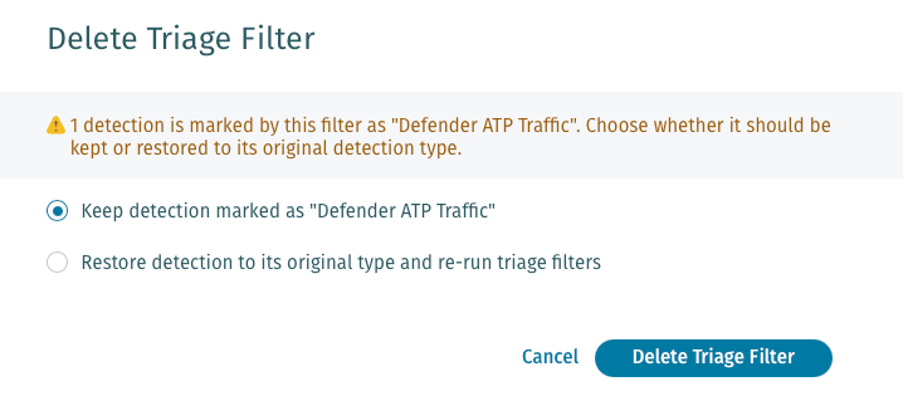
**What happens when I delete a filter?**
* When you delete a rule, you have a choice of keeping the label, or to return the detections to their original category (e.g. Brute-Force Attack, Data Smuggler, etc).
* In the case the label is maintained, there will not be any references to the rule that created it, since it has been deleted.
* If the detection is returned to its original category, the host entity score will be adjusted accordingly.
* Please see the below example:
 ## Triaging Detections
Vectra has several ways in which to create triage rules. Options and terminology vary based on where you are in your Vectra UI and if the [New Close Workflow](/operations/analyst-guidance/new-close-workflow.md) is enabled.
### Triage Filter Rules
Filter rules can be created through several different paths:
#### From a Detection:
| | |
| :-------------------------------------------------------------------------------------------------------------------------------------------------------------------------------------------------------------------------------------------------------------: | :-------------------------------------------------------------------------------------------------------------------------------------------------------------------------------------------------------------------------------------------------------------: |
| **New Close Workflow** | **Legacy Workflow** |
|  |  |
#### From the *Configuration → TUNING → Triage Filters* Page:
From this page, you can:
* Create, edit, and manage triage filters to reflect behavior that’s understood and accepted in your environment.
* Apply scoped filtering for detections for precise behavior refinement based on specific fields, specific hosts and accounts, and groups.
* Review and revise existing filters to keep your triage logic current, well-scoped, and aligned with your environment.
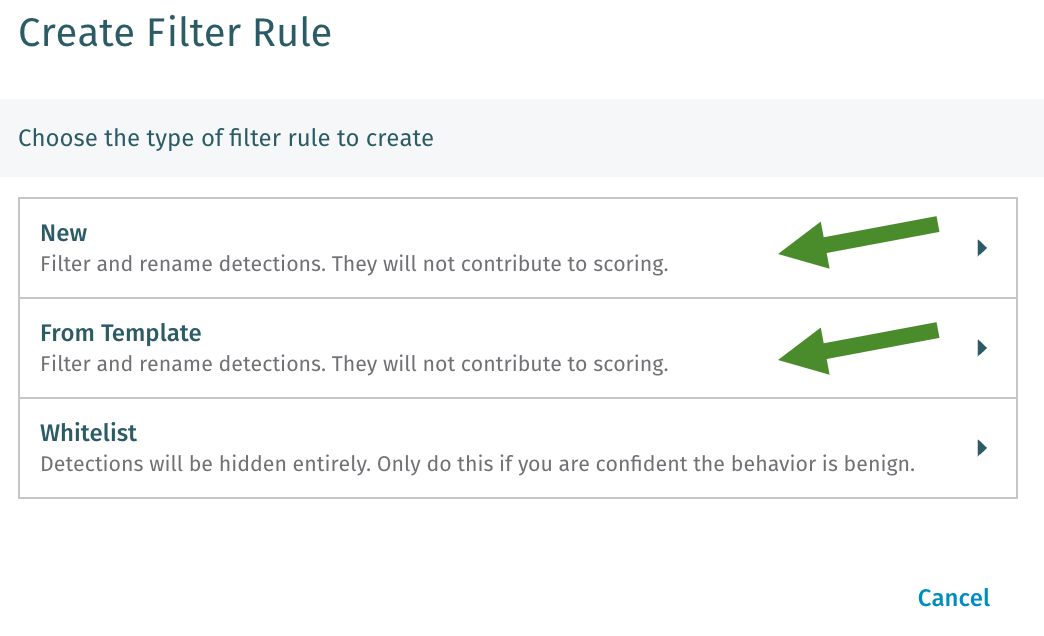
When creating a filter from the triage filter management page, you can create new filters for any detection type without the need to have a detection exist in the system. This might be helpful if you want to build filters before certain behaviors are detected. Filters can also be created from templates for common services that are often triaged in environments.
Whitelist filters can also be created in this manner but as per earlier guidance, it is NOT recommended to use this option unless you are completely certain that your whitelist filter will perfectly match only the desired behaviors from the intended entities and there is no value in seeing the behavior attributed to the entity.
Recommended options:
## Triaging Detections
Vectra has several ways in which to create triage rules. Options and terminology vary based on where you are in your Vectra UI and if the [New Close Workflow](/operations/analyst-guidance/new-close-workflow.md) is enabled.
### Triage Filter Rules
Filter rules can be created through several different paths:
#### From a Detection:
| | |
| :-------------------------------------------------------------------------------------------------------------------------------------------------------------------------------------------------------------------------------------------------------------: | :-------------------------------------------------------------------------------------------------------------------------------------------------------------------------------------------------------------------------------------------------------------: |
| **New Close Workflow** | **Legacy Workflow** |
|  |  |
#### From the *Configuration → TUNING → Triage Filters* Page:
From this page, you can:
* Create, edit, and manage triage filters to reflect behavior that’s understood and accepted in your environment.
* Apply scoped filtering for detections for precise behavior refinement based on specific fields, specific hosts and accounts, and groups.
* Review and revise existing filters to keep your triage logic current, well-scoped, and aligned with your environment.
When creating a filter from the triage filter management page, you can create new filters for any detection type without the need to have a detection exist in the system. This might be helpful if you want to build filters before certain behaviors are detected. Filters can also be created from templates for common services that are often triaged in environments.
Whitelist filters can also be created in this manner but as per earlier guidance, it is NOT recommended to use this option unless you are completely certain that your whitelist filter will perfectly match only the desired behaviors from the intended entities and there is no value in seeing the behavior attributed to the entity.
Recommended options:
 #### **Via API:**
Please see the following resources for details on using Vectra's APIs:
Respond UX
* [Vectra Platform API Guide v3.4](/configuration/access/api-rux/v34-api-guide-rux.md)
Quadrant UX
* [REST API Quick Start Guide for Postman v2.5 using OAuth2 (QUX)](/configuration/access/api-qux/v25-postman-quick-start-guide-using-oauth2.md)
* [REST API Guide v2.5](/configuration/access/api-qux/v25-api-guide-qux.md)
* [Vectra v2.5 Public Postman Collection](https://www.postman.com/vectra-internal/workspace/vectra-ai/collection/7429442-509c593b-8de4-4aa3-ac05-e07934eb9f17)
### Filtering or Closing Individual Detections
Individual detections can be filtered or closed so that the detection will no longer impact the score for an entity. This can be done by individual detection or in bulk. Options again vary based on where you are in your Vectra UI and if you have enabled the new [New Close Workflow](/operations/analyst-guidance/new-close-workflow.md).
#### Via Individual Detection Pages:
| | |
| :-------------------------------------------------------------------------------------------------------------------------------------------------------------------------------------------------------------------------------------------------------------: | :-------------------------------------------------------------------------------------------------------------------------------------------------------------------------------------------------------------------------------------------------------------: |
| **New Close Workflow** | **Legacy Workflow** |
|  |  |
#### Via Bulk Actions From the Detections Page in Your UI:
| | |
| :-------------------------------------------------------------------------------------------------------------------------------------------------------------------------------------------------------------------------------------------------------------: | :-------------------------------------------------------------------------------------------------------------------------------------------------------------------------------------------------------------------------------------------------------------: |
| **New Close Workflow** | **Legacy Workflow** |
|  |  |
### Closing or Resolving All Active Detections on an Entity
When using the [New Close Workflow](/operations/analyst-guidance/new-close-workflow.md) or when working with entity assignment and resolution in the original workflow, all active detections can be triaged easily at once at an entity level.
* When using **Close As** at an entity level, all active detections attributed to the entity will be closed (triaged) as either Benign or Remediated.
* If the entity was assigned to an analyst, you will also need to close the assignment if you do not wish the entity to continue being assigned to that particular analyst for any new detections that are generated on the entity.
* When resolving an entity assignment using the older workflow, choosing any outcome will close the assignment, and triage the individual detections.
| | |
| :-----------------------------------------------------------------------------------------------------------------------------------------------------------------------------------------------------------------: | :-----------------------------------------------------------------------------------------------------------------------------------------------------------------------------------------------------------------: |
| **New Close Workflow** | **Legacy Workflow** |
|  |  |
## Groups and Triage Filters
Consistent use of groups helps ease triage filter creation and maintenance. Rather than building a set of conditions for authorized domains in several triage filters, it is much easier to simply create a group that can be used as often as required. Also, when group membership changes, you only need to update the group and not every filter that would have used the same members as individual conditions.

In the above example, simply typing a group name such as **Authorized Domains** will cause this Data Smuggler triage filter to always use a list of members that is current based on the group membership at the time the filter is evaluated.
Please keep in mind the following when building triage filters with groups:
* Accounts must already exist in your environment to be included in an account group.
* This means that a Detection has been fired.
* Hosts are created automatically and do not require a detection to have fired for a host to be available to include in groups.
* Triage rules are evaluated against the underlying account for associated accounts.
* When creating account groups, you should make sure the both the network and log based accounts are included in a group if you want both underlying accounts to be used as matching criteria for a triage rule meant to apply across hybrid attack surfaces.
* Associated accounts are also sometimes referred to as **linked accounts** or **reconciled accounts** or **stitched accounts**. Please see [Automatic Account Linking with AD Context](/configuration/setup/account-association.md)for more details.
Groups can be based on Hosts, Accounts, IPs, or Domains. Vectra supplies several pre-built groups that are either maintained by Vectra (these may be labeled as **Cognito – xxxx** in your UI) or are meant to be populated by customers as common groups that might typically be used in filters. A couple of examples are below:
* **Cognito – Zoom** : This IP group contains IPs used by the Zoom web conferencing service.
* This is a Vectra managed group and cannot be edited by customers, but members can be copied to a new group if required.
* **Cognito – Scanners** : This Host group should include machines that perform approved scanning behaviors.
* It is meant to be edited by customers and then used in rules that might be constructed for scanners.
* This group can be renamed or edited as desired.
Groups are managed in the *Configuration → TUNING → Groups* screen in your Vectra UI. Dynamic groups based on regex are supported. See the [Dynamic Groups FAQ](/configuration/tuning/dynamic-groups.md) for details.
## Guidance by Detection Category
Triage decisions should reflect both the reliability of the behavior and the value of filtering. Use the guidance below to determine where broader triage is safe—and where greater caution is warranted.
**Command & Control (C2)** – Safe and high-value when destinations are known
* Triaging is recommended when outbound communication targets verified authorized domains or infrastructure (e.g., trusted third-party services).
**Exfiltration** – Generally safe with verified destinations
* Filtering is appropriate when data is transferred to known, sanctioned services such as backup platforms or internal tools—after confirming legitimacy.
**Reconnaissance** – Safe when activity originates from approved systems
* Triage is appropriate for scanners, inventory tools, or discovery accounts that are expected to generate this behavior.
**Lateral Movement** – Use caution; requires validation
* These detections often involve administrative activity. Triaging should only occur when the actions are well-understood and confirmed as authorized.
**Botnet Activity** – Context-dependent; validate thoroughly
* Some benign applications may exhibit botnet-like behavior. Triage only after confirming system purpose, behavior profile, and network activity.
## General Technical Guidance for Triage
The below section includes guidance from interviews with Vectra’s MDR and Professional Services teams. These are general best practices. These are not absolutes, but rather “rules of thumb”. Every customer network is a unique environment and what’s acceptable in one network, may not be in another. Please use your best judgement in applying these concepts to your deployment. These are in addition to the General Filter Creation Guidance given earlier.
#### **When to Implement a Triage Filter**
* When behaviors/detections have been ongoing for 7 consecutive days (or business days)
* Detections are considered ongoing if 90% of the details are the same over the time period.
* Example: Port Scan from Nessus Scanners
* Behaviors are considered ongoing if seen throughout the time period.
* Example: Kerberos Account Scan from domain controllers
#### **Naming Conventions**
* Use consistent naming conventions
* When you create a filter, the **Label As** field will be the new name of the detection event when looking through lists of detections. The original detection name will also be shown in parentheses next to this new label so you can see the original detection name without having to drill into the detection itself.
* In this example below, you can see that the Vectra MDR team labeled the triage rule with **MDR – Expected M365 Downloads** to indicate their team created the rule and give a quick reason as to why it was created.

* Finally, use the description field when configuring a filter to give additional reasoning and references such as:

#### **Technical Guidelines**
* Filter rules should have source or target conditions specified.
* References to internal or external IPs should be done via groups.
* When detections across multiple entities are confirmed to be related and caused by common behavior, the filter rule should use as many conditions as possible to match exactly the behavior and not any other scenarios.
* Example: WUDO from clients, using port 7680
* When a set of entities recurrently trigger detections of a certain type due to their role, but the detection details differ between instances, you may decide to create a filter rule with a very specific source condition but without additional conditions to reduce the amount of benign true-positive detections.
* Example: Vulnerability scanner triggering SQL Injection detection.
* PAA (Privilege Access Analytics) and other local learning, relational detections should not be treated with filter rules. Exceptions below:
* For hosts used by multiple accounts simultaneously, or in quick succession, PAA and other local learning detections may be filtered with a rule.
* Example: Citrix, terminal servers, shared clients
* For accounts used on multiple hosts simultaneously, or in quick succession, PAA and other local learning detections may be filtered with a rule
* Example: Service accounts, helpdesk accounts
* Account based detections related to administrative activities should only be filtered via filter rules for very specific (multiple conditions should be applied) and recurrent behaviors even when confirmed as legitimate, since Insider Threats or stolen credentials can be used to compromise these accounts.
* Approved SaaS Services should have filters covering all North/South behaviors, excluding those in the Botnet category.
* Generic host containers (indicated with a name starting with **IP-** such as IP-1.2.3.4), shall not be used for filter rules.
* The IP address of the generic host container should be used instead.
* When referencing hosts with static IPs, efforts should be taken to reference the host by IP.
* Filter rules for protocol specific detections need not have the port specified unless it differs from the standard ports used by the protocol.
* Example: Hidden HTTPs Tunnel, RPC Targeted Recon
* For non-protocol specific Reconnaissance and Lateral movement network behaviors:
* With greater than 6 different ports shall not have the ports specified
* With 6 or fewer different ports shall have the ports specified
* Confirmed benign Command and Control or Exfiltration detections caused by regular web-surfing on client devices shall be handled by group with a label such as **Benign Domains** that is then used in filter conditions.
* Confirmed benign Command and Control or Exfiltration detections triggering on a subset of devices due to the nature and role of these devices shall be treated by an individual filter rule specific to the responsible behavior.
* Example: DC to Azure ATP Sensor Domain, Veeam Servers to Veeam, etc.
* Authorized internet traffic related behaviors shall have Domain Controllers exempt from them by default.
* Filter rules for RPC related behaviors shall have the UUIDs specified.
* Filter rules for RPC related behaviors with 5 or fewer different function calls should have the function calls specified.
* Recurring and benign Ransomware File Activity and M365 Ransomware detections may be filtered with a rule using strict additional conditions.
## Videos Providing Triage Guidance
The following videos have been created previously and may be slightly out of date with current terminology in this article or the [New Close Workflow](/operations/analyst-guidance/new-close-workflow.md) but they still provide good advice on triage in general or specific detection types:
* [Accelerating Threat Detection with Vectra AI Agents: Triage, Stitch, Prioritize](https://www.youtube.com/watch?v=DvsvR57xCS8)
* [How to create a triage rule for a one-off detection on your Vectra brain](https://www.youtube.com/watch?v=6Lgi5PUHEuI)
* [Triage Best Practices with Sidekick MDR](https://youtu.be/j65UWk1XzDc?si=4_xLGg5xnId1L0J-)
---
# Agent Instructions
This documentation is published with GitBook. GitBook is the documentation platform designed so that both humans and AI agents can read, navigate, and reason over technical content effectively. Learn more at gitbook.com.
## Querying This Documentation
If you need additional information that is not directly available in this page, you can query the documentation dynamically by asking a question.
Perform an HTTP GET request on the current page URL with the `ask` query parameter, and the optional `goal` query parameter:
```
GET https://docs.vectra.ai/configuration/tuning/triage-best-practices.md?ask=&goal=
```
`ask` is the immediate question: it should be specific, self-contained, and written in natural language.
`goal` is optional and describes the broader end goal you are ultimately trying to accomplish on behalf of the user. GitBook uses it to tailor the answer towards what is most useful for that goal.
The response will contain a direct answer to the question and relevant excerpts and sources from the documentation.
Use this mechanism when the answer is not explicitly present in the current page, you need clarification or additional context, or you want to retrieve related documentation sections.
#### **Via API:**
Please see the following resources for details on using Vectra's APIs:
Respond UX
* [Vectra Platform API Guide v3.4](/configuration/access/api-rux/v34-api-guide-rux.md)
Quadrant UX
* [REST API Quick Start Guide for Postman v2.5 using OAuth2 (QUX)](/configuration/access/api-qux/v25-postman-quick-start-guide-using-oauth2.md)
* [REST API Guide v2.5](/configuration/access/api-qux/v25-api-guide-qux.md)
* [Vectra v2.5 Public Postman Collection](https://www.postman.com/vectra-internal/workspace/vectra-ai/collection/7429442-509c593b-8de4-4aa3-ac05-e07934eb9f17)
### Filtering or Closing Individual Detections
Individual detections can be filtered or closed so that the detection will no longer impact the score for an entity. This can be done by individual detection or in bulk. Options again vary based on where you are in your Vectra UI and if you have enabled the new [New Close Workflow](/operations/analyst-guidance/new-close-workflow.md).
#### Via Individual Detection Pages:
| | |
| :-------------------------------------------------------------------------------------------------------------------------------------------------------------------------------------------------------------------------------------------------------------: | :-------------------------------------------------------------------------------------------------------------------------------------------------------------------------------------------------------------------------------------------------------------: |
| **New Close Workflow** | **Legacy Workflow** |
|  |  |
#### Via Bulk Actions From the Detections Page in Your UI:
| | |
| :-------------------------------------------------------------------------------------------------------------------------------------------------------------------------------------------------------------------------------------------------------------: | :-------------------------------------------------------------------------------------------------------------------------------------------------------------------------------------------------------------------------------------------------------------: |
| **New Close Workflow** | **Legacy Workflow** |
|  |  |
### Closing or Resolving All Active Detections on an Entity
When using the [New Close Workflow](/operations/analyst-guidance/new-close-workflow.md) or when working with entity assignment and resolution in the original workflow, all active detections can be triaged easily at once at an entity level.
* When using **Close As** at an entity level, all active detections attributed to the entity will be closed (triaged) as either Benign or Remediated.
* If the entity was assigned to an analyst, you will also need to close the assignment if you do not wish the entity to continue being assigned to that particular analyst for any new detections that are generated on the entity.
* When resolving an entity assignment using the older workflow, choosing any outcome will close the assignment, and triage the individual detections.
| | |
| :-----------------------------------------------------------------------------------------------------------------------------------------------------------------------------------------------------------------: | :-----------------------------------------------------------------------------------------------------------------------------------------------------------------------------------------------------------------: |
| **New Close Workflow** | **Legacy Workflow** |
|  |  |
## Groups and Triage Filters
Consistent use of groups helps ease triage filter creation and maintenance. Rather than building a set of conditions for authorized domains in several triage filters, it is much easier to simply create a group that can be used as often as required. Also, when group membership changes, you only need to update the group and not every filter that would have used the same members as individual conditions.

In the above example, simply typing a group name such as **Authorized Domains** will cause this Data Smuggler triage filter to always use a list of members that is current based on the group membership at the time the filter is evaluated.
Please keep in mind the following when building triage filters with groups:
* Accounts must already exist in your environment to be included in an account group.
* This means that a Detection has been fired.
* Hosts are created automatically and do not require a detection to have fired for a host to be available to include in groups.
* Triage rules are evaluated against the underlying account for associated accounts.
* When creating account groups, you should make sure the both the network and log based accounts are included in a group if you want both underlying accounts to be used as matching criteria for a triage rule meant to apply across hybrid attack surfaces.
* Associated accounts are also sometimes referred to as **linked accounts** or **reconciled accounts** or **stitched accounts**. Please see [Automatic Account Linking with AD Context](/configuration/setup/account-association.md)for more details.
Groups can be based on Hosts, Accounts, IPs, or Domains. Vectra supplies several pre-built groups that are either maintained by Vectra (these may be labeled as **Cognito – xxxx** in your UI) or are meant to be populated by customers as common groups that might typically be used in filters. A couple of examples are below:
* **Cognito – Zoom** : This IP group contains IPs used by the Zoom web conferencing service.
* This is a Vectra managed group and cannot be edited by customers, but members can be copied to a new group if required.
* **Cognito – Scanners** : This Host group should include machines that perform approved scanning behaviors.
* It is meant to be edited by customers and then used in rules that might be constructed for scanners.
* This group can be renamed or edited as desired.
Groups are managed in the *Configuration → TUNING → Groups* screen in your Vectra UI. Dynamic groups based on regex are supported. See the [Dynamic Groups FAQ](/configuration/tuning/dynamic-groups.md) for details.
## Guidance by Detection Category
Triage decisions should reflect both the reliability of the behavior and the value of filtering. Use the guidance below to determine where broader triage is safe—and where greater caution is warranted.
**Command & Control (C2)** – Safe and high-value when destinations are known
* Triaging is recommended when outbound communication targets verified authorized domains or infrastructure (e.g., trusted third-party services).
**Exfiltration** – Generally safe with verified destinations
* Filtering is appropriate when data is transferred to known, sanctioned services such as backup platforms or internal tools—after confirming legitimacy.
**Reconnaissance** – Safe when activity originates from approved systems
* Triage is appropriate for scanners, inventory tools, or discovery accounts that are expected to generate this behavior.
**Lateral Movement** – Use caution; requires validation
* These detections often involve administrative activity. Triaging should only occur when the actions are well-understood and confirmed as authorized.
**Botnet Activity** – Context-dependent; validate thoroughly
* Some benign applications may exhibit botnet-like behavior. Triage only after confirming system purpose, behavior profile, and network activity.
## General Technical Guidance for Triage
The below section includes guidance from interviews with Vectra’s MDR and Professional Services teams. These are general best practices. These are not absolutes, but rather “rules of thumb”. Every customer network is a unique environment and what’s acceptable in one network, may not be in another. Please use your best judgement in applying these concepts to your deployment. These are in addition to the General Filter Creation Guidance given earlier.
#### **When to Implement a Triage Filter**
* When behaviors/detections have been ongoing for 7 consecutive days (or business days)
* Detections are considered ongoing if 90% of the details are the same over the time period.
* Example: Port Scan from Nessus Scanners
* Behaviors are considered ongoing if seen throughout the time period.
* Example: Kerberos Account Scan from domain controllers
#### **Naming Conventions**
* Use consistent naming conventions
* When you create a filter, the **Label As** field will be the new name of the detection event when looking through lists of detections. The original detection name will also be shown in parentheses next to this new label so you can see the original detection name without having to drill into the detection itself.
* In this example below, you can see that the Vectra MDR team labeled the triage rule with **MDR – Expected M365 Downloads** to indicate their team created the rule and give a quick reason as to why it was created.

* Finally, use the description field when configuring a filter to give additional reasoning and references such as:

#### **Technical Guidelines**
* Filter rules should have source or target conditions specified.
* References to internal or external IPs should be done via groups.
* When detections across multiple entities are confirmed to be related and caused by common behavior, the filter rule should use as many conditions as possible to match exactly the behavior and not any other scenarios.
* Example: WUDO from clients, using port 7680
* When a set of entities recurrently trigger detections of a certain type due to their role, but the detection details differ between instances, you may decide to create a filter rule with a very specific source condition but without additional conditions to reduce the amount of benign true-positive detections.
* Example: Vulnerability scanner triggering SQL Injection detection.
* PAA (Privilege Access Analytics) and other local learning, relational detections should not be treated with filter rules. Exceptions below:
* For hosts used by multiple accounts simultaneously, or in quick succession, PAA and other local learning detections may be filtered with a rule.
* Example: Citrix, terminal servers, shared clients
* For accounts used on multiple hosts simultaneously, or in quick succession, PAA and other local learning detections may be filtered with a rule
* Example: Service accounts, helpdesk accounts
* Account based detections related to administrative activities should only be filtered via filter rules for very specific (multiple conditions should be applied) and recurrent behaviors even when confirmed as legitimate, since Insider Threats or stolen credentials can be used to compromise these accounts.
* Approved SaaS Services should have filters covering all North/South behaviors, excluding those in the Botnet category.
* Generic host containers (indicated with a name starting with **IP-** such as IP-1.2.3.4), shall not be used for filter rules.
* The IP address of the generic host container should be used instead.
* When referencing hosts with static IPs, efforts should be taken to reference the host by IP.
* Filter rules for protocol specific detections need not have the port specified unless it differs from the standard ports used by the protocol.
* Example: Hidden HTTPs Tunnel, RPC Targeted Recon
* For non-protocol specific Reconnaissance and Lateral movement network behaviors:
* With greater than 6 different ports shall not have the ports specified
* With 6 or fewer different ports shall have the ports specified
* Confirmed benign Command and Control or Exfiltration detections caused by regular web-surfing on client devices shall be handled by group with a label such as **Benign Domains** that is then used in filter conditions.
* Confirmed benign Command and Control or Exfiltration detections triggering on a subset of devices due to the nature and role of these devices shall be treated by an individual filter rule specific to the responsible behavior.
* Example: DC to Azure ATP Sensor Domain, Veeam Servers to Veeam, etc.
* Authorized internet traffic related behaviors shall have Domain Controllers exempt from them by default.
* Filter rules for RPC related behaviors shall have the UUIDs specified.
* Filter rules for RPC related behaviors with 5 or fewer different function calls should have the function calls specified.
* Recurring and benign Ransomware File Activity and M365 Ransomware detections may be filtered with a rule using strict additional conditions.
## Videos Providing Triage Guidance
The following videos have been created previously and may be slightly out of date with current terminology in this article or the [New Close Workflow](/operations/analyst-guidance/new-close-workflow.md) but they still provide good advice on triage in general or specific detection types:
* [Accelerating Threat Detection with Vectra AI Agents: Triage, Stitch, Prioritize](https://www.youtube.com/watch?v=DvsvR57xCS8)
* [How to create a triage rule for a one-off detection on your Vectra brain](https://www.youtube.com/watch?v=6Lgi5PUHEuI)
* [Triage Best Practices with Sidekick MDR](https://youtu.be/j65UWk1XzDc?si=4_xLGg5xnId1L0J-)
---
# Agent Instructions
This documentation is published with GitBook. GitBook is the documentation platform designed so that both humans and AI agents can read, navigate, and reason over technical content effectively. Learn more at gitbook.com.
## Querying This Documentation
If you need additional information that is not directly available in this page, you can query the documentation dynamically by asking a question.
Perform an HTTP GET request on the current page URL with the `ask` query parameter, and the optional `goal` query parameter:
```
GET https://docs.vectra.ai/configuration/tuning/triage-best-practices.md?ask=&goal=
```
`ask` is the immediate question: it should be specific, self-contained, and written in natural language.
`goal` is optional and describes the broader end goal you are ultimately trying to accomplish on behalf of the user. GitBook uses it to tailor the answer towards what is most useful for that goal.
The response will contain a direct answer to the question and relevant excerpts and sources from the documentation.
Use this mechanism when the answer is not explicitly present in the current page, you need clarification or additional context, or you want to retrieve related documentation sections.