> For the complete documentation index, see [llms.txt](https://docs.vectra.ai/llms.txt). Markdown versions of documentation pages are available by appending `.md` to page URLs; this page is available as [Markdown](https://docs.vectra.ai/configuration/access/api-qux/v25-postman-quick-start-guide-using-oauth2.md).
# v2.5 Postman quick start guide using OAuth2
This article shows how to quickly get started using the QUX v2.5 API using OAuth2 for authentication and the Postman API testing tool.
## Introduction
Vectra provides a public collection that can be imported into Postman to help get you up and running quickly using the v2.x APIs for Quadrant UX (QUX) deployments. You can download the collection and the v2.5 API guide from the below URL:
* [Vectra Public v2.5 Postman Collection](https://www.postman.com/vectra-internal/workspace/vectra-ai/collection/7429442-509c593b-8de4-4aa3-ac05-e07934eb9f17)
* [REST API Guide v2.5](/configuration/access/api-qux/v25-api-guide-qux.md) (QUX)
This article is specific to using OAuth2 with the v2.x APIs. Personal Access Tokens (PAT) can also be used to access these same APIs. Please see the [Rest API Quick Start Guide for Postman v2.5 Using Token Auth (QUX)](/configuration/access/api-qux/v25-postman-quick-start-guide-using-token-auth.md) for similar guidance if you are using token authentication.
**Please keep in mind the following if you are a current user of v2.x APIs using the existing token authentication that is tied to your user account in the Vectra UI.**
* Existing API tokens associated with user accounts in the Vectra UI can continue to be used today.
* OAuth2 support is an addition to the v2.x APIs, not a replacement for the existing token based authentication that is tied to your user account.
* It is recommended to transition to using OAuth2 based authentication when possible because it is more secure and Vectra may deprecate the use of Personal Access Token support in the future.
* There is no conversion path available to convert existing API tokens to OAuth2 API clients.
* New API clients must be created based on the instructions in this KB or instructions in the API guide itself.
v2.x APIs are only available for Quadrant UX (QUX) deployments. v3.x APIs are used in Respond UX (RUX) deployments. If you are unsure of your deployment type, please see [Vectra Analyst User Experiences (Respond vs Quadrant)](/deployment/getting-started/analyst-ux-options-rux-vs-qux.md). If you are using a RUX deployment and need similar guidance, please see the following article: [Vectra Platform API Guide v3.4](/configuration/access/api-rux/v34-api-guide-rux.md) (RUX)
## Creating API Client Credentials in Vectra UI
* Log in to your QUX UI. The URL will vary based on your deployment IP or hostname.
* Navigate to *Configuration → ACCESS →API Clients*.
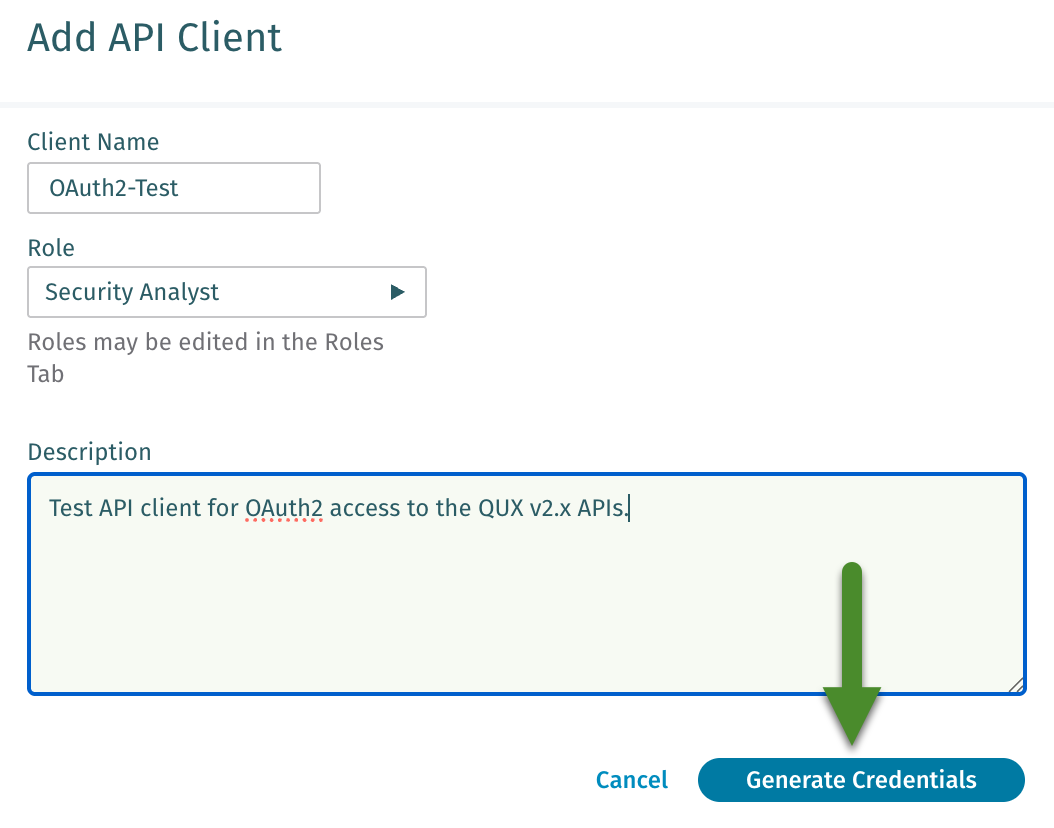
* Click **Add API Client**.
* Enter a name for this API Client.
* Select an appropriate role for this API Client.
* Optionally enter a description.
* Finally, click **Generate Credentials**.
* You should see a bar at the top of the screen saying **API Client created**:

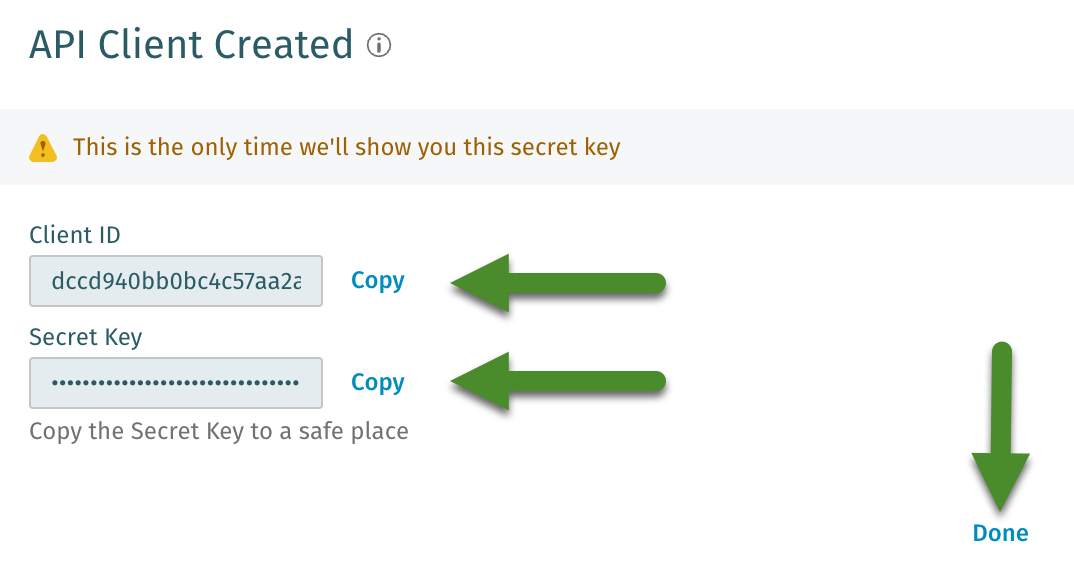
* In the **API Client Created** modal, copy the **Client ID** and **Secret Key** using the copy buttons and save these credentials in a safe place.
{% hint style="warning" %}
**Please Note:**
This is the only time the secret key will be shared. If you lose the secret key, the API client must be deleted and a new one will need to be created.
{% endhint %}
* Once you have saved the credentials, click **Done**.
## Postman Configuration
The v2.x public Postman collection is available at the following URL:
* [Vectra Public v2.5 Postman Collection](https://www.postman.com/vectra-internal/workspace/vectra-ai/collection/7429442-509c593b-8de4-4aa3-ac05-e07934eb9f17)
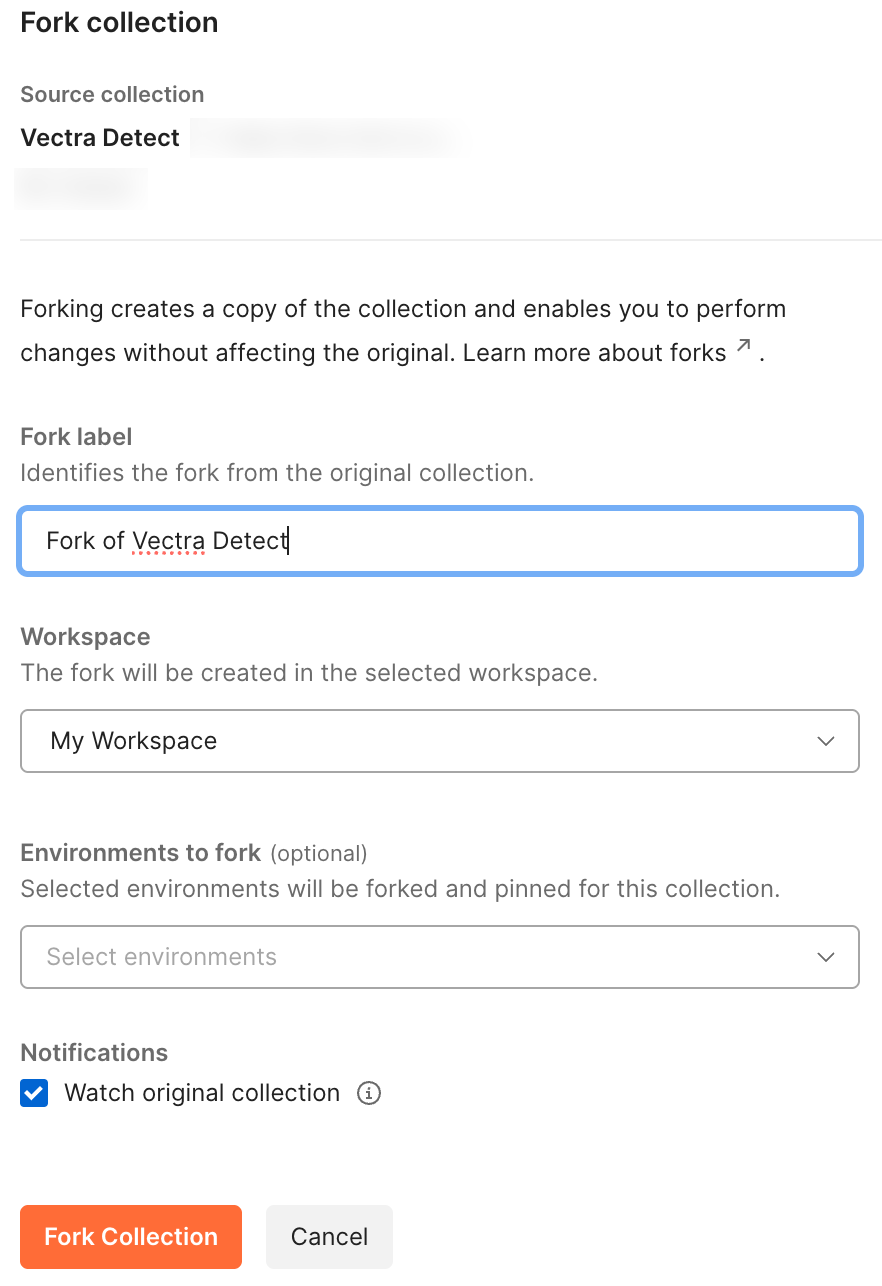
After opening the URL, you can **Fork** to your own public or private workspace or **Export** the collection.
* Forking the collection requires the use of a free Postman account.
* Exporting the collection would allow you to use Postman without an online account, sometimes called **Scratch Pad** mode.

* If you fork the collection, it is advised to use the **Watch original collection** option to be notified when there are changes to the collection that you may want to pull.
* Once you have a copy of the collection available in Postman, you must configure the following variables so that collection will function properly.
* client\_id
* client\_secret\_key
* url
* Most customers will typically configure an **Environment** in Postman to make changing between different QUX Brains you may have in your environment easier.
* Even if you have only one Brain, this is the preferred method to set these variables.
* Create a new **Environment** in postman and configure it like you see in the below screenshot.
* Do not include any trailing / after your URL.
* Just include the full URL to your Vectra Brain with https\:// in the beginning and then the IP address or the Fully Qualified Domain Name (FQDN).
* Be sure to add the client\_id and client\_secret\_key for the API client you created earlier in your Vectra UI.
* **Save** your environment configuration.
* In this example, we are using an environment called **CS Brain (OAuth2)**.

Now that you have the collection in Postman and an environment configured, you must change some basic configuration options for the collection.
The collection supports both PAT (Personal Access Token), and OAuth2 authentication.
* The default is set for OAuth2.
* If you plan to use PAT, please see: [Rest API Quick Start Guide for Postman v2.5 Using Token Auth (QUX)](/configuration/access/api-qux/v25-postman-quick-start-guide-using-token-auth.md) for similar guidance if you are using token authentication.
**For Oauth2 use, please continue with the below steps:**
* A script is included. You can see it under the Scripts tab. What is does is automatically set the `{{access_token}}` in the environment to the response when the access token was requested.
* On the **Authorization** tab of the collection, set the **Auth Type** to **Bearer Token** and enter `{{access_token}}` for the token value.
* Click **Save** to save your configuration.

## Getting Authorized and Making Your First Test API Call
* Now that the basic configuration steps are completed, you still need to complete the OAuth2 authorization process to collect an access token that can be used to make API calls.
* Please keep in mind the following:
* Refresh tokens are not currently supported for use in Vectra v2.x APIs.
* Access tokens will expire 6 hours after creation at which point a new access token must be retrieved to continue making API calls.
* Open the **auth** request under the version of the API that you wish to use and click the **Send** button to request and then store a new **"access\_token"**.

* At this point, you should be good for the next 6 hours before needing to do this again.
* To validate its working end to end, navigate to the **Detections** request and try a **Get all Detections...** request.
* Once you see results in the body that was returned, you know your OAuth2 access to the v2.x API is working as intended.

*
---
# Agent Instructions
This documentation is published with GitBook. GitBook is the documentation platform designed so that both humans and AI agents can read, navigate, and reason over technical content effectively. Learn more at gitbook.com.
## Querying This Documentation
If you need additional information that is not directly available in this page, you can query the documentation by asking a question.
Perform an HTTP GET request on the following URL with the `ask` and `goal` query parameters:
```
GET https://docs.vectra.ai/configuration/access/api-qux/v25-postman-quick-start-guide-using-oauth2.md?ask=&goal=
```
`ask` is the immediate question: it should be specific, self-contained, and written in natural language.
`goal` is what the user is ultimately trying to achieve, the reason they need the answer. Sharing it helps GitBook give you a better, more relevant answer. A goal is most helpful when it describes the outcome the user wants rather than restating the question. For example, with `ask=how do I create an API token`, a goal like `automate deployments from our CI pipeline` lets GitBook tailor the answer to that use case.
The response will contain a direct answer to the question and relevant excerpts and sources from the documentation.
Use this mechanism when the answer is not explicitly present in the current page, you need clarification or additional context, or you want to retrieve related documentation sections.

 * You should see a bar at the top of the screen saying **API Client created**:

* In the **API Client Created** modal, copy the **Client ID** and **Secret Key** using the copy buttons and save these credentials in a safe place.
{% hint style="warning" %}
**Please Note:**
This is the only time the secret key will be shared. If you lose the secret key, the API client must be deleted and a new one will need to be created.
{% endhint %}
* Once you have saved the credentials, click **Done**.
* You should see a bar at the top of the screen saying **API Client created**:

* In the **API Client Created** modal, copy the **Client ID** and **Secret Key** using the copy buttons and save these credentials in a safe place.
{% hint style="warning" %}
**Please Note:**
This is the only time the secret key will be shared. If you lose the secret key, the API client must be deleted and a new one will need to be created.
{% endhint %}
* Once you have saved the credentials, click **Done**.
 ## Postman Configuration
The v2.x public Postman collection is available at the following URL:
* [Vectra Public v2.5 Postman Collection](https://www.postman.com/vectra-internal/workspace/vectra-ai/collection/7429442-509c593b-8de4-4aa3-ac05-e07934eb9f17)
After opening the URL, you can **Fork** to your own public or private workspace or **Export** the collection.
* Forking the collection requires the use of a free Postman account.
* Exporting the collection would allow you to use Postman without an online account, sometimes called **Scratch Pad** mode.

* If you fork the collection, it is advised to use the **Watch original collection** option to be notified when there are changes to the collection that you may want to pull.
## Postman Configuration
The v2.x public Postman collection is available at the following URL:
* [Vectra Public v2.5 Postman Collection](https://www.postman.com/vectra-internal/workspace/vectra-ai/collection/7429442-509c593b-8de4-4aa3-ac05-e07934eb9f17)
After opening the URL, you can **Fork** to your own public or private workspace or **Export** the collection.
* Forking the collection requires the use of a free Postman account.
* Exporting the collection would allow you to use Postman without an online account, sometimes called **Scratch Pad** mode.

* If you fork the collection, it is advised to use the **Watch original collection** option to be notified when there are changes to the collection that you may want to pull.
 * Once you have a copy of the collection available in Postman, you must configure the following variables so that collection will function properly.
* client\_id
* client\_secret\_key
* url
* Most customers will typically configure an **Environment** in Postman to make changing between different QUX Brains you may have in your environment easier.
* Even if you have only one Brain, this is the preferred method to set these variables.
* Create a new **Environment** in postman and configure it like you see in the below screenshot.
* Do not include any trailing / after your URL.
* Just include the full URL to your Vectra Brain with https\:// in the beginning and then the IP address or the Fully Qualified Domain Name (FQDN).
* Be sure to add the client\_id and client\_secret\_key for the API client you created earlier in your Vectra UI.
* **Save** your environment configuration.
* In this example, we are using an environment called **CS Brain (OAuth2)**.

Now that you have the collection in Postman and an environment configured, you must change some basic configuration options for the collection.
The collection supports both PAT (Personal Access Token), and OAuth2 authentication.
* The default is set for OAuth2.
* If you plan to use PAT, please see: [Rest API Quick Start Guide for Postman v2.5 Using Token Auth (QUX)](/configuration/access/api-qux/v25-postman-quick-start-guide-using-token-auth.md) for similar guidance if you are using token authentication.
**For Oauth2 use, please continue with the below steps:**
* A script is included. You can see it under the Scripts tab. What is does is automatically set the `{{access_token}}` in the environment to the response when the access token was requested.
* On the **Authorization** tab of the collection, set the **Auth Type** to **Bearer Token** and enter `{{access_token}}` for the token value.
* Click **Save** to save your configuration.

## Getting Authorized and Making Your First Test API Call
* Now that the basic configuration steps are completed, you still need to complete the OAuth2 authorization process to collect an access token that can be used to make API calls.
* Please keep in mind the following:
* Refresh tokens are not currently supported for use in Vectra v2.x APIs.
* Access tokens will expire 6 hours after creation at which point a new access token must be retrieved to continue making API calls.
* Open the **auth** request under the version of the API that you wish to use and click the **Send** button to request and then store a new **"access\_token"**.

* At this point, you should be good for the next 6 hours before needing to do this again.
* To validate its working end to end, navigate to the **Detections** request and try a **Get all Detections...** request.
* Once you see results in the body that was returned, you know your OAuth2 access to the v2.x API is working as intended.

*
---
# Agent Instructions
This documentation is published with GitBook. GitBook is the documentation platform designed so that both humans and AI agents can read, navigate, and reason over technical content effectively. Learn more at gitbook.com.
## Querying This Documentation
If you need additional information that is not directly available in this page, you can query the documentation by asking a question.
Perform an HTTP GET request on the following URL with the `ask` and `goal` query parameters:
```
GET https://docs.vectra.ai/configuration/access/api-qux/v25-postman-quick-start-guide-using-oauth2.md?ask=
* Once you have a copy of the collection available in Postman, you must configure the following variables so that collection will function properly.
* client\_id
* client\_secret\_key
* url
* Most customers will typically configure an **Environment** in Postman to make changing between different QUX Brains you may have in your environment easier.
* Even if you have only one Brain, this is the preferred method to set these variables.
* Create a new **Environment** in postman and configure it like you see in the below screenshot.
* Do not include any trailing / after your URL.
* Just include the full URL to your Vectra Brain with https\:// in the beginning and then the IP address or the Fully Qualified Domain Name (FQDN).
* Be sure to add the client\_id and client\_secret\_key for the API client you created earlier in your Vectra UI.
* **Save** your environment configuration.
* In this example, we are using an environment called **CS Brain (OAuth2)**.

Now that you have the collection in Postman and an environment configured, you must change some basic configuration options for the collection.
The collection supports both PAT (Personal Access Token), and OAuth2 authentication.
* The default is set for OAuth2.
* If you plan to use PAT, please see: [Rest API Quick Start Guide for Postman v2.5 Using Token Auth (QUX)](/configuration/access/api-qux/v25-postman-quick-start-guide-using-token-auth.md) for similar guidance if you are using token authentication.
**For Oauth2 use, please continue with the below steps:**
* A script is included. You can see it under the Scripts tab. What is does is automatically set the `{{access_token}}` in the environment to the response when the access token was requested.
* On the **Authorization** tab of the collection, set the **Auth Type** to **Bearer Token** and enter `{{access_token}}` for the token value.
* Click **Save** to save your configuration.

## Getting Authorized and Making Your First Test API Call
* Now that the basic configuration steps are completed, you still need to complete the OAuth2 authorization process to collect an access token that can be used to make API calls.
* Please keep in mind the following:
* Refresh tokens are not currently supported for use in Vectra v2.x APIs.
* Access tokens will expire 6 hours after creation at which point a new access token must be retrieved to continue making API calls.
* Open the **auth** request under the version of the API that you wish to use and click the **Send** button to request and then store a new **"access\_token"**.

* At this point, you should be good for the next 6 hours before needing to do this again.
* To validate its working end to end, navigate to the **Detections** request and try a **Get all Detections...** request.
* Once you see results in the body that was returned, you know your OAuth2 access to the v2.x API is working as intended.

*
---
# Agent Instructions
This documentation is published with GitBook. GitBook is the documentation platform designed so that both humans and AI agents can read, navigate, and reason over technical content effectively. Learn more at gitbook.com.
## Querying This Documentation
If you need additional information that is not directly available in this page, you can query the documentation by asking a question.
Perform an HTTP GET request on the following URL with the `ask` and `goal` query parameters:
```
GET https://docs.vectra.ai/configuration/access/api-qux/v25-postman-quick-start-guide-using-oauth2.md?ask=