> For the complete documentation index, see [llms.txt](https://docs.vectra.ai/llms.txt). Markdown versions of documentation pages are available by appending `.md` to page URLs; this page is available as [Markdown](https://docs.vectra.ai/configuration/response/notifications/external-app-alerts-webhook.md).
# External app alerts (webhook)
Configure webhook-based alert destinations for Vectra prioritization and system alerts in tools like Microsoft Teams.
## Introduction
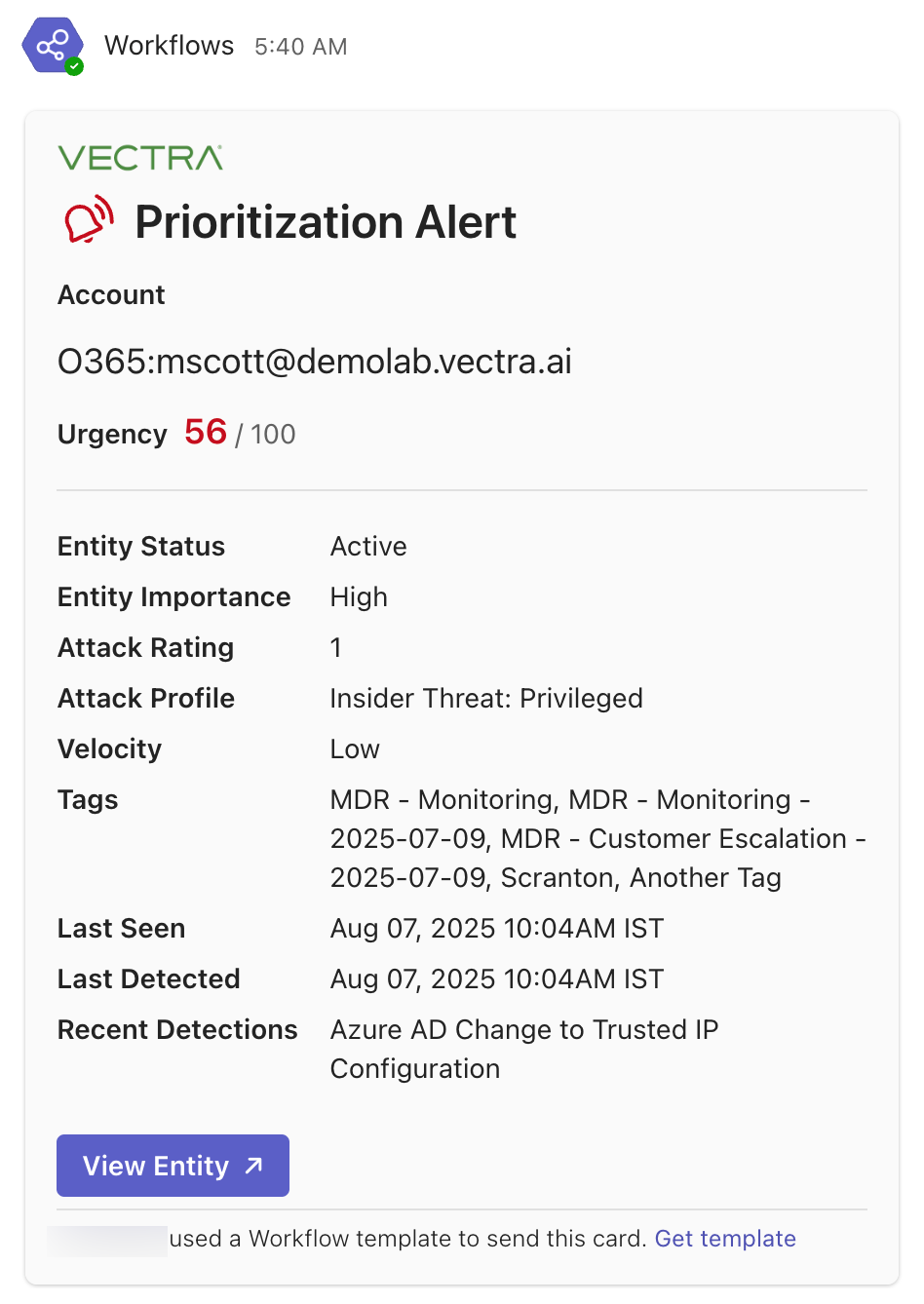
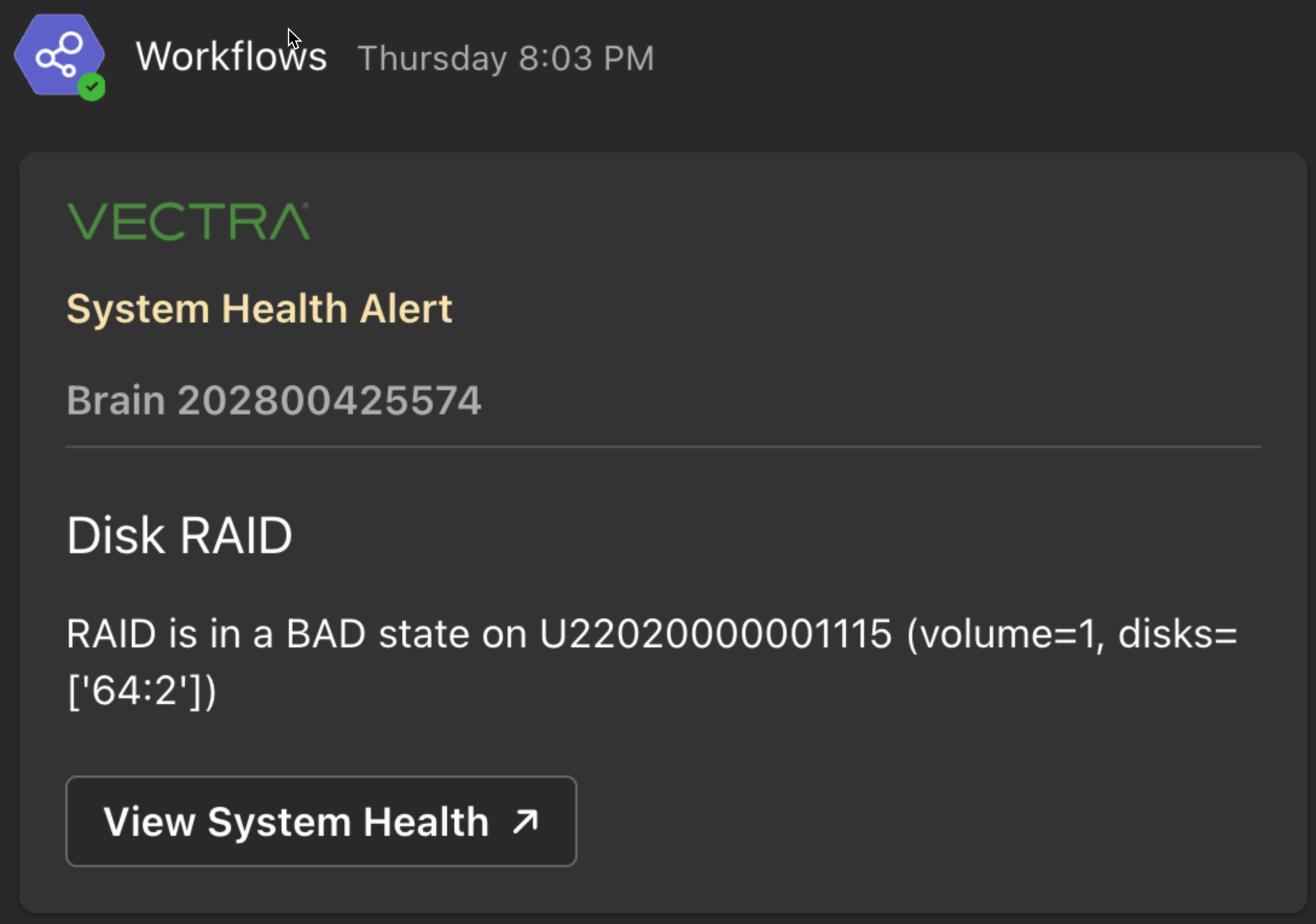
External App Alerts enable Vectra to deliver real-time notifications to external collaboration tools when critical events occur — such as hosts or accounts crossing prioritization thresholds or system alerts being triggered. This capability helps security teams stay informed and take action faster, without constantly monitoring the Vectra UI.
This feature is available for both Respond UX (RUX) and Quadrant UX (QUX) deployments.
**Key Features:**
* **Real-time alerting via webhooks** for host/account prioritization thresholds and system-level alerts.
* **Direct integration with Microsoft Teams** (Slack support coming soon).
* **Enables faster response** by pushing alerts into daily workflows.
* **Initially supported in RUX deployments**, with QUX support planned for v9.4.
* **Designed for extensibility**, with more external apps and use cases anticipated.
## Requirements
### Permissions
Viewing or Configuration of External App Alerts settings in Vectra requires a role with the following permissions:
* View
* Configuration - View Event Destinations
* Edit
* Configuration - Edit Event Destinations
Both permissions are given by default to the **Super Admin** and **Restricted Admin** roles.
### Reachability to Webhook Endpoint (QUX only)
Once the webhook URL has been configured, the destination that must be reachable from your Brain appliance is the URL of the webook.
* In our example for Microsoft teams below, that is:
* `https://prod-69.westus.logic.azure.com/workflows/...`
The post to the webhook URL will be HTTPS over TCP/443.
* If your firewall restricts outbound HTTPS destinations, please ensure your Brain appliance can reach this endpoint by updating your firewall rules.
* In RUX deployments, the communications are initiated from the Vectra cloud and no firewall rule is necessary.
## Configuration
{% stepper %}
{% step %}
#### Configure the webhook destination in your external app
Look for instructions [below](#microsoft-teams-guidance) that are specific to the external app you are configuring the webhook alerting for (Microsoft Teams, etc).
* Create the incoming webhook.
* Keep the URL hand - your will paste it into the Vectra UI in the next step
{% endstep %}
{% step %}
#### Add new external app alert destination in Vectra
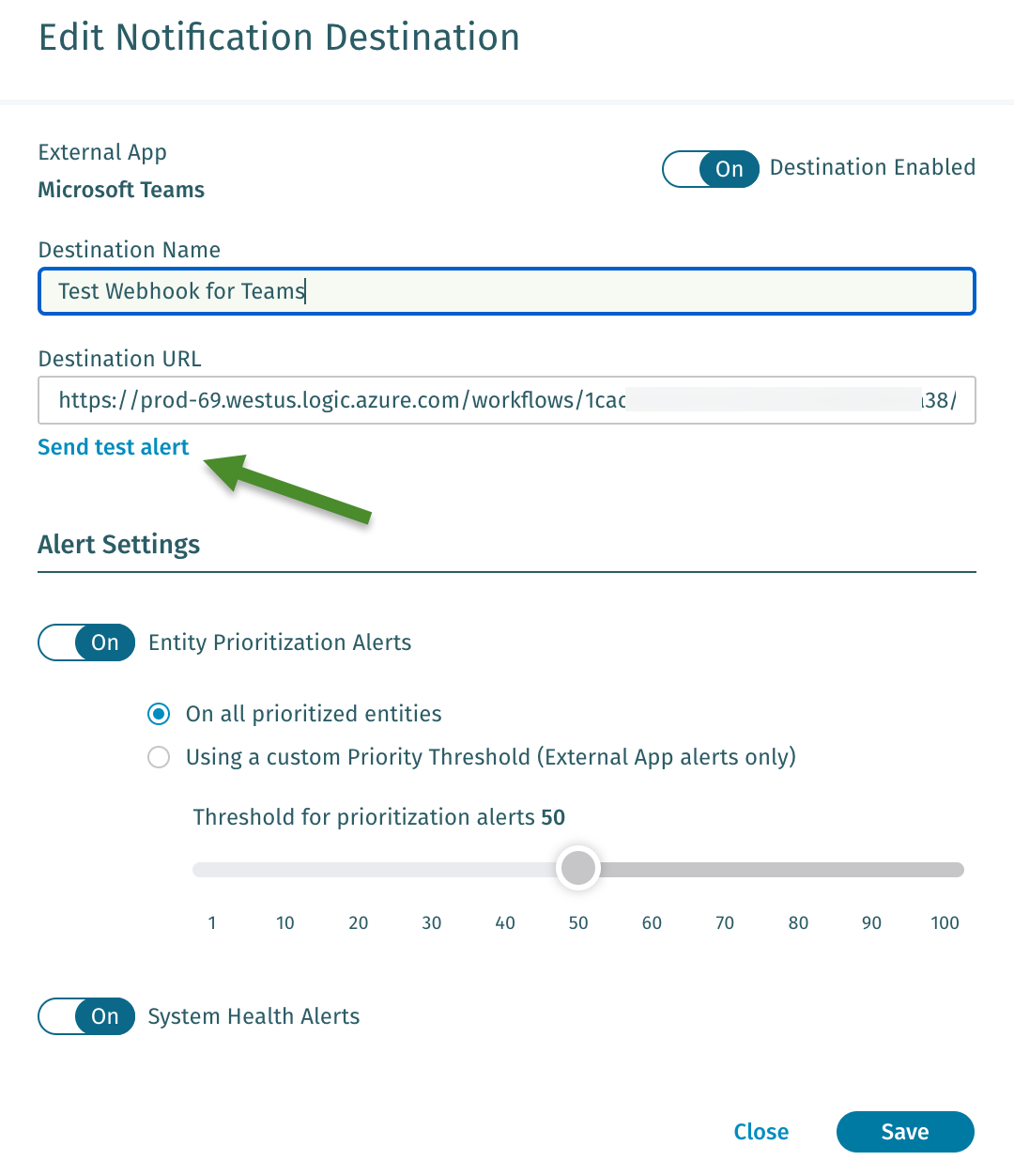
* In the Vectra UI, navigate to *Configuration → RESPONSE → Notifications > External App Alerts > Edit (pencil icon) > + Add Destination.*
* Give you new destination a name.
* Paste the webhook URL obtained from your collaboration platform in the **Destination URL** box.
* Define the alert types to send (e.g. host/account entities crossing a prioritization threshold, system health alerts).
{% hint style="info" %}
**Please Note:**
For prioritization threshold alerts, there is a 6 hour deduplication window per configured destination.
* This means that when a host or account entity meets the criteria for an alert, if the score increases during the deduplication window, additional alerts will not be send during that window.
* If a host or account becomes deprioritized and then prioritized again within the window, an alert will not be sent.
* If a host or account becomes deprioritized and then prioritized again outside the window, an alert will be sent.
* Alerts are not sent for score decreases or host or accounts becoming deprioritized.
Since the deduplication window is per destination, you can create different alerts by prioritization threshold. For example:
* Any time a host or account passes 50 urgency score (RUX), you can alert one teams channel with L1 analysts.
* Any time a host or account pass 80 urgency score (RUX), you can alert another channel that has L2/L3 analysts monitoring it.
* If you do something like this, keep in mind that both destinations will have received the alert, it would be recommended that any analyst assignment would be updated and proper analyst handoff procedures were followed.
{% endhint %}
{% endstep %}
{% step %}
#### Send a test alert to validate your configuration
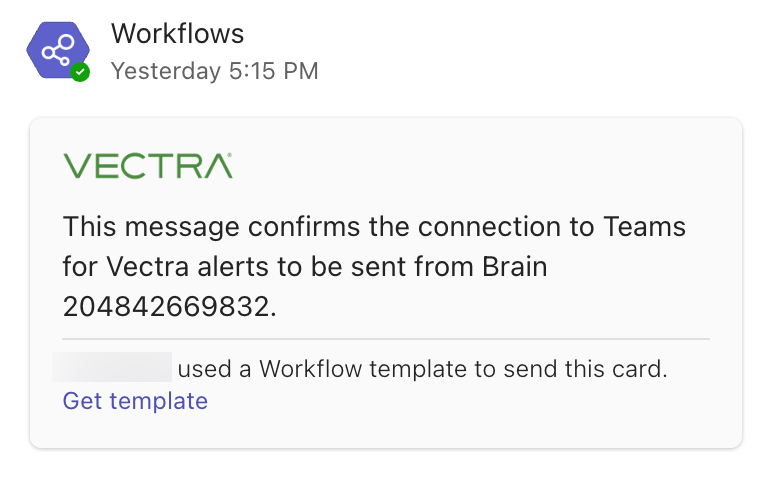
Click the **Send test alert** button to validate and check your external app for the test alert.
 {% endstep %}
{% step %}
### Save your new destination
Click on **Save** when you are done to save your destination.
{% endstep %}
{% step %}
### Save your new destination
Click on **Save** when you are done to save your destination.
 {% endstep %}
{% endstepper %}
### Management of Destinations
Up to 24 destinations can be configured.
The **Destination Enabled** toggle can be used to turn on or off any destination while retaining all other settings for the destination.
* Simply edit the destination after creation if you wish to enable/disable or change any settings for the destination.
* Once saved, updated destination settings may take up to a minute to apply throughout the Vectra system.
### Microsoft Teams Guidance
For instructions from Microsoft about how to create the webhook URL in Teams please see [Create incoming webhooks with Workflows for Microsoft Teams](https://support.microsoft.com/en-us/office/create-incoming-webhooks-with-workflows-for-microsoft-teams-8ae491c7-0394-4861-ba59-055e33f75498).
You can create webhooks that publish to a Teams channel or a to a chat.
**Simplified Instructions**
* Find your desired destination channel or chat, click on the ellipsis (3 dots) next to it, and then select **Workflows**. The screenshot is for a Teams channel, chats will have fewer options to choose from.
{% endstep %}
{% endstepper %}
### Management of Destinations
Up to 24 destinations can be configured.
The **Destination Enabled** toggle can be used to turn on or off any destination while retaining all other settings for the destination.
* Simply edit the destination after creation if you wish to enable/disable or change any settings for the destination.
* Once saved, updated destination settings may take up to a minute to apply throughout the Vectra system.
### Microsoft Teams Guidance
For instructions from Microsoft about how to create the webhook URL in Teams please see [Create incoming webhooks with Workflows for Microsoft Teams](https://support.microsoft.com/en-us/office/create-incoming-webhooks-with-workflows-for-microsoft-teams-8ae491c7-0394-4861-ba59-055e33f75498).
You can create webhooks that publish to a Teams channel or a to a chat.
**Simplified Instructions**
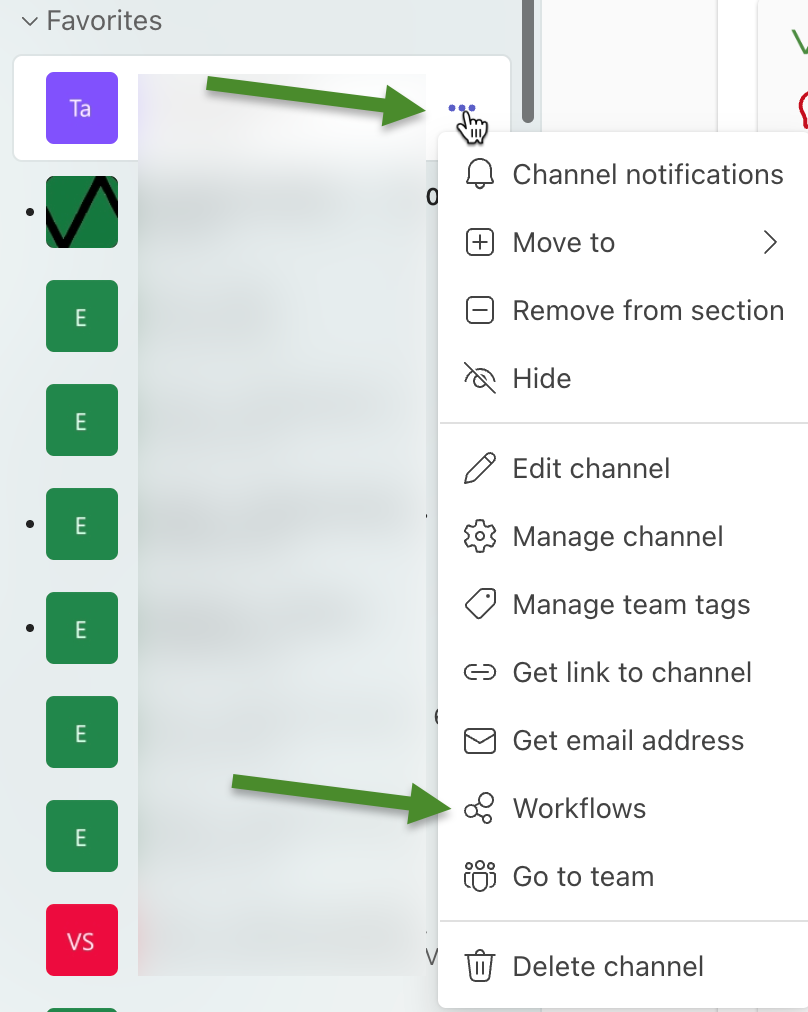
* Find your desired destination channel or chat, click on the ellipsis (3 dots) next to it, and then select **Workflows**. The screenshot is for a Teams channel, chats will have fewer options to choose from.
 * For Teams channels, then select **Send webhook alerts to a channel**.
* For chats, then select **Send webhook alerts to a chat**.
* Proceed through the dialog choosing the desired options.
* When done, save the webhook URL to input in the Vectra UI.
**Additional Guidance**
* Configuration of a Teams destination only accepts webhook URLs from recognized Microsoft workflow or Teams endpoints.
* Normal HTTPS / TLS is enforced when sending alerts.
* Access to details contained in the alerts is governed by your own controls in Teams with regards to chat or channel message visibility.
* Users must have existing access to the Vectra UI in order to use links from alerts.
* If you are configuring a webhook for a Teams channel (not for chats), and Channel Moderation is configured, then in *Manage Channel > Settings* the **Allow bots to submit channel messages** permission must be enabled or the webhook call will fail.
* For Teams channels, then select **Send webhook alerts to a channel**.
* For chats, then select **Send webhook alerts to a chat**.
* Proceed through the dialog choosing the desired options.
* When done, save the webhook URL to input in the Vectra UI.
**Additional Guidance**
* Configuration of a Teams destination only accepts webhook URLs from recognized Microsoft workflow or Teams endpoints.
* Normal HTTPS / TLS is enforced when sending alerts.
* Access to details contained in the alerts is governed by your own controls in Teams with regards to chat or channel message visibility.
* Users must have existing access to the Vectra UI in order to use links from alerts.
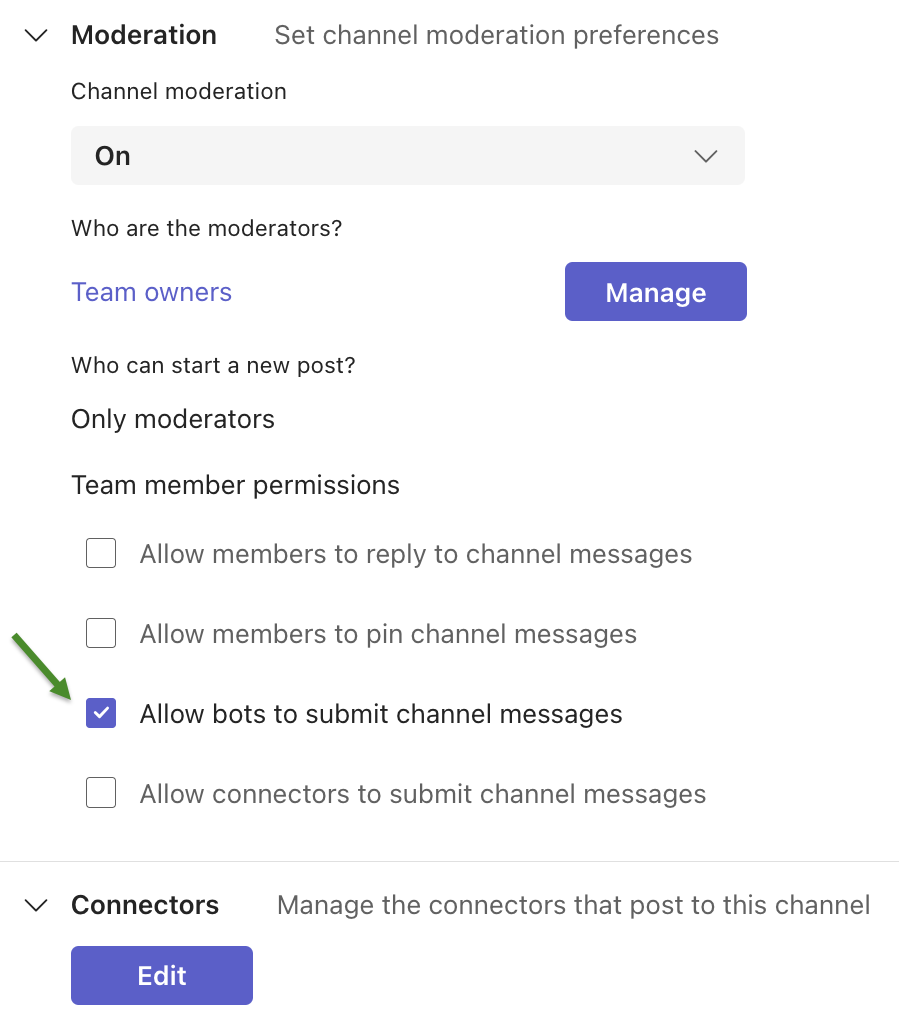
* If you are configuring a webhook for a Teams channel (not for chats), and Channel Moderation is configured, then in *Manage Channel > Settings* the **Allow bots to submit channel messages** permission must be enabled or the webhook call will fail.
 ## Webhook URL Security Guidelines
When setting up External App Alerts, it’s important to treat your webhook URL as a sensitive credential. The URL itself contains all the necessary authorization to post messages directly into the associated app with no additional authentication required. The webhook URL is effectively a “write key” to your collaboration space. If someone gains access to it, they can send messages to your configured app without needing login credentials.
**Best Practices**
* Do not share webhook URLs in unsecured channels (e.g., public docs, chat threads).
* Restrict access to the Vectra configuration area to only authorized users.
* If a webhook URL is accidentally exposed, delete and recreate it in your collaboration platform, then update the configuration in Vectra.
## Troubleshooting
When configuring or editing an alert destination, you may receive an error when sending a test alert that looks similar to the below:
## Webhook URL Security Guidelines
When setting up External App Alerts, it’s important to treat your webhook URL as a sensitive credential. The URL itself contains all the necessary authorization to post messages directly into the associated app with no additional authentication required. The webhook URL is effectively a “write key” to your collaboration space. If someone gains access to it, they can send messages to your configured app without needing login credentials.
**Best Practices**
* Do not share webhook URLs in unsecured channels (e.g., public docs, chat threads).
* Restrict access to the Vectra configuration area to only authorized users.
* If a webhook URL is accidentally exposed, delete and recreate it in your collaboration platform, then update the configuration in Vectra.
## Troubleshooting
When configuring or editing an alert destination, you may receive an error when sending a test alert that looks similar to the below:
 **Potential error messages include:**
Unable to connect to webhook endpoint.
* Please check your firewall rules if in a QUX deployment and make sure you Brain can reach the **Destination URL** over HTTPS using TCP/443
Webhook endpoint returned `HTTP `.
* Please check to see if there was a copy/paste error that may have corrupted the authorization details that are embedded in the URL.
Unknown error sending test message to endpoint.
* If this persists, please open a support case with Vectra.
## Sample Alert Messages
### Microsoft Teams
**Potential error messages include:**
Unable to connect to webhook endpoint.
* Please check your firewall rules if in a QUX deployment and make sure you Brain can reach the **Destination URL** over HTTPS using TCP/443
Webhook endpoint returned `HTTP `.
* Please check to see if there was a copy/paste error that may have corrupted the authorization details that are embedded in the URL.
Unknown error sending test message to endpoint.
* If this persists, please open a support case with Vectra.
## Sample Alert Messages
### Microsoft Teams
 ---
# Agent Instructions
This documentation is published with GitBook. GitBook is the documentation platform designed so that both humans and AI agents can read, navigate, and reason over technical content effectively. Learn more at gitbook.com.
## Querying This Documentation
If you need additional information that is not directly available in this page, you can query the documentation dynamically by asking a question.
Perform an HTTP GET request on the current page URL with the `ask` query parameter, and the optional `goal` query parameter:
```
GET https://docs.vectra.ai/configuration/response/notifications/external-app-alerts-webhook.md?ask=&goal=
```
`ask` is the immediate question: it should be specific, self-contained, and written in natural language.
`goal` is optional and describes the broader end goal you are ultimately trying to accomplish on behalf of the user. GitBook uses it to tailor the answer towards what is most useful for that goal.
The response will contain a direct answer to the question and relevant excerpts and sources from the documentation.
Use this mechanism when the answer is not explicitly present in the current page, you need clarification or additional context, or you want to retrieve related documentation sections.
---
# Agent Instructions
This documentation is published with GitBook. GitBook is the documentation platform designed so that both humans and AI agents can read, navigate, and reason over technical content effectively. Learn more at gitbook.com.
## Querying This Documentation
If you need additional information that is not directly available in this page, you can query the documentation dynamically by asking a question.
Perform an HTTP GET request on the current page URL with the `ask` query parameter, and the optional `goal` query parameter:
```
GET https://docs.vectra.ai/configuration/response/notifications/external-app-alerts-webhook.md?ask=&goal=
```
`ask` is the immediate question: it should be specific, self-contained, and written in natural language.
`goal` is optional and describes the broader end goal you are ultimately trying to accomplish on behalf of the user. GitBook uses it to tailor the answer towards what is most useful for that goal.
The response will contain a direct answer to the question and relevant excerpts and sources from the documentation.
Use this mechanism when the answer is not explicitly present in the current page, you need clarification or additional context, or you want to retrieve related documentation sections.