> For the complete documentation index, see [llms.txt](https://docs.vectra.ai/llms.txt). Markdown versions of documentation pages are available by appending `.md` to page URLs; this page is available as [Markdown](https://docs.vectra.ai/configuration/coverage/remote-users/netskope-cloud-tap.md).
# Netskope Cloud TAP
Configure Netskope Cloud TAP with Vectra NDR, including vSensor setup, SASE IP remapping, and Stitcher deployment guidance for AWS/Azure.
## Special Note Regarding Public Preview of Cloud Tap Integration
Cloud TAP is available for customers starting in v9.6 software for Brains/Sensors. Both QUX and RUX deployments are supported.
**Public Preview Requirements:**
* Customers who are interested in participating in the public preview should contact their Vectra account team to discuss it.
* Netskope must also be contacted because there is a Netskope evaluation license that must be applied on the Netskope side.
* Vectra will enable a feature flag to make the necessary configuration options available in the Vectra UI.
* Customers must have either an AWS or Azure environment to deploy the Netskope Stitcher, Vectra vSensor, and object storage into.
* Netskope Cloud TAP also supports GCP, but at initial availability, Vectra only supports AWS and Azure for Cloud Tap integration.
## Cloud TAP Integration Overview

{% hint style="info" %}
**Please Note:**
While Netskope Stitcher is capable of decrypting traffic using session keys, Vectra’s detection engine does not rely on payload inspection; instead, it leverages enriched metadata and behavioral analytics, enabling effective threat detection even without access to decrypted content.
The "Netskope Tool" in the diagram above represents the capabilities of the Netskope Sticher app. Vectra does NOT require decrypted traffic to do detection. If you wish to send decrypted traffic to Vectra that is also supported.
{% endhint %}
* Netskope Cloud TAP allows you to tap web traffic that traverses the Netskope infrastructure, sending a copy for inspection to tools such as Vectra NDR.
* Packets are collected based on your configured Netskope policy.
* Netskope stores the packet captures in object storage in your cloud provider.
* Packet captures are collected from the object storage and replayed as GENEVE encapsulated traffic through Netskope Stitcher software (Netskope Tool in the diagram above).
* A Vectra vSensor, deployed in the same cloud as the object storage and Stitcher tool, is dedicated to capture the replayed traffic from Stitcher.
* The vSensor processes the traffic and forwards an enriched metadata stream to your Vectra Brain for further processing.
* All normal functionality such as [Vectra Packet Capture](/deployment/traffic-engineering-and-validation/using-vectra-packet-capture-pcap.md), detection PCAPS, and [Vectra Match](/deployment/match/deployment.md) are supported.
* Since IP addresses used in Netskope source networks may overlap with corporate network space being observed through other Vectra Sensors, all traffic captured from Stitcher is remapped to unique IP ranges that are dedicated for SASE/SSE use in your Vectra deployment.
* Hosts identified through HostID by Vectra will be name **NET-Netskope user ID** based on the username embedded in the PCAPS by Netskope:

## Netskope Network Private Access (NPA) Advice
Netskope NPA provides identity aware access to internal applications by forwarding traffic through Netskope Publishers deployed near your apps. If you are capturing your corporate network traffic and Vectra observes the Publisher to app traffic, that traffic will all appear to come from the Publisher since the source NAT involved makes all internal connections appear to be coming from the Publisher. This will cause some detection models to produce detections against the Publisher instead of the original host and some detection models will fire inaccurately due to multiple hosts traffic being seen from a single host.
Vectra plans to add support in the future to map the Publisher to app traffic to the Netskope host that actually originated the traffic. This will correct detection issues and accurately identify the original Netskope host. This support will in concept be completed similarly to how it was done for Vectra's [Zscaler Private Access (ZPA) Log Ingestion Configuration](/configuration/coverage/remote-users/zscaler-zpa.md). In that integration LSS logs from Zscaler are parsed by the Vectra Brain appliance to allow Vectra to map traffic properly. Vectra is already working with Netskope and is waiting for the necessary logs to be available on the Netskope side to build this integration.
## Cloud TAP Integration Details
### Netskope Documentation
* In this article, Vectra is providing detailed guidance for the Vectra side of the integration and high level guidance for the Netskope side.
* Netskope configuration questions should be directed to your Netskope account, support, or professional services team.
* Netskope documentation for Cloud Tap and Stitcher are found at the following links:
* [Cloud Tap Overview, Requirements, Limitations, and Best Practices](https://docs.netskope.com/en/cloud-tap)
* [Configuring the Cloud Tap Stitcher](https://docs.netskope.com/en/configuring-the-cloud-tap-stitcher)
* [Enabling Cloud Tap in the Netskope UI](https://docs.netskope.com/en/enabling-cloud-tap-in-the-netskope-ui)
* [Troubleshooting the Cloud Tap Stitcher](https://docs.netskope.com/en/troubleshooting-the-cloud-tap-stitcher)
### Architecture Guidance
* Please refer to the Cloud Tap Integration Overview section above for a high level diagram of the solution.
* Netskope Cloud TAP does NOT support IPv6 traffic.
* Vectra does support ingest of IPv6 traffic if Netskope adds IPv6 in the future.
* **Netskope only process web traffic with Cloud Tap**
* Netskope HTTP-autodetect automatically identifies and inspects HTTP and HTTPS traffic even when it's on non-standard ports.
* This means that instead of manually configuring custom ports for web traffic, Netskope can dynamically recognize it and apply web policy evaluations.
* Vectra can process any traffic it receives from Netskope Stitcher.
* If Netskope processes more than web traffic in the future, Vectra is ready and needs no configuration changes on the Vectra side to process other traffic types.
* Decryption
* Netskope supports decryption but Vectra does not require decryption, for example, for its AI models to detect hidden tunnels in HTTPS traffic.
* If you wish to decrypt traffic before sending it to Vectra, this is supported with the --with-decrypted option for Netskope Stitcher.
* Additionally, Vectra has observed that when the --transparent option is not included, decrypted traffic is seen.
* Please work with your Netskope team for details on decryption support for Cloud Tap usage, but remember that decryption is NOT required on the Vectra side to find attacker signal in encrypted traffic.
* Vectra IP Remapping
* This only applies to client based traffic that is captured through Netskope Cloud TAP.
* Traffic flowing through Netskope that is location based (GRE or IPSEC tunnels) is not subject to IP remapping.
* Netskope users are often remote in their location and not on the corporate/campus network. They can have any IP address that might belong to a home network, coffee shop, library, airport lounge, etc. Vectra requires that the IP ranges used in the system do not overlap. This means that IP ranges used on the corporate/campus/data center networks must be unique. When Netskope users traffic is stored in a PCAP and then ingested into Vectra, the real IPs used by the hosts using Netskope need to be remapped into IP ranges that won't overlap with the rest of the IP space used for your deployment. Vectra does this automatically based on IP ranges that you reserve in the Vectra system for this purpose.
* Care MUST be taken by administrators to ensure that any IP range used for SASE IP ranges in Vectra does not overlap with IP ranges used by the customer in their environment.
* Additionally, there should be NO overlap with any Exclude, Drop, Internal VPN, or Static address ranges configured in the IP Address Classification Settings in your Vectra deployment. **See warning below.**
* For additional details on IP Remapping, please see the [Reserve SASE IP Ranges](#id-2.-reserve-sase-ip-range-s) section of the deployment below.
{% hint style="danger" %}
**If other Vectra Sensors capture traffic that overlaps with ranges reserved for SASE IP address remapping, the non-SASE metadata would be dropped by the Vectra Brain and not analyzed.**
{% endhint %}
* If Netskope Cloud TAP processes on-prem traffic through a GRE or IPSEC tunnel, Vectra supports this.
* Such traffic will NOT have its IP addresses remapped by Vectra when processed.
* Stitcher Running Modes
* For proper algorithm operation, packets ingested through Cloud TAP must be less than 15 minutes old.
* Packets with timestamps that are older than 15 minutes will be dropped by the Vectra vSensor during ingestion.
* The integration is not meant for selective retrieval or one shot fetching.
* Continuous fetching is the only recommended option to be used for the Stitcher running mode.
* GENEVE is the only supported encapsulation method for Cloud TAP integration with Vectra.
* Netskope also supports VXLAN but this is NOT supported for Cloud TAP integration with Vectra.
* Jumbo frames are supported but keep in mind that GENEVE encapsulation will add a bit to the packet size.
* The exact amount will vary based on the extra data added to the GENEVE header to contain things like the Netskope User ID which is used to map the traffic to specific hosts.
* Scaling with Multiple Cloud TAP Stitcher Instances
* While this should work, it is NOT required for Vectra integration.
* Multiple Vectra vSensors can be configured for Netskope Cloud Tap integration if desired.
* At launch Vectra supports the following throughputs per instance size:
* **Azure -** `Standard_DS3_v2` **supports up 1.5 Gbps**
* **AWS -** `r5n.4xlarge` **supports up to 2 Gbps**
* Traffic Filters in Netskope
* Vectra recommends that you configure traffic filters in Netskope to filter out traffic that isn't necessary to analyze from a security perspective so that it will not be included in PCAPs and the vSensor dedicated to the PCAP ingestion will have more headroom available for security pertinent traffic.
* For details on which traffic types that can be filtered, please see [Vectra Platform Network Traffic Recommendations](/deployment/traffic-engineering-and-validation/network-traffic-recommendations.md) or the [Vectra NDR (Detect) and Network Identity Architecture Overview](/deployment/getting-started/ndr-network-identity-architecture.md).
* In general, it is normally safe to filter out the following:
* Video Streaming or Multicast
* Multiprotocol Label Switching (MPLS)
* Core routing protocols
* Session Initiation Protocol (SIP)
* High-performance computing (HPC) workloads high in bandwidth
* HPC workloads that are well isolated
* Storage array network file systems (SMB OK)
* High-bandwidth backup data
* Care should be taken to avoid blind spots while still being mindful of scalability for PCAP ingestion.
* Filter rules can be configured by source subnet, destination IP, protocols and destination ports, access method, user, and Netskope Pop.
### Requirements
* Customers must have either an AWS or Azure environment to deploy the Netskope Stitcher, Vectra vSensor, and use object storage in.
* Netskope Cloud TAP also supports GCP, but at initial availability, Vectra only supports AWS and Azure for Cloud Tap integration.
* The Cloud TAP stitcher, cloud storage, and Vectra vSensor must be deployed in the same cloud region.
* The Cloud TAP stitcher instance Vectra vSensor must be deployed in the same VPC/VNET.
* The Cloud TAP stitcher must have reachability to the cloud storage.
* Any firewall rules in use must allow Stitcher to send **UDP 6081 GENEVE** traffic to the capture port of the vSensor.
* A Vectra vSensor must be dedicated to the Netskope Cloud TAP integration.
* Once the feature is enabled, the vSensor will no longer process traffic that doesn't contain Cloud TAP specific headers.
* The Vectra vSensor must be deployed in the same region/location that the Stitcher will be deployed to.
* Your Netskope deployment must be licensed for the Cloud TAP feature that provides PCAP files for Vectra to analyze.
* Your Vectra deployment must be licensed for the IPs that will be analyzed.
* Adding remote user traffic via PCAP ingestion will increase the number of IPs seen in your Vectra deployment.
* Please coordinate with your Vectra account team for licensing questions.
* The AWS costs will be incurred in the AWS account used for your deployment.
* This will primarily be costs for the S3 bucket, cost associate with the instances used to run Stitcher and the Vectra vSensor, and egress costs for the metadata transferred to your Vectra Brain for analysis (typically \~0.5% of original traffic).
* The egress costs are expected to be very small.
* To do the configuration in Vectra, the user must have a role that contains the ability to edit the "Remote Users" permission. Default role permissions are as follows:
## Deploying the Integration
Overview of steps:
1. Deploy a dedicated Vectra vSensor in the cloud region you intend to use for the Netskope PCAP ingestion.
2. Reserve SASE IP range(s) for use by the Netskope integration in the Vectra Brain.
3. Configure Netskope as a SASE integration in the Vectra UI.
4. Configure Netskope Cloud TAP including Stitcher, required roles/permissions in your cloud, and cloud storage bucket.
### 1. Deploying the Dedicated Vectra vSensor
You must choose an AWS or Azure location/region for the Netskope Cloud TAP integration. This location/region will be used for both the Vectra vSensor deployment that will be dedicated for this ingestion method and for the cloud storage bucket that will temporarily house the PCAPs before Netskope Stitcher will replay them to your vSensor. If you do not have an AWS or Azure account, you must create one for this integration. There are no other supported cloud providers that can be used for the integration.
#### Vectra vSensor Deployment Details
Please see either guide for details on how to deploy the vSensor. Deploying the vSensor in the chosen region and pairing it to your Vectra Brain will follow the same process that is used for any vSensor. A vSensor must be dedicated to the Netskope Cloud TAP integration. Once the feature is enabled, the vSensor will no longer process traffic that doesn't contain Cloud TAP specific headers.
* [AWS vSensor Deployment Guide](/deployment/ndr-virtual-cloud-appliances/aws-vsensor.md)
* Supported instance type
* `r5n.4xlarge` - This vSensor supports approximately 2 Gbps Sensor/Match throughput when used with Netskope Cloud TAP.
* At this time, the `r5n.4xlarge` is the only AWS vSensor instance type that has been validated by Vectra engineering.
* Additional vSensors may be supported in the future. Please contact your Vectra account team if you would prefer a different vSensor instance to be qualified.
* [Azure vSensor Deployment Guide](/deployment/ndr-virtual-cloud-appliances/azure-vsensor.md)
* Supported instance type
* `Standard_DS3_v2` - This vSensor supports approximately 1.5 Gbps Sensor/Match throughput when used with Netskope Cloud TAP.
* At this time, the `Standard_DS3_v2` is the only Azure vSensor instance type that has been validated by Vectra engineering.
* Additional vSensors may be supported in the future. Please contact your Vectra account team if you would prefer a different vSensor instance to be qualified.
#### Finding the IP Address of the vSensor Capture Port
Once you have successfully deployed and paired your AWS vSensor with your Vectra Brain, you will need to find a save the IP address assigned to the capture port. This IP will be the `--geneve-host` target for the Stitcher configuration later.
**For AWS:**
* To find the capture IP, it is helpful if you know the Management IP (MGT IP) of the vSensor.
* In your Vectra GUI, the MGT IP can be seen at *Configuration →* COVERAGE → *Data Sources → Network → Sensors → Click on your Sensor name* and the MGT IP is listed as the **Sensor IP**.
* In your AWS console, navigate to EC2 and find your vSensor instance.
* Look at the **Networking** tab of the instance details and the capture interface IP is the IP that isn’t your MGT IP.
* Copy this IP and save it for use later when configuring Stitcher.
**For Azure:**
* To find the capture IP assigned during deployment to your traffic NIC:
* Go to your Azure resource group that was used during deployment.
* Click on the traffic NIC (it will be the interface that ends with **trafficnic**), and there you will see the private IP that was assigned to the traffic NIC (capture interface of your newly deployed vSensor).
* Alternatively, if you can find your VM in the Azure portal, you can click into **Networking**, and then select the traffic NIC and see what IP is assigned to it.
* Copy this IP and save it for use later when configuring Stitcher.
### 2. Reserve SASE IP Range(s)
Netskope users are often remote in their location and not on the corporate/campus network. They can have any IP address that might belong to a home network, coffee shop, library, airport lounge, etc. Vectra requires that the IP ranges used in the system do not overlap. This means that IP ranges used on the corporate/campus/data center networks must be unique. When Netskope users traffic is stored in a PCAP and then ingested into Vectra, the real IPs used by the hosts using Netskipe need to be remapped into IP ranges that won't overlap with the rest of the IP space used for your deployment. Vectra does this automatically based on IP ranges that you reserve in the Vectra system for this purpose.
Please see the following facts and requirements about this functionality:
* IP Address Classification
* Your system classifies IP address ranges based on settings in the **IP Address Classification** area.
* This is located in your Vectra UI at *Configuration → COVERAGE → Data Sources → Network → Brain Setup → IP Address Classification*.
* Please see the [Vectra Respond UX Deployment Guide](/deployment/getting-started/respond-ux-deployment-guide.md) or the [Vectra Quadrant UX Deployment Guide](/deployment/getting-started/quadrant-ux-deployment.md) for more details on IP Address Classification.
* These IP Address Classification settings are separate from the IP address pool that is reserved for remapping SASE client IP addresses.
* Hosts associated with reserved SASE IP ranges **MUST** be considered as **Internal** in the Vectra system.
* By default, Vectra considers RFC-1918 space as **Internal**.
* Occasionally, customers may want to treat internal space as external.
* For example, lab IP space used to simulate attacker infrastructure should be considered as "External" for detection models to function properly in a test of C2 running from an internal host to what would otherwise be internal lab IP space.
* **Excluded Subnet of Internal IP Addresses (CIDR)** would normally be configured for this use case in IP Address Classification settings.
* SASE integration only processes traffic directed to the internet, not directed to internal network space, therefore such exclusions in IP Address Classification settings cannot be applied to reserved subnets used for SASE IP address remapping .
* If your deployment uses non RFC-1918 space for remapping of SASE IPs, it MUST always be considered as **Internal** in your IP Address Classification settings.
* Vectra recommends that you use RFC-1918 space that is otherwise unused in your network for SASE IP remapping.
* Host association to reserved SASE IP ranges is dynamic and will change over time.
* This means that as host sessions expire, any IP address assigned to a Netskope device may change the next time the same device connects.
* Tracking of hosts for detections and metadata should use the host named by NET-Netskope\_User\_ID instead of the IP whenever possible.
* The method of assignment is proprietary and not controllable by the customer.
* The range(s) used can be chosen by the customer but not the assignments themselves.
{% hint style="warning" %}
**PLEASE NOTE:**
* Care MUST be taken by administrators to ensure that any IP range used for SASE IP ranges in Vectra does not overlap with IP ranges used by the customer in their environment.
* Additionally, there should be **NO overlap with any Exclude, Drop, Internal VPN, or Static address ranges** configured in the IP Address Classification Settings in your Vectra deployment.
* **If other Vectra Sensors capture traffic that overlaps with ranges reserved for SASE IP address remapping, the non-SASE metadata would be dropped by the Vectra Brain and not analyzed.**
* At this point in time, there is no automated check done when the SASE IP ranges are configured to see if they overlap with ranges configured in the IP Address Classification settings.
* The default ranges used for Internal IP space in IP Address Classification include RFC-1918 space. It is not necessary to break these larger ranges into smaller ones that carve out the SASE IP range(s) you have chosen. It is ok to leave these as large blocks.
* What matters is that the IP address range(s) you use for SASE IP address remapping, do NOT overlap with IP ranges that you are actually using in your environment and are monitored by other Vectra network sensors.
{% endhint %}
**To configure SASE IP remapping ranges:**
* Navigate in your Vectra UI to *Configuration → COVERAGE → Data Sources > Network > Remote Users*.

* Click the **Edit** link or pencil icon to edit the setting.
* Enter any ranges you wish to use in standard CIDR format as in this example below and then click the **Save** button.

* After saving, this area will track the usage of the subnet pool.
* Warning and critical badges will show in this area when ranges are running out of space:


* Additionally, a system alert will fire that will cause an email notification to be sent that will contain data such as the below when the IP address pool is 70% utilized:
```language-markup
sase_address_space_exhaustion
Subject: Vectra system alert
System Alert
Brain BRAIN_SERIAL: SASE Address Space Exhaustion
95.5% of the SASE IP address space has been allocated. Additional address blocks may be required.
```
{% hint style="info" %}
**Please Note:**
* Please ensure you have reserved enough subnets to cover the expected number of Netskope devices that will be observed through PCAP ingestion, that those subnet ranges will not overlap with traffic seen by other Sensors, and that the ranges don't overlap with any non internal IP ranges in the IP Address Classification settings.
* Once you have completed the configuration of these ranges, you can move on to the next step.
* The subnets you configure should contain at least 1024 IP addresses in total.
{% endhint %}
### 3. Configure Netskope SASE Integration in the Vectra UI
Adding the details to configure Netskope Cloud TAP integration is easy:
* Navigate in your Vectra UI to *Configuration → COVERAGE →* *Data Sources → Network → Remote Users.*

* Click **+ Add SASE Coverage** to add your Netskope Cloud TAP configuration details.
* After selecting Netskope as the SASE vendor you are adding, all that is required is to pick the vSensor that you wish to enable for Netskope Cloud TAP and then save the configuration.
* The Sensor will be enabled for Netskope Cloud TAP SASE use.
* If you ever need to change Netskope Sensors, or disable SASE support for this Sensor, simply delete the Netskope Sensor listed under **SASE Coverage for Remote Users** and the Sensor will revert to being a normal vSensor.
Once configured, the Sensor you enabled for use with Netskope will show in the **SASE Coverage fore Remote Users** table:
{% hint style="info" %}
**Please Note:**
It is expected that the **REGION** will be blank for Netskope deployments. Netskope's Stitcher replays traffic directly to the Sensor and the Sensor is not configured to read from a specific bucket in a specific region like in Zscaler deployments. The REGION was populated based on the location for the bucket and this doesn't apply to Netskope deployments.
{% endhint %}
### 4. Configure Netskope Cloud TAP
Please work with your Netskope team for configuration assistance in your AWS or Azure cloud environment. Vectra will provide some high level guidance for your Stitcher implementation.
Netskope documentation for Cloud Tap and Stitcher are found at the following links:
* [Cloud Tap Overview, Requirements, Limitations, and Best Practices](https://docs.netskope.com/en/cloud-tap)
* [Configuring the Cloud Tap Stitcher](https://docs.netskope.com/en/configuring-the-cloud-tap-stitcher)
* [Enabling Cloud Tap in the Netskope UI](https://docs.netskope.com/en/enabling-cloud-tap-in-the-netskope-ui)
* [Troubleshooting the Cloud Tap Stitcher](https://docs.netskope.com/en/troubleshooting-the-cloud-tap-stitcher)
#### Integration Description
* On the Vectra side, the integration specifics are:
* IP ranges to be used for remapping of remote users are configured
* A vSensor is dedicated to capture Netskope Cloud TAP traffic and SASE support for Netskope is enabled.
* Your Vectra deployment will use information encoded in the GENEVE headers to help Vectra's HostID automatically identify the Netskope user.
* Hosts in Vectra will be name by NET-this Netskope user ID.
* On the Netskope side, the integration specifics are:
* Stitcher software must be deployed on Ubuntu instance and run in a docker container inside the cloud provider environment.
* Stitcher will pull packet capture data from cloud object storage and replay it to the Vectra vSensor.
* Cloud TAP is configured to write packet capture data to cloud object storage for ingest and replay by Stitcher.
#### Stitcher Configuration Advice
Stitcher options if using `--help`.
{% code expandable="true" %}
```language-markup
Stitcher
Usage: stitcher [OPTIONS]
Options:
-h,--help Print this help message and exit
-d INT Debug level (defaults to 0)
--mt Use all CPU cores on the system (defaults to TRUE)
--api Run a REST API server (defaults to FALSE)
--connections Distribute individual connections to worker threads (defaults to TRUE)
[Option Group: Input]
Settings pertaining to the data input source
Options:
--traffic-blob TEXT Locally-available traffic BLOB path
--keylog-blob TEXT Locally-available keylog BLOB path
-c,--credentials TEXT Cloud access credentials file
--keylog-credentials TEXT Cloud keylog access credentials file (optional)
--default-credentials TEXT Specify the default cloud credentials to use (gcp, aws, azure)
-k,--keylog-bucket TEXT Cloud keylog bucket name (no prefixes) (optional)
-b,--bucket TEXT GCP/AWS bucket name; Azure container name. (no prefixes, optional for azure)
-s,--start-ts INT Starting timestamp (optional, inclusive)
--end-ts INT Ending timestamp (optional, exclusive)
--provider TEXT Cloud service provider (Supported values: gcp, aws, azure)
--aws-region TEXT AWS Region (mandatory for aws)
--storage-account TEXT Azure Storage Account (mandatory for azure)
--keylog-storage-account TEXT
Azure Storage Account (optional for azure)
-p,--poll INT Poll every N seconds (optional)
-t,--timestamp-adjustment INT
This extends the '--with-current-timestamps' mode, allowing adjustment of the timestamp forward or backward by N seconds in test (optional).
-n,--continuous Keep fetching the data continuously
--origin-filter TEXT ... Import origin selector for the BLOBs (optional). These values are expected to be the whole 'origin' value or just the POP prefix
--log-progress TEXT Log progress in the given dir and resume from that (should be a persistent directory mounted into the container)
[Option Group: Output]
Settings pertaining to the data output
Options:
-v,--vxlan-host TEXT Hostname for the VXLAN upload
-g,--geneve-host TEXT Hostname for the Geneve upload
-u,--with-user-id Geneve: export User/Site IDs via the option (ON for Geneve)
--with-decrypted Geneve: export decrypted info via the flag
--with-l2 Geneve: synthesize a L2 (Eth) header
--with-timestamps Geneve: export original timestamps via a protocol option (ON for transparent mode)
--with-current-timestamps Geneve: export current timestamps via a protocol option (defaults to FALSE)
--transparent Export data in the 'transparent' mode to the sensor
-e,--export TEXT Decrypted export in .pcap format, path
-r,--raw-export Export raw (original) traffic (in the `export` mode)]
-l,--with-tls-keylog Export a Wireshark-compatible TLS keylog file (in the `export` mode)
--import-filter TEXT Import filter (pcap expression)
--export-filter TEXT Export filter (pcap expression)
[Option Group: Misc]
Misc settings
Options:
-K,--key-cache-size UINT TLS session key in-memory cache size
--diag-port INT TCP port for diagnostic output (defaults to 8000)
--max-tcp-segments UINT Max number of outstanding out-of-order TCP segments to keep for reassembly
--flow-cache-size UINT Flow information in-memory cache size
[Option Group: ExtraHop]
ExtraHop settings
Options:
--extrahop-prod TEXT Hostname for ExtraHop NDR upload in production (with original timestamps)
--extrahop-test TEXT Hostname for ExtraHop NDR upload in test (with current timestamps)
--extrahop-management-host TEXT
Hostname for ExtraHop Session keys upload
[Option Group: Cloud Storage Timeouts]
Settings for controlling timeouts and retries related to cloud storage operations
Options:
--conn-timeout INT Connection timeout for establishing cloud storage connections in seconds (defaults to 1 seco
--stall-timeout INT Controls the duration of inactivity allowed during data transfer (defaults to 3 seconds). Ap
--request-timeout INT Total timeout for cloud storage requests and data transfers in seconds (disabled by default)
--max-retries INT Maximum number of retries for failed cloud storage requests (defaults to 1 second). Helps re
--retry-delay INT Delay between retries for failed cloud storage requests in seconds (defaults to 1 second). A
--max-retry-delay INT Maximum delay between retries for failed cloud storage requests in seconds (defaults to 2 se
[Option Group: Metrics]
Settings for configuring metrics storage and behavior
Options:
--metrics-history-size UINT Maximum number of historical metrics entries to retain (defaults to 100). Each entry represe
--max-blob-records UINT Maximum number of downloaded blob records to retain per thread in memory (default: 2000)
--max-error-blob-records UINT
Maximum number of error blob records to retain per thread in memory (default: 2000)
--max-decrypt-error-count UINT
Maximum number of decryption error records to retain per thread in memory (default: 4000)
--aws-log-level TEXT Set AWS SDK log level (off, fatal, error, warn, info, debug, trace, default:off)
```
{% endcode %}
Sample Stitcher Run Command:
```language-markup
sudo docker run --net=host -d \
--name ns-ctap-stitcher \
--restart unless-stopped \
-v /home/ubuntu/ctap:/ctap \
-v /var/log:/var/log \
--entrypoint "/usr/bin/bash" \
nsteam/cloudtap-stitcher \
-c 'stitcher -n --log-progress /ctap -c /ctap/aws.json \
--aws-region="us-west-2" --provider aws -b stitcherbucket \
--geneve-host 10.10.1.106 --continuous --with-timestamps --transparent'
```
Explanation for chosen options:
`--net=host`
* If jumbo frames are enabled on the host, you can use this option to ensure that the container respects the host’s MTU settings and help prevent performance degradation due to MTU mismatches.
* GENEVE encapsulation will add \~100 bytes to the packet size.
* This depends on what the size of data encoded in the header will be such as the user ID of the Netskope user.
* Please ensure that MTU is set as required for the cloud environment.
`--restart unless-stopped`
* Ensures that the container is configured to restart automatically after a host restart.
{% hint style="info" %}
**Please Note:**
It is a best practice to ensure that the container is configured to restart automatically after a host restart.
The configuration can be verified with:
`docker inspect -f '{{.HostConfig.RestartPolicy.Name}}' `
The expected output is:
`unless-stopped`
For an existing container, the restart policy can be updated with:
`docker update --restart unless-stopped `
{% endhint %}
`--continuous`
* This is the recommended mode for NDR integration from Netskope for any NDR provider.
* The Cloud TAP stitcher fetches all available data and then continues polling and fetching for updates.
* It should be noted that any packets that are timestamped over 15 minutes old are discarded by Vectra.
`--geneve`
* This is the only output mode supported for Vectra Netskope Cloud TAP integration.
* UDP 6081 is the port used
* Any firewall rules in use must allow Stitcher to send UDP 6081 GENEVE traffic to the capture port of the vSensor.
`--transparent`
* This should always be used as it passes the traffic through to Vectra unaltered.
* Vectra does NOT need decrypted traffic to identify attacker behavior.
* If you wish to decrypt, removing `--transparent` did send Vectra decrypted traffic and this is supported by Vectra's AI models.
* `--with-decrypted` is also specified to decrypt traffic by Netskope, but Vectra did not see this being necessary in our testing.
* Please work with Netskope for details on the interplay of these two options.
* Vectra does NOT require decryption but also works on decrypted traffic. Vectra does NOT decrypt traffic.
`--with-l2`
* This controls whether Stitcher adds L2 information to the packets or not.
* Vectra can operate with or without this switch enabled.
* We are not including it in our sample command because there will be approximately 14 bytes less per packet when it is not enabled and this will save bandwidth.
#### Scaling With Multiple Cloud TAP Stitcher Instances
* While Netskope supports splitting load amongst multiple Stitcher instances to feed an NDR tool, Vectra does not require this.
* Choose the Stitcher instance size that is required to support the full throughput of the Vectra vSensor.
* Vectra may update guidance in the future or add additional supported vSensor sizes and throughputs.
#### Traffic Filters
* Vectra recommends that you configure traffic filters in Netskope to filter out traffic that isn't necessary to analyze from a security perspective so that it will not be included in PCAPs and the vSensor dedicated to the PCAP ingestion will have more headroom available for security pertinent traffic.
* For details on which traffic types that can be filtered, please see [Vectra Platform Network Traffic Recommendations](/deployment/traffic-engineering-and-validation/network-traffic-recommendations.md) or the [Vectra NDR (Detect) and Network Identity Architecture Overview](/deployment/getting-started/ndr-network-identity-architecture.md).
* In general, it is normally safe to filter out the following:
* Video Streaming or Multicast
* Multiprotocol Label Switching (MPLS)
* Core routing protocols
* Session Initiation Protocol (SIP)
* High-performance computing (HPC) workloads high in bandwidth
* HPC workloads that are well isolated
* Storage array network file systems (SMB OK)
* High-bandwidth backup data
* Care should be taken to avoid blind spots while still being mindful of scalability for PCAP ingestion.
* Netskope Filter rules can be configured by source subnet, destination IP, protocols and destination ports, access method, user, and Netskope Pop.
## Post Deployment
This section provides guidance for:
* How to see traffic statistics once the integration is configured and working
* Details for system alerts that may be sent.
### Traffic Statistics
After you have completed deployment, your vSensor dedicate for PCAP ingestion will now have a `sase0` interface that will show in your UI and CLI.
* Once PCAPs begin to be ingested, it can take a few minutes for traffic graphs in your UI to begin to populate. In this test environment, there was no traffic at the time of the screenshot.
* Look under *Network Stats > Ingested Traffic > Your vSensor.*
* The `eth0` will likely be removed in a future update because it on longer functions when the vSensor is in SASE mode.

* `show traffic stats` can be used at the CLI of your vSensor to see current stats on packets being observed by the sase0 interface
```language-markup
vscli > show traffic stats
eth0:
Interface Up: True,
Packet Errors: 0,
Packets Dropped: 0,
Packets Missed: 0,
Packets Received: 4355
sase0:
Interface Up: True,
Packet Errors: 0,
Packets Dropped: 0,
Packets Missed: 0,
Packets Received: 2597349
```
### Alerts
The following system alert will be created relating to SASE integration, please contact Vectra support for assistance if required:
`sase_address_space_exhaustion` - Sent above 70% pool exhaustion. Text of system email alert below:
```language-markup
Subject: Vectra system alert
System Alert
Brain BRAIN_SERIAL: SASE Address Space Exhaustion
95.5% of the SASE IP address space has been allocated. Additional address blocks may be required.
```
## CLI Configuration Option
The configuration of the Netskope SASE integration in the Vectra UI can also be done via CLI commands if desired.
To configure the integration using the CLI of your Vectra Brain, first login as the `vectra` user to your Brain CLI. If you are unfamiliar with how to do this, please see [Console access on Vectra appliances](/deployment/appliance-operations/console-access-on-appliances.md).
The first step in CLI configuration is to add one or more subnets that will be reserved for IP address remapping of Netskope devices. The details are the same as in Step 2 above and should be read there before continuing with CLI configuration. Once in the CLI, run the following command:
```language-markup
vscli > sase ips add -h
Usage: sase ips add < ip_ranges >
Add SASE IP ranges
Options:
-h, --help Show this message and exit.
```
The command supports providing a comma-separated list of IP ranges such as:
```language-markup
vscli > sase ips add 10.0.0.0/8,12.0.0.0/8
Success
["10.0.0.0/8", "12.0.0.0/8"]
```
If there is a need to remove ranges at any time, or view ranges that currently are configured, two other commands are available:
```language-markup
vscli > sase ips get
Success
{"ip_ranges": ["10.0.0.0/8", "12.0.0.0/8"], "percent_allocated": 0.0}
vscli > sase ips remove -h
Usage: sase ips remove < ip_ranges >
Remove SASE IP ranges
Options:
-h, --help Show this message and exit.
```
After the IP ranges have been configured, use the `configure` command to configure the Vectra vSensor for use with Netskope Cloud TAP.
```language-markup
vscli > sase configure -h
Usage: sase configure < serial > < ( zscaler | netskope ) > [ bucket ] [ sqs_url ] [ region ]
Configure SASE for a sensor
Options:
-h, --help Show this message and exit.
vscli > sase configure Vec2cf705d02acfbbabd89cc088f180a1 netskope
Success
{"device_serial": "Vec2cf705d02acfbbabd89cc088f180a1", "vendor": "netskope", "is_enabled": true}
```
After configuring, it's time to enable. Simply use the following command:
```language-markup
vscli > sase enable -h
Usage: sase enable < serial >
Enable SASE
Options:
-h, --help Show this message and exit.
vscli > sase enable Vec2362266da7a7b03c74c0337420abde
Success
```
Additional commands for disabling and showing the SASE status of vSensors:
```language-markup
vscli > sase disable -h
Usage: sase disable < serial >
Disable SASE
Options:
-h, --help Show this message and exit.
vscli > sase status -h
Usage: sase status [ --serial serial ]
View SASE configuration/status of a device
Options:
--serial TEXT Serial number to get configuration from
-h, --help Show this message and exit.
```
---
# Agent Instructions
This documentation is published with GitBook. GitBook is the documentation platform designed so that both humans and AI agents can read, navigate, and reason over technical content effectively. Learn more at gitbook.com.
## Querying This Documentation
If you need additional information that is not directly available in this page, you can query the documentation dynamically by asking a question.
Perform an HTTP GET request on the current page URL with the `ask` query parameter, and the optional `goal` query parameter:
```
GET https://docs.vectra.ai/configuration/coverage/remote-users/netskope-cloud-tap.md?ask=&goal=
```
`ask` is the immediate question: it should be specific, self-contained, and written in natural language.
`goal` is optional and describes the broader end goal you are ultimately trying to accomplish on behalf of the user. GitBook uses it to tailor the answer towards what is most useful for that goal.
The response will contain a direct answer to the question and relevant excerpts and sources from the documentation.
Use this mechanism when the answer is not explicitly present in the current page, you need clarification or additional context, or you want to retrieve related documentation sections.

 * Warning and critical badges will show in this area when ranges are running out of space:


* Additionally, a system alert will fire that will cause an email notification to be sent that will contain data such as the below when the IP address pool is 70% utilized:
```language-markup
sase_address_space_exhaustion
Subject: Vectra system alert
System Alert
Brain BRAIN_SERIAL: SASE Address Space Exhaustion
95.5% of the SASE IP address space has been allocated. Additional address blocks may be required.
```
{% hint style="info" %}
**Please Note:**
* Please ensure you have reserved enough subnets to cover the expected number of Netskope devices that will be observed through PCAP ingestion, that those subnet ranges will not overlap with traffic seen by other Sensors, and that the ranges don't overlap with any non internal IP ranges in the IP Address Classification settings.
* Once you have completed the configuration of these ranges, you can move on to the next step.
* The subnets you configure should contain at least 1024 IP addresses in total.
{% endhint %}
### 3. Configure Netskope SASE Integration in the Vectra UI
Adding the details to configure Netskope Cloud TAP integration is easy:
* Navigate in your Vectra UI to *Configuration → COVERAGE →* *Data Sources → Network → Remote Users.*

* Click **+ Add SASE Coverage** to add your Netskope Cloud TAP configuration details.
* Warning and critical badges will show in this area when ranges are running out of space:


* Additionally, a system alert will fire that will cause an email notification to be sent that will contain data such as the below when the IP address pool is 70% utilized:
```language-markup
sase_address_space_exhaustion
Subject: Vectra system alert
System Alert
Brain BRAIN_SERIAL: SASE Address Space Exhaustion
95.5% of the SASE IP address space has been allocated. Additional address blocks may be required.
```
{% hint style="info" %}
**Please Note:**
* Please ensure you have reserved enough subnets to cover the expected number of Netskope devices that will be observed through PCAP ingestion, that those subnet ranges will not overlap with traffic seen by other Sensors, and that the ranges don't overlap with any non internal IP ranges in the IP Address Classification settings.
* Once you have completed the configuration of these ranges, you can move on to the next step.
* The subnets you configure should contain at least 1024 IP addresses in total.
{% endhint %}
### 3. Configure Netskope SASE Integration in the Vectra UI
Adding the details to configure Netskope Cloud TAP integration is easy:
* Navigate in your Vectra UI to *Configuration → COVERAGE →* *Data Sources → Network → Remote Users.*

* Click **+ Add SASE Coverage** to add your Netskope Cloud TAP configuration details.
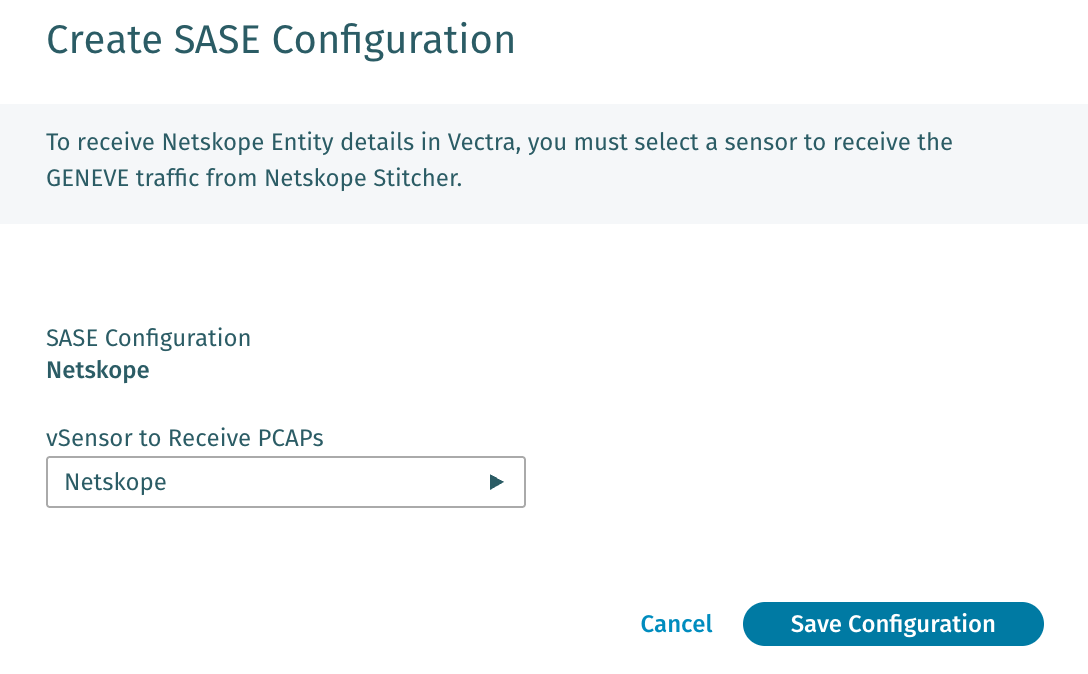 * After selecting Netskope as the SASE vendor you are adding, all that is required is to pick the vSensor that you wish to enable for Netskope Cloud TAP and then save the configuration.
* The Sensor will be enabled for Netskope Cloud TAP SASE use.
* If you ever need to change Netskope Sensors, or disable SASE support for this Sensor, simply delete the Netskope Sensor listed under **SASE Coverage for Remote Users** and the Sensor will revert to being a normal vSensor.
Once configured, the Sensor you enabled for use with Netskope will show in the **SASE Coverage fore Remote Users** table:
* After selecting Netskope as the SASE vendor you are adding, all that is required is to pick the vSensor that you wish to enable for Netskope Cloud TAP and then save the configuration.
* The Sensor will be enabled for Netskope Cloud TAP SASE use.
* If you ever need to change Netskope Sensors, or disable SASE support for this Sensor, simply delete the Netskope Sensor listed under **SASE Coverage for Remote Users** and the Sensor will revert to being a normal vSensor.
Once configured, the Sensor you enabled for use with Netskope will show in the **SASE Coverage fore Remote Users** table: