> For the complete documentation index, see [llms.txt](https://docs.vectra.ai/llms.txt). Markdown versions of documentation pages are available by appending `.md` to page URLs; this page is available as [Markdown](https://docs.vectra.ai/operations/event-search/basic-search.md).
# Basic Search
Create, run, and refine Basic Search queries in the Vectra AI Platform (Respond UX deployments).
## What is Basic Search?
Basic Search allows users to easily build queries into the metadata and logs the Vectra AI platform processes. Results can be organized as desired and columns can be added or removed. Results can also be exported as .csv. Search queires can easily be saved and run again in the future.
Basic search allows easy creation of search criteria by simply selecting the data source, data stream, time period, and filter criteria. The user does not need to know what fields are avialable in the data, they can simply pick them from the menu.
These queries can easily be converted to SQL queries for further modification.
## Requirements
* A RUX deployment.
* Basic Search is only available in Respond UX deployments.
* If you are unsure of your deployment type, please see [Analyst UX options (RUX vs QUX)](/deployment/getting-started/analyst-ux-options-rux-vs-qux.md)
* In order to run a search, your Vectra entitlement must include metadata retention.
* Please talk to your Vectra account team for if you would like to add metadata retention to your contract or expand the number of days of retention for your metadata.
* You must have data sources configured and collecting data.
* This could be network data sources (Sensors) or Cloud data sources such as AWS, Azure, M365, Entra ID, etc.
## How to create and run a query
{% stepper %}
{% step %}
#### Select the data source
* Log in to your Vectra tenant and navigate to *Event Search* and then click on *Basic Search*.
* Select the Data Source, Data Stream, and Connector you plan to investigate.
* If your query is for Network metadata, you only need to select the Data Source and Data Stream.
{% endstep %}
{% step %}
#### Select the search period
Select the search period for your query.
{% endstep %}
{% step %}
#### Run the search
Click the **Search** button.
{% endstep %}
{% step %}
#### Review the results
The results view displays 10000 results, starting with the most recent events.
{% endstep %}
{% endstepper %}
## How to add or remove filters
{% stepper %}
{% step %}
#### Add a filter
Click the **Add Filter** button and select the field to use from the dropdown menu.
Filters can also be easily added by clicking the dropdown arrow by a data point.
{% endstep %}
{% step %}
#### Select an operator
Select the operator to use from the dropdown menu.
{% endstep %}
{% step %}
#### Enter a value
Enter the value, such as an IP address of interest, and click the check button to the right of the entered value field to add the filter.
{% endstep %}
{% step %}
#### Search
Click the **Search** button.
{% endstep %}
{% step %}
#### Remove a filter
To remove a filter, hover over the statement that contains the filter to be removed and click the **X** to the right of the filter.
Click the **Search** button again to run the search with the new parameters.
{% endstep %}
{% endstepper %}
## How to modify the query’s search period
The default search period for running queries is set to **Last 6 hours**.
Another critical timeframe to consider for metadata searches is the retention period. This period represents the maximum number of days that Vectra retains customer data. Please work with your Vectra account team to increase the retention period if required.
{% stepper %}
{% step %}
#### Select a search period
Click the time picker located to select the search period you want to use for the query.
You can choose from quick presets or a custom time range.
In the custom time range selector, you can see the days on the calendar that your current metadata retention allows. The greyed out days are not within your contracted retention period.
{% endstep %}
{% step %}
#### Search
Click the **Search** button. Only entries within the selected search period are displayed.
{% endstep %}
{% endstepper %}
## How to add, remove, and re-order columns in the results
{% stepper %}
{% step %}
#### Add columns
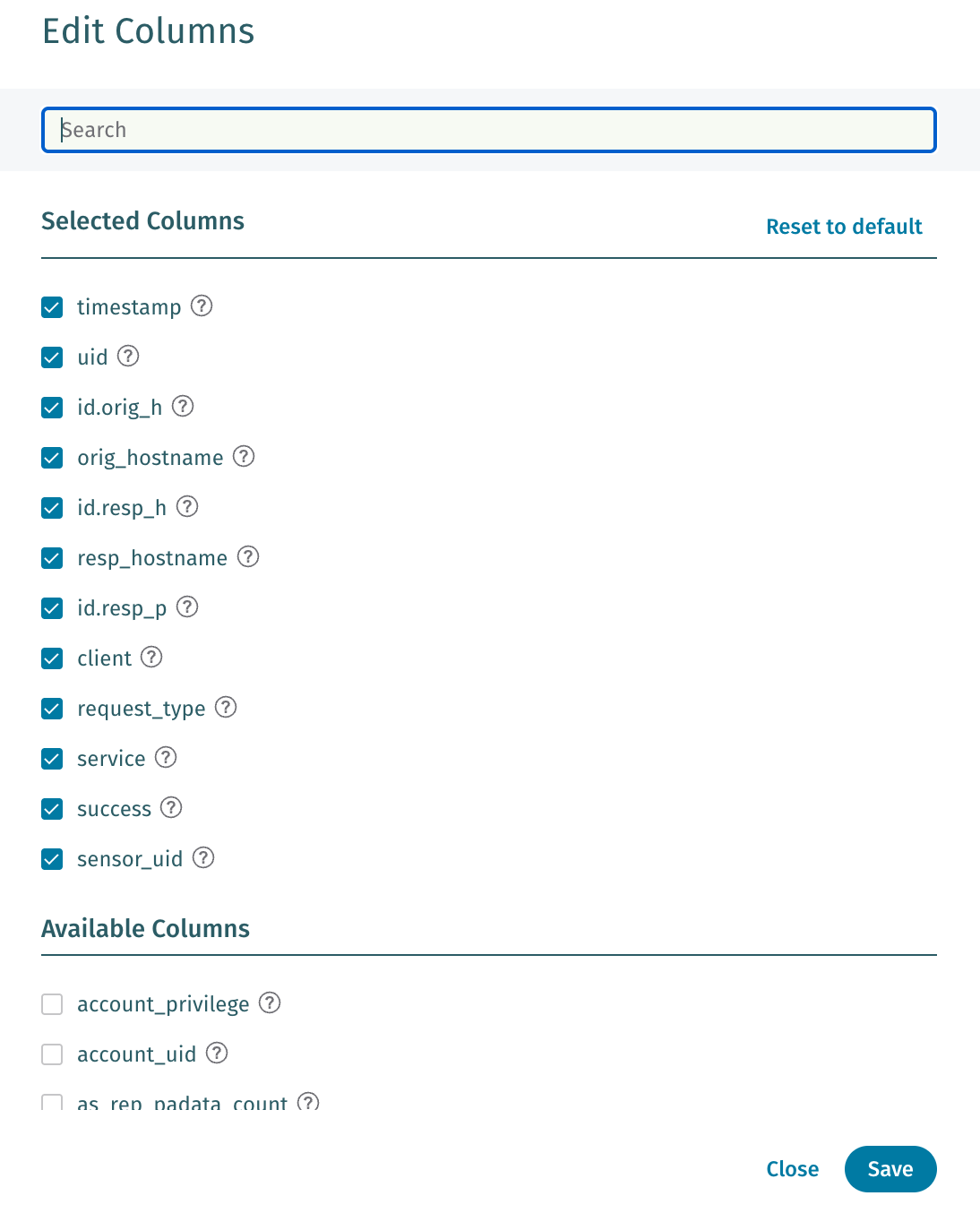
To add columns to the results, click **Edit Columns** and add or remove specific fields which will become columns in the search results.
The specific fields available will vary by data source and data stream.
{% endstep %}
{% step %}
#### Review added columns
The newly added column is added to the results.
{% endstep %}
{% step %}
#### Remove columns
To remove a column from the results view, click the **X** to the right of the column name, or use the **Edit Columns** option again.
{% endstep %}
{% step %}
#### Re-order columns
To re-order columns, drag and drop them into the desired order.
{% endstep %}
{% endstepper %}
## How to run a query from Instant Investigation
{% stepper %}
{% step %}
#### Investigate Further
In Instant Investigation of a host or account, you can click the **Investigate further** link to open a Basic Search that is centered on the entity in question
{% endstep %}
{% step %}
#### Continue the investigation
Once in **Basic Search**, the base search criteria will already be set for you to center on the entity in question. You can further refine the search from there. In the below example we drilled in from **jump-station5**, while already in the **SMB-File activity** Instant Investigation area.
{% endstep %}
{% endstepper %}
## Additional Features
**Starting new queries, opening saved queries, and saving queries**
* Use the area at the top right of the Basic Search screen
**Downloading results**
* Use the **Download** button above your search results.
**Opening your query in** [**SQL Search**](/operations/event-search/sql-search.md)
* Click the **Edit in SQL** link next to the **Search** button.
## Troubleshooting
There are cases in which a query cannot be completed for a variety of reasons. This section proposes actions to take that help avoid those situations.
#### “Search could not be completed” or “Search timed out”
In cases where the data sets to be retrieved are very large, the query may time out and you may see message like the above.
{% stepper %}
{% step %}
#### Reduce the search period
Reduce the search period for the query to one of the lower possible values.
{% endstep %}
{% step %}
#### Add a filter
Adding a filter can reduce the amount of results returned.
{% endstep %}
{% step %}
#### Repeat as needed
Depending on the size of your data set, you may need to repeat this sequence of steps—reduce the time frame and add filters—until you narrow the search down to the data you are looking for.
{% endstep %}
{% endstepper %}
#### “Search could not be completed” (with error id)
In rare occasions, an error message is displayed indicating the search could not be completed, and an error ID is printed below the error message.
Please consider submitting a Support request indicating the error ID displayed for your query. Include a snapshot of the query as well.
#### “Something went wrong”
In rare occasions, an error message is displayed indicating something has gone wrong, and most likely the query cannot be triggered.
{% stepper %}
{% step %}
#### Check log flow
Check that metadata or logs are flowing successfully for the connector you are using.
To do that, click the *Configuration* → *Data Sources* and look at the data source in question to see the status of it.
{% endstep %}
{% step %}
#### Run the query again
Once logs are flowing, try to execute the query again.
{% endstep %}
{% endstepper %}
---
# Agent Instructions
This documentation is published with GitBook. GitBook is the documentation platform designed so that both humans and AI agents can read, navigate, and reason over technical content effectively. Learn more at gitbook.com.
## Querying This Documentation
If you need additional information that is not directly available in this page, you can query the documentation by asking a question.
Perform an HTTP GET request on the following URL with the `ask` and `goal` query parameters:
```
GET https://docs.vectra.ai/operations/event-search/basic-search.md?ask=&goal=
```
`ask` is the immediate question: it should be specific, self-contained, and written in natural language.
`goal` is what the user is ultimately trying to achieve, the reason they need the answer. Sharing it helps GitBook give you a better, more relevant answer. A goal is most helpful when it describes the outcome the user wants rather than restating the question. For example, with `ask=how do I create an API token`, a goal like `automate deployments from our CI pipeline` lets GitBook tailor the answer to that use case.
The response will contain a direct answer to the question and relevant excerpts and sources from the documentation.
Use this mechanism when the answer is not explicitly present in the current page, you need clarification or additional context, or you want to retrieve related documentation sections.