> For the complete documentation index, see [llms.txt](https://docs.vectra.ai/llms.txt). Markdown versions of documentation pages are available by appending `.md` to page URLs; this page is available as [Markdown](https://docs.vectra.ai/operations/backup-restore-dr/legacy-details-prior-to-v8.5/migrating-to-new-brain-prior-to-v85.md).
# Migrating to new Brain (prior to v8.5)
Migrate to a new Brain appliance in Vectra versions prior to 8.5.
## Please Note - for v8.5+ of Vectra Software:
* In version 8.5 and higher of Vectra Brain software, backup and restore functionality has been updated to be more consistent in how the commands work for the various different options available in backup/restore. As a result, the majority of commands are different in some way.
* Please see [Backup and Restore for Vectra Brain Appliances (v8.5+)](/operations/backup-restore-dr/backup-and-restore-v85.md) for Backup and Restore details.
* Please see [Vectra Brain Appliance Disaster Recovery (DR) / Migration Recommendations (v8.5+)](/operations/backup-restore-dr/disaster-recovery-and-migration-v85.md) for Disaster Recovery and Migration details.
* The KB you are currently reading will quickly become obsolete as customers update to v8.5+ of Vectra software.
* Once all customers are on v8.5+, the older KB articles will be archived to help avoid confusion.
## Introduction
This article will cover the steps to perform a migration from the existing to New Brain. In the scenarios of proactive RMA replacement, hardware upgrade when the old appliance is still available.
**Source** = Old Brain and **Target** = New Brain.
## Prerequisite
1. Prepare for Downtime. We perform a cold database backup so some services will be temporarily down during the initial part of the backup at the source brain and restored at the target.
2. Configure following on Target brain:
1. Management port IP address. For steps Refer: [Configuring the IP address of a new Brain or Sensor](/deployment/appliance-operations/configuring-ip-settings-for-appliances.md)
2. DNS: *Configuration > Data Sources → COVERAGE → Network → Brain Setup → DNS Entries*.
3. NTP: *Configuration > Data Sources → COVERAGE → Network → Brain Setup → NTP Entries*.
4. TimeZone at *Configuration → SETUP → General Settings → Timezone*.
3. Vectra Support CLI (vscli) access is achieved over SSH on port 22 with `vectra` User. The default credentials as per the article are found here: [Default username and passwords for Vectra appliances](/deployment/getting-started/default-usernames-and-passwords.md).
4. Source and Target Brain must be on the same release. Check this from vscli:
`show version`
If not please ensure connection to Update2 is possible for the new target Brain to update more information see: [Firewall Guide](/deployment/getting-started/firewall-requirements.md)
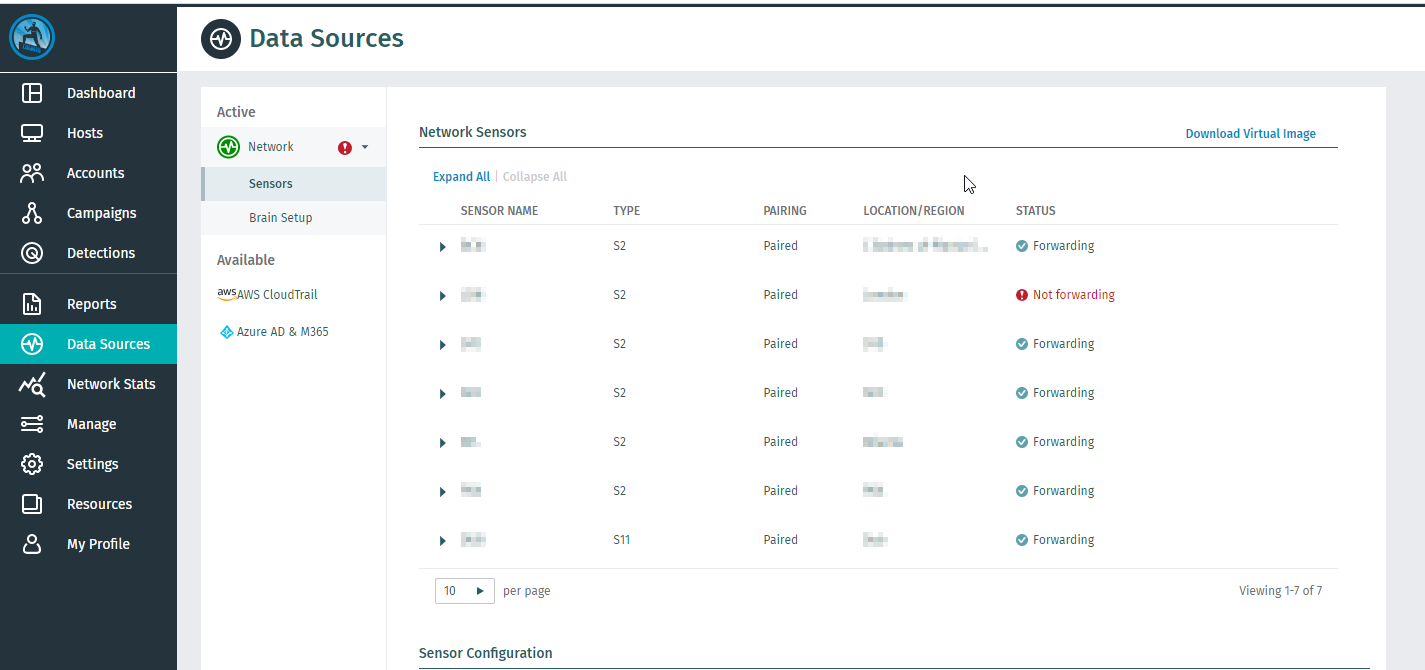
5. Take a screenshot of list of sensors paired to Source Brain. You can see the list of paired sensors and the list of sensors available for pairing from the *Configuration > Data Sources → COVERAGE → Network → Sensors* screen. Sensors that have been paired with other brain devices are not listed on this screen.
## Backup and Restore:
1. Setup **Brain to Brain** backups from Source to Target brain. On the **Target** brain retrieve the authentication key:
```ckeditor_codeblock
token show
```
On the **Source** brain temporarily configure the backup as follows, replacing the word KEY with the token from Step 1.
```ckeditor_codeblock
backup configure-target --enable-brain --target-brain SERVER-IP --brain-key TOKEN
backup enable
```
Complete manual backup VCLI on Source Brain using the command, this can take typically take 10 minutes but may be longer depending on Volume.
```ckeditor_codeblock
backup run
```
2. Completed Restore on Target Brain, please wait up to 1 hour to fully copy backups other you may see an error with `error decrypting`. Once the backup is copied
```ckeditor_codeblock
restore list
```
```
Examples:
```
```ckeditor_codeblock
restore run --local 1
```
Note: Vectra CLI password will be reset to default after restore.
### Please Note:
Version 7.9 has added three new options to the **"restore run"** command. They are:
* **--preserve-saml**
* Keeps the SAML configuration that was present on the target brain prior to the restore
* For example, this can be helpful when SAML configuration is tied to an IP address that will be different on the target Brain.
* **--preserve-ui-certs**
* Keeps the UI certificates that were present on the target brain prior to the restore
* This can be useful when the restore target will have a different IP/hostname that would invalidate the UI certificate configuration.
* **--replace**
* This option is meant to be used when a brain is being fully replaced by another brain and ensures that internal processes at Vectra properly link this new brain with our back end as a replacement. For customers running the Respond UX with network data sources, this option will ensure your replacement brain can automatically connect to your GUI that is being served from the Vectra AI platform.
## Validation of Backup:
Login to Vectra Brain-Web-UI on Source and Target brain and have the look at detections and hosts page data are looking similar. IF they lokk same then the database migration from Source to target to completed.
## Final Steps:
1. 1\. IP swap:
1. **IP Swap (recommended):**
1. Power off the Source Brain using the command: **shutdown**
2. Set the Source brain IP on the Target Brain:
```ckeditor_codeblock
set interface mgt1 < dhcp | static > [ ip < ip > netmask < netmask > gw < gateway >
```
2. **If the IP was not swapped**
1. Login to each physical Sensor with vectra password and run the command "set brain new--brain-ip" eg. "set brain 10.10.10.10". Follow steps in GUI to perform online/offline pairing
2. For vSensor set the new brain IP by logging in with vectra user
3. For more information on pairing see [Pairing Sensors](/deployment/appliance-operations/pairing-appliances.md)
2. Migrate any SPAN configuration/ cables from Source to Target Brain
3. Sanity check UI for paired Sensors and *Network Stats → Ingested Traffic* page stats
4. O365 sensors cannot be migrated. Any existing O365 sensors should be recreated on the new brain
5. If vSensors are deployed [Update vAPP Settings](https://github.com/iKettles/vectra-gitbook/blob/main/documentation/vectravforcesite/articles/Knowledge/KB-VS-1133/README.md) with new Serial Number to ensure Physical Hosts page is populated
6. Contact Vectra Support if you have Stream and/or Recall license as this will need to be migrated to the new Brain
7. If you allowed Remote Support previously and only via proxy, please contact Vectra Support enable remote support through a proxy again.
8. If this is an RMA please factory-restore of old brain once all done and return the old Brain.
---
# Agent Instructions
This documentation is published with GitBook. GitBook is the documentation platform designed so that both humans and AI agents can read, navigate, and reason over technical content effectively. Learn more at gitbook.com.
## Querying This Documentation
If you need additional information that is not directly available in this page, you can query the documentation by asking a question.
Perform an HTTP GET request on the following URL with the `ask` and `goal` query parameters:
```
GET https://docs.vectra.ai/operations/backup-restore-dr/legacy-details-prior-to-v8.5/migrating-to-new-brain-prior-to-v85.md?ask=&goal=
```
`ask` is the immediate question: it should be specific, self-contained, and written in natural language.
`goal` is what the user is ultimately trying to achieve, the reason they need the answer. Sharing it helps GitBook give you a better, more relevant answer. A goal is most helpful when it describes the outcome the user wants rather than restating the question. For example, with `ask=how do I create an API token`, a goal like `automate deployments from our CI pipeline` lets GitBook tailor the answer to that use case.
The response will contain a direct answer to the question and relevant excerpts and sources from the documentation.
Use this mechanism when the answer is not explicitly present in the current page, you need clarification or additional context, or you want to retrieve related documentation sections.