> For the complete documentation index, see [llms.txt](https://docs.vectra.ai/llms.txt). Markdown versions of documentation pages are available by appending `.md` to page URLs; this page is available as [Markdown](https://docs.vectra.ai/deployment/ndr-virtual-cloud-appliances/vmware-vsensor/vsensor-deployment-in-vmware.md).
# vSensor deployment in VMware
Deploy a VMware vSensor, verify prerequisites, configure port groups, and modify 16-core or 32-core vSensors after deployment.
## Requirements
Earlier in this guide we covered:
* [Resource requirements](/deployment/ndr-virtual-cloud-appliances/vmware-vsensor/introduction-and-general-requirements.md#resource-requirements-and-performance) (varies by size of vSensor being deployed).
* [Connectivity requirements](/deployment/ndr-virtual-cloud-appliances/vmware-vsensor/introduction-and-general-requirements.md#connectivity-requirements) (same for all vSensor to Brain communications)
* [Deployment details and considerations](/deployment/ndr-virtual-cloud-appliances/vmware-vsensor/vmware-deployment-details-and-considerations.md) (VMware specific guidance)
Please make sure you collect the required information and meet the additional requirements below before beginning the vSensor deployment.
* IP address and subnet mask for the Management interface of the vSensor.
* DNS server addresses.
* You will require administrative access to you VMware vCenter/vSphere console or authorization to deploy via API connection.
* To configure your vSensor after the initial deployment, you will need access to the vSensor Command Line Interface (CLI) either via the console in your hypervisor or via SSH.
* The vSensor can be deployed with a static IP when deployed using the vSphere UI in vCenter. When deployed using the embedded host client in ESXi, only DHCP is available for initial deployment.
* You must know the IP assigned via DHCP to SSH to the CLI, otherwise the hypervisor console can be used to access the CLI.
* Additional guidance is provided in [SSH login process for CLI](/deployment/appliance-operations/ssh-login-process-for-cli.md).
* VMware specific information is required:
* vSphere hostname or IP
* VM name for the vSensor
* Datacenter hostname or IP
* VM host to deploy on
* Datastore
* Management portgroup
* Capture portgroup
* vswitch
* \# of cores
* Optional VMware specific information for vSphere api based deployment from the Brain CLI.
* vSphere port, resource path, hostname to assign, username, password.
* Only use supported VMware hardware versions (v11 or v15). See [earlier guidance ](/deployment/ndr-virtual-cloud-appliances/vmware-vsensor/introduction-and-general-requirements.md#resource-requirements-and-performance)for more details.
* For production monitoring, ensure that the vSensor VM is kept running 24x7, and ensure that the hypervisor does not overcommit resources or otherwise misrepresent the resources it is providing to the vSensor.
* vMotion should not be enabled for vSensors.
## Downloading the latest vSensor VMware OVA image
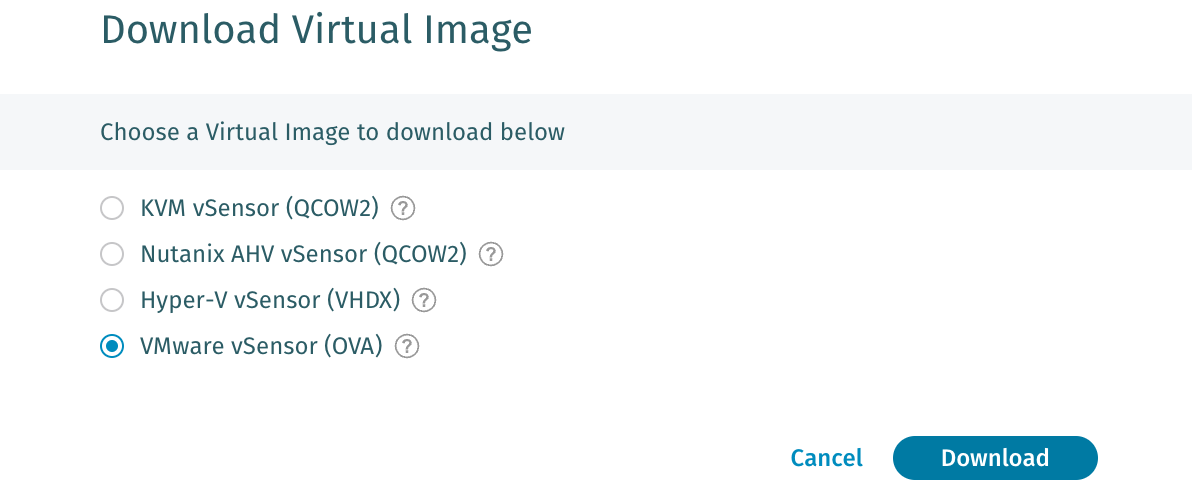
The current vSensor OVA image for deployment can be downloaded from the Brain by clicking the blue **Download Virtual Image** link at the top right of the *Configuration → COVERAGE → Data Sources → Network → Sensors* page in your Brain and then selecting the VMware vSensor (OVA) option.
{% hint style="info" %}
**Please Note:**
It can take up to 45 minutes for newly deployed Brains to have all images fully processed and available for download. If they don’t show as available yet, please try again later.
{% endhint %}
## VMware vSwitch types and port group guidance
VMware has two different types of virtual switches, VSS and VDS (VMware/vSphere Standard Switch and VMware/vSphere Distributed Switch). VSS is available with any license level, even "free" ESXi, while VDS is a feature that is only available with the Enterprise Plus license level.
vSensors need to have port groups that are configured in promiscuous mode to allow analysis of all desired traffic on the physical hypervisor (ESXi host) they are deployed on. VLANs can be used to limit what traffic is analyzed by the vSensor as well. The following diagrams provide some additional detail:
### VSS (VMware/vSphere Standard Switch)
### VDS (VMware/vSphere Distributed Switch)
### Preparing Port Groups
#### Capture Port Groups
**VSS**
* Security – Promiscuous mode must be set to **Accept** to ensure that the vSensor is able to receive all packets.
* Properties – It is a best practice to set the **VLAN ID** set to **All (4095)** to ensure that no packets are filtered by VMware before reaching the vSensor.
**VDS**
* Security – Promiscuous mode must be set to **Accept** to receive all packets.
* VLAN – VLAN type must be set to **VLAN trunking** with the **VLAN** range set to **0-4094** as a best practice to ensure that no packets are filtered by VMware before reaching the virtual Sensor. Limit VLANS if required.
* Forged transmits and MAC address changes should be set to **Accept**.
**VLAN guidance for either port group type**
VLANs can be limited by the customer to eliminate certain VLANs from having their traffic analyzed.
* An example would be VLANS dedicated to I/O traffic such as iSCSI or vMotion.
* This can reduce load on the vSensor and allow smaller vSensors to be deployed.
#### Management Port Groups
* These may already exist in the customer environment.
* This is what needs to be able to be accessed from administrator workstations to log in to the Vectra Brain UI and CLI.
## VMware physical hosts and vSensor coverage
When deploying vSensors with VSS, it is clear that customers need a vSensor per physical hypervisor or standalone ESXi host because the VSS is unique to each physical host. In a VDS scenario, it is still required to deploy a vSensor per physical host. VDS allows a single distributed switch to be shared across physical hypervisors in your environment, but local traffic (per hypervisor) is not forwarded across the VDS by default even when another host has a port group set to promiscuous mode in the VDS. The recommendation is as follows:
* Create a port group for monitoring (e.g. **Monitor**). You need only create one such port group and it will be available for the entire VDS
* Place one vSensor per physical host
* Place the capture interface from the vSensors into the **Monitor** port group
* Set promiscuous mode for **Monitor** to **Accept** and set the **VLAN for Monitor** to **0-4094** in order to monitor all current and future port groups / VLANs that may be placed on any host in the VDS
* Alternately you could use specific VLANs (singles and/or ranges) if you only ever wanted a subset of the traffic, or if you wanted to exclude certain VLANs (as you would want to do for I/O VLANs, e.g. those dedicated to iSCSI, FCoE, vMotion, etc.)
* This will send any traffic that goes over the local (within the same ESXi host) vSwitch instance, matching the VLANs specified, to the local Monitor port group instance, to be picked up by the local vSensor's capture interface. The traffic will not forward across the VDS due to the inherent design of VMware VDS technology.
VMware remote monitoring solutions, e.g. remote packet mirroring, should not be used to replicate traffic from one hypervisor to a vSensor running on another hypervisor.
It is best practice to think of vSensors as being tied to the physical host they are deployed on. They should generally not participate in vMotion or clustering/failover configurations. In situations where you are not fully deploying vSensors to have full coverage of your virtual environment (i.e. a limited deployment PoV), customers have successfully used affinity rules to keep a vSensor with a workload (AD Server) and participate in vMotion. They also used anti-affinity rules to keep from having more than 1 vSensor on the same physical host. These cases should be the exception, rather than the rule, and are not suitable for production deployments. Please work with your Vectra sales/deployment/support teams for additional guidance.
## VMware networking interface guidance
* Management interface (MGT1)
* This is referred to in the vSphere UI as `mgt1` when creating the VM from the OVF template.
* After the VM has been created it is represented as `Network adaptor 1` in VMware.
* Dedicated capture ports
* These are referred to in the vSphere UI as `eth0` when creating the VM from the OVF template.
* After the VM has been created they are represented as `Network adaptor 2` (3, 4, etc) in VMware depending on how many capture ports are configured on your vSensor..
## Deploying the OVA
There are two ways to deploy the OVA into your VMWare environment:
* Using your vCenter/vSphere client or embedded host client for standalone ESXi servers.
* Using the `provision vmware vsensor` CLI command from the CLI of the Brain appliance.
Choose the method you desire and follow one of the sets of instructions below.
### Deploying Using VMware Client
vCenter/vSphere versions and clients vary. The general process for deployment via your vCenter/vSphere client will also differ slightly if you use VSS or VDS vSwitch types. You may need to make adjustments for your environment.
For example, the web UI for ESXi 6.5 not have full feature support for some standard OVA features including specifying **deployment options** within an OVA. Due to this it is not possible to deploy vSensors on standalone ESXi 6.5 Update 1 using the web UI. In these cases, it is recommended to deploy using the vCenter app or vSphere client. The Vectra CLI command `provision vmware vsensor` is another option.
The general process for using the vCenter application or vSphere client to deploy the OVF is as follows:
* Login and navigate to Hosts and Clusters.
* Right click on the host where the vSensor will be deployed and select **Deploy OVF Template.**
* Make sure to only use supported VMware hardware versions (see [earlier guidance](/deployment/ndr-virtual-cloud-appliances/vmware-vsensor/introduction-and-general-requirements.md#resource-requirements-and-performance) for details).
* A pop up will walk you through configuring the virtual appliance.
* Browse to the OVA that was downloaded from the Vectra Brain.
* Give the vSensor VM a name (this will appear in vSphere and in the Brain).
* Also assign it to a datacenter, cluster, and folder appropriate for your environment.
* Select the datastore to house the virtual environment.
* Please do not make changes to virtual disk format (it should be thick provisioned).
* The port groups used for MGT1 and for capture should have already been configured as per the previous guidance above in [Preparing Port Groups](#preparing-port-groups)**.**
* Assign Network Adaptor 1 (MGT1) to the port group used to manage the vSensor.
* Assign Network Adaptor 2 to the capture port group.
* Configure DHCP or static assignment for MGT1 (only available in vSphere/vCenter UI).
* If a static IPv6 address is assigned during deployment, IPv6 support will be automatically enabled. Please see [IPv6 Management Support for Vectra Appliances](/deployment/getting-started/ipv6-management-support-for-vectra-appliances.md) for more details.
* Complete the deployment of the OVA in VMware.
* Additional NICs for capture can be added after deployment if required and you follow the [VMware vSensor Resource Requirements and Performance](/deployment/ndr-virtual-cloud-appliances/vmware-vsensor/introduction-and-general-requirements.md#resource-requirements-and-performance) guidance from earlier in the doc.
{% hint style="warning" %}
**Please Note:**
Review the final details and **DO NOT** enable **Power on Upon Completion** if you need to add configuration options for the 32 core VM and/or change the disk size for 16 and 32 core VMs.
* Please see: [Modifying 16 and 32 core vSensors after deployment](#modifying-16-and-32-core-vsensors-after-deployment) for instructions.
{% endhint %}
* If you do deploy using the embedded host client on a standalone ESXi host, you may receive a warning about ignoring a disk, but this message can be ignored.
* DHCP is the only option for initial deployment when using the embedded host client for ESXi.
* Once successfully deployed and powered on, the new vSensor should automatically pair to the Brain if Automatic Pairing is enabled under *Configuration → COVERAGE → Data Sources → Sensors → Sensor Configuration > Sensor Pairing and Registration* on your Brain. Additional pairing guidance is available in [pairing VMware vSensors](/deployment/ndr-virtual-cloud-appliances/vmware-vsensor/pairing-vmware-vsensors.md).
### Deploying From the Brain CLI
The CLI tool is an easy and convenient way to deploy on vCenter/vSphere and ESXi standalone servers. To deploy using this method, follow these steps:
* Ensure the capture portgroup and management port groups are already created as per the previous guidance above for [Preparing Port Groups](#preparing-port-groups).
* Ensure any firewall allows the Brain to connect to the vCenter server (if applicable) and the ESX/vSphere server on port 443 (or alternate port if configured).
* Login to VCLI on the Brain using the `vectra` user.
* Run the `provision vmwware vsensor` command using the appropriate options.
* Once successfully deployed and powered on, the new vSensor should automatically pair to the Brain if Automatic Pairing is enabled under *Configuration → COVERAGE → Data Sources → Sensors → Sensor Configuration > Sensor Pairing and Registration* on your Brain.
Options for the `provision vmware vsensor` command can be displayed at the Brain CLI as below:
```
vscli > provision vmware vsensor -h
Usage: provision vmware vsensor [OPTIONS]
Uses ovftool along with the supplied information to provision new virtual
sensors to vCenter or a standalone ESXi hypervisor.
Options:
-vs, --vsphere TEXT IP or hostname of vCenter/vSphere instance [required]
-vm, --vmname TEXT Virtual machine name to assign to the vSensor [required]
-ds, --datastore TEXT Name of the datastore to create the virtual machine on [required]
-m, -mp, --mgmt_pg TEXT Management NIC's portgroup name [required]
-cp, --capture_pg TEXT Capture NIC's portgroup name [required]
-s, -vsw, --vswitch TEXT Name of the vSwitch that the capture portgroup is on [required]
-dc, --datacenter TEXT Name of the data center where the vsensor will be created on (vCenter only)
-vh, --vmhost TEXT Name of the physical host that the vSensor will be created on (vCenter only)
-d, --dhcp Select DHCP or static IP, Netmask, Gateway for vSensor management (only supported on vCenter)
-mip, --mgmt_ip TEXT Static Management IP address (only supported on vCenter)
-mnm, --mgmt_netmask TEXT Static Management IP netmask (only supported on vCenter)
-mgw, --mgmt_gw TEXT Static Management gateway IP address (only supported on vCenter)
-n, --dns TEXT Comma separated list of DNS server IP addresses (only supported on vCenter)
-c, --cores [2|4|8|16] Number of cores for vSensor to use (default 4)
-p, --port INTEGER vSphere port (default is 443)
-r, -rp, --resource_path TEXT Folder/resource path in which a host is located, e.g. "Folder Name/Cluster name" (vCenter only)
-f, -fp, --force_promiscuous if provided, promiscuous mode will be enabled on capture portgroup automatically
-hn, --hostname TEXT vSensor hostname to assign (only supported on vCenter)
-u, --username TEXT vCenter/vSphere username (you will be prompted if not provided)
-pw, --password TEXT vCenter/vSphere password (you will be prompted if not provided)
--wait-for-ip If selected, command returns only when the sensor successfully got an IP address
-h, --help Show this message and exit.
```
Command syntax:
```
provision vmware vsensor < -vs vsphere > < -vm vmname > < -ds datastore > < -m mgmt_pg > < -cp capture_pg > < -s vswitch > [ -dc datacenter ] [ -vh vmhost ] [ -d ] [ -mip mgmt_ip ] [ -mnm mgmt_netmask ] [ -mgw mgmt_gw ] [ -n dns ] [ -c cores( 2 | 4 | 8 | 16 ) ] [ -p port ] [ -r resource_path ] [ -f ] [ -hn hostname ] [ -u username ] [ -pw password ] [ --wait-for-ip ]
```
Example command:
```
provision vmware vsensor -vs "vsphere.local" -vm "vSensor-01" -ds "esxhost2 NVMe" -m "10x3 Management Network" -cp "Vectra Analyzer" -s vSwitch1 -dc "Oakland" -vh "Production 17" -mip 10.0.3.92 -mnm 255.255.255.0 -mgw 10.0.3.1 -n 10.0.6.10 -c 2
```
{% hint style="info" %}
**Please note:**
* The Vectra `provision vmware vsensor` command uses VMware’s ovftool along with the supplied information to provision vSensors.
* Not all arguments are required.
* For example, if a username or password is not specified, you will be prompted for them.
* If a number of cores is not specified, the default of 4 will be used.
{% endhint %}
{% hint style="warning" %}
**Please Note:**
If deploying a 16 or 32 core vSensor, be sure to complete [Modifying 16 and 32 core vSensors after deployment](#modifying-16-and-32-core-vsensors-after-deployment).
{% endhint %}
## Initial Embryo State of vSensor
## Special Note: Initial Embryo State of vSensor
Immediately after the initial deployment of a vSensor, it is in what is known as an **embryo** state before pairing and updating from the Brain. The vSensor needs to be paired to a Brain, then receive a software update from the Brain, and finally update to become fully functional. During the time before pairing and updating, not all vSensor commands are functional yet.
To login to a vSensor, the username is `vectra` and the initial password is `changethispassword`. After the vSensor is paired and updated, the initial login to the updated vSensor will force a password change.
For example, the `show traffic stats` command does not exist on vSensors that are in embryo state. To determine if your vSensor is still in embryo state, you can use the `show version` command.
* If the version string is empty, then the vSensor is still in embryo state.
* After a vSensor has been paired, upgrading will become `True` after the vSensor has successfully downloaded an update image from the Brain and has begun updating.
Please see the example below for what a vSensor will output when in embryo state:
```
vscli > show version
Upgrading: False
Version:
```
While in embryo state, it is recommended to only use commands related to pairing such as the following:
`set brain`
* Ordinarily, this command is not necessary as the vSensor image that was downloaded from your Brain is already set to pair with the Brain by hostname or by IP address, depending on how *Configuration → COVERAGE → Data Sources → Network → Sensors → Sensor Configuration → Sensor Pairing and Registration* settings are configured.
* For DNS Name to be an option, a hostname must be configured for your Brain in *Configuration → COVERAGE → Data Sources > Network > Brain Setup > Brain*. If no hostname is configured, then **Management IP Address** will be the only option available.
* It is recommended to configure a hostname and use it for pairing when possible. Doing so typically makes failover situations easier to manage when IPs of Brains may change in failover scenarios.
* As an example, in the below screenshot, the IP address of the Brain would be embedded into the vSensor image that was downloaded from the Brain so that it already knows where to attempt to pair when it is booted.

`set registration-token`
* Typically, this is also not required for embryo vSensors as the downloaded vSensor is already configured to be able to pair with the Brain it was downloaded from.
* If you need to pair with a different Brain, the `set registration-token` command will enable the vSensor to pair with a Brain that did not provide the initial vSensor image download.
* Sensor registration tokens are created on a Brain and are good for 24 hours after creation. If you need to generate one, navigate to *Configuration → COVERAGE → Data Sources → Network → Sensors → Sensor Configuration → Sensor Pairing and Registration.*
## Modifying 16 and 32 core vSensors after deployment
As per the earlier [requirements](/deployment/ndr-virtual-cloud-appliances/vmware-vsensor/introduction-and-general-requirements.md#resource-requirements-and-performance), the 16 and 32 core vSensor configurations will need to be modified after deployment due to limitations in what can be preconfigured in the image that is shared for multiple vSensor configurations. If configuring smaller vSensors, you can skip this section and move on to the [initial vSensor configuration at the CLI](/deployment/ndr-virtual-cloud-appliances/vmware-vsensor/initial-vsensor-configuration-at-cli.md).
Ideally these modifications will be done before the Sensor is powered on for the first time. It is still possible to make the required modifications if the Sensor was powered on previously, but the overall process is simpler and requires less manipulation if you do this before the Sensor is power on.
In any case the Sensor must be shut down before making the changes and then powered on after saving the changes.
#### To modify the disk size for the 16 or 32 core vSensor
* Shut down the vSensor if it is already powered on.
* Edit the settings in VMware (embedded ESXi client or vCenter/vSphere client) for the Sensor.
* Change the disk size to:
* **600 GB for the 16 core vSensor**.
* **830 GB for the 32 core vSensor**.
* Save the configuration.
#### 32 Core vSensor Ethernet Modification
* This is only required for the 32 core vSensor.
* Shut down the vSensor if it is already powered on.
* Edit the settings in VMware (embedded ESXi client or vCenter/vSphere client) for the Sensor.
* Go to *VM Options > Advanced* and then edit the configuration parameters and add two new parameters:
* If the link speed will be 10 Gbps, the `linkspeed` parameter is NOT required but is a best practice.
* The default link speed is 10 Gbps for a capture NIC, modify this as required for your deployment.
* 20 Gbps is the max throughput for the Sensor but the link speed can be set to the same as the physical NIC associated with this interface if capturing physical traffic or the aggregate bandwidth required if combining multiple sources into one feed.
* Examples for 1st capture port (Network Adapter 2) (MGT is Network Adapter 1 / eth0):
* Name/Key: `ethernet1.pNicFeatures`
* Value: `4`
* Name/Key: `ethernet1.linkspeed`
* Value: `40000` – This represents a 40 Gbps link speed, adjust as needed for your required link speed.

* Repeat adding both parameters for any additional capture NICs (max of 4 capture NICs depending on the size of vSensor being deloyed)
* Use ethernet2 for 2nd capture port, ethernet 3 for 3rd capture port, etc
#### 32 Core vSensor NUMA Configuration
This section applies to the 32 core vSensor only. No changes are required for other vSensor sizes.
VMware provides guidance for [Using NUMA Systems with ESXi](https://techdocs.broadcom.com/us/en/vmware-cis/vsphere/vsphere/7-0/vsphere-resource-management-7-0/using-numa-systems-with-esxi.html) in the linked documentation. [Virtual NUMA Controls](https://techdocs.broadcom.com/us/en/vmware-cis/vsphere/vsphere/7-0/vsphere-resource-management-7-0/using-numa-systems-with-esxi/using-virtual-numa/virtual-numa-controls.html) documents the parameters. The `numa.vcpu.maxPerVirtualNode` parameter controls NUMA configuration for Vectra VMware VMs. Vectra cannot set this parameter at the OVA level and on some 32 core VMware vSensors (this varies by the underlying hardware platforms used), the parameter must be set by the customer after the VM deployment or errors will be seen during boot of the VM.
If the VM reboots frequently, every 3 to 4 min, if you can see the output of `show system-health` at the CLI of your VMware vSensor and there is a message about NUMA, then you know this is the issue. To avoid the issue, it is best to check for the proper setting of the parameter before powering on the VM, and set it if required.
`numa.autosize.vcpu.maxPerVirtualNode` is an advanced parameter in VMware vSphere/ESXi. It controls how many vCPUs ESXi can automatically assign to a NUMA node when it is handling wide VMs. By default, ESXi sets and manages this internally based on host NUMA topology, VM sizing, and hypervisor defaults. The value of `{{numa.autosize.vcpu.maxPerVirtualNode}}` should be set to 16, so that each NUMA node can get an equal number of vCPUs.
To check the parameter and set it if required:
* Go to *VM Options > Advanced* and then edit the configuration parameters and find:

* If the setting is 16, you are done and can close the parameters/VM options.
* If the setting is not 16, change it to 16 and save the configuration.
#### After Saving vSensor Updates
After you have made the modifications required and saved them, you can power on your vSensor and move on to the next section of the deployment guide.
---
# Agent Instructions
This documentation is published with GitBook. GitBook is the documentation platform designed so that both humans and AI agents can read, navigate, and reason over technical content effectively. Learn more at gitbook.com.
## Querying This Documentation
If you need additional information that is not directly available in this page, you can query the documentation by asking a question.
Perform an HTTP GET request on the following URL with the `ask` and `goal` query parameters:
```
GET https://docs.vectra.ai/deployment/ndr-virtual-cloud-appliances/vmware-vsensor/vsensor-deployment-in-vmware.md?ask=&goal=
```
`ask` is the immediate question: it should be specific, self-contained, and written in natural language.
`goal` is what the user is ultimately trying to achieve, the reason they need the answer. Sharing it helps GitBook give you a better, more relevant answer. A goal is most helpful when it describes the outcome the user wants rather than restating the question. For example, with `ask=how do I create an API token`, a goal like `automate deployments from our CI pipeline` lets GitBook tailor the answer to that use case.
The response will contain a direct answer to the question and relevant excerpts and sources from the documentation.
Use this mechanism when the answer is not explicitly present in the current page, you need clarification or additional context, or you want to retrieve related documentation sections.

 ## VMware vSwitch types and port group guidance
VMware has two different types of virtual switches, VSS and VDS (VMware/vSphere Standard Switch and VMware/vSphere Distributed Switch). VSS is available with any license level, even "free" ESXi, while VDS is a feature that is only available with the Enterprise Plus license level.
vSensors need to have port groups that are configured in promiscuous mode to allow analysis of all desired traffic on the physical hypervisor (ESXi host) they are deployed on. VLANs can be used to limit what traffic is analyzed by the vSensor as well. The following diagrams provide some additional detail:
### VSS (VMware/vSphere Standard Switch)
## VMware vSwitch types and port group guidance
VMware has two different types of virtual switches, VSS and VDS (VMware/vSphere Standard Switch and VMware/vSphere Distributed Switch). VSS is available with any license level, even "free" ESXi, while VDS is a feature that is only available with the Enterprise Plus license level.
vSensors need to have port groups that are configured in promiscuous mode to allow analysis of all desired traffic on the physical hypervisor (ESXi host) they are deployed on. VLANs can be used to limit what traffic is analyzed by the vSensor as well. The following diagrams provide some additional detail:
### VSS (VMware/vSphere Standard Switch)
