> For the complete documentation index, see [llms.txt](https://docs.vectra.ai/llms.txt). Markdown versions of documentation pages are available by appending `.md` to page URLs; this page is available as [Markdown](https://docs.vectra.ai/deployment/ndr-virtual-cloud-appliances/vmware-vsensor/capturing-physical-network-traffic-with-vmware-vsensor.md).
# Capturing physical network traffic with VMware vSensor
How to capture physical network traffic using a VMware vSensor.
It may be desirable to mirror traffic from a physical switch to a VMware vSensor. There are two ways to mirror traffic from a physical switch into a VMware ESXi hypervisor host for monitoring by a Vectra vSensor.
The first method utilizes a dedicated physical NIC on the host chassis to carry tagged or untagged traffic from the mirror session on the switch to the vSensor on the host. The second method utilizes a VLAN that is trunked over a link to the host.
### Method 1: Dedicated link to ESXi host
Utilizing a dedicated link from the physical switch to the ESXi host may require the addition of a dedicated vSwitch due to VLAN tagging. The following procedure outlines the necessary steps required to setup ESXi's network to accomplish this.
{% stepper %}
{% step %}
#### Add a new virtual switch
* To add new virtual switch, enter the **Networking** menu and choose **Add standard virtual switch**.
* Create the new vSwitch by choosing the appropriate physical NIC that is attached to the mirror output port as the **Uplink**.
* Under Security settings, enable **Promiscuous mode**.
{% endstep %}
{% step %}
#### Create port group for capture interface
* On the **Port groups** tab, click **Add port group**.
* Enter **VLAN ID 4095** to monitor all VLANs being trunked (including native) over the physical link from the switch.
* Select the virtual switch created in the previous step for **Virtual switch**.
* Ensure that the port group's security settings are being inherited from the vSwitch.
{% endstep %}
{% step %}
#### Configure vSensor’s network adapter
* Edit the settings of the Vectra vSensor
* Select the newly created port group in the previous step for the appropriate capture interface.
* Click **Save**.
{% endstep %}
{% step %}
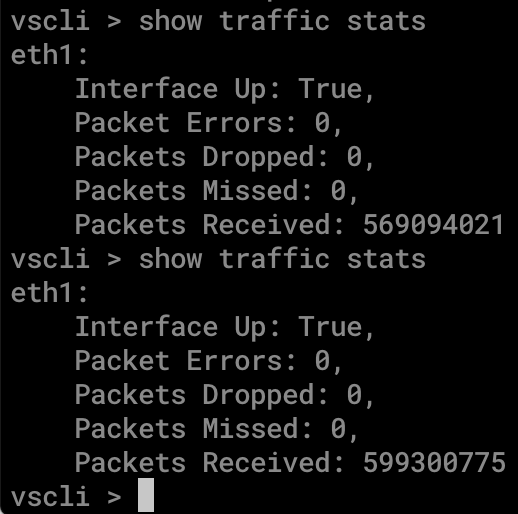
#### Verify vSensor is receiving packets
* Log in to the vSensor's CLI
* Run the command `show traffic stats` several times to verify the interface is receiving traffic as expected and `packets_received` counts are increasing. Please note that this command will only function after the vSensor has been paired and updated from the Brain. For details, please see the earlier guidance about the [embryo state of vSensors immediately after initial deployment](/deployment/ndr-virtual-cloud-appliances/vmware-vsensor/vsensor-deployment-in-vmware.md#initial-embryo-state-of-vsensor).
{% endstep %}
{% endstepper %}
### Method 2: Utilizing a VLAN tag over an existing trunked link
When a dedicated physical link between the switch and the ESXi host is not desired or possible, a switch's mirroring session output can usually be configured to output on a VLAN. Configuration on the physical network will vary by deployment and network vendor. Please work with your networking team and/or vendor to complete physical network configuration.
{% stepper %}
{% step %}
#### Create the port group
* Create a port group for the vSensor's capture interface.
* In ESXi's Networking menu, choose the **Port groups** tab.
* Click on **Add port group**.
* Enter the VLAN ID that the switch will be mirroring traffic over (4000 in this case).
* Choose the appropriate virtual switch that has the physical link trunking the VLAN.
* Ensure **Promiscuous mode** is enabled under **Security.**
{% endstep %}
{% step %}
#### Configure the vSensor
* Edit the settings of the vSensor.
* Select the newly created port group in the previous step for the appropriate capture interface.
{% endstep %}
{% step %}
#### Verify vSensor is receiving packets
* Log in to the vSensor's CLI.
* Run the command `show traffic stats` several times to verify the interface is receiving traffic as expected and `packets_received` counts are increasing. Please note that this command will only function after the vSensor has been paired and updated from the Brain. For details, please see the earlier guidance about the [embryo state of vSensors immediately after initial deployment](/deployment/ndr-virtual-cloud-appliances/vmware-vsensor/vsensor-deployment-in-vmware.md#initial-embryo-state-of-vsensor).
{% endstep %}
{% endstepper %}
---
# Agent Instructions
This documentation is published with GitBook. GitBook is the documentation platform designed so that both humans and AI agents can read, navigate, and reason over technical content effectively. Learn more at gitbook.com.
## Querying This Documentation
If you need additional information that is not directly available in this page, you can query the documentation by asking a question.
Perform an HTTP GET request on the following URL with the `ask` and `goal` query parameters:
```
GET https://docs.vectra.ai/deployment/ndr-virtual-cloud-appliances/vmware-vsensor/capturing-physical-network-traffic-with-vmware-vsensor.md?ask=&goal=
```
`ask` is the immediate question: it should be specific, self-contained, and written in natural language.
`goal` is what the user is ultimately trying to achieve, the reason they need the answer. Sharing it helps GitBook give you a better, more relevant answer. A goal is most helpful when it describes the outcome the user wants rather than restating the question. For example, with `ask=how do I create an API token`, a goal like `automate deployments from our CI pipeline` lets GitBook tailor the answer to that use case.
The response will contain a direct answer to the question and relevant excerpts and sources from the documentation.
Use this mechanism when the answer is not explicitly present in the current page, you need clarification or additional context, or you want to retrieve related documentation sections.


 {% endstep %}
{% endstepper %}
### Method 2: Utilizing a VLAN tag over an existing trunked link
When a dedicated physical link between the switch and the ESXi host is not desired or possible, a switch's mirroring session output can usually be configured to output on a VLAN. Configuration on the physical network will vary by deployment and network vendor. Please work with your networking team and/or vendor to complete physical network configuration.
{% stepper %}
{% step %}
#### Create the port group
* Create a port group for the vSensor's capture interface.
* In ESXi's Networking menu, choose the **Port groups** tab.
* Click on **Add port group**.
* Enter the VLAN ID that the switch will be mirroring traffic over (4000 in this case).
* Choose the appropriate virtual switch that has the physical link trunking the VLAN.
* Ensure **Promiscuous mode** is enabled under **Security.**
{% endstep %}
{% endstepper %}
### Method 2: Utilizing a VLAN tag over an existing trunked link
When a dedicated physical link between the switch and the ESXi host is not desired or possible, a switch's mirroring session output can usually be configured to output on a VLAN. Configuration on the physical network will vary by deployment and network vendor. Please work with your networking team and/or vendor to complete physical network configuration.
{% stepper %}
{% step %}
#### Create the port group
* Create a port group for the vSensor's capture interface.
* In ESXi's Networking menu, choose the **Port groups** tab.
* Click on **Add port group**.
* Enter the VLAN ID that the switch will be mirroring traffic over (4000 in this case).
* Choose the appropriate virtual switch that has the physical link trunking the VLAN.
* Ensure **Promiscuous mode** is enabled under **Security.**

