> For the complete documentation index, see [llms.txt](https://docs.vectra.ai/llms.txt). Markdown versions of documentation pages are available by appending `.md` to page URLs; this page is available as [Markdown](https://docs.vectra.ai/deployment/ndr-virtual-cloud-appliances/vmware-brain/initial-startup-and-licensing.md).
# Initial startup and licensing
Initial startup, provisioning proxy configuration, and licensing for VMware Brain. Licensing must be completed prior to the main UI or CLI being available.
After deploying the Brain VM into your VMware environment, it will need to be licensed during its initial boot process.
{% hint style="info" %}
**Please Note:**
* The CLI of a virtual Brain cannot be logged in to until the Brain has completed provisioning which includes licensing.
* For QUX deployments, the locally served Quadrant UX Vectra UI is also unavailable until after the system is licensed and provisioning has completed.
{% endhint %}
* Power on your Brain VM.
* Once the UI is available (this will be a few minutes after power on), use your browser to connect to your Brain VM (using the IP assigned statically, via DHCP, or via hostname if your Brain is in your DNS). If watching your console and you hit `ESC` when you see the Ubuntu boot screen you will see system messages.
{% hint style="info" %}
**Please Note:**
Occasionally you may need to switch to a different console to get the OS Kernel console shown. When this happens, you can use *ALT + Arrow keys* to change the console to one that allows you see the boot messages. Some deployments may not pass the *Alt + Arrow keys* to change console. Switching to a different browser such as Firefox has worked correctly for many customers. Please see [Device Console does not show an interactive terminal during boot-up](https://support.vectra.ai/vectra/article/KB-VS-1683) for more details.
{% endhint %}
* This particular message below means that soon the UI will be available for license configuration:
* Navigate to `https://` and you’ll see a screen like this:

* At this point the initial boot process is paused until a valid license is entered. This process will not time out.
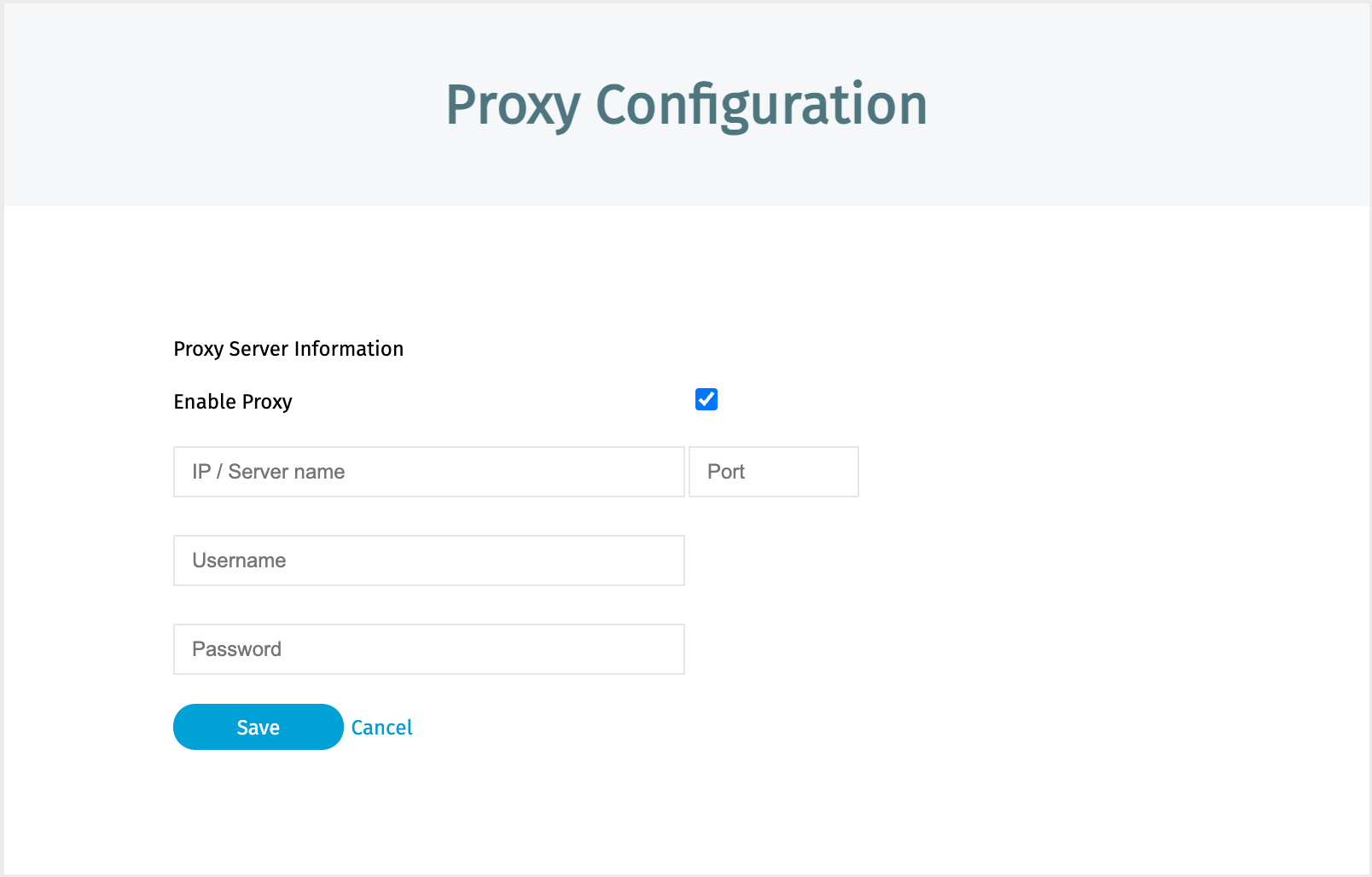
* If a proxy is required to communicate with Vectra for provisioning from your network, please enter the **Proxy Configuration** screen and enter your proxy information:
* If this is not done now, it can be done after a license is saved but the provisioning process will time out and some time will be wasted until a proxy is configured.
{% hint style="info" %}
**Please Note:**
This proxy configuration screen is only used to communicate with Vectra’s provisioning server and must utilize an HTTPS proxy.
* HTTP only proxies are not supported for this use.
* Other proxy configuration in the main Vectra UI at *Configuration → COVERAGE → Data Sources → Network → Brain Setup → Proxy & Status* after deployment does accept HTTP proxies and is used by non-provisioning related items.
{% endhint %}
{% hint style="info" %}
**Please Note:**
If you are doing a Respond UX deployment and require a proxy for non-provisioning related services and integrations (this includes linking to Vectra’s cloud for use with the Respond UX):
* You should configure that proxy at the CLI of your Brain, **AFTER** you progress through this initial configuration and get to the **Success!** message at the end of this section.
* Please see the [Respond UX Deployment Guide](/deployment/getting-started/respond-ux-deployment-guide.md) in the [*Deployment > Proxy Support*](/deployment/getting-started/respond-ux-deployment-guide/deployment.md#proxy-support) section for more detail.
{% endhint %}
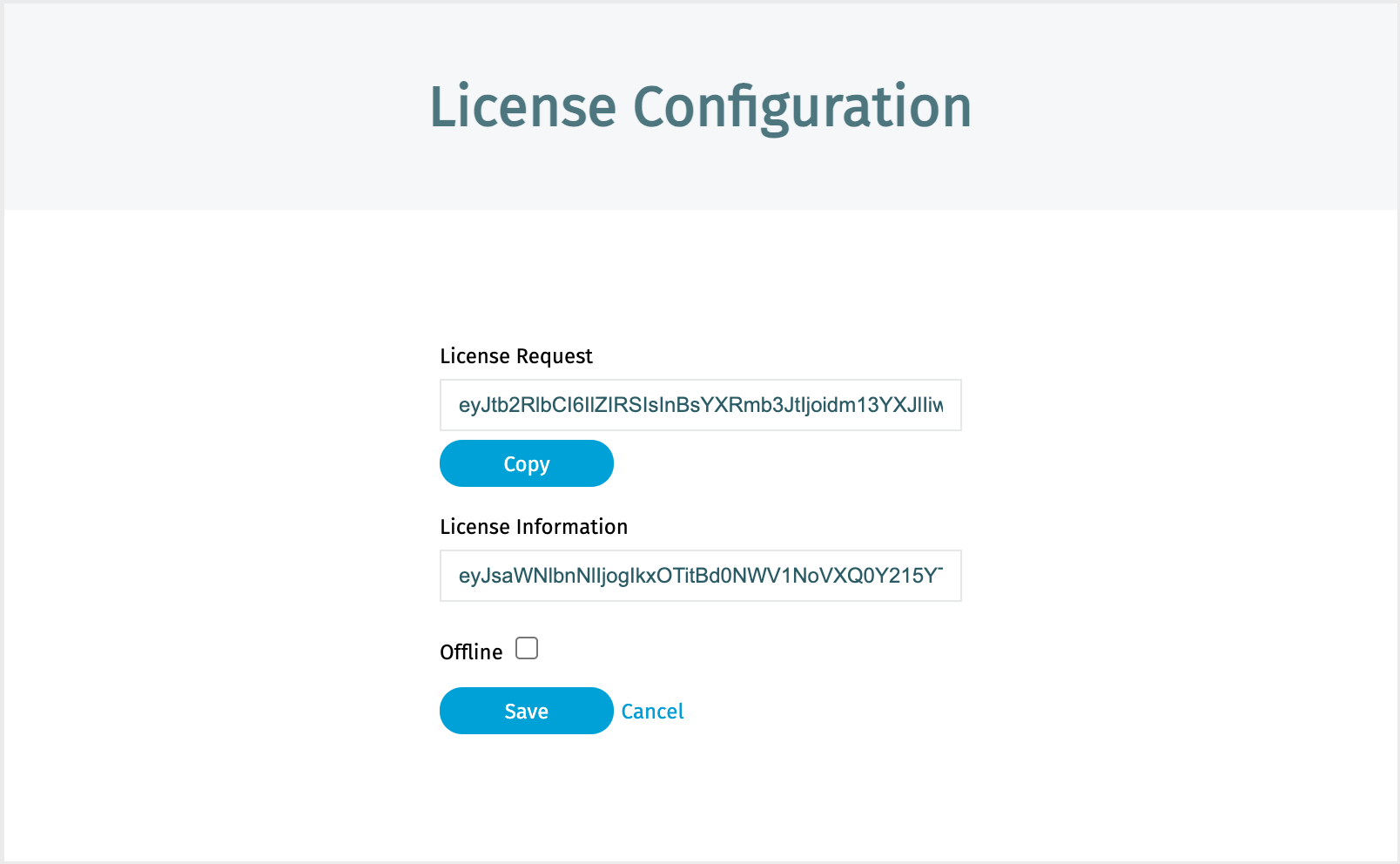
* Click into the **License Configuration** screen after saving a proxy configuration (if required):

* Copy the **License Request** information by clicking the **Copy** button.
* In another browser tab or window, navigate to and then the **License** tab.
* If you are not already authenticated, you will be redirected to authenticate to your Vectra support account.
* If you do not have a Vectra support account, you can self-register at the login screen, but licensing will not be available until your account is validated as being a Vectra customer or prospect involved in a trial.
* Paste the license information you copied into the **Enter Authorization Code** section of the page and click **Generate License Key**.
* You should get a **Success** message at the top and a key in the **License Key** box.
* Copy the license key using the **Copy License Key** button and go back to your Brain in your other tab or window.

* Paste the license key into the **License Information** box.
Please expand for KVM specific configuration details
If you are deploying a KVM VHE, you will have an additional input box on this page:
Please select the name of the KVM virtual machine management software you are using from the dropdown menu. This is currently used for research purposes only and does not change the behavior of the Brain.
{% hint style="warning" %}
**DO NOT CLICK SAVE YET!**
You must first determine if your Brain will be **Online** or **Offline**.
{% endhint %}
{% hint style="warning" %}
**If your Brain will be Offline (Quadrant UX only):**
* You **MUST** click the **Offline** checkbox now before clicking **Save** or your deployment **will fail**.
* You will need to redeploy a new Brain VM into your environment and start the process over.
**Please Also Note:**
* Offline Brains do not communicate to Vectra’s provisioning service.
* Offline Brains are typically used in "air gapped" environments where customers do not have internet access and the ability to communicate with Vectra directly.
* For additional information regarding offline Brains, see the following Vectra Support articles:
* [Offline Updates (v8.9+)](/operations/readme-1/offline-updates-v89.md)
* [Vectra Respond UX Deployment Guide](/deployment/getting-started/respond-ux-deployment-guide.md) or [Vectra Quadrant UX Deployment Guide](/deployment/getting-started/quadrant-ux-deployment.md)
{% endhint %}
* After determining if your Brain will be **Online** (normal for the vast majority of customers) or **Offline**, click **Save**.
* You may need to refresh the resulting page that may still say there is no license in place.
* After the page refresh, you should see screens like the below as provisioning completes.
* After the license is validated, the file system will be decrypted, a performance test will be run, the Brain will reboot, and the Brain will reach out to the Vectra provisioning service and complete provisioning.
* Finally, a success message will be presented with a button to redirect to the main UI login screen.
* Offline Brains follow a similar process but will not need to communicate with the provisioning server and can validate the license locally.
* Status messages will be updated but you must manually refresh the browser to see new messages. Below are some examples:
| | |
| ------------------------------------------------------------------------------------------------------------------------------------------------------------------------------------------------------------------------------- | ------------------------------------------------------------------------------------------------------------------------------------------------------------------------------------------------------------------------------- |
|  |  |
|  |  |
* Finally, a success message will be presented with a button to redirect to the main UI login screen.
* For RUX deployments, please see the deployment process in the [Vectra Respond UX Deployment Guide](/deployment/getting-started/respond-ux-deployment-guide.md).
{% hint style="warning" %}
**Please Note:**
When doing a RUX deployment, you should **NOT** login and configure anything in the Quadrant UX (which would be available at this point) before Vectra connects your Brain to the Vectra cloud. Once the Brain is connected to the Vectra Cloud, the UI for your deployment (Respond UX) will be served from Vectra's cloud and the local UI (Quadrant UX) will no longer be available.
{% endhint %}
* For QUX deployments only:
* Initial login credentials for the UI:
* `admin` / `changethispassword`
* Initial login credentials for the SSH access to the CLI:
* `vectra` / `changethispassword`
* You will be asked to change the password after the initial login.
---
# Agent Instructions
This documentation is published with GitBook. GitBook is the documentation platform designed so that both humans and AI agents can read, navigate, and reason over technical content effectively. Learn more at gitbook.com.
## Querying This Documentation
If you need additional information that is not directly available in this page, you can query the documentation by asking a question.
Perform an HTTP GET request on the following URL with the `ask` and `goal` query parameters:
```
GET https://docs.vectra.ai/deployment/ndr-virtual-cloud-appliances/vmware-brain/initial-startup-and-licensing.md?ask=&goal=
```
`ask` is the immediate question: it should be specific, self-contained, and written in natural language.
`goal` is what the user is ultimately trying to achieve, the reason they need the answer. Sharing it helps GitBook give you a better, more relevant answer. A goal is most helpful when it describes the outcome the user wants rather than restating the question. For example, with `ask=how do I create an API token`, a goal like `automate deployments from our CI pipeline` lets GitBook tailor the answer to that use case.
The response will contain a direct answer to the question and relevant excerpts and sources from the documentation.
Use this mechanism when the answer is not explicitly present in the current page, you need clarification or additional context, or you want to retrieve related documentation sections.

 {% hint style="info" %}
**Please Note:**
This proxy configuration screen is only used to communicate with Vectra’s provisioning server and must utilize an HTTPS proxy.
* HTTP only proxies are not supported for this use.
* Other proxy configuration in the main Vectra UI at *Configuration → COVERAGE → Data Sources → Network → Brain Setup → Proxy & Status* after deployment does accept HTTP proxies and is used by non-provisioning related items.
{% endhint %}
{% hint style="info" %}
**Please Note:**
If you are doing a Respond UX deployment and require a proxy for non-provisioning related services and integrations (this includes linking to Vectra’s cloud for use with the Respond UX):
* You should configure that proxy at the CLI of your Brain, **AFTER** you progress through this initial configuration and get to the **Success!** message at the end of this section.
* Please see the [Respond UX Deployment Guide](/deployment/getting-started/respond-ux-deployment-guide.md) in the [*Deployment > Proxy Support*](/deployment/getting-started/respond-ux-deployment-guide/deployment.md#proxy-support) section for more detail.
{% endhint %}
* Click into the **License Configuration** screen after saving a proxy configuration (if required):

* Copy the **License Request** information by clicking the **Copy** button.
* In another browser tab or window, navigate to
{% hint style="info" %}
**Please Note:**
This proxy configuration screen is only used to communicate with Vectra’s provisioning server and must utilize an HTTPS proxy.
* HTTP only proxies are not supported for this use.
* Other proxy configuration in the main Vectra UI at *Configuration → COVERAGE → Data Sources → Network → Brain Setup → Proxy & Status* after deployment does accept HTTP proxies and is used by non-provisioning related items.
{% endhint %}
{% hint style="info" %}
**Please Note:**
If you are doing a Respond UX deployment and require a proxy for non-provisioning related services and integrations (this includes linking to Vectra’s cloud for use with the Respond UX):
* You should configure that proxy at the CLI of your Brain, **AFTER** you progress through this initial configuration and get to the **Success!** message at the end of this section.
* Please see the [Respond UX Deployment Guide](/deployment/getting-started/respond-ux-deployment-guide.md) in the [*Deployment > Proxy Support*](/deployment/getting-started/respond-ux-deployment-guide/deployment.md#proxy-support) section for more detail.
{% endhint %}
* Click into the **License Configuration** screen after saving a proxy configuration (if required):

* Copy the **License Request** information by clicking the **Copy** button.
* In another browser tab or window, navigate to 
 {% hint style="warning" %}
**If your Brain will be Offline (Quadrant UX only):**
* You **MUST** click the **Offline** checkbox now before clicking **Save** or your deployment **will fail**.
* You will need to redeploy a new Brain VM into your environment and start the process over.
**Please Also Note:**
* Offline Brains do not communicate to Vectra’s provisioning service.
* Offline Brains are typically used in "air gapped" environments where customers do not have internet access and the ability to communicate with Vectra directly.
* For additional information regarding offline Brains, see the following Vectra Support articles:
* [Offline Updates (v8.9+)](/operations/readme-1/offline-updates-v89.md)
* [Vectra Respond UX Deployment Guide](/deployment/getting-started/respond-ux-deployment-guide.md) or [Vectra Quadrant UX Deployment Guide](/deployment/getting-started/quadrant-ux-deployment.md)
{% endhint %}
* After determining if your Brain will be **Online** (normal for the vast majority of customers) or **Offline**, click **Save**.
* You may need to refresh the resulting page that may still say there is no license in place.
* After the page refresh, you should see screens like the below as provisioning completes.
* After the license is validated, the file system will be decrypted, a performance test will be run, the Brain will reboot, and the Brain will reach out to the Vectra provisioning service and complete provisioning.
* Finally, a success message will be presented with a button to redirect to the main UI login screen.
* Offline Brains follow a similar process but will not need to communicate with the provisioning server and can validate the license locally.
* Status messages will be updated but you must manually refresh the browser to see new messages. Below are some examples:
| | |
| ------------------------------------------------------------------------------------------------------------------------------------------------------------------------------------------------------------------------------- | ------------------------------------------------------------------------------------------------------------------------------------------------------------------------------------------------------------------------------- |
|  |  |
|  |  |
{% hint style="warning" %}
**If your Brain will be Offline (Quadrant UX only):**
* You **MUST** click the **Offline** checkbox now before clicking **Save** or your deployment **will fail**.
* You will need to redeploy a new Brain VM into your environment and start the process over.
**Please Also Note:**
* Offline Brains do not communicate to Vectra’s provisioning service.
* Offline Brains are typically used in "air gapped" environments where customers do not have internet access and the ability to communicate with Vectra directly.
* For additional information regarding offline Brains, see the following Vectra Support articles:
* [Offline Updates (v8.9+)](/operations/readme-1/offline-updates-v89.md)
* [Vectra Respond UX Deployment Guide](/deployment/getting-started/respond-ux-deployment-guide.md) or [Vectra Quadrant UX Deployment Guide](/deployment/getting-started/quadrant-ux-deployment.md)
{% endhint %}
* After determining if your Brain will be **Online** (normal for the vast majority of customers) or **Offline**, click **Save**.
* You may need to refresh the resulting page that may still say there is no license in place.
* After the page refresh, you should see screens like the below as provisioning completes.
* After the license is validated, the file system will be decrypted, a performance test will be run, the Brain will reboot, and the Brain will reach out to the Vectra provisioning service and complete provisioning.
* Finally, a success message will be presented with a button to redirect to the main UI login screen.
* Offline Brains follow a similar process but will not need to communicate with the provisioning server and can validate the license locally.
* Status messages will be updated but you must manually refresh the browser to see new messages. Below are some examples:
| | |
| ------------------------------------------------------------------------------------------------------------------------------------------------------------------------------------------------------------------------------- | ------------------------------------------------------------------------------------------------------------------------------------------------------------------------------------------------------------------------------- |
|  |  |
|  |  |
 * Finally, a success message will be presented with a button to redirect to the main UI login screen.
* For RUX deployments, please see the deployment process in the [Vectra Respond UX Deployment Guide](/deployment/getting-started/respond-ux-deployment-guide.md).
{% hint style="warning" %}
**Please Note:**
When doing a RUX deployment, you should **NOT** login and configure anything in the Quadrant UX (which would be available at this point) before Vectra connects your Brain to the Vectra cloud. Once the Brain is connected to the Vectra Cloud, the UI for your deployment (Respond UX) will be served from Vectra's cloud and the local UI (Quadrant UX) will no longer be available.
{% endhint %}
* For QUX deployments only:
* Initial login credentials for the UI:
* `admin` / `changethispassword`
* Initial login credentials for the SSH access to the CLI:
* `vectra` / `changethispassword`
* You will be asked to change the password after the initial login.
---
# Agent Instructions
This documentation is published with GitBook. GitBook is the documentation platform designed so that both humans and AI agents can read, navigate, and reason over technical content effectively. Learn more at gitbook.com.
## Querying This Documentation
If you need additional information that is not directly available in this page, you can query the documentation by asking a question.
Perform an HTTP GET request on the following URL with the `ask` and `goal` query parameters:
```
GET https://docs.vectra.ai/deployment/ndr-virtual-cloud-appliances/vmware-brain/initial-startup-and-licensing.md?ask=
* Finally, a success message will be presented with a button to redirect to the main UI login screen.
* For RUX deployments, please see the deployment process in the [Vectra Respond UX Deployment Guide](/deployment/getting-started/respond-ux-deployment-guide.md).
{% hint style="warning" %}
**Please Note:**
When doing a RUX deployment, you should **NOT** login and configure anything in the Quadrant UX (which would be available at this point) before Vectra connects your Brain to the Vectra cloud. Once the Brain is connected to the Vectra Cloud, the UI for your deployment (Respond UX) will be served from Vectra's cloud and the local UI (Quadrant UX) will no longer be available.
{% endhint %}
* For QUX deployments only:
* Initial login credentials for the UI:
* `admin` / `changethispassword`
* Initial login credentials for the SSH access to the CLI:
* `vectra` / `changethispassword`
* You will be asked to change the password after the initial login.
---
# Agent Instructions
This documentation is published with GitBook. GitBook is the documentation platform designed so that both humans and AI agents can read, navigate, and reason over technical content effectively. Learn more at gitbook.com.
## Querying This Documentation
If you need additional information that is not directly available in this page, you can query the documentation by asking a question.
Perform an HTTP GET request on the following URL with the `ask` and `goal` query parameters:
```
GET https://docs.vectra.ai/deployment/ndr-virtual-cloud-appliances/vmware-brain/initial-startup-and-licensing.md?ask=