
Configuration - Page 1
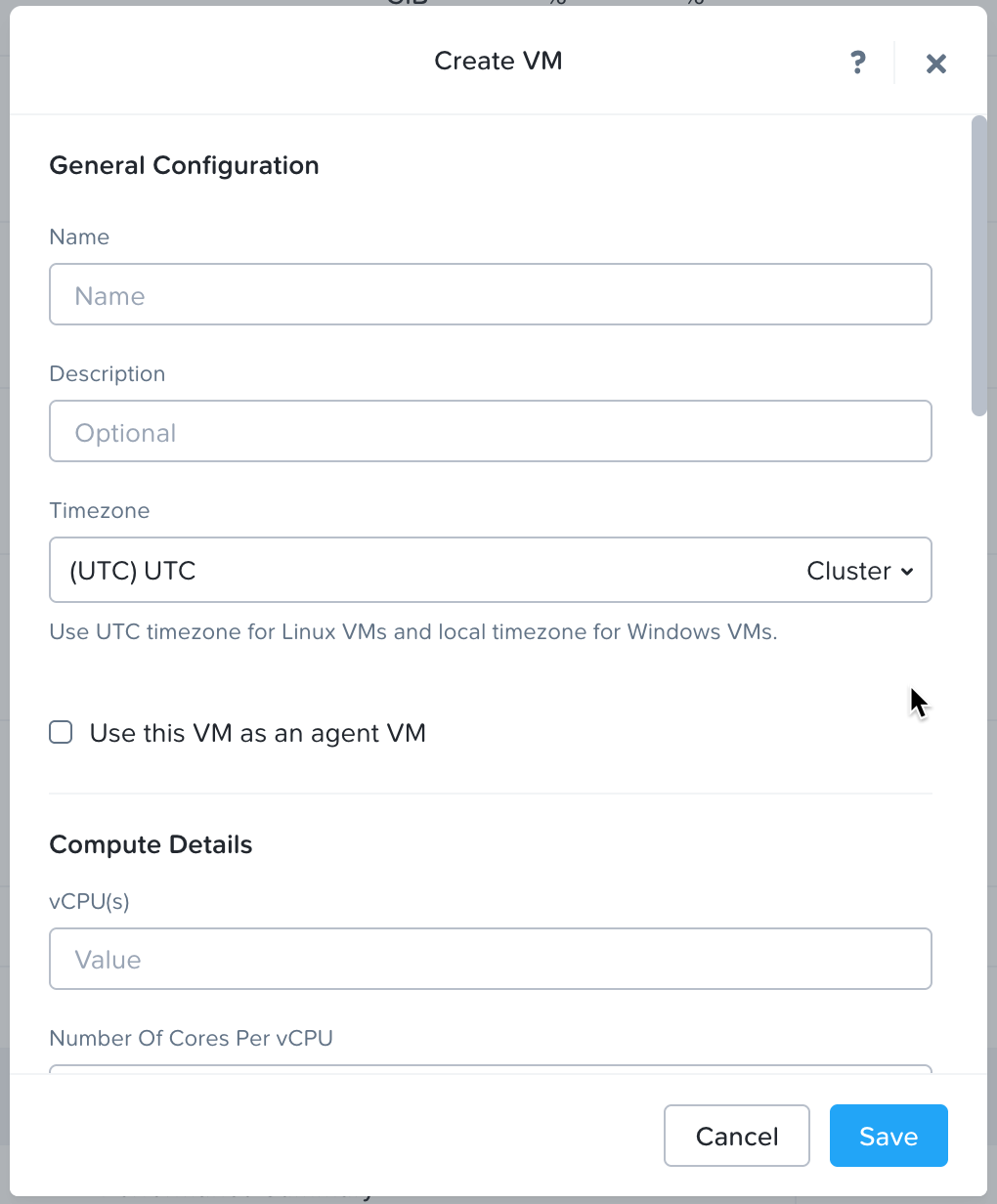 See guidance for each choice below along with an example of a fully configured dialog box:
* **Name** – Use a name of your choice.
* **Description** – Optional.
* **Timezone** – Configure per your standards.
* **Use this VM as an agent VM** – We will enable this at the ACLI later or you can enable this now.
* **vCPU(s)** – 2, 4, 8, or 16 depending on the chosen configuration.
* Look at [Nutanix vSensor Requirements and Performance](/deployment/ndr-virtual-cloud-appliances/nutanix-vsensor/introduction-and-requirements.md#nutanix-vsensor-requirements-and-performance) for guidance.
* **Number of Cores Per vCPU** – Always enter 1.
* **Memory** – 8, 8, 16, or 64 GB depending on your chosen configuration.
* **Boot Configuration** – Legacy BIOS and leave the **Set Boot Priority** at its default.
* **Disks**
* Delete the existing CD-ROM.
* Add the QCOW2 image as a new disk.
* **Type** – Disk.
* **Operation** – Clone from Image Service.
* **Bus Type** – SCSI.
* **Image** – Select the QCOW2 image that you uploaded.
* **Size** – This will be greyed out. If this needs to be modified based on your configuration, we will do this using the ACLI later.
* **Index** – Next Available.
* Add the `seed.iso` image as a new CD-ROM.
* **Type** – CD-ROM.
* **Operation** – Clone from Image Service.
* **Bus Type** – IDE.
* **Image** – Select the `seed.iso` image that you uploaded.
* **Size** – This will be greyed out and does not need to be modified.
* **Index** – Next Available.
* **Volume Groups** – Ignore.
* **Network Adapters** – Add a NIC on the network of your choosing where you want the management (MGT1) interface of the vSensor to attach.
* **VM Host Affinity** – We will set this later at the ACLI or you can choose the node you wish to PIN to now. A vSensor should be installed on each node in the AHV cluster.
* **Custom Script** – Ignore.
* When done click the **Save** button but **DO NOT POWER ON YOUR VM**.
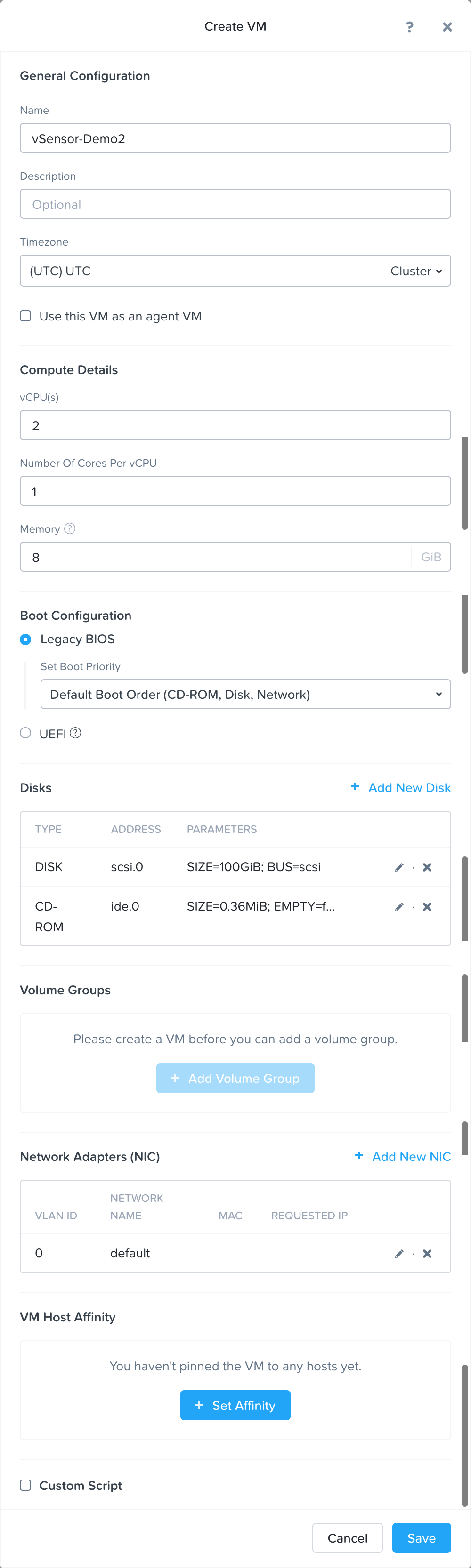
See guidance for each choice below along with an example of a fully configured dialog box:
* **Name** – Use a name of your choice.
* **Description** – Optional.
* **Timezone** – Configure per your standards.
* **Use this VM as an agent VM** – We will enable this at the ACLI later or you can enable this now.
* **vCPU(s)** – 2, 4, 8, or 16 depending on the chosen configuration.
* Look at [Nutanix vSensor Requirements and Performance](/deployment/ndr-virtual-cloud-appliances/nutanix-vsensor/introduction-and-requirements.md#nutanix-vsensor-requirements-and-performance) for guidance.
* **Number of Cores Per vCPU** – Always enter 1.
* **Memory** – 8, 8, 16, or 64 GB depending on your chosen configuration.
* **Boot Configuration** – Legacy BIOS and leave the **Set Boot Priority** at its default.
* **Disks**
* Delete the existing CD-ROM.
* Add the QCOW2 image as a new disk.
* **Type** – Disk.
* **Operation** – Clone from Image Service.
* **Bus Type** – SCSI.
* **Image** – Select the QCOW2 image that you uploaded.
* **Size** – This will be greyed out. If this needs to be modified based on your configuration, we will do this using the ACLI later.
* **Index** – Next Available.
* Add the `seed.iso` image as a new CD-ROM.
* **Type** – CD-ROM.
* **Operation** – Clone from Image Service.
* **Bus Type** – IDE.
* **Image** – Select the `seed.iso` image that you uploaded.
* **Size** – This will be greyed out and does not need to be modified.
* **Index** – Next Available.
* **Volume Groups** – Ignore.
* **Network Adapters** – Add a NIC on the network of your choosing where you want the management (MGT1) interface of the vSensor to attach.
* **VM Host Affinity** – We will set this later at the ACLI or you can choose the node you wish to PIN to now. A vSensor should be installed on each node in the AHV cluster.
* **Custom Script** – Ignore.
* When done click the **Save** button but **DO NOT POWER ON YOUR VM**.
 ### Prism Central (PC) vSensor Creation
If your vSensor images were uploaded to Prism Central, navigate in PC to *Infrastructure > Compute > VMs > Create VM* and you will be presented with a four page dialog to create the vSensor VM:
#### Configuration - Page 1
* **Name** – Use a name of your choice.
* **Description** – Optional.
* **Project/Cluster** – Set if required for your org.
* **Number of VMs**
* Normally 1 if deploying a single vSensor.
* This can be set to more than 1 if you are deploying multiple identically configured vSensors. The additional vSensors would be named with -1, -2, etc after the configured name.
* **VM Properties**
* Refer to [Nutanix vSensor Requirements and Performance](/deployment/ndr-virtual-cloud-appliances/nutanix-vsensor/introduction-and-requirements.md#nutanix-vsensor-requirements-and-performance) for vSensor specification.
* **CPUs** – Set to 2, 4, 8, or 16 based on the size vSensor you are deploying.
* **Cores** – Always set to 1.
* **Memory** – Set to 8, 8, 16, or 64 based on the size of vSensor you are deploying.
* **Advanced Settings** – Not required.
#### Resources - Page 2
* **Disks** – Add the disks per the screenshots below, cloning them from the uploaded vSensor images.
* Disk size can be changed per the vSensor specifications to avoid doing it in [Step 2](#id-2.-increase-vdisk-size-vsensor-vm-if-required) below.
* **Network** – Attach to the subnet of your choice.
* This will be where the Management (MGT1) interface of the vSensor will be connected.
* Initially it will boot with DHCP, but this can be changed to static at the CLI of the vSensor.
* See [Initial vSensor configuration at vSensor CLI](/deployment/ndr-virtual-cloud-appliances/nutanix-vsensor/initial-vsensor-configuration-at-cli.md) for details.
* **Boot Configuration**
* This must be set to **Legacy BIOS Mode** with **Default Boot Order (CD-ROM, Disk, Network)**.
* The `seed.iso` (CD-ROM) is read during vSensor boot to help configure network adapters.
* **Shield VM Security Settings** – Not required.
#### Management - Page 3
* **Enable ‘Default-Storage’ Policy**
* Whether you enable this or not will depend on your defaults.
* As per the [Nutanix vSensor Requirements and Performance](/deployment/ndr-virtual-cloud-appliances/nutanix-vsensor/introduction-and-requirements.md#nutanix-vsensor-requirements-and-performance):
* Vectra recommends that Sensors are configured to use storage local to the hypervisor and are not stored on a SAN. Vectra vSensors require extremely high throughput from their disk storage and this throughput cannot normally be sustained by SAN systems without impact to other SAN users.
* Also keep in mind that you will be pinning (setting affinity) for each vSensor to a specific node in each cluster.
* **Categories**
* If you don’t already have a category and value from prior vSensor deployments, leave this blank for now.
* If you have already created the category and value in [3. Create network function provider category and value](#id-3.-create-network-function-provider-category-and-value) and are deploying a new vSensor in this cluster, you can set the network\_function\_provider category and value that you previously created and won’t have to do it later in [6. Update the still powered off VM](#id-6.-update-the-still-powered-off-vm).
* **Timezone** – Configure per your standards.
* **Use this VM as an Agent VM**
* The vSensor needs to be set as an **Agent VM**.
* This can be enabled now, or it can be set during [6. Update the still powered off VM](#id-6.-update-the-still-powered-off-vm). Some configuration must be done at the CVM ACLI later anyway.
* **Guest Customization** – Not required.
#### Review - Page 4
* Review the settings, go back and change anything if required, and when ready, click **Create VM**.
#### Screenshot Examples
Full Prism Central VM configuration example screenshots below. Click to enlarge any image.
### Prism Central (PC) vSensor Creation
If your vSensor images were uploaded to Prism Central, navigate in PC to *Infrastructure > Compute > VMs > Create VM* and you will be presented with a four page dialog to create the vSensor VM:
#### Configuration - Page 1
* **Name** – Use a name of your choice.
* **Description** – Optional.
* **Project/Cluster** – Set if required for your org.
* **Number of VMs**
* Normally 1 if deploying a single vSensor.
* This can be set to more than 1 if you are deploying multiple identically configured vSensors. The additional vSensors would be named with -1, -2, etc after the configured name.
* **VM Properties**
* Refer to [Nutanix vSensor Requirements and Performance](/deployment/ndr-virtual-cloud-appliances/nutanix-vsensor/introduction-and-requirements.md#nutanix-vsensor-requirements-and-performance) for vSensor specification.
* **CPUs** – Set to 2, 4, 8, or 16 based on the size vSensor you are deploying.
* **Cores** – Always set to 1.
* **Memory** – Set to 8, 8, 16, or 64 based on the size of vSensor you are deploying.
* **Advanced Settings** – Not required.
#### Resources - Page 2
* **Disks** – Add the disks per the screenshots below, cloning them from the uploaded vSensor images.
* Disk size can be changed per the vSensor specifications to avoid doing it in [Step 2](#id-2.-increase-vdisk-size-vsensor-vm-if-required) below.
* **Network** – Attach to the subnet of your choice.
* This will be where the Management (MGT1) interface of the vSensor will be connected.
* Initially it will boot with DHCP, but this can be changed to static at the CLI of the vSensor.
* See [Initial vSensor configuration at vSensor CLI](/deployment/ndr-virtual-cloud-appliances/nutanix-vsensor/initial-vsensor-configuration-at-cli.md) for details.
* **Boot Configuration**
* This must be set to **Legacy BIOS Mode** with **Default Boot Order (CD-ROM, Disk, Network)**.
* The `seed.iso` (CD-ROM) is read during vSensor boot to help configure network adapters.
* **Shield VM Security Settings** – Not required.
#### Management - Page 3
* **Enable ‘Default-Storage’ Policy**
* Whether you enable this or not will depend on your defaults.
* As per the [Nutanix vSensor Requirements and Performance](/deployment/ndr-virtual-cloud-appliances/nutanix-vsensor/introduction-and-requirements.md#nutanix-vsensor-requirements-and-performance):
* Vectra recommends that Sensors are configured to use storage local to the hypervisor and are not stored on a SAN. Vectra vSensors require extremely high throughput from their disk storage and this throughput cannot normally be sustained by SAN systems without impact to other SAN users.
* Also keep in mind that you will be pinning (setting affinity) for each vSensor to a specific node in each cluster.
* **Categories**
* If you don’t already have a category and value from prior vSensor deployments, leave this blank for now.
* If you have already created the category and value in [3. Create network function provider category and value](#id-3.-create-network-function-provider-category-and-value) and are deploying a new vSensor in this cluster, you can set the network\_function\_provider category and value that you previously created and won’t have to do it later in [6. Update the still powered off VM](#id-6.-update-the-still-powered-off-vm).
* **Timezone** – Configure per your standards.
* **Use this VM as an Agent VM**
* The vSensor needs to be set as an **Agent VM**.
* This can be enabled now, or it can be set during [6. Update the still powered off VM](#id-6.-update-the-still-powered-off-vm). Some configuration must be done at the CVM ACLI later anyway.
* **Guest Customization** – Not required.
#### Review - Page 4
* Review the settings, go back and change anything if required, and when ready, click **Create VM**.
#### Screenshot Examples
Full Prism Central VM configuration example screenshots below. Click to enlarge any image.
Configuration - Page 1

Resources - Page 2
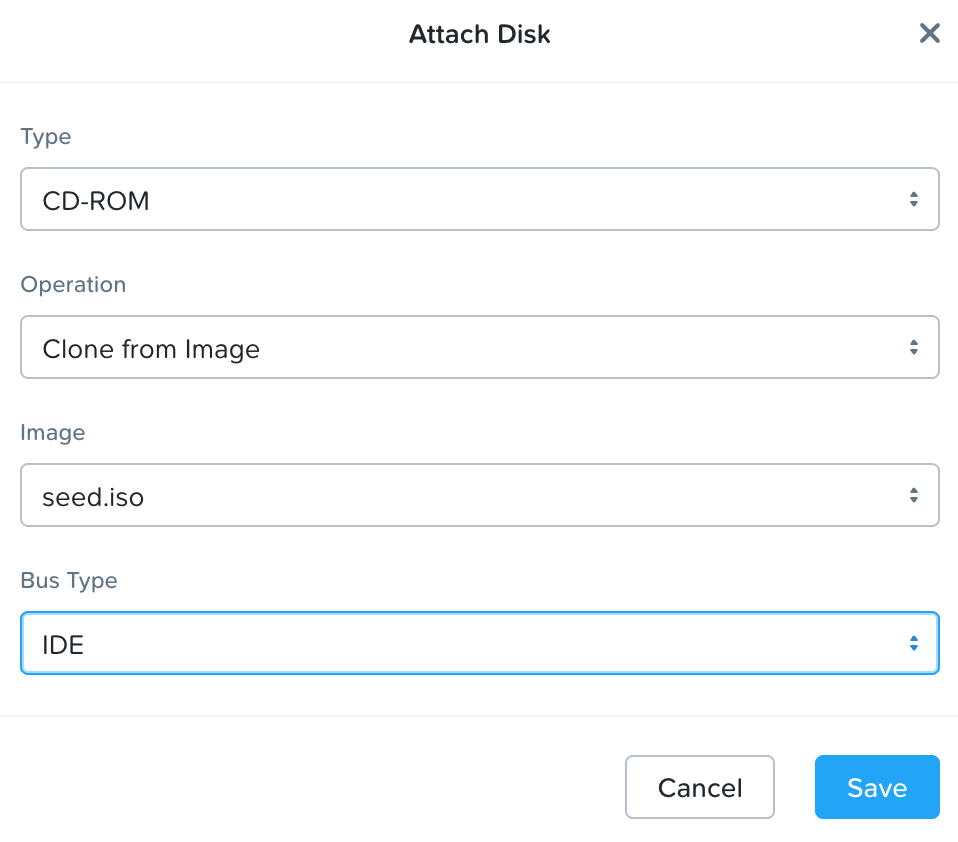
Adding seed.iso as CD-ROM on Resources - Page 2
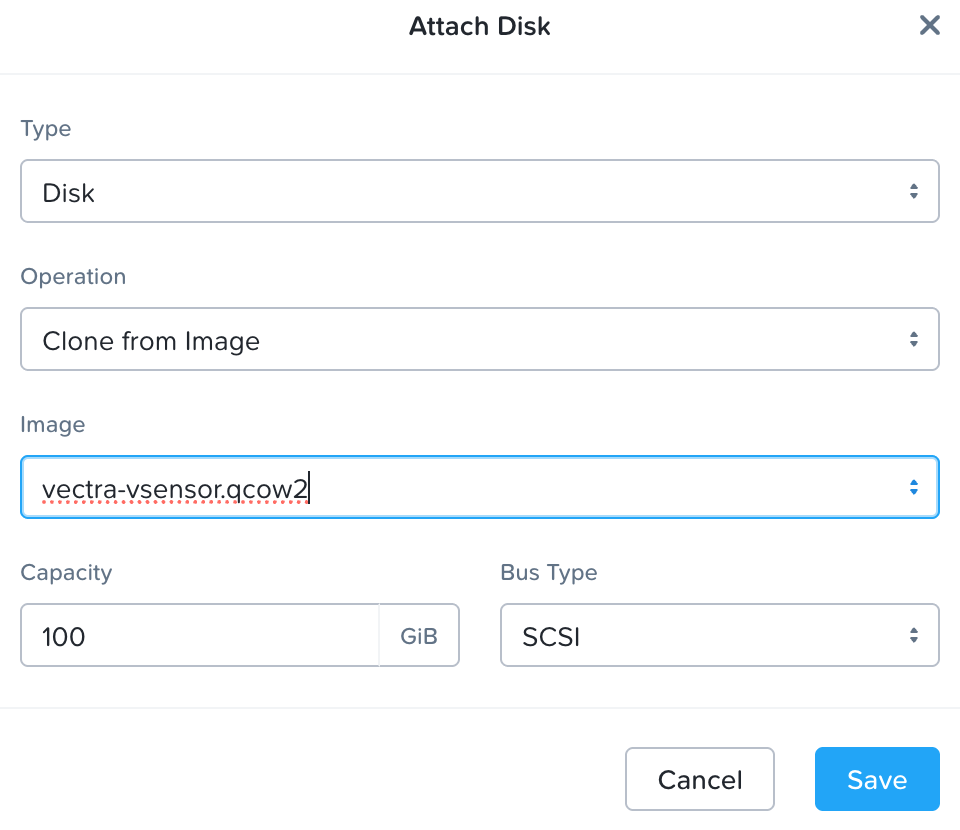
Adding .qcow2 as Disk on Resources - Page 2
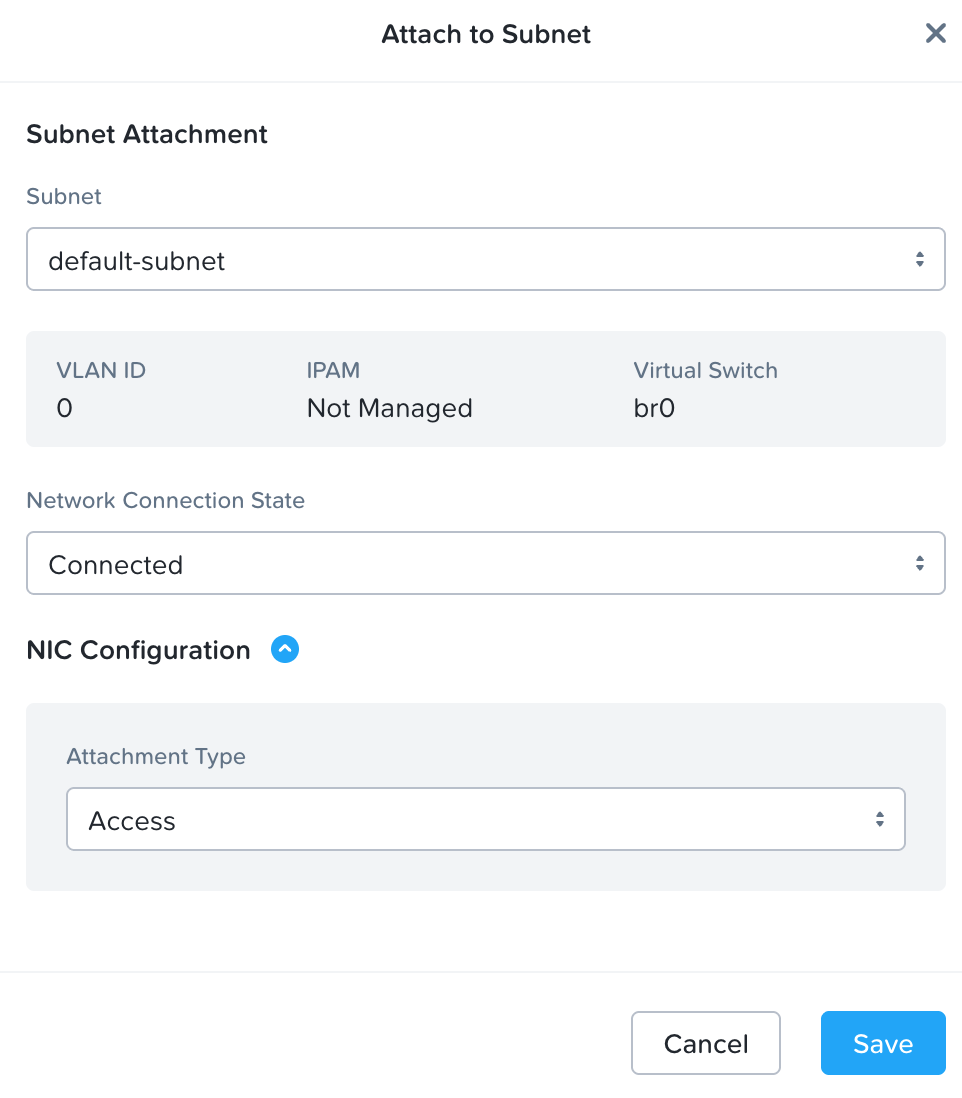
Attach to Subnet on Resources - Page 2
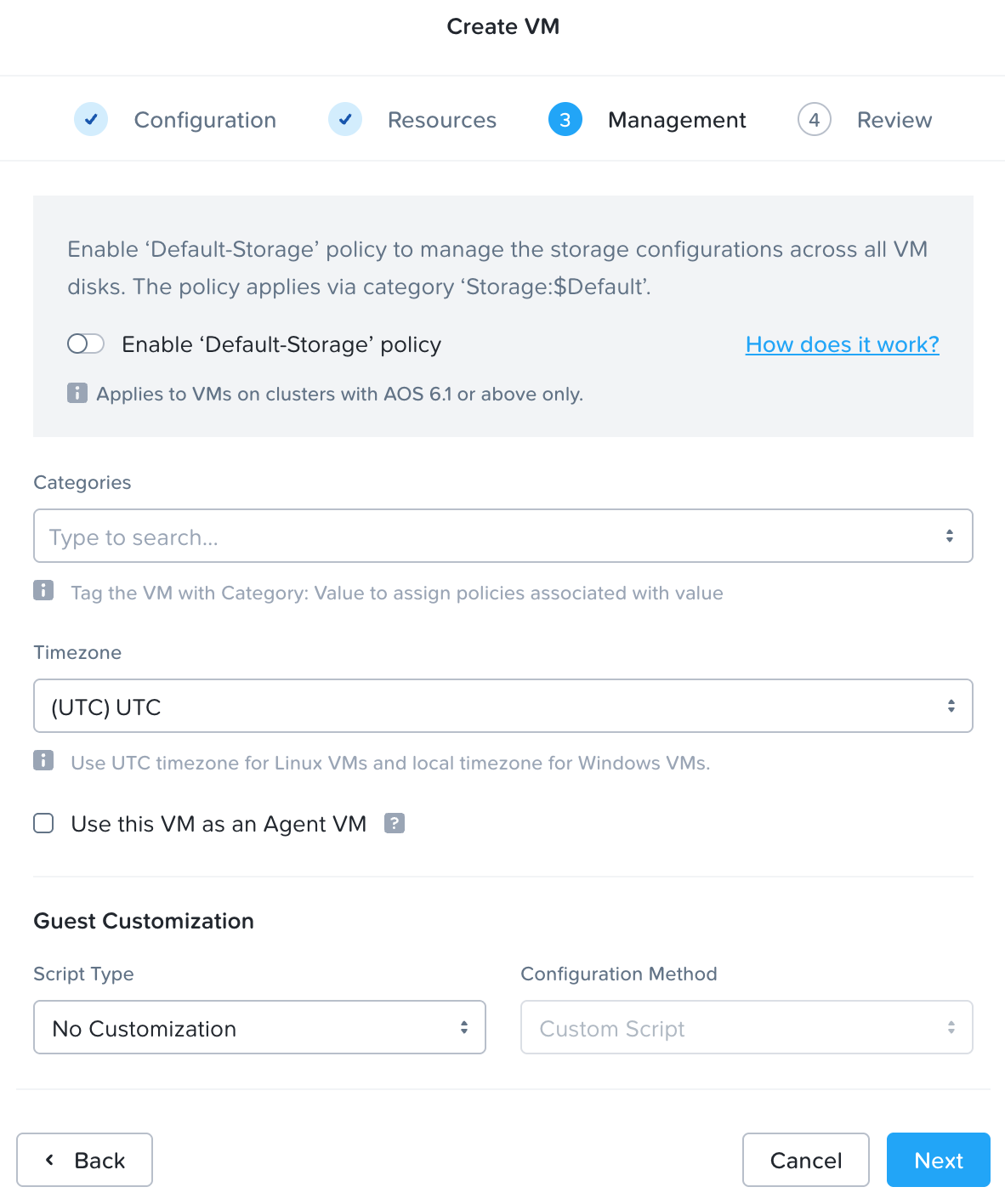
Management - Page 3
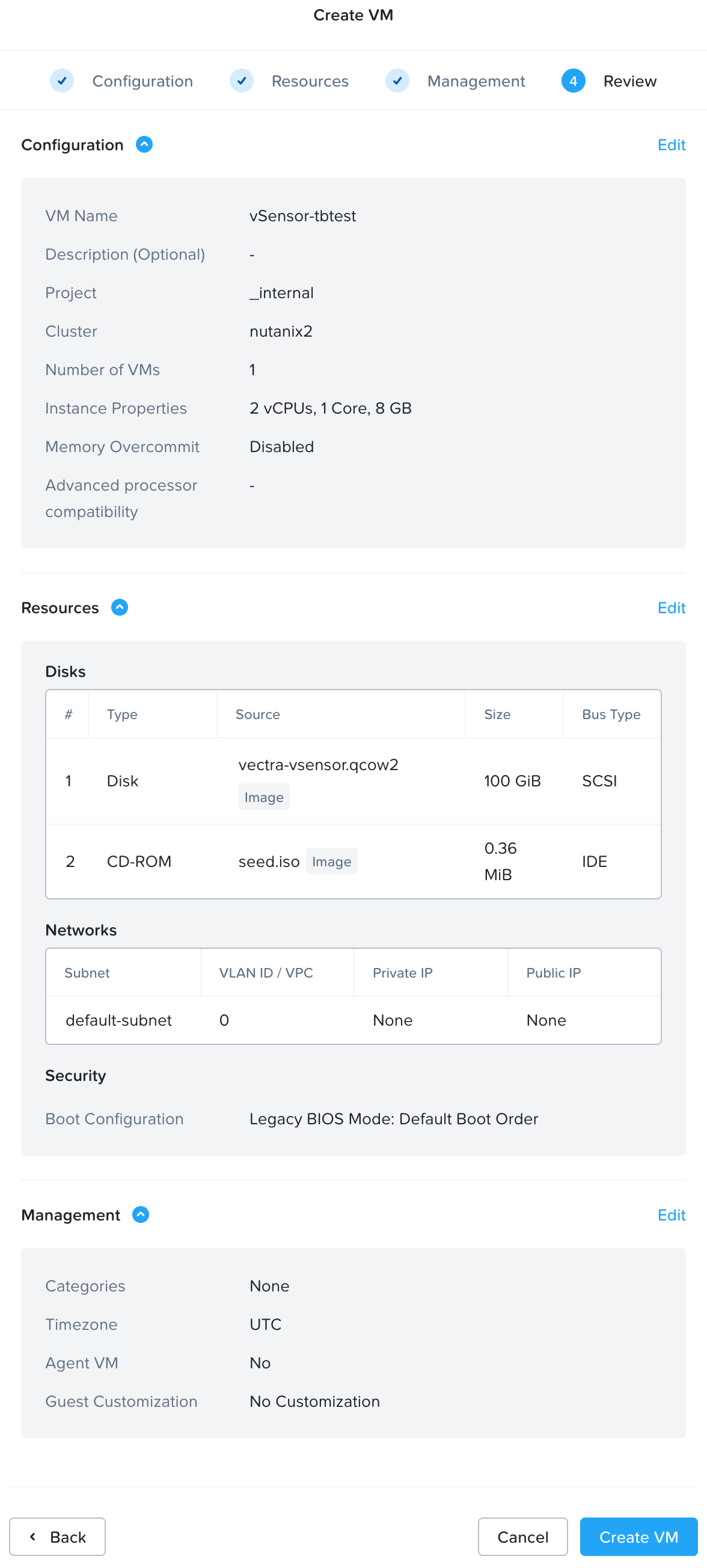
Review - Page 4
disk_list {
      addr {
        bus: "scsi"
        index: 0
      }
      container_id: 4
      container_uuid: "4adfaee8-5d13-43d0-9e2c-0acb78c20bf3"
      device_uuid: "85c6d790-7aec-4976-b8f7-a399b69f7597"
      naa_id: "naa.6506b8d2082195bbdbc2a81ffab4b6f0"
      vmdisk_size: 26843545600
      vmdisk_uuid: "5d5d00bb-3fa7-4a06-acb8-ba95f4efdab3"
    }
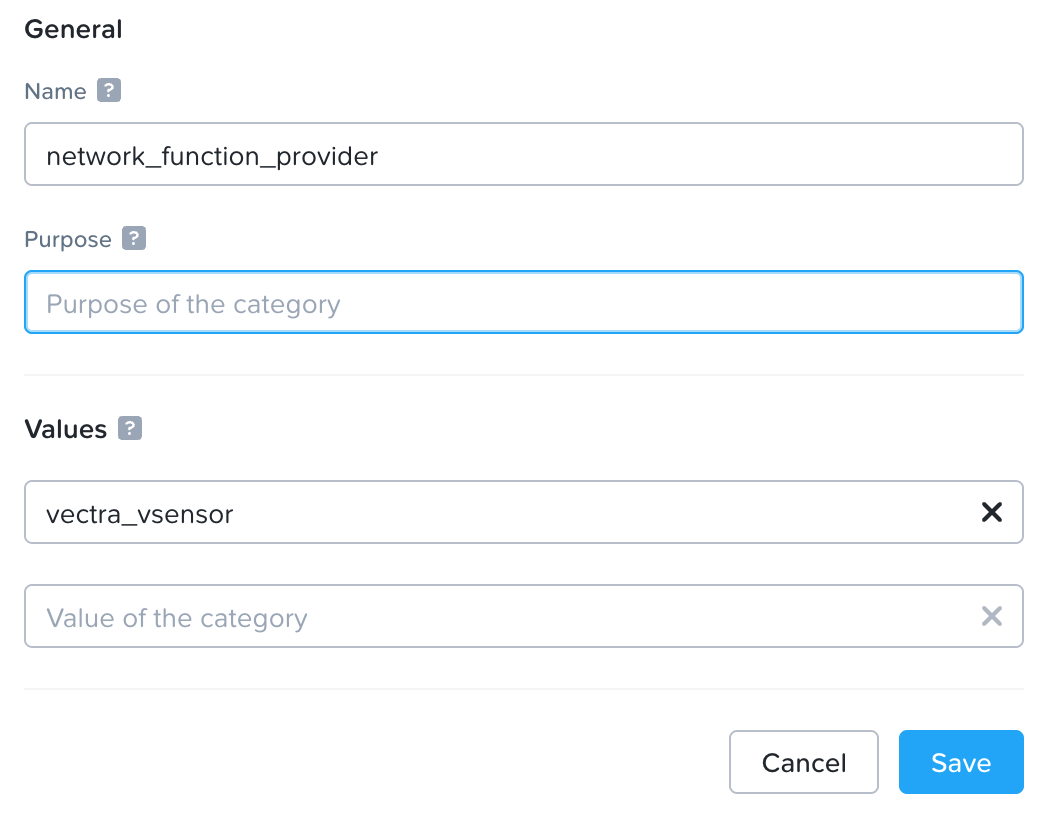 * When you type in a value, a new box appears. You do not need to do anything with this. Just **Save** when you are done.
* After saving, search for your newly created category in the category list and validate it was created properly.

## 4. Retrieve Cluster Name, UUID, and CVM IP
In this step you will retrieve the Cluster Name, UUID, and CVM IP where the Network Function Chain will be created.
[vSensor Deployment Step 4 Alternate API Instructions](/deployment/ndr-virtual-cloud-appliances/nutanix-vsensor/appendix-service-chaining-1.0-alternate-api-instructions.md#vsensor-deployment-step-4-alternate-api-instructions) can be used if you wish to do this via API. It is recommended to do this step via the UI instructions below as they are typically easier for customers.
At this point it is useful to make sure that you are keeping track of data that you will need to recall in later parts of the overall deployment process. Please make sure that you are keeping track of the following:
* From the cluster details page in Prism Element. Click on your cluster name in Prism Element

* **Network Function Provider**
* The value you created in step 3. Vectra recommends `vectra_vsensor` .
* **CVM Virtual IP**
* Any CVM (there is one per node) in the cluster can be used, the virtual IP is usually easiest.
* Some configuration steps must be done using the ACLI later.
* **Cluster Name** – Will be required when creating the network function chain in the next step.
* **Cluster UUID** - Will be required when creating the network function chain in the next step.
* In Step 5.2 you will also collect:
* **Network Function Chain UUID** – UUID for later use when assigning subnets to the NFC.
* You want the UUID from the metadata portion of the response.
## 5. Create Network Function Chain in AHV Cluster
This step requires Prism Central API calls. You will create a network function chain (NFC) in the AHV cluster using the network\_function\_provider value, cluster name, and UUID gathered in the previous steps. You will also provide a “name” value for the NFC. In our example below our network function chain will have a value of “vectra\_tap”.
* Please note that if you are deploying in multiple AHV clusters, you will need to repeat network function chain setup for each cluster you are deploying Vectra vSensors in.
### 5.1 - Create the Network Function Chain
In this step you will create the Network Function Chain with a name of your choice using the gathered values.
```
POST - https://{{pc_ip}}:9440/api/nutanix/v3/network_function_chains
```
Body:
* Modify the body below with NFC name, category value, name and UUID of the cluster you are deploying in. Lines with entries are highlighted
* Vectra suggests using `vectra_tap` for the Network Function Chain Name.
* You will also need the `network_function_provider` category value we created earlier. Vectra suggests using `vectra_vsensor` .
* Finally you will also need the name and UUID of the cluster you are deploying this NFC in.
* When you type in a value, a new box appears. You do not need to do anything with this. Just **Save** when you are done.
* After saving, search for your newly created category in the category list and validate it was created properly.

## 4. Retrieve Cluster Name, UUID, and CVM IP
In this step you will retrieve the Cluster Name, UUID, and CVM IP where the Network Function Chain will be created.
[vSensor Deployment Step 4 Alternate API Instructions](/deployment/ndr-virtual-cloud-appliances/nutanix-vsensor/appendix-service-chaining-1.0-alternate-api-instructions.md#vsensor-deployment-step-4-alternate-api-instructions) can be used if you wish to do this via API. It is recommended to do this step via the UI instructions below as they are typically easier for customers.
At this point it is useful to make sure that you are keeping track of data that you will need to recall in later parts of the overall deployment process. Please make sure that you are keeping track of the following:
* From the cluster details page in Prism Element. Click on your cluster name in Prism Element

* **Network Function Provider**
* The value you created in step 3. Vectra recommends `vectra_vsensor` .
* **CVM Virtual IP**
* Any CVM (there is one per node) in the cluster can be used, the virtual IP is usually easiest.
* Some configuration steps must be done using the ACLI later.
* **Cluster Name** – Will be required when creating the network function chain in the next step.
* **Cluster UUID** - Will be required when creating the network function chain in the next step.
* In Step 5.2 you will also collect:
* **Network Function Chain UUID** – UUID for later use when assigning subnets to the NFC.
* You want the UUID from the metadata portion of the response.
## 5. Create Network Function Chain in AHV Cluster
This step requires Prism Central API calls. You will create a network function chain (NFC) in the AHV cluster using the network\_function\_provider value, cluster name, and UUID gathered in the previous steps. You will also provide a “name” value for the NFC. In our example below our network function chain will have a value of “vectra\_tap”.
* Please note that if you are deploying in multiple AHV clusters, you will need to repeat network function chain setup for each cluster you are deploying Vectra vSensors in.
### 5.1 - Create the Network Function Chain
In this step you will create the Network Function Chain with a name of your choice using the gathered values.
```
POST - https://{{pc_ip}}:9440/api/nutanix/v3/network_function_chains
```
Body:
* Modify the body below with NFC name, category value, name and UUID of the cluster you are deploying in. Lines with entries are highlighted
* Vectra suggests using `vectra_tap` for the Network Function Chain Name.
* You will also need the `network_function_provider` category value we created earlier. Vectra suggests using `vectra_vsensor` .
* Finally you will also need the name and UUID of the cluster you are deploying this NFC in.
{
    "spec": {
        "name": "vectra_tap",
        "resources": {
            "network_function_list": [
                {
                    "network_function_type": "TAP",
                    "category_filter": {
                        "type": "CATEGORIES_MATCH_ANY",
                        "params": {"network_function_provider": ["vectra_vsensor"]}
                    }
                }
            ]
        },
        "cluster_reference": {
            "kind": "cluster",
            "name": "nutanix2 ",
            "uuid": "0005dd45-7584-73d2-07af-52540083d046"
        }
    },
    "api_version": "3.1.0",
    "metadata": {
        "kind": "network_function_chain"
    }
}
{
    "status": {
        "state": "PENDING",
        "execution_context": {
            "task_uuid": "3acead7a-bfec-4adb-b75c-733f191631ef"
        }
    },
    "spec": {
        "name": "vectra_tap",
        "resources": {
            "network_function_list": [
                {
                    "network_function_type": "TAP",
                    "category_filter": {
                        "params": {
                            "network_function_provider": [
                                "vectra_vsensor"
                            ]
                        },
                        "type": "CATEGORIES_MATCH_ANY"
                    }
                }
            ]
        },
        "cluster_reference": {
            "kind": "cluster",
            "name": "nutanix2",
            "uuid": "000639fc-7386-2da4-7938-bc2411a17fee"
        }
    },
    "api_version": "3.1",
    "metadata": {
        "owner_reference": {
            "kind": "user",
            "uuid": "00000000-0000-0000-0000-000000000000",
            "name": "admin"
        },
        "use_categories_mapping": false,
        "kind": "network_function_chain",
        "spec_version": 0,
        "uuid": "24936fa3-54e5-4ae2-a80c-411fae635236"
    }
}
{
    "api_version": "3.1",
    "metadata": {
        "kind": "network_function_chain",
        "offset": 0,
        "length": 1,
        "total_matches": 1
    },
    "entities": [
        {
            "status": {
                "name": "vectra_tap",
                "resources": {
                    "network_function_list": [
                        {
                            "network_function_type": "TAP",
                            "category_filter": {
                                "type": "CATEGORIES_MATCH_ALL",
                                "params": {
                                    "network_function_provider": [
                                        "vectra_vsensor"
                                    ]
                                }
                            }
                        }
                    ]
                },
                "state": "COMPLETE",
                "execution_context": {
                    "task_uuid": [
                        "654f65d7-4e19-4222-8770-73b88129ba26"
                    ]
                }
            },
            "metadata": {
                "uuid": "9385b9d5-d2cf-4039-b3b1-45f5ef744e1a",
                "spec_hash": "00000000000000000000000000000000000000000000000000",
                "spec_version": 0,
                "owner_reference": {
                    "kind": "user",
                    "uuid": "71f50668-79f9-50d4-8dec-eaaf5a411f36",
                    "name": "admin"
                },
                "categories": {},
                "categories_mapping": {},
                "creation_time": "2025-09-15T20:25:10Z",
                "last_update_time": "2025-09-15T20:25:11Z",
                "kind": "network_function_chain"
            },
            "spec": {
                "cluster_reference": {
                    "kind": "cluster",
                    "name": "nutanix2",
                    "uuid": "000639fc-7386-2da4-7938-bc2411a17fee"
                },
                "name": "vectra_tap",
                "resources": {
                    "network_function_list": [
                        {
                            "category_filter": {
                                "params": {
                                    "network_function_provider": [
                                        "vectra_vsensor"
                                    ]
                                },
                                "type": "CATEGORIES_MATCH_ANY"
                            },
                            "network_function_type": "TAP"
                        }
                    ]
                }
            }
        }
    ]
}
{
    "api_version": "3.1",
    "metadata": {
        "last_update_time": "2025-09-24T15:04:50Z",
        "kind": "subnet",
        "uuid": "f5d8c6bb-8ad9-42c5-b977-8bafbba10b81",
        "spec_version": 8,
        "creation_time": "2025-09-10T20:39:29Z",
        "categories_mapping": {},
        "categories": {},
        "owner_reference": {
            "kind": "user",
            "uuid": "71f50668-79f9-50d4-8dec-eaaf5a411f36",
            "name": "admin"
        },
        "spec_hash": "00000000000000000000000000000000000000000000000000"
    },
    "spec": {
        "resources": {
            "subnet_type": "VLAN",
            "vswitch_name": "br0",
            "network_function_chain_reference": {
                "kind": "network_function_chain",
                "uuid": "472f2d96-472d-4e6e-94d1-1ea66f2be89d"
            },
            "vlan_id": 0,
            "virtual_switch_uuid": "7925c9f7-c20f-44a8-b4e3-e4067048a755"
        },
        "cluster_reference": {
            "kind": "cluster",
            "name": "nutanix2",
            "uuid": "000639fc-7386-2da4-7938-bc2411a17fee"
        },
        "name": "default-subnet"
    },
    "status": {
        "name": "default-subnet",
        "cluster_reference": {
            "kind": "cluster",
            "name": "nutanix2",
            "uuid": "000639fc-7386-2da4-7938-bc2411a17fee"
        },
        "resources": {
            "virtual_switch_uuid": "7925c9f7-c20f-44a8-b4e3-e4067048a755",
            "vswitch_name": "br0",
            "network_function_chain_reference": {
                "kind": "network_function_chain",
                "uuid": "472f2d96-472d-4e6e-94d1-1ea66f2be89d"
            },
            "vlan_id": 0,
            "subnet_type": "VLAN",
            "ip_usage_stats": {
                "num_macs": 8
            }
        },
        "state": "COMPLETE",
        "execution_context": {
            "task_uuid": [
                "757c3ee0-decc-4638-9491-ab4ac8c292a7"
            ]
        }
    }
}