> For the complete documentation index, see [llms.txt](https://docs.vectra.ai/llms.txt). Markdown versions of documentation pages are available by appending `.md` to page URLs; this page is available as [Markdown](https://docs.vectra.ai/deployment/ndr-virtual-cloud-appliances/nutanix-vsensor/preparing-for-deployment.md).
# Preparing for deployment
Information to gather before deployment, choosing a deployment method, and pre-deployment steps shared by all deployment methods.
## Preparing to Deploy Nutanix vSensors
**Basic information to collect:**
* IP address and subnet mask for the Management interface of the vSensor.
* DHCP is also supported.
* IP address or hostname of the Vectra Brain that you will be pairing with.
* The IP address or hostname of the Brain will be baked into the vSensor image downloaded from your Vectra UI and will point to the Brain associated with your Vectra UI.
* When the Sensor powers on, it will reach out to Brain using this selection to announce itself as **Available** for pairing.
* Whether this points to the IP of the Brain or the hostname depends on what you have set in your Brain under *Configuration → COVERAGE → Data Sources → Network → Sensors → Sensor Configuration → Sensor Registration and Pairing* for **Pair using the Detect Brain**.
{% hint style="info" %}
**Please Note:**
You **must** have a DNS Name (host name) is configured in *Configuration → COVERAGE → Data Sources → Network → Brain Setup → Brain* to see the DNS Name option in **Sensor Pairing and Registration**.
It is recommended to use hostname for pairing when possible. Please see [pairing Nutanix vSensors](/deployment/ndr-virtual-cloud-appliances/nutanix-vsensor/pairing-nutanix-vsensors.md) for more details.
{% endhint %}
* DNS server addresses.
* To configure your vSensor, you will need access to the vSensor Command Line Interface (CLI) either via the console in your hypervisor or via SSH.
* DHCP is enabled by default upon vSensor initial boot.
* You must know the IP that was assigned via DHCP to SSH to the CLI, otherwise you will need to use the hypervisor console to access the CLI and perform initial configuration.
* For production monitoring, ensure that the vSensor VM is kept running 24x7, and ensure that the hypervisor does not overcommit resources or otherwise misrepresent the resources it is providing to the vSensor.
**Nutanix specific guidance:**
* You must have access to both Prism Central and Prism Element for Service Chaining 1.0
* You must have permissions to make Prism Central REST API calls for Service Chaining 1.0.
* Traffic Mirroring only requires the Prism Central UI for deployment.
* Setting the vSensor as an Agent VM will require Prism Element or ACLI commands.
* You must have access to a Controller VM (CVM) ACLI command line to perform ACLI commands.
## Choosing a Deployment Method
* Both deployment methods will share the pre-deployment steps below.
* You can use both deployment methods if you desire when deploying multiple Nutanix vSensors.
* For example:
* You might use one vSensor deployed using Traffic Mirroring to capture physical network traffic that arrives on a host port or host bonded port on a particular node.
* You might use another vSensor using Service Chaining 1.0 to capture VM to VM traffic and all other subnet traffic.
* More than one vSensor can be deployed on a single node in your Nutanix cluster if required.
**Links for either deployment method:**
* [Service Chaining 1.0 deployment](/deployment/ndr-virtual-cloud-appliances/nutanix-vsensor/service-chaining-1.0-deployment.md)
* [Traffic Mirroring deployment](/deployment/ndr-virtual-cloud-appliances/nutanix-vsensor/traffic-mirroring-deployment.md)
* For either deployment method, ensure you follow the recommend [post deployment configuration](/deployment/ndr-virtual-cloud-appliances/nutanix-vsensor/post-deployment-configuration-shared-for-all-deployment-types.md) steps.
## Pre-Deployment Steps for the Nutanix vSensor
### Downloading the Nutanix vSensor Image
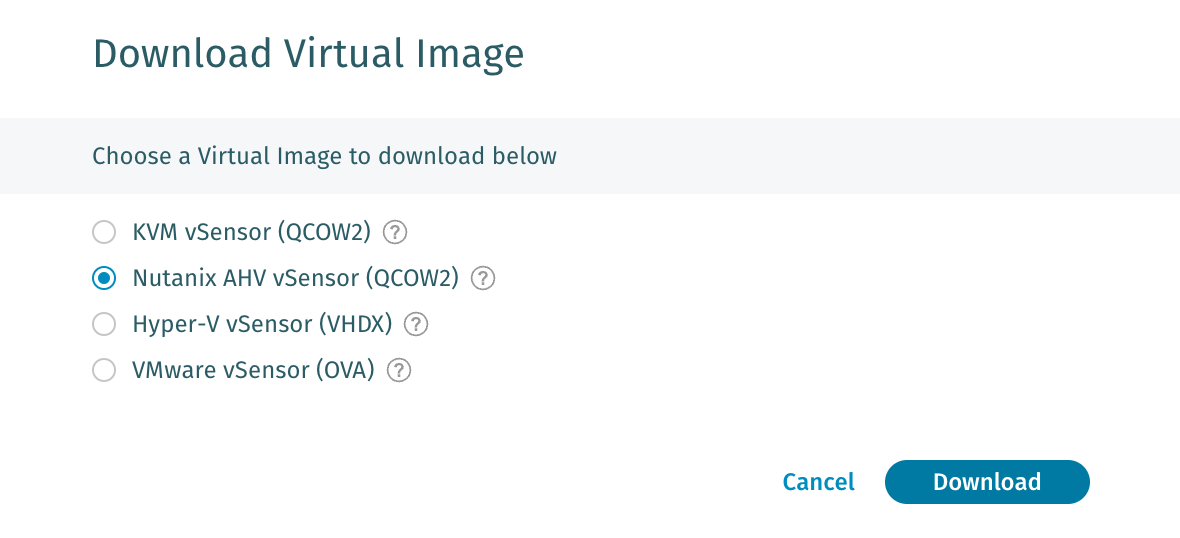
The Nutanix vSensor image is available under *Configuration → COVERAGE → Data Sources → Network → Sensors* in your Vectra UI. Navigate to this area and then click **Download Virtual Image** at the top right and select the Nutanix vSensor (QCOW2) option.
### Extract vSensor Image Files
The downloaded vSensor image will have a filename similar to this (updates to the image after this documentation was written will change this):
* `vectra-vsensor-117678-gee9a02c9f7-1_9.0.0-18-57-192_168_52_73-default.tar.gz`
Using the unarchiving tool of your choice, decompress the `.gz` file. Then untar the file to a directory of your choice. That directory will contain 3 files such as:

The `vectra-vsensor.sh` file can be ignored for Nutanix vSensor deployment. The base image is shared for both Nutanix and KVM deployment. KVM deployment uses that file, but Nutanix only needs the `.iso` and `.qcow2` files.
### Upload vSensor Image Files to Nutanix
**If using Prism Element for the initial VM deployment (Service Chaining 1.0 Only):**
Use the image service available in Prism Element at *Settings → Image Configuration → + Upload Image* to upload the `seed.iso` and `vectra-vsensor.qcow2` images. You can name these how you prefer in Nutanix.
 
* Please note that the `seed.iso` should be set to an **Image Type** of **ISO** and the `.qcow2` should have an **Image type** of **Disk**.
* Once the images have become **Active**, you can proceed to create the VM.
{% hint style="info" %}
**Please Note:**
The .qcow2 image will take considerably longer to become active than the seed.iso.
{% endhint %}
**If using Prism Central for the initial VM deployment (for Service Chaining 1.0 and Traffic Mirroring):**
Navigate to *Infrastructure → Compute → Images → Add Image*, and upload the `seed.iso` and vectra-`vsensor.qcow2` images.
The **Image Source** should always be **Image File** and when you select the `seed.iso` or `.qcow` disk file they will automatically be recognized as **ISO** or **DISK** Image types.
Unlike when using Prism Element to upload the images, you do **NOT** need to wait for the images to become **Active**, but you do need to wait for them to finish uploading. When you see the file sizes appear in the image library, you know they are ready to deploy:

Examples of the upload dialogs for Prism Central:
 
---
# Agent Instructions
This documentation is published with GitBook. GitBook is the documentation platform designed so that both humans and AI agents can read, navigate, and reason over technical content effectively. Learn more at gitbook.com.
## Querying This Documentation
If you need additional information that is not directly available in this page, you can query the documentation dynamically by asking a question.
Perform an HTTP GET request on the current page URL with the `ask` query parameter, and the optional `goal` query parameter:
```
GET https://docs.vectra.ai/deployment/ndr-virtual-cloud-appliances/nutanix-vsensor/preparing-for-deployment.md?ask=&goal=
```
`ask` is the immediate question: it should be specific, self-contained, and written in natural language.
`goal` is optional and describes the broader end goal you are ultimately trying to accomplish on behalf of the user. GitBook uses it to tailor the answer towards what is most useful for that goal.
The response will contain a direct answer to the question and relevant excerpts and sources from the documentation.
Use this mechanism when the answer is not explicitly present in the current page, you need clarification or additional context, or you want to retrieve related documentation sections.

 ### Extract vSensor Image Files
The downloaded vSensor image will have a filename similar to this (updates to the image after this documentation was written will change this):
* `vectra-vsensor-117678-gee9a02c9f7-1_9.0.0-18-57-192_168_52_73-default.tar.gz`
Using the unarchiving tool of your choice, decompress the `.gz` file. Then untar the file to a directory of your choice. That directory will contain 3 files such as:

The `vectra-vsensor.sh` file can be ignored for Nutanix vSensor deployment. The base image is shared for both Nutanix and KVM deployment. KVM deployment uses that file, but Nutanix only needs the `.iso` and `.qcow2` files.
### Upload vSensor Image Files to Nutanix
**If using Prism Element for the initial VM deployment (Service Chaining 1.0 Only):**
Use the image service available in Prism Element at *Settings → Image Configuration → + Upload Image* to upload the `seed.iso` and `vectra-vsensor.qcow2` images. You can name these how you prefer in Nutanix.
 
* Please note that the `seed.iso` should be set to an **Image Type** of **ISO** and the `.qcow2` should have an **Image type** of **Disk**.
* Once the images have become **Active**, you can proceed to create the VM.
{% hint style="info" %}
**Please Note:**
The .qcow2 image will take considerably longer to become active than the seed.iso.
{% endhint %}
**If using Prism Central for the initial VM deployment (for Service Chaining 1.0 and Traffic Mirroring):**
Navigate to *Infrastructure → Compute → Images → Add Image*, and upload the `seed.iso` and vectra-`vsensor.qcow2` images.
The **Image Source** should always be **Image File** and when you select the `seed.iso` or `.qcow` disk file they will automatically be recognized as **ISO** or **DISK** Image types.
Unlike when using Prism Element to upload the images, you do **NOT** need to wait for the images to become **Active**, but you do need to wait for them to finish uploading. When you see the file sizes appear in the image library, you know they are ready to deploy:

Examples of the upload dialogs for Prism Central:
 
---
# Agent Instructions
This documentation is published with GitBook. GitBook is the documentation platform designed so that both humans and AI agents can read, navigate, and reason over technical content effectively. Learn more at gitbook.com.
## Querying This Documentation
If you need additional information that is not directly available in this page, you can query the documentation dynamically by asking a question.
Perform an HTTP GET request on the current page URL with the `ask` query parameter, and the optional `goal` query parameter:
```
GET https://docs.vectra.ai/deployment/ndr-virtual-cloud-appliances/nutanix-vsensor/preparing-for-deployment.md?ask=
### Extract vSensor Image Files
The downloaded vSensor image will have a filename similar to this (updates to the image after this documentation was written will change this):
* `vectra-vsensor-117678-gee9a02c9f7-1_9.0.0-18-57-192_168_52_73-default.tar.gz`
Using the unarchiving tool of your choice, decompress the `.gz` file. Then untar the file to a directory of your choice. That directory will contain 3 files such as:

The `vectra-vsensor.sh` file can be ignored for Nutanix vSensor deployment. The base image is shared for both Nutanix and KVM deployment. KVM deployment uses that file, but Nutanix only needs the `.iso` and `.qcow2` files.
### Upload vSensor Image Files to Nutanix
**If using Prism Element for the initial VM deployment (Service Chaining 1.0 Only):**
Use the image service available in Prism Element at *Settings → Image Configuration → + Upload Image* to upload the `seed.iso` and `vectra-vsensor.qcow2` images. You can name these how you prefer in Nutanix.
 
* Please note that the `seed.iso` should be set to an **Image Type** of **ISO** and the `.qcow2` should have an **Image type** of **Disk**.
* Once the images have become **Active**, you can proceed to create the VM.
{% hint style="info" %}
**Please Note:**
The .qcow2 image will take considerably longer to become active than the seed.iso.
{% endhint %}
**If using Prism Central for the initial VM deployment (for Service Chaining 1.0 and Traffic Mirroring):**
Navigate to *Infrastructure → Compute → Images → Add Image*, and upload the `seed.iso` and vectra-`vsensor.qcow2` images.
The **Image Source** should always be **Image File** and when you select the `seed.iso` or `.qcow` disk file they will automatically be recognized as **ISO** or **DISK** Image types.
Unlike when using Prism Element to upload the images, you do **NOT** need to wait for the images to become **Active**, but you do need to wait for them to finish uploading. When you see the file sizes appear in the image library, you know they are ready to deploy:

Examples of the upload dialogs for Prism Central:
 
---
# Agent Instructions
This documentation is published with GitBook. GitBook is the documentation platform designed so that both humans and AI agents can read, navigate, and reason over technical content effectively. Learn more at gitbook.com.
## Querying This Documentation
If you need additional information that is not directly available in this page, you can query the documentation dynamically by asking a question.
Perform an HTTP GET request on the current page URL with the `ask` query parameter, and the optional `goal` query parameter:
```
GET https://docs.vectra.ai/deployment/ndr-virtual-cloud-appliances/nutanix-vsensor/preparing-for-deployment.md?ask=