> For the complete documentation index, see [llms.txt](https://docs.vectra.ai/llms.txt). Markdown versions of documentation pages are available by appending `.md` to page URLs; this page is available as [Markdown](https://docs.vectra.ai/deployment/ndr-virtual-cloud-appliances/kvm-vsensor/kvm-specific-details-and-deployment-1.md).
# vSensor deployment in Proxmox
Review KVM requirements, networking guidance, VM operations, and vSensor deployment before pairing and updating.
## Downloading the latest KVM vSensor OVA
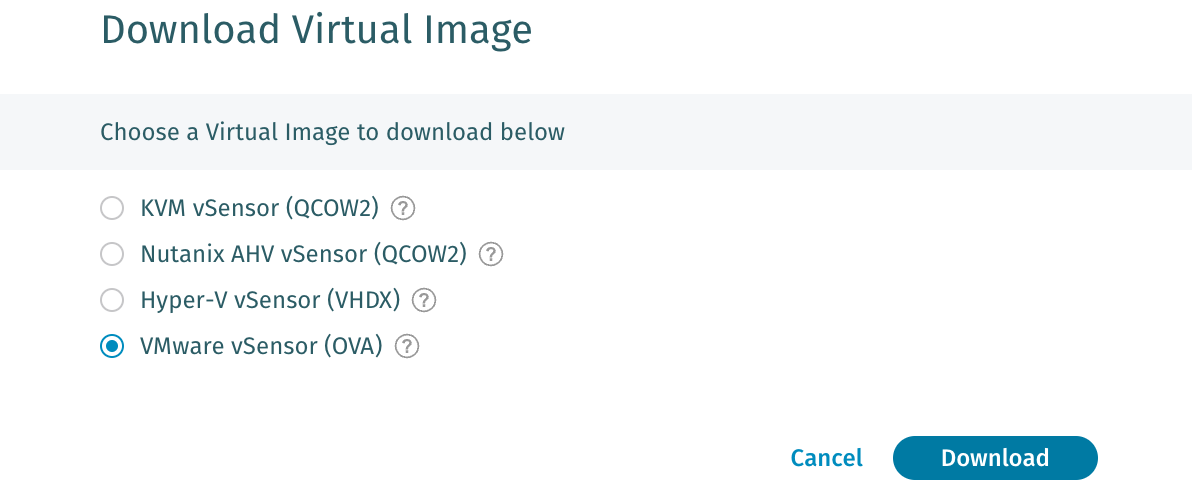
The KVM vSensor image for use with Proxmox is available under *Configuration → COVERAGE → Data Sources → Network → Sensors* in your Vectra UI. Navigate to this area, click **Download Virtual Image** at the top right, and select the VMware vSensor (OVA) option.
{% hint style="info" %}
**Please Note:**
The same **VMware vSensor (OVA)** image is compatible with both VMWare and Proxmox.
{% endhint %}
## Prepare Proxmox storage
1. Sign in to the Proxmox web interface.
2. In the left navigation pane, select **Datacenter**.
3. Select **Storage**, choose the storage location that will hold the OVA, and click **Edit**.
4. In **Content**, enable **Import**, **Disk image**, and **ISO image**, then save the change.
5. Ensure there is sufficient temporary space on the import working storage. Proxmox extracts disks from the OVA during import.
## Import and create the vSensor VM
1. In the left navigation pane, select the storage location prepared above.
2. Select **Import**.
3. Use **Upload** to select your locally available OVA
4. Wait for the import task to finish and report **TASK OK**.
5. Double-click the imported OVA to open **Import Guest**.
6. Set a VM name.
7. Set **CPU Type** to **host**.
8. Set the total core count and memory to one of the supported vSensor configurations in the sizing table.
9. Select thin-provisioned (`lvmthin`) storage for **Default Storage**.
10. Select the management bridge for **Default Bridge**.
11. Click **Import** and wait for the VM creation task to report **TASK OK**.
## Configure the imported VM
Before starting the VM, select the newly created VM and make these changes:
1. Open **Hardware**, double-click **SCSI Controller**, select **VirtIO SCSI single**, and click **OK**.
2. If you are deploying a 16-core vSensor, open **Hardware**, single click **Hard Disk (scsi0)** and select **Disk Action → Resize** from the menu bar. Enter the difference between the correct size of the disk specified in [KVM vSensor Requirements and Throughput](/deployment/ndr-virtual-cloud-appliances/kvm-vsensor/introduction-and-general-requirements.md#kvm-vsensor-requirements-and-throughput) and the current size of the disk. (For example, if the correct size is 500GB and the current size is 150GB, enter 350).
3. Open **Hardware.** Double-click to edit the management **Network Device:**
* Select **VirtIO (paravirtualized)** as the model.
* Set **Multiqueue** to the number of CPU cores of the vSensor. (If this is not visible, click on the "Advanced" checkbox.)
* Click **OK**.
4. Edit the second network device for packet capture:
* Attach it to the capture bridge.
* Set the model to **VirtIO (paravirtualized)**.
* Set **Multiqueue** to the number of CPU cores of the vSensor. (If this is not visible, click on the **Advanced** checkbox.)
* Click **OK**.
5. Open **Options**, double-click **QEMU Guest Agent**, enable **Use QEMU Guest Agent**, select **Advanced**, then **VirtIO** as the type, and click **OK**.
## Start the VM
* In the sidebar, select the newly created VM.
* At the top of the screen, click **Start.**
## Proxmox networking guidance
* Use distinct bridges for management and capture.
* The capture bridge must receive the traffic that the vSensor is intended to inspect, whether by a virtual-switch mirror, physical-switch mirror, or another supported traffic-delivery design.
* Do not attach unrelated VMs to an isolated capture bridge unless they are intended to receive the same mirrored traffic.
* If jumbo frames are required, configure an MTU of 9000 consistently on the relevant physical interface, Proxmox bridge, and vSensor capture network device. Verify the end-to-end capture path supports that MTU before starting production monitoring.
## Modifying Proxmox vSensors after deployment
If you forget to do any of the steps in [#configure-the-imported-vm](#configure-the-imported-vm "mention"), simply shut down the VM, follow the instructions in [#configure-the-imported-vm](#configure-the-imported-vm "mention") again, and power on the VM.
{% hint style="warning" %}
You must shut down the VM and start it again separately to apply your changes. Do not choose "reboot."
{% endhint %}
---
# Agent Instructions
This documentation is published with GitBook. GitBook is the documentation platform designed so that both humans and AI agents can read, navigate, and reason over technical content effectively. Learn more at gitbook.com.
## Querying This Documentation
If you need additional information that is not directly available in this page, you can query the documentation by asking a question.
Perform an HTTP GET request on the following URL with the `ask` and `goal` query parameters:
```
GET https://docs.vectra.ai/deployment/ndr-virtual-cloud-appliances/kvm-vsensor/kvm-specific-details-and-deployment-1.md?ask=&goal=
```
`ask` is the immediate question: it should be specific, self-contained, and written in natural language.
`goal` is what the user is ultimately trying to achieve, the reason they need the answer. Sharing it helps GitBook give you a better, more relevant answer. A goal is most helpful when it describes the outcome the user wants rather than restating the question. For example, with `ask=how do I create an API token`, a goal like `automate deployments from our CI pipeline` lets GitBook tailor the answer to that use case.
The response will contain a direct answer to the question and relevant excerpts and sources from the documentation.
Use this mechanism when the answer is not explicitly present in the current page, you need clarification or additional context, or you want to retrieve related documentation sections.

 {% hint style="info" %}
**Please Note:**
The same **VMware vSensor (OVA)** image is compatible with both VMWare and Proxmox.
{% endhint %}
## Prepare Proxmox storage
1. Sign in to the Proxmox web interface.
2. In the left navigation pane, select **Datacenter**.
3. Select **Storage**, choose the storage location that will hold the OVA, and click **Edit**.
{% hint style="info" %}
**Please Note:**
The same **VMware vSensor (OVA)** image is compatible with both VMWare and Proxmox.
{% endhint %}
## Prepare Proxmox storage
1. Sign in to the Proxmox web interface.
2. In the left navigation pane, select **Datacenter**.
3. Select **Storage**, choose the storage location that will hold the OVA, and click **Edit**.


