> For the complete documentation index, see [llms.txt](https://docs.vectra.ai/llms.txt). Markdown versions of documentation pages are available by appending `.md` to page URLs; this page is available as [Markdown](https://docs.vectra.ai/deployment/ndr-virtual-cloud-appliances/kvm-vsensor/brain-deployment-in-generic-kvm.md).

# vSensor deployment in other KVM Virtual Machine Managers

Generic instructions for how to deploy Vectra virtual Sensors to virtual machine managers other than the recommended ones.

{% hint style="warning" %}
This information is provided for reference and will not match your software exactly. You will have to be familiar with setting up virtual virtual machines using your software so that you can find the settings that correspond to the generic information documented here.
{% endhint %}

## Downloading the latest KVM vSensor OVA or QCOW2 image

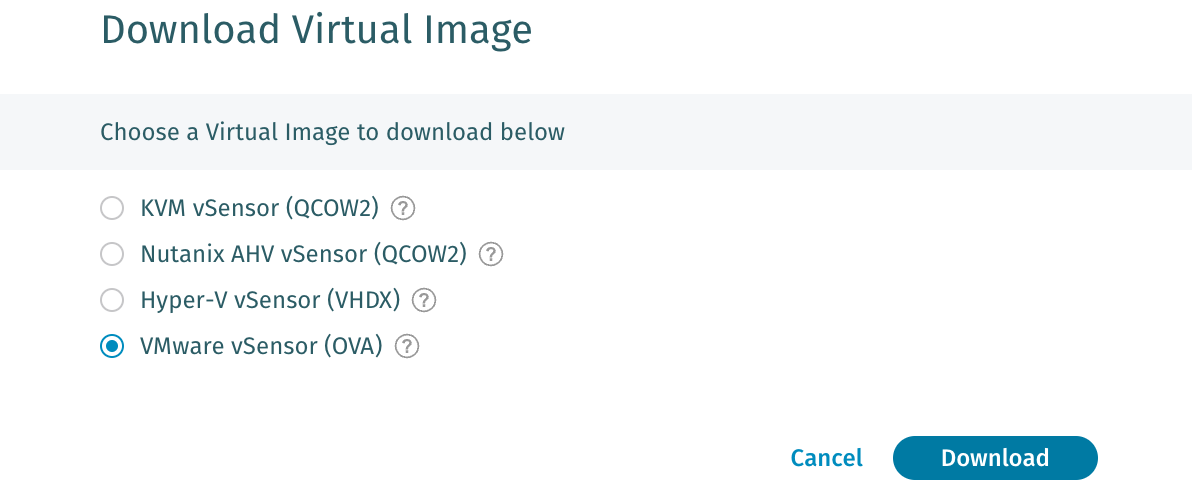
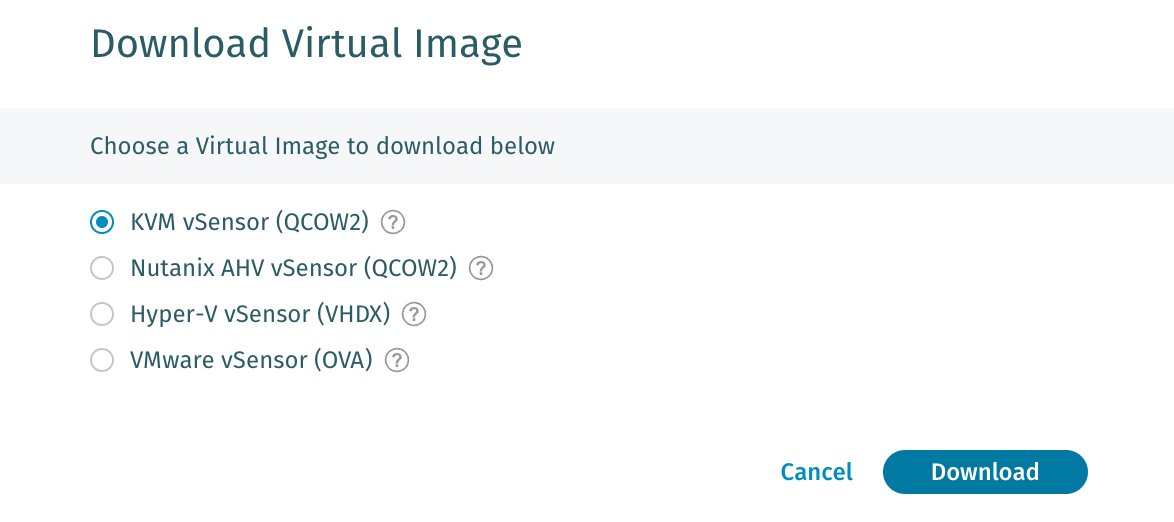
The KVM vSensor image is available under *Configuration → COVERAGE → Data Sources → Network → Sensors* in your Vectra UI. Navigate to this area, click **Download Virtual Image** at the top right, and select the KVM vSensor (QCOW2) or VMware vSensor (OVA) option, depending on which your hypervisor requires.

<img src="https://content.gitbook.com/content/HJ1ltuWFvsArFWtevnRn/blobs/J8r9yrqCN2G2HVvgLFh6/KVM_vSensor_Deployment_Guide-2025_Aug_27-5.png" alt="" width="563">

<figure><img src="https://content.gitbook.com/content/HJ1ltuWFvsArFWtevnRn/blobs/wQSTQXQYWaWHXSqS6TA9/VMware_vSensor_Deployment_Guide-2025_Oct_8-2.png" alt="" width="563"><figcaption></figcaption></figure>

{% hint style="info" %}
Note: the same OVA image is compatible with both VMWare and KVM hypervisors.
{% endhint %}

## Deploy the OVA or the QCOW2

Depending on which format your KVM environment requires, follow either the OVA or QCOW2 instructions below:

### Deploying the OVA

* Import the OVA to your virtual machine management software.
* Deploy the OVA to a new virtual machine. Do not power it on yet.
* Proceed to [#virtual-hardware-configuration-and-powering-on](#virtual-hardware-configuration-and-powering-on "mention")

### Deploying the QCOW2 images

* Import each disk to your virtual machine management software.
* Create a new virtual machine. Enter a name of your choice.
* Add **either** the 100GB **or** the 150GB disk image to the virtual machine, depending on which size vSensor you are deploying. If you are deploying a vSensor with a larger than 150GB disk, resize the 150GB disk image to the correct size.
* Add the seed.iso image as a CD-ROM drive.
* Do not power on the virtual machine yet.
* Proceed to [#virtual-hardware-configuration-and-powering-on](#virtual-hardware-configuration-and-powering-on "mention")

## Virtual Hardware Configuration and Powering On

Make sure the hardware configuration of your virtual machine matches the following:

<table><thead><tr><th width="199">Hardware Item</th><th>Configuration</th></tr></thead><tbody><tr><td>Boot type</td><td>Legacy BIOS</td></tr><tr><td>Operating system (if available)</td><td>Closest match to "Linux 5.4 64-bit" or "Ubuntu 20.04 64-bit"</td></tr><tr><td>CPU</td><td>1 socket<br>Number of cores from <a data-mention href="/deployment/ndr-virtual-cloud-appliances/kvm-vsensor/introduction-and-general-requirements.md#kvm-vsensor-requirements-and-throughput">Introduction and general requirements</a></td></tr><tr><td>Memory</td><td>Amount from <a data-mention href="/deployment/ndr-virtual-cloud-appliances/kvm-vsensor/introduction-and-general-requirements.md#kvm-vsensor-requirements-and-throughput">Introduction and general requirements</a></td></tr><tr><td>Memory Ballooning</td><td>disabled</td></tr><tr><td>Disks</td><td><ul><li>vectra-vsensor</li></ul><p>Controller: <code>virtio-scsi-single</code> or <code>virtio-scsi</code> or <code>virtio</code></p></td></tr><tr><td>CD-ROM</td><td>seed.iso</td></tr><tr><td>Network</td><td><ul><li>Management interface (connected to management network)</li><li>Capture interface (<strong>not</strong> connected to the management network)</li></ul><p>Controller: <code>virtio-net</code> or <code>virtio</code> (multiqueue enabled, number of queues equal to the number of CPU cores of the virtual machine)</p><p><em>Note: the management interface must have a lower address on the controller than the capture interface. Adding them in order should work for most virtual machine managers.</em></p></td></tr><tr><td>Console</td><td>VGA (optional but recommended)</td></tr><tr><td>QEMU Guest Agent</td><td>Enabled (only network interface info and power control will be allowed by the vSensor)</td></tr><tr><td>Cloud Init</td><td>None</td></tr><tr><td>Boot order</td><td>Disk first</td></tr></tbody></table>

Configure your virtual machine host such that traffic is directed to the capture interface of the vSensor. This will vary widely based on the virtual machine manager and network configuration, so we cannot provide specific guidance here. See [Traffic capture guidance and validation](/deployment/ndr-virtual-cloud-appliances/kvm-vsensor/traffic-capture-guidance-and-validation.md) for information about diagnosing traffic capture issues.

Once the virtual hardware configuration is correct, you may start the virtual machine.


---

# Agent Instructions
This documentation is published with GitBook. GitBook is the documentation platform designed so that both humans and AI agents can read, navigate, and reason over technical content effectively. Learn more at gitbook.com.

## Querying This Documentation
If you need additional information that is not directly available in this page, you can query the documentation by asking a question.

Perform an HTTP GET request on the following URL with the `ask` and `goal` query parameters:

```
GET https://docs.vectra.ai/deployment/ndr-virtual-cloud-appliances/kvm-vsensor/brain-deployment-in-generic-kvm.md?ask=<question>&goal=<user_goal>
```

`ask` is the immediate question: it should be specific, self-contained, and written in natural language.
`goal` is what the user is ultimately trying to achieve, the reason they need the answer. Sharing it helps GitBook give you a better, more relevant answer. A goal is most helpful when it describes the outcome the user wants rather than restating the question. For example, with `ask=how do I create an API token`, a goal like `automate deployments from our CI pipeline` lets GitBook tailor the answer to that use case.

The response will contain a direct answer to the question and relevant excerpts and sources from the documentation.

Use this mechanism when the answer is not explicitly present in the current page, you need clarification or additional context, or you want to retrieve related documentation sections.
