> For the complete documentation index, see [llms.txt](https://docs.vectra.ai/llms.txt). Markdown versions of documentation pages are available by appending `.md` to page URLs; this page is available as [Markdown](https://docs.vectra.ai/deployment/ndr-virtual-cloud-appliances/hyper-v-vsensor/vsensor-deployment-in-hyper-v.md).
# vSensor deployment in Hyper-V
Deploy a Hyper-V vSensor, verify prerequisites, and manage its initial embryo state before pairing and updating.
## Requirements
* IP address and subnet mask for the Management interface of the vSensor.
* DNS server addresses.
* Access to PowerShell as an administrator on the Hyper-V server you plan to deploy the vSensor on.
* To configure your vSensor, you will need access to the vSensor CLI either via the console in your hypervisor or via SSH.
* DHCP is enabled by default upon vSensor initial boot.
* You must know the IP that was assigned via DHCP to SSH to the CLI, otherwise you will need to use the hypervisor console.
## Downloading the latest vSensor Hyper-V VHDX image
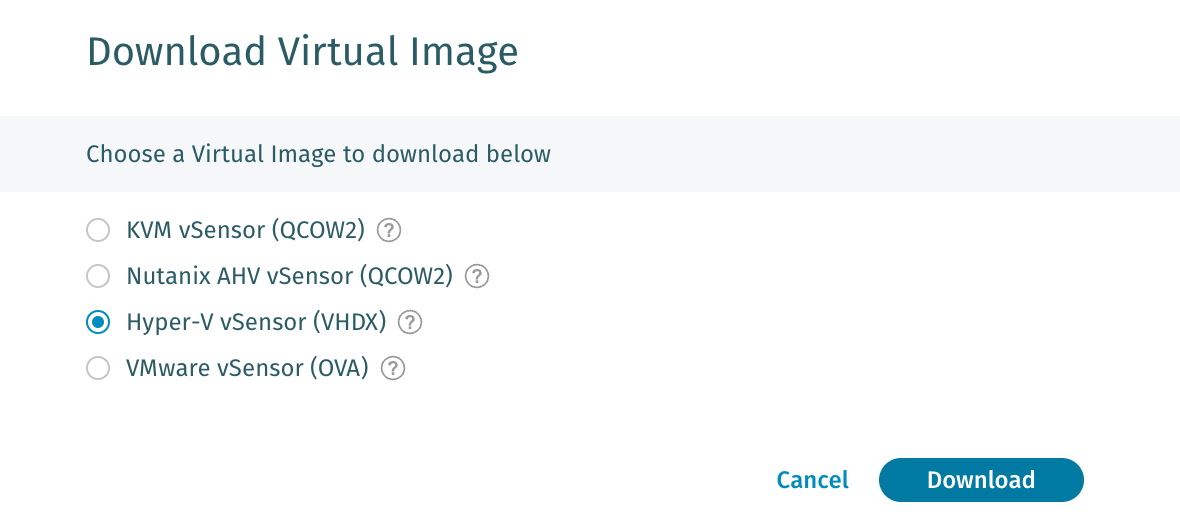
The current vSensor image (VHDX) for use on new vSensors can be downloaded from the Brain by clicking the blue **Download Virtual Image** link at the top right from the *Data Sources > Network > Sensors* page in your UI and then selecting the Hyper-V vSensor (VHDX) image.
## Deploying the VHDX
* Once downloaded, the VHDX image will need to be unzipped. Use the archive utility of your choice to unzip the image.
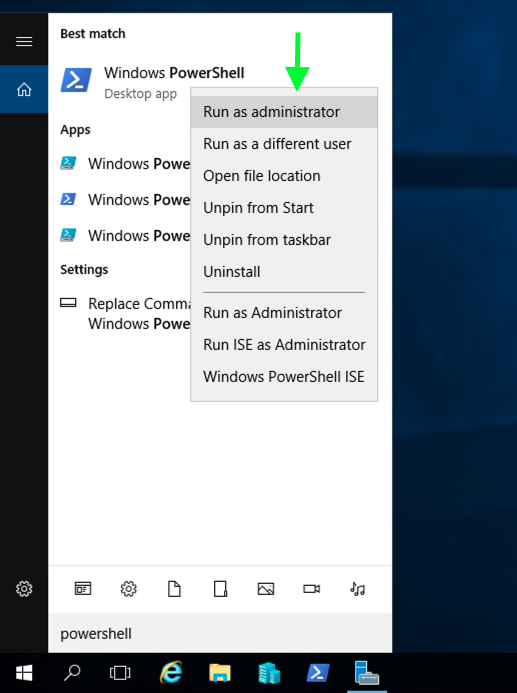
* Launch PowerShell as an administrator.
* As a ONE-TIME-SETUP STEP:
* Run `Set-ExecutionPolicy -ExecutionPolicy Bypass -Scope CurrentUser` to allow running of the installer.

* Change directory to where you unzipped the VHDX image.
* You can use the PowerShell `get-help` command to see current options for the installation script
* `get-help '.\Vectra vSensor.ps1'`
* For example, you may want to use a specific name for this vSensor using the `-Name` argument.
{% hint style="info" %}
**Please Note:**
* You can specify arguments for the script and automate the deployment or do the deployment interactively and the script will prompt you for required information.
{% endhint %}
Some of the more common arguments for the CLI command are shown below:
```
-Name
The name of the new VM.
-Path
The storage path for the VM.
-ManagementSwitch
The network switch through which the sensor will pair with the brain.
-CaptureSwitches
The network switches through which the sensor will ingest traffic. A comma separated list (Length must match number of capture interfaces)
-CaptureInterfaces
The number of capture interfaces to set up using the interfaces given in CaptureSwitches
-SetupMirror
Setup port mirroring on the external capture vSwitch.
-Configuration
The selected sensor configuration.
Type: String
Options: “2core", "4core", “8core”, “16core”
```
* To specify the storage path for the VM you must use the `-path` option, or your installation will occur in the current directory.
* If you install in the current directory, to install another vSensor you will need to unzip a new copy of the vSensor code to deploy as the `.vhdx` file will be in use by the first vSensor you deployed.
* It is a best practice to specify a path for installation if you will be installing multiple vSensors.
* Remote hosts are also supported, for guidance in specifying remote paths, refer to the `get-help` option.
* The **`-setupmirror`** option will attempt to setup port mirroring on any capture switch. It does this by setting **MonitorMode 2** on the capture switch as the source and should be used if you want to capture the traffic between the virtual switch and the external NIC (capturing physical traffic for assets outside of Hyper-V).
* This will cause all traffic passing on the external network NIC of the capture switch to be mirrored to any VM whose port monitoring mode has been set to **Destination.**
* If you already have this set, there is no need to set it again.
* Hyper-V switches that don’t support MonitorMode 2 (such as **Internal** Hyper-V switches) cannot be set to MonitorMode 2 but will not error out or cause issues.
* See [Capturing Physical Network Traffic Observed on the Hyper-V Server](/deployment/ndr-virtual-cloud-appliances/hyper-v-vsensor/capture-configuration-and-vswitch-guidance.md#capturing-physical-network-traffic-observed-on-the-hyper-v-server) for more detail.
* Execute the PowerShell script to begin the installation.
* `& '.\Vectra vSensor.ps1'` (and optionally use `-setupmirror` as a switch if desired)
* You will need to specify the management switch, capture switch, and configuration.
* The script will then create the vSensor and start it up.
This below example is interactively deploying a new vSensor. The arguments have supplied:
* A name of `Test_Sensor_1`
* A path of `G:\redacted\Test_Sensor_1`
* We’ve asked the script to configure 2 capture interfaces on the vSensor but will specify the Hyper-V switches we can to map to interactively.

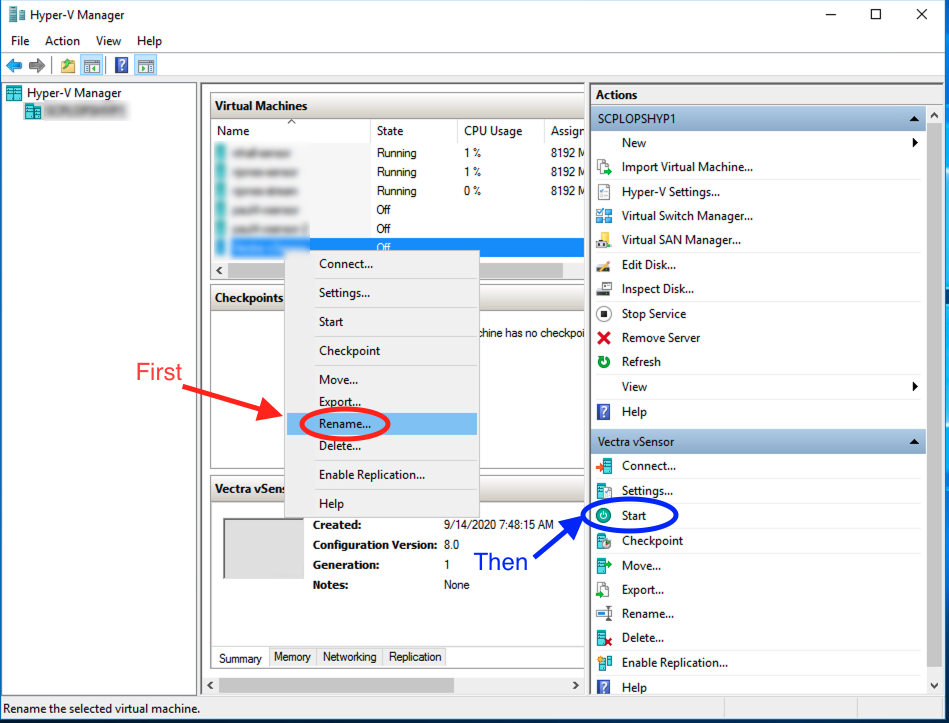
* Once the script has finished you can rename your VM in the Hyper-V manager if desired.
* The vSensor will start automatically after the deployment script runs.
* Renaming can be done while the vSensor is running.
* If you shut down the vSensor, the Start button location is shown below.
## Special Note: Initial Embryo State of vSensor
Immediately after the initial deployment of a vSensor, it is in what is known as an **embryo** state before pairing and updating from the Brain. The vSensor needs to be paired to a Brain, then receive a software update from the Brain, and finally update to become fully functional. During the time before pairing and updating, not all vSensor commands are functional yet.
To login to a vSensor, the username is `vectra` and the initial password is `changethispassword`. After the vSensor is paired and updated, the initial login to the updated vSensor will force a password change.
For example, the `show traffic stats` command does not exist on vSensors that are in embryo state. To determine if your vSensor is still in embryo state, you can use the `show version` command.
* If the version string is empty, then the vSensor is still in embryo state.
* After a vSensor has been paired, upgrading will become `True` after the vSensor has successfully downloaded an update image from the Brain and has begun updating.
Please see the example below for what a vSensor will output when in embryo state:
```
vscli > show version
Upgrading: False
Version:
```
While in embryo state, it is recommended to only use commands related to pairing such as the following:
`set brain`
* Ordinarily, this command is not necessary as the vSensor image that was downloaded from your Brain is already set to pair with the Brain by hostname or by IP address, depending on how *Configuration → COVERAGE → Data Sources → Network → Sensors → Sensor Configuration → Sensor Pairing and Registration* settings are configured.
* For DNS Name to be an option, a hostname must be configured for your Brain in *Configuration → COVERAGE → Data Sources > Network > Brain Setup > Brain*. If no hostname is configured, then **Management IP Address** will be the only option available.
* It is recommended to configure a hostname and use it for pairing when possible. Doing so typically makes failover situations easier to manage when IPs of Brains may change in failover scenarios.
* As an example, in the below screenshot, the IP address of the Brain would be embedded into the vSensor image that was downloaded from the Brain so that it already knows where to attempt to pair when it is booted.

`set registration-token`
* Typically, this is also not required for embryo vSensors as the downloaded vSensor is already configured to be able to pair with the Brain it was downloaded from.
* If you need to pair with a different Brain, the `set registration-token` command will enable the vSensor to pair with a Brain that did not provide the initial vSensor image download.
* Sensor registration tokens are created on a Brain and are good for 24 hours after creation. If you need to generate one, navigate to *Configuration → COVERAGE → Data Sources → Network → Sensors → Sensor Configuration → Sensor Pairing and Registration.*
---
# Agent Instructions
This documentation is published with GitBook. GitBook is the documentation platform designed so that both humans and AI agents can read, navigate, and reason over technical content effectively. Learn more at gitbook.com.
## Querying This Documentation
If you need additional information that is not directly available in this page, you can query the documentation by asking a question.
Perform an HTTP GET request on the following URL with the `ask` and `goal` query parameters:
```
GET https://docs.vectra.ai/deployment/ndr-virtual-cloud-appliances/hyper-v-vsensor/vsensor-deployment-in-hyper-v.md?ask=&goal=
```
`ask` is the immediate question: it should be specific, self-contained, and written in natural language.
`goal` is what the user is ultimately trying to achieve, the reason they need the answer. Sharing it helps GitBook give you a better, more relevant answer. A goal is most helpful when it describes the outcome the user wants rather than restating the question. For example, with `ask=how do I create an API token`, a goal like `automate deployments from our CI pipeline` lets GitBook tailor the answer to that use case.
The response will contain a direct answer to the question and relevant excerpts and sources from the documentation.
Use this mechanism when the answer is not explicitly present in the current page, you need clarification or additional context, or you want to retrieve related documentation sections.
 ## Deploying the VHDX
* Once downloaded, the VHDX image will need to be unzipped. Use the archive utility of your choice to unzip the image.
* Launch PowerShell as an administrator.
## Deploying the VHDX
* Once downloaded, the VHDX image will need to be unzipped. Use the archive utility of your choice to unzip the image.
* Launch PowerShell as an administrator.
 * As a ONE-TIME-SETUP STEP:
* Run `Set-ExecutionPolicy -ExecutionPolicy Bypass -Scope CurrentUser` to allow running of the installer.

* Change directory to where you unzipped the VHDX image.
* You can use the PowerShell `get-help` command to see current options for the installation script
* `get-help '.\Vectra vSensor.ps1'`
* For example, you may want to use a specific name for this vSensor using the `-Name` argument.
{% hint style="info" %}
**Please Note:**
* You can specify arguments for the script and automate the deployment or do the deployment interactively and the script will prompt you for required information.
{% endhint %}
Some of the more common arguments for the CLI command are shown below:
```
-Name
The name of the new VM.
-Path
The storage path for the VM.
-ManagementSwitch
The network switch through which the sensor will pair with the brain.
-CaptureSwitches
The network switches through which the sensor will ingest traffic. A comma separated list (Length must match number of capture interfaces)
-CaptureInterfaces
The number of capture interfaces to set up using the interfaces given in CaptureSwitches
-SetupMirror
Setup port mirroring on the external capture vSwitch.
-Configuration
The selected sensor configuration.
Type: String
Options: “2core", "4core", “8core”, “16core”
```
* To specify the storage path for the VM you must use the `-path` option, or your installation will occur in the current directory.
* If you install in the current directory, to install another vSensor you will need to unzip a new copy of the vSensor code to deploy as the `.vhdx` file will be in use by the first vSensor you deployed.
* It is a best practice to specify a path for installation if you will be installing multiple vSensors.
* Remote hosts are also supported, for guidance in specifying remote paths, refer to the `get-help` option.
* The **`-setupmirror`** option will attempt to setup port mirroring on any capture switch. It does this by setting **MonitorMode 2** on the capture switch as the source and should be used if you want to capture the traffic between the virtual switch and the external NIC (capturing physical traffic for assets outside of Hyper-V).
* This will cause all traffic passing on the external network NIC of the capture switch to be mirrored to any VM whose port monitoring mode has been set to **Destination.**
* If you already have this set, there is no need to set it again.
* Hyper-V switches that don’t support MonitorMode 2 (such as **Internal** Hyper-V switches) cannot be set to MonitorMode 2 but will not error out or cause issues.
* See [Capturing Physical Network Traffic Observed on the Hyper-V Server](/deployment/ndr-virtual-cloud-appliances/hyper-v-vsensor/capture-configuration-and-vswitch-guidance.md#capturing-physical-network-traffic-observed-on-the-hyper-v-server) for more detail.
* Execute the PowerShell script to begin the installation.
* `& '.\Vectra vSensor.ps1'` (and optionally use `-setupmirror` as a switch if desired)
* You will need to specify the management switch, capture switch, and configuration.
* The script will then create the vSensor and start it up.
This below example is interactively deploying a new vSensor. The arguments have supplied:
* A name of `Test_Sensor_1`
* A path of `G:\redacted\Test_Sensor_1`
* We’ve asked the script to configure 2 capture interfaces on the vSensor but will specify the Hyper-V switches we can to map to interactively.

* Once the script has finished you can rename your VM in the Hyper-V manager if desired.
* The vSensor will start automatically after the deployment script runs.
* Renaming can be done while the vSensor is running.
* If you shut down the vSensor, the Start button location is shown below.
* As a ONE-TIME-SETUP STEP:
* Run `Set-ExecutionPolicy -ExecutionPolicy Bypass -Scope CurrentUser` to allow running of the installer.

* Change directory to where you unzipped the VHDX image.
* You can use the PowerShell `get-help` command to see current options for the installation script
* `get-help '.\Vectra vSensor.ps1'`
* For example, you may want to use a specific name for this vSensor using the `-Name` argument.
{% hint style="info" %}
**Please Note:**
* You can specify arguments for the script and automate the deployment or do the deployment interactively and the script will prompt you for required information.
{% endhint %}
Some of the more common arguments for the CLI command are shown below:
```
-Name
The name of the new VM.
-Path
The storage path for the VM.
-ManagementSwitch
The network switch through which the sensor will pair with the brain.
-CaptureSwitches
The network switches through which the sensor will ingest traffic. A comma separated list (Length must match number of capture interfaces)
-CaptureInterfaces
The number of capture interfaces to set up using the interfaces given in CaptureSwitches
-SetupMirror
Setup port mirroring on the external capture vSwitch.
-Configuration
The selected sensor configuration.
Type: String
Options: “2core", "4core", “8core”, “16core”
```
* To specify the storage path for the VM you must use the `-path` option, or your installation will occur in the current directory.
* If you install in the current directory, to install another vSensor you will need to unzip a new copy of the vSensor code to deploy as the `.vhdx` file will be in use by the first vSensor you deployed.
* It is a best practice to specify a path for installation if you will be installing multiple vSensors.
* Remote hosts are also supported, for guidance in specifying remote paths, refer to the `get-help` option.
* The **`-setupmirror`** option will attempt to setup port mirroring on any capture switch. It does this by setting **MonitorMode 2** on the capture switch as the source and should be used if you want to capture the traffic between the virtual switch and the external NIC (capturing physical traffic for assets outside of Hyper-V).
* This will cause all traffic passing on the external network NIC of the capture switch to be mirrored to any VM whose port monitoring mode has been set to **Destination.**
* If you already have this set, there is no need to set it again.
* Hyper-V switches that don’t support MonitorMode 2 (such as **Internal** Hyper-V switches) cannot be set to MonitorMode 2 but will not error out or cause issues.
* See [Capturing Physical Network Traffic Observed on the Hyper-V Server](/deployment/ndr-virtual-cloud-appliances/hyper-v-vsensor/capture-configuration-and-vswitch-guidance.md#capturing-physical-network-traffic-observed-on-the-hyper-v-server) for more detail.
* Execute the PowerShell script to begin the installation.
* `& '.\Vectra vSensor.ps1'` (and optionally use `-setupmirror` as a switch if desired)
* You will need to specify the management switch, capture switch, and configuration.
* The script will then create the vSensor and start it up.
This below example is interactively deploying a new vSensor. The arguments have supplied:
* A name of `Test_Sensor_1`
* A path of `G:\redacted\Test_Sensor_1`
* We’ve asked the script to configure 2 capture interfaces on the vSensor but will specify the Hyper-V switches we can to map to interactively.

* Once the script has finished you can rename your VM in the Hyper-V manager if desired.
* The vSensor will start automatically after the deployment script runs.
* Renaming can be done while the vSensor is running.
* If you shut down the vSensor, the Start button location is shown below.