> For the complete documentation index, see [llms.txt](https://docs.vectra.ai/llms.txt). Markdown versions of documentation pages are available by appending `.md` to page URLs; this page is available as [Markdown](https://docs.vectra.ai/deployment/ndr-virtual-cloud-appliances/hyper-v-vsensor/capture-configuration-and-vswitch-guidance.md).
# Capture configuration and vSwitch guidance
Configure Hyper-V vSensor traffic capture for physical traffic, guest traffic, VLANs, and virtual switch options.
## Introduction
Hyper-V vSensors can capture virtual guest network traffic, physical network traffic, and support VLAN tagging. This section will detail settings, include some sample syntax, and share some best practices.
{% hint style="info" %}
**Please Note:**
* Up to 2 interfaces per vSensor can be set for capture.
* A capture switch can be the same as the management switch if your server does not have a dedicated capture switch.
{% endhint %}
If you have physical network traffic directed at a switch that is not being used by your guests running on the server, you can either deploy two vSensors or use 2 separate capture interfaces for each traffic type.
* You must ensure that the vSensor is adequately sized for the expected total traffic volume.
* Some customers may consider it a best practice to separate physical and virtual network traffic capture into two vSensors regardless of technical capability to do so.
* Please keep in mind resource requirements for each vSensor and guest VMs when deploying multiple vSensors on the same physical host.
## Capturing Physical Network Traffic Observed on the Hyper-V Server

The `-setupmirror` option described earlier should have been used during initial vSensor deployment if you were intending to capture physical network traffic and will enable MonitorMode 2 which is essentially the same as **Source** mode for port mirroring on the capture switch.
* MonitorMode 2 = Source, MonitorMode 1 = Destination, MonitorMode 0 = None
If you did not use the `-setupmirror` option during the vSensor deployment you can use the following PowerShell commands to configure this on an already deployed vSensor:
```
$PortFeature = Get-VMSystemSwitchExtensionPortFeature -FeatureName "Ethernet Switch Port Security Settings"
$PortFeature.SettingData.MonitorMode = 2
Add-VMSwitchExtensionPortFeature -ExternalPort -SwitchName "$CaptureSwitch" -VMSwitchExtensionFeature $portFeature
```
In the above commands, `$CaptureSwitch` would need to be replaced with the switch name.
You will still need to ensure that the virtual network adapter being used by the vSensor VM for the capture switch has its port mirroring mode set to **Destination**.
* Via PowerShell
* Set vSensor capture interface as `Destination`**,** were `MyVM` is the VM name and `XXXX` is the MAC address of the interface.
* ```
Get-VMNetworkAdapter MyVM | ? MacAddress -eq 'xxxxxxxx' | Set-VMNetworkAdapter MyVM -PortMirroring Destination
```
* Via Hyper-V GUI
* Note that this screenshot is an example, you will likely need to do this on the 2nd interface if using a separate management and capture interface.

## Capturing Virtual Network Traffic From Other Guests
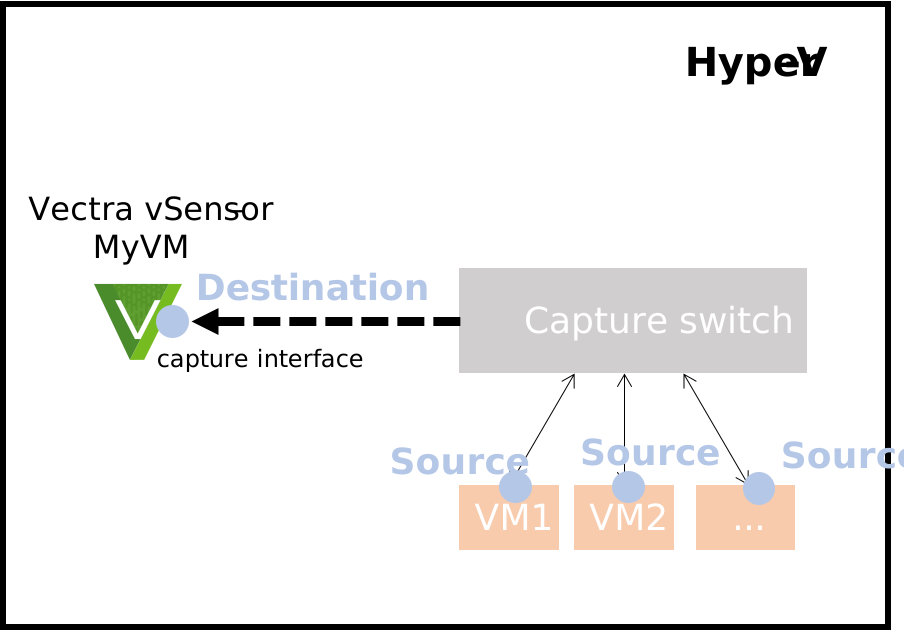 Set the port mirroring mode on the VMs you wish to mirror as **Source.**
This can be done in the GUI by going to each source host or from the PowerShell by getting the relevant VM name and MAC address for the source VM ports and setting the Port Mirroring mode as **Source** instead of **Destination\`**". Example PowerShell commands below (customized for your deployment):
```
Get-VMNetworkAdapter MyOtherVM | ? MacAddress -eq 'xxxxxxxx' | Set-VMNetworkAdapter MyOtherVM -PortMirroring Source
```
{% hint style="info" %}
**Please Note:**
* Hyper-V only supports port mirroring on the individual guest VM NICs (where they need to be set up as a source).
* Port mirroring **cannot** simply be enabled at the switch level to capture all copies of internal inter-VM traffic and must be done at individual VM NIC level.
{% endhint %}
## Capturing Traffic Flowing Over Multiple VLANs
Whether capturing physical or inter-VM traffic, if the vSensor receives flows over multiple VLANs, then this will require the **Destination** host (vSensor in this case) to allow all relevant VLANs and be set for Trunking. This is done via PowerShell commands that will need to be customized for your deployment.
```
Set-VMNetworkAdapterVlan -VMName MyVM -VMNetworkAdapterName "mirror" -trunk -allowedvlanidlist -nativevlanid
```
Below are a couple of examples that show a full command.
* The `NativeVlanID` parameter tells Hyper-V that if there is no VLAN specified in the packet, to treat the packet as if it was from VLAN 0 or 10 in the below example.
{% hint style="info" %}
If you do not specify a specific adapter, the command will apply the settings to all adapters in the VM it is targeted to. This is not desired so please be sure to specify the adapter as per the example below (use the right name for your adapter).
{% endhint %}
```
Set-VMNetworkAdapterVlan -VMName MyVM -VMNetworkAdapterName "mirror" -Trunk -AllowedVlanIdList "100,101" -NativeVlanId 0
Set-VMNetworkAdapterVlan –VMName MyVM -VMNetworkAdapterName "mirror" –Trunk –AllowedVlanIdList 1-100 –NativeVlanId 10
```
## Additional Virtual Switch Options Guidance
Microsoft NDIS Capture **must** be enabled on the capture switch
This can be set per the screenshot below in your Virtual Switch Extensions for the capture switch if it is not already enabled

Other virtual switch hardware acceleration or advanced features can set as desired and should not impact vSensor function
---
# Agent Instructions
This documentation is published with GitBook. GitBook is the documentation platform designed so that both humans and AI agents can read, navigate, and reason over technical content effectively. Learn more at gitbook.com.
## Querying This Documentation
If you need additional information that is not directly available in this page, you can query the documentation by asking a question.
Perform an HTTP GET request on the following URL with the `ask` and `goal` query parameters:
```
GET https://docs.vectra.ai/deployment/ndr-virtual-cloud-appliances/hyper-v-vsensor/capture-configuration-and-vswitch-guidance.md?ask=&goal=
```
`ask` is the immediate question: it should be specific, self-contained, and written in natural language.
`goal` is what the user is ultimately trying to achieve, the reason they need the answer. Sharing it helps GitBook give you a better, more relevant answer. A goal is most helpful when it describes the outcome the user wants rather than restating the question. For example, with `ask=how do I create an API token`, a goal like `automate deployments from our CI pipeline` lets GitBook tailor the answer to that use case.
The response will contain a direct answer to the question and relevant excerpts and sources from the documentation.
Use this mechanism when the answer is not explicitly present in the current page, you need clarification or additional context, or you want to retrieve related documentation sections.
Set the port mirroring mode on the VMs you wish to mirror as **Source.**
This can be done in the GUI by going to each source host or from the PowerShell by getting the relevant VM name and MAC address for the source VM ports and setting the Port Mirroring mode as **Source** instead of **Destination\`**". Example PowerShell commands below (customized for your deployment):
```
Get-VMNetworkAdapter MyOtherVM | ? MacAddress -eq 'xxxxxxxx' | Set-VMNetworkAdapter MyOtherVM -PortMirroring Source
```
{% hint style="info" %}
**Please Note:**
* Hyper-V only supports port mirroring on the individual guest VM NICs (where they need to be set up as a source).
* Port mirroring **cannot** simply be enabled at the switch level to capture all copies of internal inter-VM traffic and must be done at individual VM NIC level.
{% endhint %}
## Capturing Traffic Flowing Over Multiple VLANs
Whether capturing physical or inter-VM traffic, if the vSensor receives flows over multiple VLANs, then this will require the **Destination** host (vSensor in this case) to allow all relevant VLANs and be set for Trunking. This is done via PowerShell commands that will need to be customized for your deployment.
```
Set-VMNetworkAdapterVlan -VMName MyVM -VMNetworkAdapterName "mirror" -trunk -allowedvlanidlist -nativevlanid
```
Below are a couple of examples that show a full command.
* The `NativeVlanID` parameter tells Hyper-V that if there is no VLAN specified in the packet, to treat the packet as if it was from VLAN 0 or 10 in the below example.
{% hint style="info" %}
If you do not specify a specific adapter, the command will apply the settings to all adapters in the VM it is targeted to. This is not desired so please be sure to specify the adapter as per the example below (use the right name for your adapter).
{% endhint %}
```
Set-VMNetworkAdapterVlan -VMName MyVM -VMNetworkAdapterName "mirror" -Trunk -AllowedVlanIdList "100,101" -NativeVlanId 0
Set-VMNetworkAdapterVlan –VMName MyVM -VMNetworkAdapterName "mirror" –Trunk –AllowedVlanIdList 1-100 –NativeVlanId 10
```
## Additional Virtual Switch Options Guidance
Microsoft NDIS Capture **must** be enabled on the capture switch
This can be set per the screenshot below in your Virtual Switch Extensions for the capture switch if it is not already enabled

Other virtual switch hardware acceleration or advanced features can set as desired and should not impact vSensor function
---
# Agent Instructions
This documentation is published with GitBook. GitBook is the documentation platform designed so that both humans and AI agents can read, navigate, and reason over technical content effectively. Learn more at gitbook.com.
## Querying This Documentation
If you need additional information that is not directly available in this page, you can query the documentation by asking a question.
Perform an HTTP GET request on the following URL with the `ask` and `goal` query parameters:
```
GET https://docs.vectra.ai/deployment/ndr-virtual-cloud-appliances/hyper-v-vsensor/capture-configuration-and-vswitch-guidance.md?ask=&goal=
```
`ask` is the immediate question: it should be specific, self-contained, and written in natural language.
`goal` is what the user is ultimately trying to achieve, the reason they need the answer. Sharing it helps GitBook give you a better, more relevant answer. A goal is most helpful when it describes the outcome the user wants rather than restating the question. For example, with `ask=how do I create an API token`, a goal like `automate deployments from our CI pipeline` lets GitBook tailor the answer to that use case.
The response will contain a direct answer to the question and relevant excerpts and sources from the documentation.
Use this mechanism when the answer is not explicitly present in the current page, you need clarification or additional context, or you want to retrieve related documentation sections.