# Introduction and requirements

## Introduction

This document describes the pre-requisites, specifications, and steps required to deploy a Vectra NDR (formerly Detect for Network) Virtual Sensor (vSensor) in an Azure subscription to monitor cloud Infrastructure-as-a-Service workloads. These Sensors can be paired with Brains of any type.

Azure Sensors can be deployed in configurations that support up to 1 Gbps or 2 Gbps of network throughput per Sensor. The input to the Sensor can be from any VxLAN-based 3rd party packet broker or the Microsoft virtual network tap (VTAP) when it becomes available in your region.

Azure Sensors can be used in both Respond UX and Quadrant UX deployments. For more detail on Respond UX vs Quadrant UX please see [Vectra Analyst User Experiences (Respond vs Quadrant)](https://docs.vectra.ai/deployment/getting-started/analyst-ux-options-rux-vs-qux). One of the below guides should be the starting point for your overall Vectra deployment:

* [Vectra Respond UX Deployment Guide](https://docs.vectra.ai/deployment/getting-started/respond-ux-deployment-guide)
* [Vectra Quadrant UX Deployment Guide](https://docs.vectra.ai/deployment/getting-started/quadrant-ux-deployment)

{% hint style="info" %}
**Special Note:**

**Regarding Azure Load Balancer changes and prior Vectra Azure vSensor deployments:**

Microsoft no longer supports basic load balancer deployment as of March 2025. For more details, please see this [Microsoft Azure update](https://azure.microsoft.com/en-us/updates?id=azure-basic-load-balancer-will-be-retired-on-30-september-2025-upgrade-to-standard-load-balancer).

Vectra’s previous version of the Azure vSensor deployed with an Azure Basic Load Balancer. The current version does not deploy with any Azure load balancer and is simply a VM with mgt and traffic (capture) NICs. To redeploy, deploy the new vSensor, redirect traffic to its capture port, and then delete the old vSensor.
{% endhint %}

## Requirements and Preparation

### Sensor Registration Token (SRT)

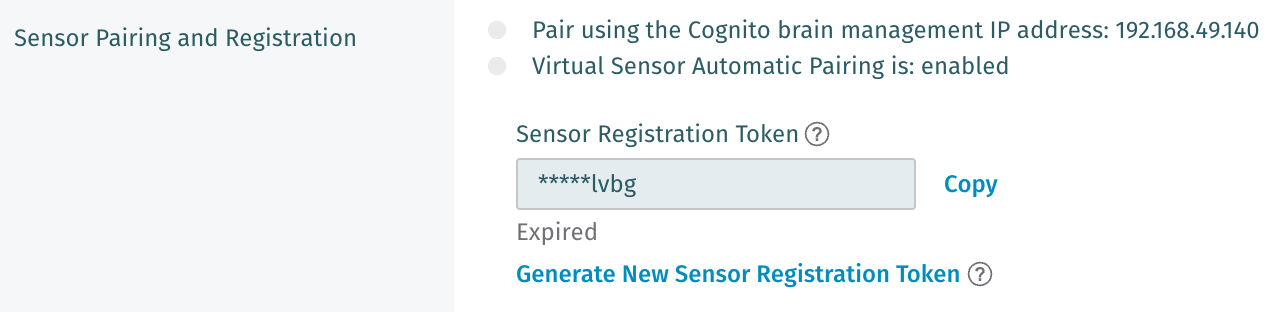
The ***Configuration*****&#x20;→&#x20;*****COVERAGE*****&#x20;→&#x20;*****Data Sources → Network → Sensors*** area of your Vectra UI allows you to pair and manage network Sensors, configure a number of options related to Sensor pairing and registration, and change the CLI `vectra` user password for paired devices (Sensors and Stream). Navigate in this area to ***Sensor Configuration > Sensor Pairing and Registration.***

<figure><img src="https://4227135129-files.gitbook.io/~/files/v0/b/gitbook-x-prod.appspot.com/o/spaces%2FHJ1ltuWFvsArFWtevnRn%2Fuploads%2FzhD9olBV18qW94DD7ncM%2Fimage.png?alt=media&#x26;token=1859e062-0a89-4dee-bd39-b06276757832" alt="" width="563"><figcaption></figcaption></figure>

* During Sensor deployment a valid Sensor registration token must be presented to the Brain so that the Sensor can become **Available** to Pair. This token can be created in the Vectra UI or at the CLI of the Brain. It is valid for 24 hours and can be regenerated at any time.
* For full details on pairing processes, please see [Pairing Azure vSensors](https://docs.vectra.ai/deployment/ndr-virtual-cloud-appliances/azure-vsensor/pairing-azure-vsensors).
* If you have a valid token, you can **Copy** it here for later use using the link.
  * Otherwise, click the **Generate New Sensor Registration Token** link.
  * Use this token for Sensor deployment (tokens expire 24 hours after generation).

### Brain and Sensor Communications Requirements

A Sensor (or Stream appliance) can pair with any Vectra Brain type. For example, the Brain can be a physical appliance, a Brain deployed in a IaaS cloud, or a Brain deployed in a traditional hypervisor environment on customer premises.

Sensors must be able to reach the Brain over the below ports. It is recommended to enable these ports bidirectionally to aid in troubleshooting.

* TCP/443 (HTTPS) - Used for Sensor discovery and initial pairing connection.
* TCP/22 (SSH) - Used for Paired Sensor connections.

Additionally, for online pairing (physical Sensors only), both the Sensor and Brain must be able to communicate with:

* update&#x32;**.**&#x76;ectranetwork&#x73;**.**&#x63;om or 54.200.156.238 over TCP/443 (HTTPS)

Please work with your security and networking contacts to ensure that the Sensor will be able to initiate a connection to the Brain. Sensors only communicate with the Vectra Brain and do not need to communicate to Vectra directly. Software updates for the Sensor will come from the Brain.

For full details on all potential firewall requirements in Vectra deployments, please see [firewall requirements](https://docs.vectra.ai/deployment/getting-started/firewall-requirements).

### Azure Requirements

To deploy from the Azure marketplace, you will require several pieces of information. The deployment section will provide additional details.

* **Subscription** – The subscription you wish to deploy into.
* **Resource group** – The resource group you wish to deploy into
* **Region** – The region you wish to deploy into.
* **Base Name** – Base name for all the resources that will be created as part of this deployment.
* **Instance Size** – VM instance size for Detect for Network Sensor. DS3\_v2 supports approximately 2 Gbps and Ds11\_v2 supports approximately 1 Gbps.

![](https://content.gitbook.com/content/HJ1ltuWFvsArFWtevnRn/blobs/4SmKvtjNPEceX0kP8ILO/Unknown%20image)

* **Virtual network** – The virtual network to deploy the vSensor into.
* **Management Subnet** - Subnet for the managment interface. This will communicate with your Brain appliance after pairing is completed.
* **Traffic Subnet** - Subnet for the traffic interface. Traffic to analyze will be pointed here.
* **Brain Hostname or IP Address** - The IP address or the Fully Qualified Domain Name (FQDN hostname) of the Vectra Brain.
  * This address must be reachable from the Sensor’s management subnet over port 22 and 443.
* **Registration Token** - The SRT created in [Sensor Registration Token](#sensor-registration-token-srt) earlier.
* **Public SSH Key** – Generate an RSA SSH key pair using any standard tool. Enter the public key in this field. Retain the private key safely for SSH access to the Sensor. For more details on logging in to a Sensor at the CLI see [SSH login process for CLI](https://docs.vectra.ai/deployment/appliance-operations/ssh-login-process-for-cli).
  * This will allow the `vectra` user to log into the Sensor’s command line interface.
  * Azure has a SSH Keys function that can be loaded in another tab to generate a key pair.
  * You may need to make the key readable to you using a command such as:
    * `chmod 400 vectra.pem`
  * Example login command:
    * `ssh -i vectra@BrainHostnameOrIP`
* **SSH user** (only `vectra` will work) – Leave this at the default.

### **Azure Network Security Group Considerations**

The vSensor deployment does not create any Azure Network Security Groups. If you choose to apply a security group, ensure the following connectivity is allowed.

<table data-header-hidden><thead><tr><th width="131.1640625"></th><th width="166.765625"></th><th width="163.6015625"></th><th width="288.1875"></th></tr></thead><tbody><tr><td><strong>Source</strong></td><td><strong>Destination</strong></td><td><strong>Protocol/Port</strong></td><td><strong>Description</strong></td></tr><tr><td>Admin Hosts</td><td>vSensors</td><td>TCP/22 (SSH)</td><td>CLI access to vSensor</td></tr><tr><td>Brain</td><td>vSensors</td><td>TCP/22 (SSH)</td><td>Remote management and troubleshooting</td></tr><tr><td>vSensors</td><td>Brain</td><td>TCP/22 (SSH) TCP/443 (HTTPS)</td><td>Pairing, metadata transfer, and ongoing communication</td></tr><tr><td>Traffic Source</td><td>Front end IP for LB</td><td>VXLAN 4789</td><td>Allows traffic to the Front end IP of the Load Balancer created during vSensor deployment.</td></tr></tbody></table>
