> For the complete documentation index, see [llms.txt](https://docs.vectra.ai/llms.txt). Markdown versions of documentation pages are available by appending `.md` to page URLs; this page is available as [Markdown](https://docs.vectra.ai/deployment/ndr-virtual-cloud-appliances/azure-vsensor/deployment-from-azure-marketplace.md).
# Deployment from Azure marketplace
Deploying the Azure vSensor image from the Azure marketplace.
* Browse to the Azure Marketplace and search for **Vectra**.
* Under the **Vectra Sensor & Stream for Azure** offering, click on **Create** and select the **Cognito Sensor**.

* You will now need to fill in details on the **Create Vectra Sensor & Stream for Azure** screen that follows.
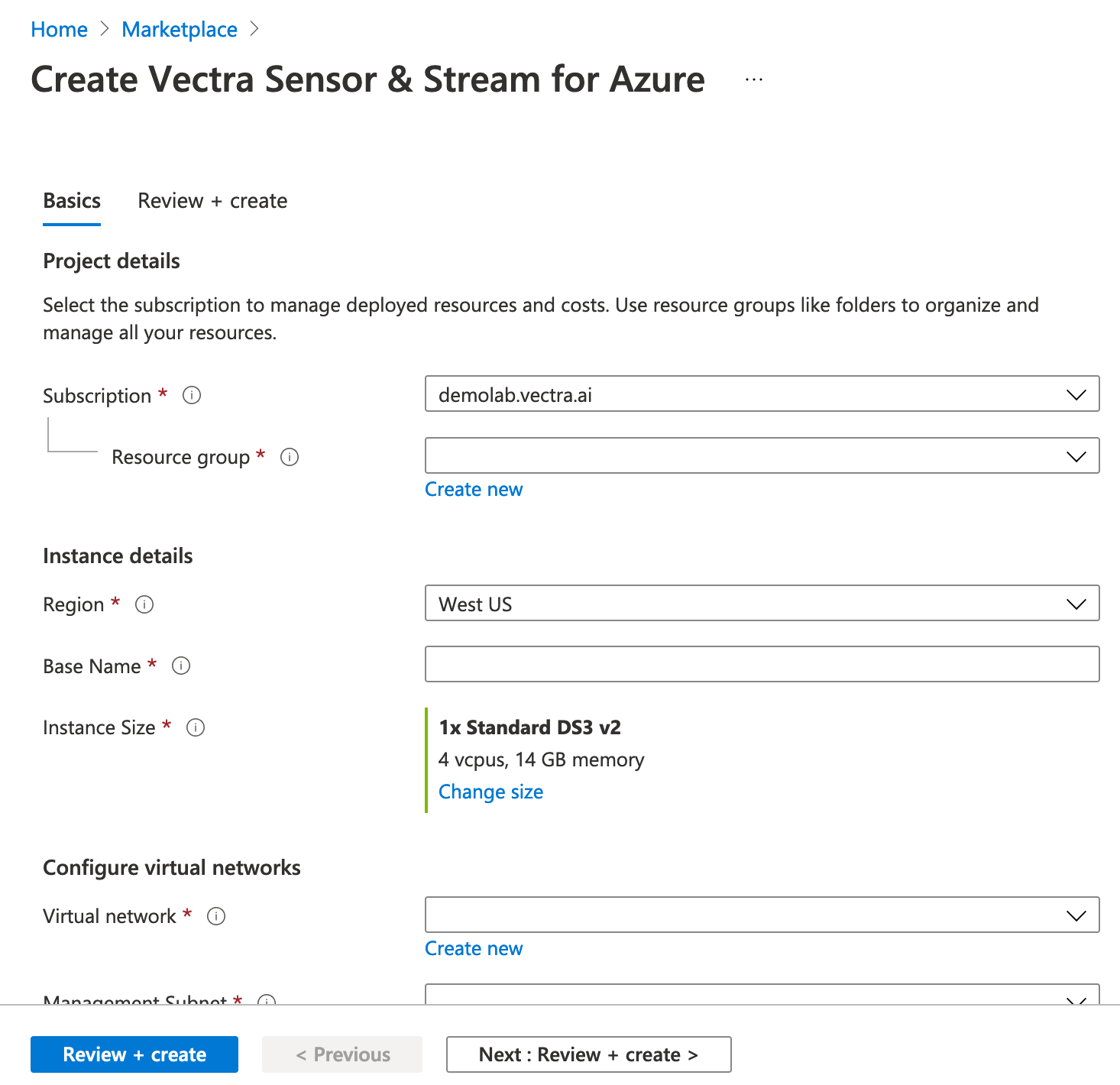 During this process you will be asked to fill in the following fields:
* **Subscription** – This should default to your current subscription. All resources in an Azure subscription are billed together.
* **Resource group** – Each Sensor must be deployed in a different resource group. Either select an existing resource group that is empty (Azure requirement), or create a new resource group using the **Create new** link.
{% hint style="warning" %}
**Please Note:**
Azure requires that the selected resource group be empty when deploying a VM image from the Azure Marketplace.
{% endhint %}
* **Region** – Select the region to deploy the Sensor into. To optimize costs, always keep the source and target (Sensor and Brain) in the same region.
* **Base Name** – Base name for all the resources that will be created as part of this deployment.
* **Instance Size** – VM instance size for Detect for Network Sensor. DS3\_v2 supports approximately 2 Gbps and Ds11\_v2 supports approximately 1 Gbps.

* **Virtual network** – Select an existing virtual network (VNet) or choose the **Create new** option and create a new VNet to deploy the Sensor into.
{% hint style="warning" %}
**Please Note:**
When choosing the “Create new” option, Azure previously defaulted the traffic subnet to be out of range with respect to the VNet address space. In the screenshot example below, this could be remedied by simply editing the traffic subnet to 10.3.0.64/26.
If the chose subnets are not within the address space of the overal virtual network, the deployment will fail. Please choose appropriate ranges for the VNet, Management Subnet, and Traffic Subnet are selected. Edit if necessary.
{% endhint %}

* **Management Subnet** - The Sensor must be able to reach your Vectra Brain over HTTPS (443) and SSH (22). Select a management subnet that can enable this reachability.
* **Traffic Subnet** - This is the subnet where the Sensor can receive traffic from the packet broker over VxLAN (UDP 4789) or directly from the Azure VTAP (when available in your region).
* **Brain Hostname or IP Address** - The IP address or the Fully Qualified Domain Name (FQDN hostname) of the Vectra Brain.
* This address must be reachable from the Sensor’s management subnet over port 22 and 443.
* **Registration Token** - Please input the [Sensor Registration Token](/deployment/ndr-virtual-cloud-appliances/azure-vsensor/introduction-and-requirements.md#sensor-registration-token-srt) you collected earlier from your Brain appliance.
* **Public SSH Key** – Input the [public SSH key you generated earlier](/deployment/ndr-virtual-cloud-appliances/azure-vsensor/introduction-and-requirements.md#azure-requirements).
* **SSH user** (only `vectra` will work) – This must be left at the default.
* Click **Review + create** and you’ll be presented with a screen where you can review your configuration before creating.
During this process you will be asked to fill in the following fields:
* **Subscription** – This should default to your current subscription. All resources in an Azure subscription are billed together.
* **Resource group** – Each Sensor must be deployed in a different resource group. Either select an existing resource group that is empty (Azure requirement), or create a new resource group using the **Create new** link.
{% hint style="warning" %}
**Please Note:**
Azure requires that the selected resource group be empty when deploying a VM image from the Azure Marketplace.
{% endhint %}
* **Region** – Select the region to deploy the Sensor into. To optimize costs, always keep the source and target (Sensor and Brain) in the same region.
* **Base Name** – Base name for all the resources that will be created as part of this deployment.
* **Instance Size** – VM instance size for Detect for Network Sensor. DS3\_v2 supports approximately 2 Gbps and Ds11\_v2 supports approximately 1 Gbps.

* **Virtual network** – Select an existing virtual network (VNet) or choose the **Create new** option and create a new VNet to deploy the Sensor into.
{% hint style="warning" %}
**Please Note:**
When choosing the “Create new” option, Azure previously defaulted the traffic subnet to be out of range with respect to the VNet address space. In the screenshot example below, this could be remedied by simply editing the traffic subnet to 10.3.0.64/26.
If the chose subnets are not within the address space of the overal virtual network, the deployment will fail. Please choose appropriate ranges for the VNet, Management Subnet, and Traffic Subnet are selected. Edit if necessary.
{% endhint %}

* **Management Subnet** - The Sensor must be able to reach your Vectra Brain over HTTPS (443) and SSH (22). Select a management subnet that can enable this reachability.
* **Traffic Subnet** - This is the subnet where the Sensor can receive traffic from the packet broker over VxLAN (UDP 4789) or directly from the Azure VTAP (when available in your region).
* **Brain Hostname or IP Address** - The IP address or the Fully Qualified Domain Name (FQDN hostname) of the Vectra Brain.
* This address must be reachable from the Sensor’s management subnet over port 22 and 443.
* **Registration Token** - Please input the [Sensor Registration Token](/deployment/ndr-virtual-cloud-appliances/azure-vsensor/introduction-and-requirements.md#sensor-registration-token-srt) you collected earlier from your Brain appliance.
* **Public SSH Key** – Input the [public SSH key you generated earlier](/deployment/ndr-virtual-cloud-appliances/azure-vsensor/introduction-and-requirements.md#azure-requirements).
* **SSH user** (only `vectra` will work) – This must be left at the default.
* Click **Review + create** and you’ll be presented with a screen where you can review your configuration before creating.
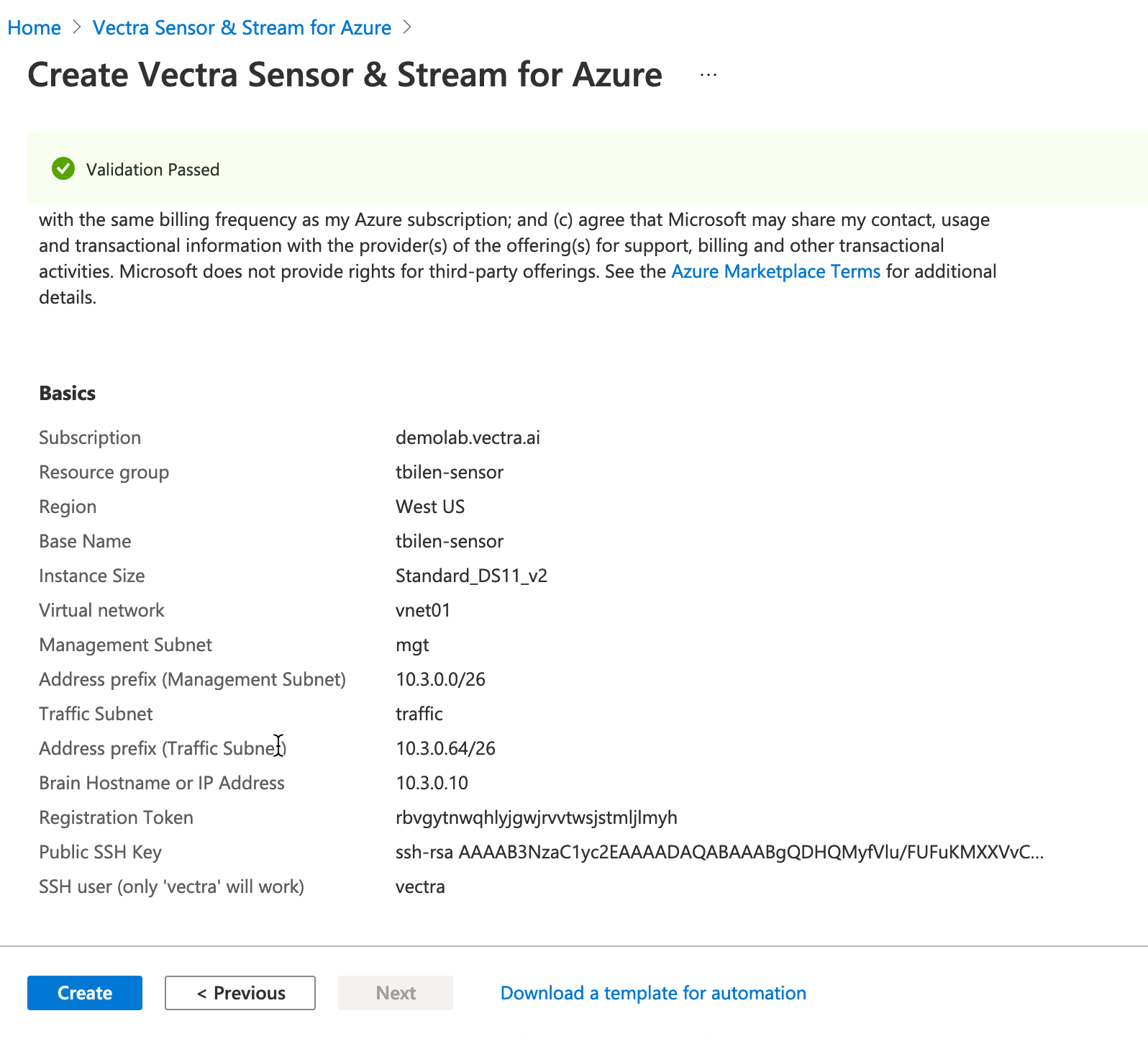 * Click **Create**.
* Some status messages will appear on the top right and then you will see another screen with full details as the deployment progresses and then completes.

---
# Agent Instructions
This documentation is published with GitBook. GitBook is the documentation platform designed so that both humans and AI agents can read, navigate, and reason over technical content effectively. Learn more at gitbook.com.
## Querying This Documentation
If you need additional information that is not directly available in this page, you can query the documentation by asking a question.
Perform an HTTP GET request on the following URL with the `ask` and `goal` query parameters:
```
GET https://docs.vectra.ai/deployment/ndr-virtual-cloud-appliances/azure-vsensor/deployment-from-azure-marketplace.md?ask=&goal=
```
`ask` is the immediate question: it should be specific, self-contained, and written in natural language.
`goal` is what the user is ultimately trying to achieve, the reason they need the answer. Sharing it helps GitBook give you a better, more relevant answer. A goal is most helpful when it describes the outcome the user wants rather than restating the question. For example, with `ask=how do I create an API token`, a goal like `automate deployments from our CI pipeline` lets GitBook tailor the answer to that use case.
The response will contain a direct answer to the question and relevant excerpts and sources from the documentation.
Use this mechanism when the answer is not explicitly present in the current page, you need clarification or additional context, or you want to retrieve related documentation sections.
* Click **Create**.
* Some status messages will appear on the top right and then you will see another screen with full details as the deployment progresses and then completes.

---
# Agent Instructions
This documentation is published with GitBook. GitBook is the documentation platform designed so that both humans and AI agents can read, navigate, and reason over technical content effectively. Learn more at gitbook.com.
## Querying This Documentation
If you need additional information that is not directly available in this page, you can query the documentation by asking a question.
Perform an HTTP GET request on the following URL with the `ask` and `goal` query parameters:
```
GET https://docs.vectra.ai/deployment/ndr-virtual-cloud-appliances/azure-vsensor/deployment-from-azure-marketplace.md?ask=&goal=
```
`ask` is the immediate question: it should be specific, self-contained, and written in natural language.
`goal` is what the user is ultimately trying to achieve, the reason they need the answer. Sharing it helps GitBook give you a better, more relevant answer. A goal is most helpful when it describes the outcome the user wants rather than restating the question. For example, with `ask=how do I create an API token`, a goal like `automate deployments from our CI pipeline` lets GitBook tailor the answer to that use case.
The response will contain a direct answer to the question and relevant excerpts and sources from the documentation.
Use this mechanism when the answer is not explicitly present in the current page, you need clarification or additional context, or you want to retrieve related documentation sections.