X47
The X47 quick start guide provides guidance for initial deployment, verifying connectivity, and next steps to take after the appliance is connected to your network.
Introduction
This document is intended to help customers or partners with the initial configuration of a physical Vectra X-Series appliance.
X-Series appliances can be used in Vectra deployments that use either the Respond UX or the Quadrant UX. The Respond UX is served from Vectra’s cloud and the Quadrant UX is served locally from the Brain appliance. For more detail on Respond UX vs Quadrant UX please see Vectra Analyst User Experiences (Respond vs Quadrant).
X-Series appliances can be deployed in 3 modes (Brain, Sensor, or Mixed). Modes are discussed further in your deployment guide (see links below) and in Physical appliance modes.
The initial setup of the networking connectivity for an X-Series appliance will be nearly identical for all 3 modes. The only difference will be that for an X-Series appliance in Sensor mode, DNS can only be configured at the command line. For Brain or Mixed mode deployment, DNS can be configured at the command line or in the GUI.
One of the below guides should be the starting point for your overall Vectra deployment:
Full details on firewall requirements for your entire Vectra deployment are available in those guides or in firewall requirements.
After you have completed the initial deployment of your X-Series appliance following this guide, you can move on to pairing appliances or other recommended next steps.
Guides for other appliances are located in NDR physical appliances and NDR virtual / cloud appliances.
X47 Package Contents
1 X47 system
1 Rail kit
2 Power supply cords (matching requested type)
1 Vectra bezel
SFPs (matching details of your order)
See SFPs and QSFPs supported in Vectra appliances for options and additional detail.
Physical Connections


Physical Connections Added Guidance
There is an additional USB and VGA port on the front right-hand side that can be used for console access.
You can use these or the rear USB ports for console access.
The iDRAC Direct micro port under this front USB port is not supported. Please use the ethernet iDRAC port on the rear of the chassis for iDRAC/IPMI use.
The X47 has two 800 GB and four 1.92 TB SSD drives.
Should any ever need replacing, contact Vectra support and refer to the disk numbers on the chassis.
See SFP28 Management Option for details on using the eth2 SFP28 port for management instead of capture.
Minimum Connections
Power
The X47 has dual auto sensing power supplies supporting 100-240 VAC supply at 50 or 60 Hz.
It is recommended to connect both power supplies for redundancy.
MGT1 - 1 GbE copper RJ45 (default) or SFP28 10/25 GbE
Either of these ports will need to be configured with an IP address in your network.
The X47 can be configured by the customer to allow the port labeled as eth2 (10/25 GbE SFP28) on the back of the appliance to function as the MGT1 port.
See SFP28 Management Option if fiber is required)
Capture
RJ-45 ethernet (1 Gbps copper) or SFP28 10/25 GbE if deploying in Mixed or Sensor mode.
At least one of the capture interfaces (ports) must be connected when you are ready to begin capturing traffic for analysis.
SFP28 Management Option
The X47 can be configured by the customer to allow the port labeled as eth2 (10/25 GbE SFP28) on the back of the appliance to function as the MGT1 port. This will not give any performance benefit and is intended for use by customers who do not have any 1 GbE copper interfaces available for use as the MGT1 interface in the location in which they will deploy the X47 appliance.
Please expand for details if you wish to enable this option:
Please note the following:
Making this change will reduce the number of capture ports on the X47 appliance to 3 (1 x 10/25GbE SFP29 and 2x1 GbE copper interfaces) because one of the 10/25 SFP28 ports is now used for MGT1.
It is recommended to use KVM, serial console, MGT2, or iDRAC/IPMI to connect to the appliance command line to make the change because unlike a SSH session, these will be unaffected by the change. See Accessing the CLI for details.
For example, if you were connected to MGT1 in a staging area to make the change before moving into your data center where the 10 Gbps SFP+ was required, when the change is made your session would break and you would need to login again to configure a static address for the new MGT1 port.
After making the change, physical port labels on the back of the appliance would no longer match how Vectra software displays the ports.
The port labeled as MGT1 changes to being unused by the Vectra software.
The port labeled as eth2 becomes MGT1.
The port labeled as eth3 becomes eth2.
The
show interfacecommand at the CLI can be used to show the actual negotiated speed and state of MGT interfaces.
CLI commands to show configured MGT1 interface speed setting and change speed setting:
Please note that after the change is made it will take up to a minute for the
show traffic statscli command to accurately reflect the reduced number of capture ports and the new eth numbering assignments.It will take the UI around 5 minutes to accurately reflect the reduced number of capture ports and the new eth numbering assignments.
Performance
Brain Mode
Sensor Mode
Mixed Mode
Sensor (Match) Mode
Mixed (Match) Mode
30 Gbps
20 Gbps
15 Gbps
13 Gbps
6 Gbps
Definitions:
For an appliance in Sensor mode:
Bandwidth number shown refers to the amount of network traffic observed that the appliance can produce metadata for (capture bandwidth).
For an appliance in Brain or Mixed mode:
Bandwidth number shown refers to the aggregate amount of traffic observed by paired Sensors and the Mixed mode Brain that the appliance can process metadata for (aggregate bandwidth).
Brain Mode - Appliance set to Brain mode, all traffic captured by paired Sensors.
Sensor Mode - Appliance set to Sensor mode, no Brain functions performed by this X3.
Mixed Mode - Appliance set to Mixed mode and performs both Brain and Sensor functions.
Sensor (Match) Mode - Appliance set to Sensor mode with Match or Suspect Protocol Activity Detections enabled.
Mixed (Match) Mode - Appliance set to Mixed mode with Match or Suspect Protocol Activity Detections enabled.
Please Note:
While considering performance for the appliance it is important to understand that the traffic mix at customer sites varies widely. Some customers have traffic mixes that skew towards larger flows (think file transfers), and some will skew towards smaller flows (think DNS).
Performance may be higher when the traffic mix skews towards larger flows.
Performance will be lower when the traffic mix skews towards smaller flows as this produces more metadata for analysis.
The stated performance is for average traffic mixes and should not be considered absolute.
Accessing the CLI
The Command Line Interface (CLI) of a physical Vectra appliance is accessible in multiple ways. All appliances will not always have all methods available. See physical connections to see the options available for your specific model.
KVM or “crash cart”
Direct connection to "Support" (MGT2) port
iDRAC/IPMI - not all appliance types will have iDRAC/IPMI
MGT1 port once configured
Serial console - only supported officially on S1, S2 (EOL), X29/M29, and the X80 (EOL) appliances.
Once you have connected to the CLI login prompt on the appliance, use the default credentials to login.
Username:
vectraand password:changethispasswordPlease change the password immediately after logging in using the
set passwordcommand.
KVM or “crash cart”
If your appliance has USB and VGA ports, a KVM (Keyboard, Video, Mouse) switch or “crash cart” can be used to connect to the appliance console.
Direct Connection to "Support" (MGT2) Port
A direct connection to the MGT2 port on your appliance.
If you can physically connect to your MGT2 port, then you can direct connect to the MGT2 port via SSH to do the initial configuration.
The appliance MGT2 port is factory configured with a 169.254.0.10/16 (255.255.0.0) address.
Configure your host’s IP to 169.254.0.11 with subnet mask of 255.255.0.0.
Use SSH to connect to the appliance from your host using the default credentials from above.
iDRAC/IPMI
If your appliance has a built in Dell iDRAC / IPMI interface you can access the CLI through it.
Vectra strongly recommends that customers configure iDRAC / IPMI access permanently for all platforms supporting this interface.
Benefits:
Easier access in case of network connectivity issues or DHCP mishaps.
Simpler remote IP address changes.
Reduced resolution time during Vectra support engagements requiring console access.
Please expand for iDRAC/IPMI configuration details:
The default username / password for iDRAC/IPMI is vectra / changethispassword.
To access the interface, point your web browser to http://your_iDRAC_IP
Initially, your iDRAC interface will default to DHCP.
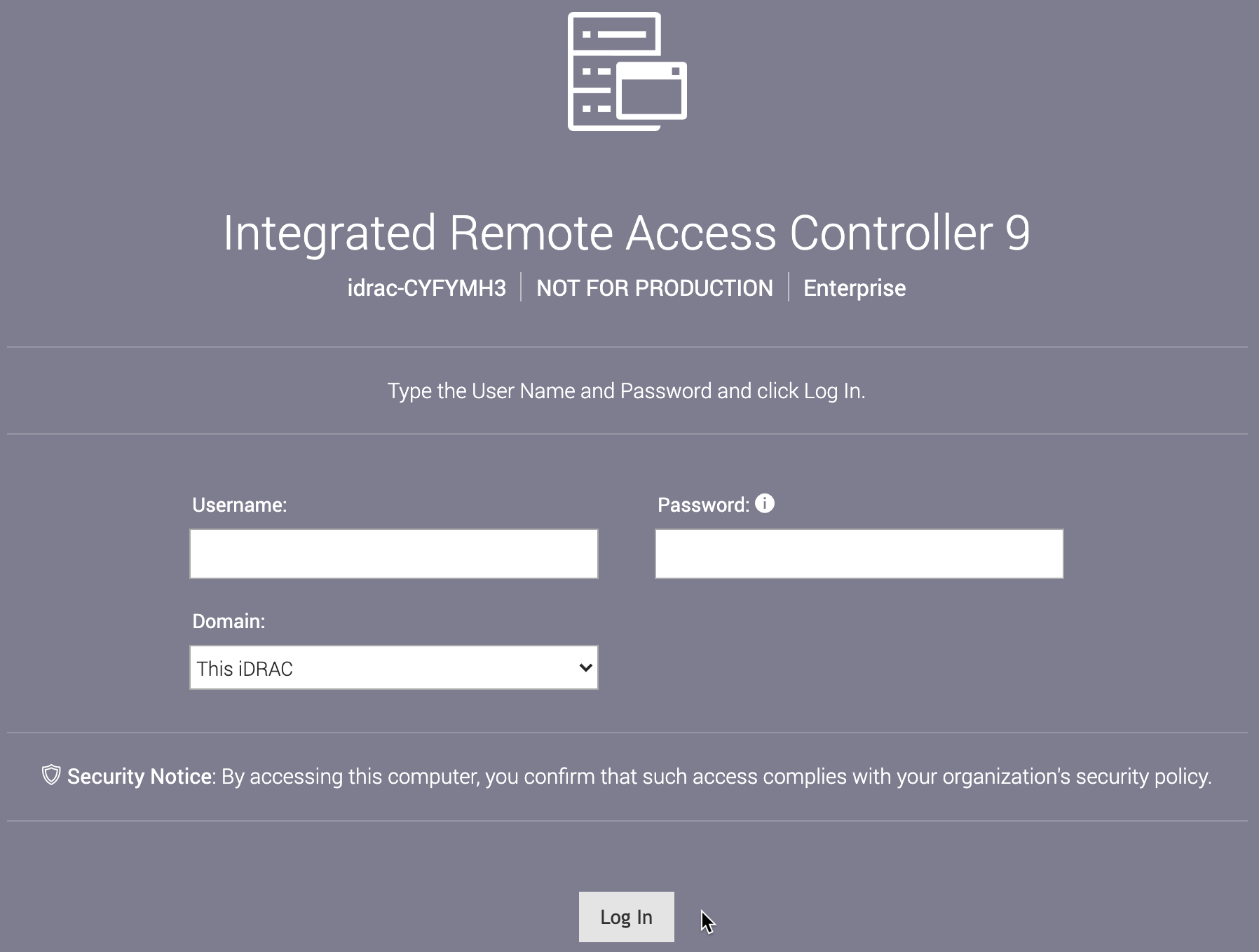
At the login screen enter your credentials:

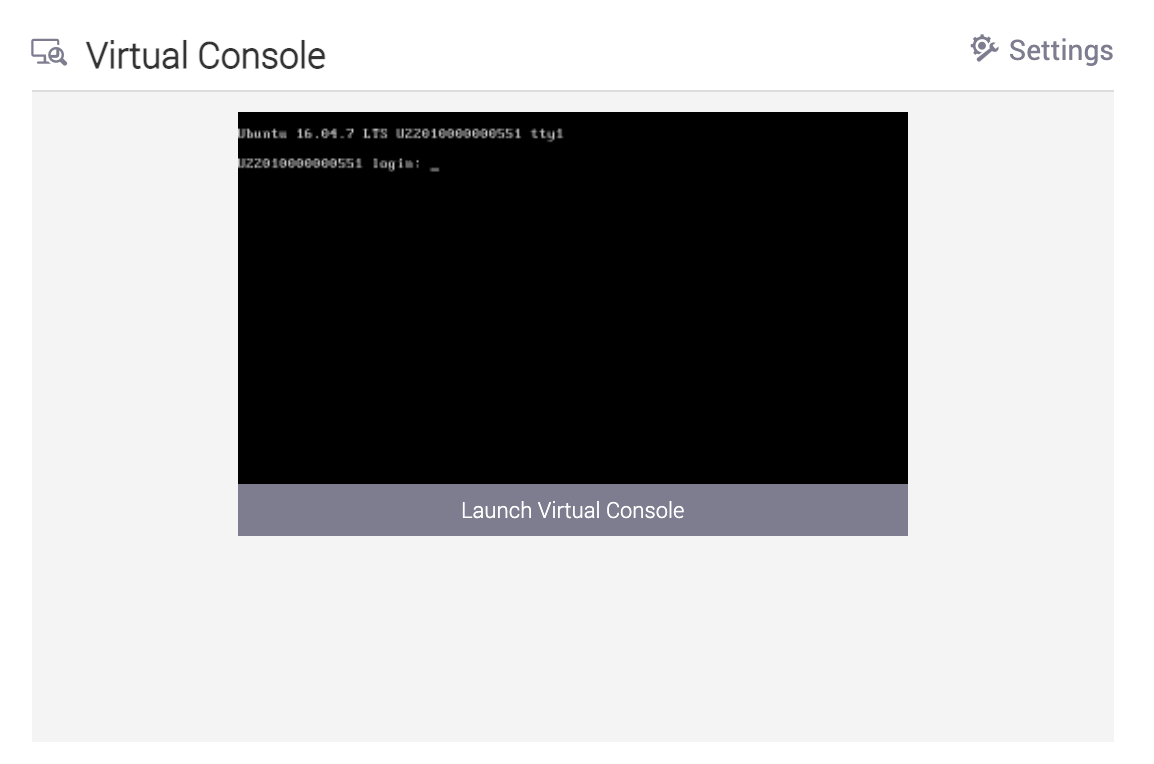
Click on the Virtual Console:

And you will be presented with a login prompt for the CLI:

To set a static IP for iDRAC you must 1st be logged in to the CLI of the Sensor as the vectra user:
Serial Console
Serial console is only supported on S1, S2 (EOL), X29/M29, and X80 (EOL) appliances.
If supported on your appliance model, the serial settings should be 115,200, 8, N, 1
115,200 baud data rate
8 data bits
No parity bit
1 stop bit
Do not enable flow control
Initial Network Configuration
DHCP
The appliance can obtain its network configuration from a DHCP server in your network. The MGT1 port functions as a DHCP client by default.
Connect the management port (MGT1) of the appliance to the network switch.
Find the IP address that was assigned to MGT1 from your DHCP server logs.
You can also find the IP address at the CLI of your appliance if you can access it another way .
Use the
show interfacecommand to display the address that was assigned to MGT1 via DHCP once you are logged onto the appliance.See Accessing the Command Line Interface (CLI) of the Appliance above for instructions on how to log on).
Static Addressing
Configuration Checklist for Static Addressing
Below is a list of information needed for the initial configuration:
IP address to be used for the MGT1 interface
Default gateway IP address
DNS nameserver IP addresses
DNS servers for the Sensor must be configured at the CLI if you are not using DHCP. This cannot be done in your Brain.
Setting a Static MGT1 IP Address
Once logged in to the appliance you can view the syntax for the "set interface" command:
Setting the IP address example:
IPv6 Support:
IPv6 is supported for the MGT1 and MGT2 interfaces. For full details, including information regarding dual stack support, please IPv6 Management Support for Vectra Appliances on the Vectra support portal. Below we will show how to enable IPv6 support (its off by default) and the syntax to use when setting an IPv6 address.
To enable/disable IPv6 support:
Setting IPv4 and IPv6 syntax examples:
Execute the following command to set the MGT1 or MGT2 (a gateway address cannot be configured for MGT2, the gateway on MGT1 will be used) interface to the desired static IP address:
Configuring DNS for the appliance:
Command syntax to set DNS (up to 3 nameservers are supported):
Configuring DNS Example:
Verifying DNS Configuration:
Instructions for configuring the DNS settings using the management GUI can be found in Vectra Respond UX Deployment Guide or Vectra Quadrant UX Deployment Guide. This is only supported for Brain or Mixed mode configurations.
Brain and Sensor Communications Requirements
A Sensor can pair with any Vectra Brain type. For example, the Brain can be a physical appliance, a Brain deployed in a IaaS cloud, or a Brain deployed in a traditional hypervisor environment on customer premises.
Sensors must be able to reach the Brain over the below ports. It is recommended to enable these ports bidirectionally to aid in troubleshooting.
TCP/443 (HTTPS) - Used for Sensor discovery and initial pairing connection.
TCP/22 (SSH) - Used for Paired Sensor connections.
Additionally, for online pairing (physical Sensors only), both the Sensor and Brain must be able to communicate with:
update2.vectranetworks.com or 54.200.156.238 over TCP/443 (HTTPS)
Please work with your security and networking contacts to ensure that the Sensor will be able to initiate a connection to the Brain. Sensors only communicate with the Vectra Brain and do not need to communicate to Vectra directly. Software updates for the Sensor will come from the Brain.
For full details on all potential firewall requirements in Vectra deployments, please see firewall requirements.
Verifying your Connectivity:
Once you have configured an IP statically or via DHCP you can verify connectivity by pinging known IPs in your environment from the CLI with the debug ping command.
It is recommended to check connectivity to the Brain from Sensors at the Sensor CLI. For more detail, please see Checking brain or sensor network connectivity.
To validate that you can connect to Vectra services, it is also recommended to use the debug connectivity command at your Brain’s CLI to check connectivity to the following endpoints:
update2.vectranetworks.com
api.vectranetworks.com
Vectra Cloud Gateways that correspond to the region your tenant is deployed in when using the Respond UX (see the Vectra Respond UX Deployment Guide for more details)
rp.vectranetworks.com
rs.vectranetworks.com
Example:
Next Steps
Proxy Support
If a proxy is required in your environment to reach Vectra’s Updater service (update2.vectranetworks.com or 54.200.156.238), a Sensor mode appliance will not be able to retrieve the Brain location from the Vectra Cloud to use online pairing. You will need to manually set the Brain IP or hostname when attempting pairing with your Brain because setting a proxy is not supported for Sensors. Instructions for pairing, including setting the Brain IP or hostname to pair with, is in pairing appliances.
This remainder of this section refers to appliances deployed in Brain mode or in Mixed mode.
Sensor mode appliances do not support communication through proxies to the Brain.
If a proxy is required in your environment to communicate with the Vectra cloud when deployed in Brain or Mixed mode, this can be set at the CLI of your appliance.
Login to the CLI is done using the vectra user account. The default password is changethispassword for a newly deployed Brain or mixed mode appliance. For more details see SSH login process for CLI.
Proxy commands:
show proxyset proxy config [IP or Hostname] [port] [USERNAME] [PASSWORD]set proxy enable [on|off]Any of these with
-hoption will show command help with syntax.
Examples:
Pairing the Sensor to the Brain
After initial configuration, it is suggested to pair your Sensor with your Brain appliance.
Pairing appliances covers pairing of all physical Vectra appliances.
Traffic Capture Guidance
This section applies to Mixed or Sensor mode configurations only.
If capture ports are connected before pairing is completed, the Sensor will not buffer any traffic.
Simply point the traffic to be captured to your Sensor capture interfaces (ports). The Sensor will begin creating a metadata stream that will be analyzed by your Brain appliance. Sensors also have a rolling capture buffer that the Brain will request PCAPs from. The PCAPs will be attached as evidence with network detections as they are created.
Additionally, Vectra packet capture allows users to configure PCAPs to be downloaded from the Brain for analysis with 3rd party tools such as Wireshark.
Guidance:
See physical connections for the interfaces supported for capture use.
Out of band deployment is the only supported method of traffic capture.
There is no inline mode for currently supported Vectra Sensor appliances.
Traffic is typically forwarded to the Sensor via SPAN/COPY/MIRROR, traditional network TAPs, or 3rd party packet brokers.
Capture ports do not get assigned IP addresses.
The
show traffic statscommand, available at the Sensor’s CLI, may be useful to see if your traffic capture is successful before you can see the traffic graphs in your Brain’s GUI.See Traffic Graph showing no traffic (0 Mbps) for more details.
See Vectra NDR (Detect) and Network Identity Architecture Overview for architecture guidance.
See Vectra Platform Network Traffic Recommendations for what to capture.
See Asymmetry concerns in Vectra sensor feeds for guidance around asymmetric flows.
See Traffic Validation (ENTV) for details on validating your traffic quality.
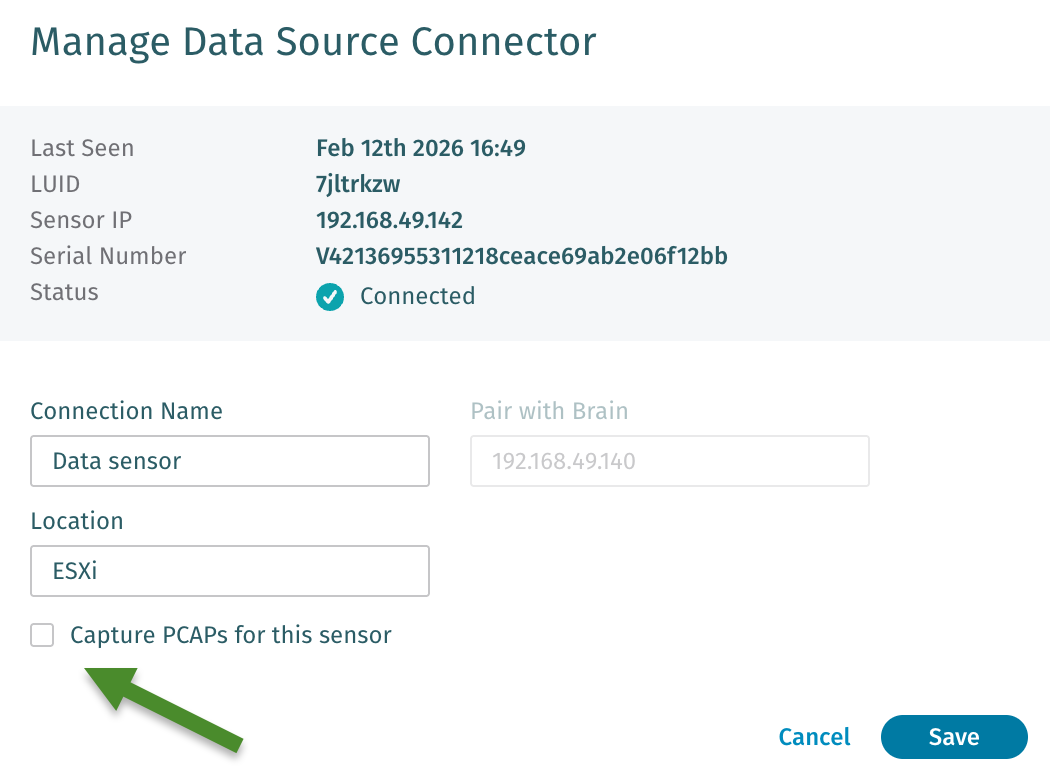
If required, Sensors can be configued to not allow PCAP creation when there are regulatory or privacy concerns. Navigate to Configuration → COVERAGE → Data Sources → Network → Sensors in your Vectra UI and edit the desired Sensor. Ensure the checkbox shown below is checked for Sensors you do not wish to perform any PCAP functions and then save your Sensor configuration:

Logging in to the GUI (N/A in Sensor mode)
For RUX deployments, you should not log in to the local GUI before connecting with the Vectra cloud. All UI based configuration for RUX deployments should be done in the RUX UI that is served from Vectra's cloud. For more details, please see the Respond UX deployment guide.
For QUX deployments, once an IP has been configured for the MGT1 interface of your Brain, you can access it using a modern browser such as Edge, Chrome, or Safari at https://configured_IP or the hostname if you have configured a hostname in your DNS for the Brain. The GUI can also be accessed via MGT2 at https://169.254.0.10 via direct connection. The default username is admin and the default password is changethispassword.
Please note that by default, Vectra uses a self-signed certificate to secure the user interface. As a result, the certificate causes SSL warning in most web browsers. Instructions for how to replace this with a customer-provided signed certificate can be found in SSL certificate installation.
For both the Respond UX and the Quadrant UX:
After logging in to the GUI (for the Respond UX you will login to your Vectra tenant identified in your welcome letter), it is recommended to immediately change the admin password.
Navigate to My Profile on the left-hand side of the screen
Click on Change Password in the username/password area, fill in and save the form
Password requirements - must be at least 8 characters long and contain at least
1 digit (0-9), 1 upper case letter (A-Z), 1 lower case letter (a-z)
One symbol (~!@#$%^&*_-+=`| \ ( ){ }[ ]:;”’<>,.?/)
Worldwide Support Contact Information
Support portal: https://support.vectra.ai
Email: [email protected] (preferred contact method)
Additional information: https://www.vectra.ai/support
Last updated
Was this helpful?