> For the complete documentation index, see [llms.txt](https://docs.vectra.ai/llms.txt). Markdown versions of documentation pages are available by appending `.md` to page URLs; this page is available as [Markdown](https://docs.vectra.ai/deployment/ndr-physical-appliances/s-series/s1v2.md).
# S1v2
The S1v2 quick start guide provides guidance for initial deployment, verifying connectivity, and next steps to take after the appliance is connected to your network.
{% hint style="info" %}
**Please Note regarding S1 vs S1v2 variants:**
Due to a sudden supply chain change, the original configuration of the S1 appliance is no longer available. Vectra has sourced a new base appliance from a different manufacturer and integrated it as the S1v2 variant. Below are the major differences.
**Port Option Settings**
There are some changes to the port options in the S1v2 variant:
* Up to four 1 GbE Copper capture interfaces can still be used if copper SFPs are installed.
* These can be ordered with your appliance. See [supported SFPs and QSFPs](/deployment/ndr-physical-appliances/supported-sfps-and-qsfps.md) for details.
* There is no `set capture sfp` command as the S1v2 already has SFP+ ports enabled for capture use.
* This means there are only two possible port option settings versus the four in the original S1.
**Power and Mounting Differences**
The S1v2 ships with a single auto-sensing power supply but has the ability to accept input from two power supplies for redundancy. Only one power supply is required and if desired a second power supply can be purchased.
The S1v2 does not ship with a wall mount bracket like the original S1, but a rack mount kit is available for purchase.
{% endhint %}
This document is intended to help customers or partners with the initial configuration of a physical Vectra Sensor appliance. This is limited to basic network connectivity. This appliance can only be deployed in Sensor mode. Modes are discussed further in the deployment guide for your chosen UX. One of the below guides should be the starting point for your overall Vectra deployment:
* [Respond UX Deployment Guide](/deployment/getting-started/respond-ux-deployment-guide.md)
* [Quadrant UX Deployment Guide](/deployment/getting-started/quadrant-ux-deployment.md)
Full details on firewall requirements for your entire Vectra deployment are available in those guides or in [firewall requirements](/deployment/getting-started/firewall-requirements.md).
After you have completed the initial deployment of your Sensor following this guide, you can move on to paring your Sensor with your Brain appliance. Pairing for all Vectra appliances is covered in [pairing appliances](/deployment/appliance-operations/pairing-appliances.md).
Guide for other appliances are located in [NDR physical appliances](/deployment/ndr-physical-appliances.md) and [NDR virtual / cloud appliances](/deployment/ndr-virtual-cloud-appliances.md).
## Package Contents
* 1 S1v2 system
* 1 External power supply unit with AC cable matching locality from your order
* SFPs (matching details of your order)
* See [SFPs and QSFPs supported in Vectra appliances](/deployment/ndr-physical-appliances/supported-sfps-and-qsfps.md) for options and additional detail.
## Physical Connections
S1v2 Front Panel - "Default" MGT1 Configuration (click to enlarge)
{% hint style="info" %}
Please see [SFP+ Management Option](#sfp-management-option) for details on how to configure one of the SFP+ ports to be used for as the MGT1 management interface.
{% endhint %}
S1v2 Back Panel (click to enlarge)
{% hint style="warning" %}
Please take care to not block any air holes in the chassis or the fan exhaust to ensure proper cooling of the system.
{% endhint %}
### Physical Connections Added Guidance
* One of the 10 GbE SFP+ ports can be configured as the MGT1 port.
* Please see [SFP+ Management Option](#sfp-management-option) below for details on how to configure this and what the interface assignments would become after configuration. The diagram above only represents the default port options that the S1v2 appliance comes setup for.
* There are USB ports on the front and a VGA port on the back that can be used for keyboard and monitor for console (CLI) access to the appliance. This will work through KVM devices as well.
* The serial console port (RJ45 above the USB ports) is NOT supported by Vectra for console access.
* The IPMI port is NOT supported by Vectra for SOL console access.
* The S1 has a single 953 GB SSD drive.
* Should it ever require replacement, please work with Vectra support.
### Minimum Connections Required
* Power
* The S1 has an external 150W power supply. Auto-sensing, 100-240 VAC, at 50 or 60 Hz.
* MGT1 - RJ-45 ethernet (1 Gbps copper)
* This is the port that will need to be configured with an IP address in your network for communication with your Vectra Brain.
* Capture - RJ-45 ethernet (1 Gbps copper), or SFP+ depending on your requirements.
* At least one of the capture interfaces (ports) must be connected when you are ready to begin capturing traffic for analysis.
## Performance
| **Sensor Mode** | **Sensor (Match) Mode** |
| :-------------: | :---------------------: |
| 1 Gbps | 400 Mbps |
{% hint style="warning" %}
**Please Note:**
Even though there are multiple capture ports on the S1v2 appliance, any combination of capture interfaces used still have the above limitations for the overall performance for the S1v2 appliance. Care should be taken to only send a supported amount of traffic to the capture ports to avoid incomplete analysis.
{% endhint %}
**Definitions:**
* **Sensor Mode** – Bandwidth number shown refers to the amount of network traffic observed that the appliance can produce metadata for (capture bandwidth).
* **Sensor (Match) Mode** – Performance as a Sensor with [Match](/deployment/match/deployment.md) or [Suspect Protocol Activity Detections](/operations/general/suspect-protocol-activity-detections-feature-overview.md) enabled.
{% hint style="info" %}
**Please Note:**
While considering performance for the Sensor it is important to understand that the traffic mix at customer sites varies widely. Some customers have traffic mixes that skew towards larger flows (think file transfers), and some will skew towards smaller flows (think DNS).
* Performance may be higher when the traffic mix skews towards larger flows.
* Performance will be lower when the traffic mix skews towards smaller flows as this produces more metadata for analysis.
* The stated performance is for average traffic mixes and should not be considered absolute.
{% endhint %}
## SFP+ Management Option
While the S1v2 appliance supports a maximum throughput of 1Gbps for traffic capture and analysis, some customers may not have 1 GbE cooper connections available for management in the deployment location. The S1v2 supports a SFP+ management option that alters the default interface configuration to support this requirement:
{% hint style="info" %}
Using any of the capture ports (SFP+ or copper) does not change the max [performance](#performance) supported by the S1v2 appliance. Even though the interface might support 10 Gbps, the max throughput of the appliance is lower than the line speed of the interface, and care should be taken to only send a supported amount of traffic to the capture ports to avoid incomplete analysis.
While the physical ports are SFP+ interfaces, the terms SFP and SFP+ are used interchangeably below.
{% endhint %}
### Management Set to Default
This is the default configuration of the appliance, and the interface assignments are as shown in the diagram at the start of the [Physical Connections](#physical-connections) section.
### Management Set to SFP
After issuing the `set management sfp` command, the interface assignments become the following:
* MGT1 is now the bottom left of the four SFP+ ports.
* The port that was MGT1 in the default configuration is no longer used.
* The top left for the four SFP+ ports physically labeled eth3 has become eth2 in software.
* The bottom right of the four SFP+ ports that was unused in the default configuration has now been activated and can be used for capture as eth3.
Please see the below diagram port diagram that represents the new interface assignments:
S1v2 Front Panel - "SFP" MGT1 Configuration (click to enlarge)
{% hint style="info" %}
**Please Note:**
The physical labels on the appliance no longer are accurate for all ports when `set management sfp` is the configuration.
{% endhint %}
To change or check the management interface option, use the following commands:
* `set management`
* Can be used to set the management port (MGT1) to `sfp` or `default`.
* `show management`
* Will show the management interface configuration of `sfp` or `default`.
To make any of the changes, you will first need to [acces the CLI](#accessing-the-cli) so that you can execute the commands.
Please see below the syntax for using these commands:
```
vscli > set management --help
Usage: set management < ( default | sfp ) >
Set Management Interface speed command
Options:
-h, --help Show this message and exit.
```
Example Usage:
```
vscli > set management sfp
vscli > show management
Management interface is set to SFP. See `show interface` for more information.
```
## Accessing the CLI
The Command Line Interface (CLI) of a physical Vectra appliance is accessible in multiple ways. All appliances will not always have all methods available. See [physical connections](#physical-connections) to see the options available for your specific model.
* KVM or “crash cart”
* Direct connection to "Support" (MGT2) port
* MGT1 port once configured
Once you have connected to the CLI login prompt on the appliance, use the default credentials to login.
* Username: `vectra` and password: `changethispassword`
* Please change the password immediately after logging in using the `set password` command.
### KVM or “crash cart”
If your appliance has USB and VGA ports, a KVM (Keyboard, Video, Mouse) switch or “crash cart” can be used to connect to the appliance console.
### Direct Connection to "Support" (MGT2) Port
A direct connection to the MGT2 port on your appliance.
* If you can physically connect to your MGT2 port, then you can direct connect to the MGT2 port via SSH to do the initial configuration.
* The appliance MGT2 port is factory configured with a 169.254.0.10/16 (255.255.0.0) address.
* Configure your host’s IP to 169.254.0.11 with subnet mask of 255.255.0.0.
* Use SSH to connect to the appliance from your host using the default credentials from above.
## Initial Network Configuration
### DHCP
The appliance can obtain its network configuration from a DHCP server in your network. The MGT1 port functions as a DHCP client by default.
* Connect the management port (MGT1) of the appliance to the network switch.
* Find the IP address that was assigned to MGT1 from your DHCP server logs.
* You can also find the IP address at the CLI of your appliance if you can access it another way .
* Use the `show interface` command to display the address that was assigned to MGT1 via DHCP once you are logged onto the appliance.
* See Accessing the Command Line Interface (CLI) of the Appliance above for instructions on how to log on).
### Static Addressing
#### Configuration Checklist for Static Addressing
Below is a list of information needed for the initial configuration:
* IP address to be used for the MGT1 interface
* Default gateway IP address
* DNS nameserver IP addresses
* DNS servers for the Sensor must be configured at the CLI if you are not using DHCP. This cannot be done in your Brain.
#### Setting a Static MGT1 IP Address
Once logged in to the appliance you can view the syntax for the `set interface` command:
```
set interface -h
Usage: set interface [OPTIONS] {mgt1|mgt2} {dhcp|static} [IP] [SUBNET_MASK]
[GATEWAY_ADDRESS]
Sets network interfaces to either dhcp or static ip configuration
Options:
-h, --help Show this message and exit.
```
Setting the IP address example:
```
set interface mgt1 static 10.50.10.10 255.255.255.0 10.50.10.1
```
#### IPv6 Support:
IPv6 is supported for the MGT1 and MGT2 interfaces. For full details, including information regarding dual stack support, please [IPv6 Management Support for Vectra Appliances](/deployment/getting-started/ipv6-management-support-for-vectra-appliances.md) on the Vectra support portal. Below we will show how to enable IPv6 support (its off by default) and the syntax to use when setting an IPv6 address.
To enable/disable IPv6 support:
```
# show ipv6 enabled
IPv6 is disabled
# set ipv6 enabled
Response: ok
# show ipv6 enabled
IPv6 is enabled
# set ipv6 disabled
Response: ok
```
Setting IPv4 and IPv6 syntax examples:
Execute the following command to set the MGT1 or MGT2 (a gateway address cannot be configured for MGT2, the gateway on MGT1 will be used) interface to the desired static IP address:
```
IPv4 Syntax:
set interface mgt1 static x.x.x.x y.y.y.y z.z.z.z
set interface mgt2 static x.x.x.x y.y.y.y
Where:
x.x.x.x is the desired interface IP address
y.y.y.y is the desired interface network mask
z.z.z.z is the desired gateway
IPv6 Syntax:
set interface mgt1 static [IPv6 IP] [Subnet Mask] [Gateway]
Example:
set interface mgt1 static 2001:0db8:0:f101::25 64 2001:0db8:0:f101::1
```
#### Configuring DNS for the appliance:
Command syntax to set DNS (up to 3 nameservers are supported):
```
set dns [nameserver1 ] [nameserver2 ] [nameserver3 ]
```
Configuring DNS Example:
```
set dns 10.50.10.101 10.50.10.102
```
Verifying DNS Configuration:
```
show dns
```
### Verifying your Connectivity:
Once you have configured an IP statically or via DHCP you can verify connectivity by pinging known IPs in your environment from the CLI with the `debug ping` command.
If your Sensor is already configured with an IP, it is recommended to ping the Brain IP to verify reachability before attempting pairing. Sensors must have port 22 and 443 open from the Sensor to your Brain for successful pairing and ongoing communication. Connectivity can be tested with the `debug connectivity` command.
* For more detail, please see [Checking brain or sensor network connectivity](https://support.vectra.ai/vectra/article/KB-VS-1280).
**Example:**
```
vscli > debug connectivity -h
Usage: debug connectivity [OPTIONS] HOST PORT
Test TCP connectivity to destination host or IP through proxy if configured
Options:
--bypass-proxy / --dont-bypass-proxy
Bypass proxy while testing connectivity if
proxy is configured
--ssl / --no-ssl Test connectivity to host using SSL
--timeout FLOAT Seconds to attempt a connection to host and
proxy if configured [default: 5]
-h, --help Show this message and exit.
vscli > debug connectivity yourbrainIP.customernetwork.com 443 –no-ssl
Connectivity: Success
Proxy: False
SSL: False
```
## Next Steps
### Brain and Sensor Communications Requirements
A Sensor (or Stream appliance) can pair with any Vectra Brain type. For example, the Brain can be a physical appliance, a Brain deployed in a IaaS cloud, or a Brain deployed in a traditional hypervisor environment on customer premises.
Sensors must be able to reach the Brain over the below ports. It is recommended to enable these ports bidirectionally to aid in troubleshooting.
* TCP/443 (HTTPS) - Used for Sensor discovery and initial pairing connection.
* TCP/22 (SSH) - Used for Paired Sensor connections.
Additionally, for online pairing (physical Sensors only), both the Sensor and Brain must be able to communicate with:
* update2**.**vectranetworks**.**com or 54.200.156.238 over TCP/443 (HTTPS)
Please work with your security and networking contacts to ensure that the Sensor will be able to initiate a connection to the Brain. Sensors only communicate with the Vectra Brain and do not need to communicate to Vectra directly. Software updates for the Sensor will come from the Brain.
For full details on all potential firewall requirements in Vectra deployments, please see [firewall requirements](/deployment/getting-started/firewall-requirements.md).
### Pairing the Sensor to the Brain
After base configuration, it is suggested to pair your Sensor with your Brain appliance.
* [Pairing appliances](/deployment/appliance-operations/pairing-appliances.md) covers pairing of all physical Vectra appliances.
### Traffic Capture Guidance
{% hint style="info" %}
If capture ports are connected before pairing is completed, the Sensor will not buffer any traffic.
{% endhint %}
Simply point the traffic to be captured to your Sensor capture interfaces (ports). The Sensor will begin creating a metadata stream that will be analyzed by your Brain appliance. Sensors also have a rolling capture buffer that the Brain will request PCAPs from. The PCAPs will be attached as evidence with network detections as they are created.
Additionally, [Vectra packet capture](/deployment/traffic-engineering-and-validation/using-vectra-packet-capture-pcap.md) allows users to configure PCAPs to be downloaded from the Brain for analysis with 3rd party tools such as Wireshark.
**Guidance:**
* See [physical connections](#physical-connections) for the interfaces supported for capture use.
* Out of band deployment is the only supported method of traffic capture.
* There is no inline mode for currently supported Vectra Sensor appliances.
* Traffic is typically forwarded to the Sensor via SPAN/COPY/MIRROR, traditional network TAPs, or 3rd party packet brokers.
* Capture ports do not get assigned IP addresses.
* The `show traffic stats` command, available at the Sensor’s CLI, may be useful to see if your traffic capture is successful before you can see the traffic graphs in your Brain’s GUI.
* See [Traffic Graph showing no traffic (0 Mbps)](https://support.vectra.ai/vectra/article/KB-VS-1177) for more details.
* See [Vectra NDR (Detect) and Network Identity Architecture Overview](/deployment/getting-started/ndr-network-identity-architecture.md) for architecture guidance.
* See [Vectra Platform Network Traffic Recommendations](/deployment/traffic-engineering-and-validation/network-traffic-recommendations.md) for what to capture.
* See [Asymmetry concerns in Vectra sensor feeds](/deployment/traffic-engineering-and-validation/asymmetry-concerns.md) for guidance around asymmetric flows.
* See [Traffic Validation (ENTV)](/deployment/traffic-engineering-and-validation/traffic-validation-entv.md) for details on validating your traffic quality.
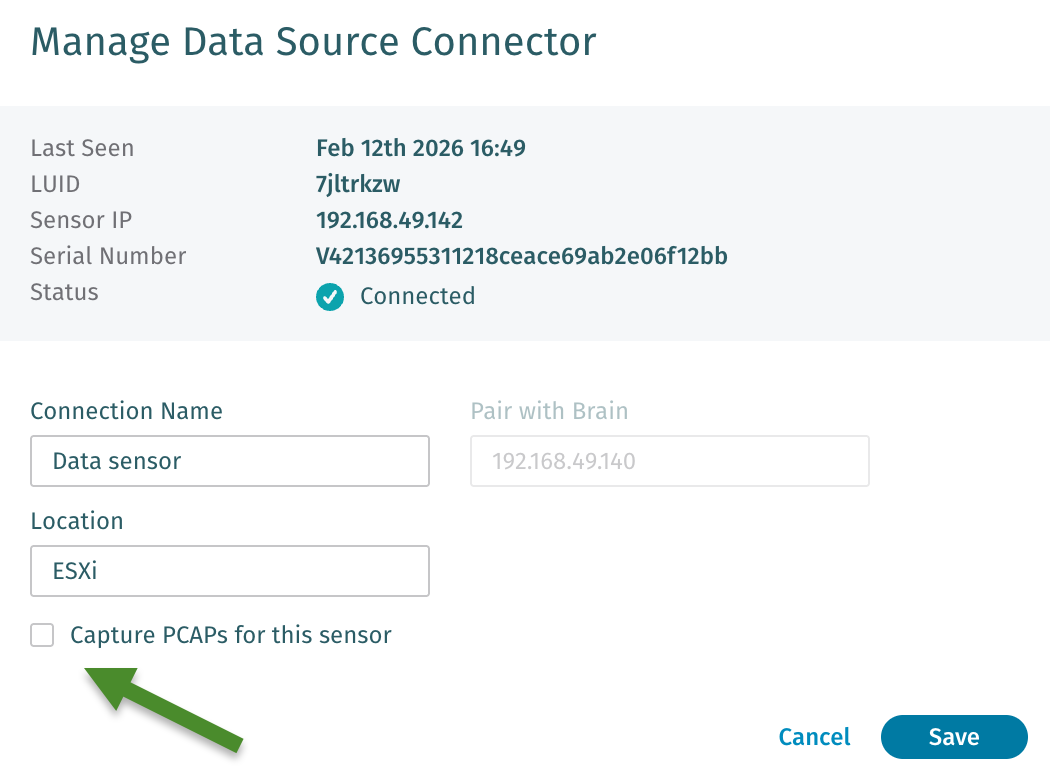
If required, Sensors can be configued to not allow PCAP creation when there are regulatory or privacy concerns. Navigate to *Configuration → COVERAGE → Data Sources → Network → Sensors* in your Vectra UI and edit the desired Sensor. Ensure the checkbox shown below is checked for Sensors you do not wish to perform any PCAP functions and then save your Sensor configuration:
* **Support portal:** [https://support.vectra.ai](https://support.vectra.ai/)
* **Email:** (preferred contact method)
* **Additional information:**
---
# Agent Instructions
This documentation is published with GitBook. GitBook is the documentation platform designed so that both humans and AI agents can read, navigate, and reason over technical content effectively. Learn more at gitbook.com.
## Querying This Documentation
If you need additional information that is not directly available in this page, you can query the documentation dynamically by asking a question.
Perform an HTTP GET request on the current page URL with the `ask` query parameter, and the optional `goal` query parameter:
```
GET https://docs.vectra.ai/deployment/ndr-physical-appliances/s-series/s1v2.md?ask=&goal=
```
`ask` is the immediate question: it should be specific, self-contained, and written in natural language.
`goal` is optional and describes the broader end goal you are ultimately trying to accomplish on behalf of the user. GitBook uses it to tailor the answer towards what is most useful for that goal.
The response will contain a direct answer to the question and relevant excerpts and sources from the documentation.
Use this mechanism when the answer is not explicitly present in the current page, you need clarification or additional context, or you want to retrieve related documentation sections.


%20-%20Labeled.png?alt=media&token=8e1f2916-7ead-4c83-ad33-6e3fb1c63f77)