> For the complete documentation index, see [llms.txt](https://docs.vectra.ai/llms.txt). Markdown versions of documentation pages are available by appending `.md` to page URLs; this page is available as [Markdown](https://docs.vectra.ai/deployment/match/vectra-curated-ruleset.md).
# Vectra curated ruleset
Use Vectra's curated ET Pro ruleset for Match and understand what it contains.
Vectra provides a curated version of the [Proofpoint ET Pro](https://www.proofpoint.com/us/threat-insight/et-pro-ruleset) ruleset for all Vectra Match Customers.
## Ruleset Contents:
The Proofpoint ET Pro ruleset is the de facto industry standard Suricata ruleset which provides coverage for a variety of malicious activity including network signatures for malware, exploits, vulnerability scanning, phishing, and other useful contextual activity.
* Rule IDs in the curated ruleset will be in the 2,000,000 to 2,999,999 range.
## Ruleset Tuning:
Vectra curates the ruleset by providing initial tuning to disable traditionally noisy signatures and to include Vectra originated rules for customers to leverage. The Vectra initial tuning is not meant to replace customer specific tuning for your environment and applications but does reduce the initial effort to deploy a ruleset successfully.
Any rules that are tuned by Vectra are not removed from the ruleset entirely, but instead are disabled by placing a `#` at the beginning of the line, which causes the Suricata engine to ignore it. You have the ability to modify any Vectra tuned rule to enable or modify it before submitting the ruleset to the system.
Customers can further tune the Vectra curated ruleset in the Vectra UI. Rules can be modified, disabled, suppressed, and enabled, but they cannot be created in the Vectra UI. Please see [Managing Vectra Match Rulesets](/deployment/match/managing-rulesets.md) for details
## Ruleset Access:
#### **Uploading/Assigning the Curated Ruleset With Automatic Updates**
* To upload/assign the curated ruleset with automatic updates (typically once daily), click the **Upload/Assign Ruleset** button in your UI under *Configuration → COVERAGE → Vectra Match.*

* Next, ensure the first choice is selected for the curated ruleset.
* Then click **Next: Select Sensors** and choose which Sensors you wish to automatically update the curated ruleset on and finish the wizard to complete the deployment of the ruleset.
* The ruleset will be updated automatically on the chosen Sensors.
* Checks for new rulesets are performed hourly.
#### **Downloading the Curated Ruleset From Your Vectra GUI:**
You can access the ruleset from your Vectra UI by clicking the **Download Vectra Ruleset** link under under *Configuration → COVERAGE → Vectra Match*.

#### **Downloading the Curated Ruleset via API:**
* RUX Deployments
* Perform a `GET` request against the `/api/v3.3/vectra-match/download-vectra-ruleset endpoint`.
* This will return a URL that is valid for 2 minutes that can be used to download the file.
* QUX Deployments
* Perform a `GET` request against the `/api/v2.5/vectra-match/download-vectra-ruleset endpoint`.
For additional details including more details around downloading via the API, please see the following resources:
* [Vectra Match Deployment Guide](/deployment/match/deployment.md)
* API usage for Respond UX deployments:
* [Vectra SaaS API Guide v3.3](/configuration/access/api-rux/v33-api-guide-rux.md)
* API usage for Quadrant UX deployments:
* [How to query Vectra REST API using Postman platform](/configuration/access/api-qux/v25-postman-quick-start-guide-using-token-auth.md)
* [REST API Guide v2.5](/configuration/access/api-qux/v25-api-guide-qux.md) - Match related content on pages 3-5, 55-62, and 123-148.
* [Vectra Public Postman Collection](https://www.postman.com/vectra-internal/workspace/vectra-ai/collection/7429442-509c593b-8de4-4aa3-ac05-e07934eb9f17)
#### **Downloading the Curated Ruleset in Air Gap Deployments:**
Customers who are not online with Vectra because they are deployed in air gap environments or they simply do not allow connectivity to the Vectra Cloud can still access the curated ruleset from Vectra. The general process is as follows:
1. Download the curated ruleset from a computer that does have access to the internet.
* The ruleset is available after in the Vectra Support portal.
* You must be logged in to the portal to be able to access the download.
* This is because the curated ruleset download is only licensed and available to Vectra Match customers.
* The user that logs in to the support portal must be associated with a customer account that has an active Match license.
* If you cannot access the curated ruleset download after logging in to the support portal, please contact Vectra Support.
2. Transfer the ruleset to a computer that can access the Vectra UI.
* These procedures will vary by customer and are sometimes referred to as "sneakernet".
3. Upload the ruleset to your Vectra Brain and follow normal ruleset deployment processes.
* See the [Vectra Match Deployment Guide](/deployment/match/deployment.md) for more details on ruleset management.
**Accessing the curated ruleset in the Vectra Support Portal:**
* Login to the support portal using the link in the top right of the web page:

* Click **Additional Resources**:

* Click on **Download**, then **Vectra Match Curated Ruleset**, and then the **File:Download** link. Save the file to the location of your choosing.
---
# Agent Instructions
This documentation is published with GitBook. GitBook is the documentation platform designed so that both humans and AI agents can read, navigate, and reason over technical content effectively. Learn more at gitbook.com.
## Querying This Documentation
If you need additional information that is not directly available in this page, you can query the documentation by asking a question.
Perform an HTTP GET request on the following URL with the `ask` and `goal` query parameters:
```
GET https://docs.vectra.ai/deployment/match/vectra-curated-ruleset.md?ask=&goal=
```
`ask` is the immediate question: it should be specific, self-contained, and written in natural language.
`goal` is what the user is ultimately trying to achieve, the reason they need the answer. Sharing it helps GitBook give you a better, more relevant answer. A goal is most helpful when it describes the outcome the user wants rather than restating the question. For example, with `ask=how do I create an API token`, a goal like `automate deployments from our CI pipeline` lets GitBook tailor the answer to that use case.
The response will contain a direct answer to the question and relevant excerpts and sources from the documentation.
Use this mechanism when the answer is not explicitly present in the current page, you need clarification or additional context, or you want to retrieve related documentation sections.
 * Then click **Next: Select Sensors** and choose which Sensors you wish to automatically update the curated ruleset on and finish the wizard to complete the deployment of the ruleset.
* The ruleset will be updated automatically on the chosen Sensors.
* Checks for new rulesets are performed hourly.
#### **Downloading the Curated Ruleset From Your Vectra GUI:**
You can access the ruleset from your Vectra UI by clicking the **Download Vectra Ruleset** link under under *Configuration → COVERAGE → Vectra Match*.

#### **Downloading the Curated Ruleset via API:**
* RUX Deployments
* Perform a `GET` request against the `/api/v3.3/vectra-match/download-vectra-ruleset endpoint`.
* This will return a URL that is valid for 2 minutes that can be used to download the file.
* QUX Deployments
* Perform a `GET` request against the `/api/v2.5/vectra-match/download-vectra-ruleset endpoint`.
For additional details including more details around downloading via the API, please see the following resources:
* [Vectra Match Deployment Guide](/deployment/match/deployment.md)
* API usage for Respond UX deployments:
* [Vectra SaaS API Guide v3.3](/configuration/access/api-rux/v33-api-guide-rux.md)
* API usage for Quadrant UX deployments:
* [How to query Vectra REST API using Postman platform](/configuration/access/api-qux/v25-postman-quick-start-guide-using-token-auth.md)
* [REST API Guide v2.5](/configuration/access/api-qux/v25-api-guide-qux.md) - Match related content on pages 3-5, 55-62, and 123-148.
* [Vectra Public Postman Collection](https://www.postman.com/vectra-internal/workspace/vectra-ai/collection/7429442-509c593b-8de4-4aa3-ac05-e07934eb9f17)
#### **Downloading the Curated Ruleset in Air Gap Deployments:**
Customers who are not online with Vectra because they are deployed in air gap environments or they simply do not allow connectivity to the Vectra Cloud can still access the curated ruleset from Vectra. The general process is as follows:
1. Download the curated ruleset from a computer that does have access to the internet.
* The ruleset is available after in the Vectra Support portal.
* You must be logged in to the portal to be able to access the download.
* This is because the curated ruleset download is only licensed and available to Vectra Match customers.
* The user that logs in to the support portal must be associated with a customer account that has an active Match license.
* If you cannot access the curated ruleset download after logging in to the support portal, please contact Vectra Support.
2. Transfer the ruleset to a computer that can access the Vectra UI.
* These procedures will vary by customer and are sometimes referred to as "sneakernet".
3. Upload the ruleset to your Vectra Brain and follow normal ruleset deployment processes.
* See the [Vectra Match Deployment Guide](/deployment/match/deployment.md) for more details on ruleset management.
**Accessing the curated ruleset in the Vectra Support Portal:**
* Login to the support portal using the link in the top right of the web page:

* Click **Additional Resources**:

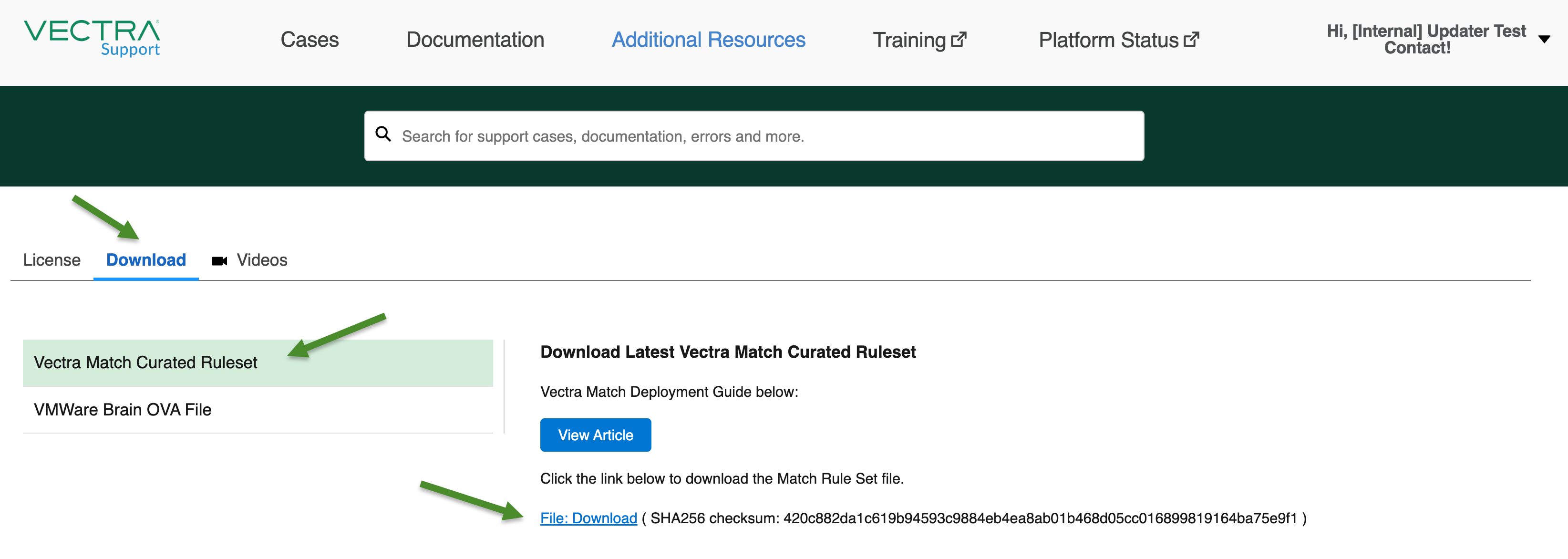
* Click on **Download**, then **Vectra Match Curated Ruleset**, and then the **File:Download** link. Save the file to the location of your choosing.
* Then click **Next: Select Sensors** and choose which Sensors you wish to automatically update the curated ruleset on and finish the wizard to complete the deployment of the ruleset.
* The ruleset will be updated automatically on the chosen Sensors.
* Checks for new rulesets are performed hourly.
#### **Downloading the Curated Ruleset From Your Vectra GUI:**
You can access the ruleset from your Vectra UI by clicking the **Download Vectra Ruleset** link under under *Configuration → COVERAGE → Vectra Match*.

#### **Downloading the Curated Ruleset via API:**
* RUX Deployments
* Perform a `GET` request against the `/api/v3.3/vectra-match/download-vectra-ruleset endpoint`.
* This will return a URL that is valid for 2 minutes that can be used to download the file.
* QUX Deployments
* Perform a `GET` request against the `/api/v2.5/vectra-match/download-vectra-ruleset endpoint`.
For additional details including more details around downloading via the API, please see the following resources:
* [Vectra Match Deployment Guide](/deployment/match/deployment.md)
* API usage for Respond UX deployments:
* [Vectra SaaS API Guide v3.3](/configuration/access/api-rux/v33-api-guide-rux.md)
* API usage for Quadrant UX deployments:
* [How to query Vectra REST API using Postman platform](/configuration/access/api-qux/v25-postman-quick-start-guide-using-token-auth.md)
* [REST API Guide v2.5](/configuration/access/api-qux/v25-api-guide-qux.md) - Match related content on pages 3-5, 55-62, and 123-148.
* [Vectra Public Postman Collection](https://www.postman.com/vectra-internal/workspace/vectra-ai/collection/7429442-509c593b-8de4-4aa3-ac05-e07934eb9f17)
#### **Downloading the Curated Ruleset in Air Gap Deployments:**
Customers who are not online with Vectra because they are deployed in air gap environments or they simply do not allow connectivity to the Vectra Cloud can still access the curated ruleset from Vectra. The general process is as follows:
1. Download the curated ruleset from a computer that does have access to the internet.
* The ruleset is available after in the Vectra Support portal.
* You must be logged in to the portal to be able to access the download.
* This is because the curated ruleset download is only licensed and available to Vectra Match customers.
* The user that logs in to the support portal must be associated with a customer account that has an active Match license.
* If you cannot access the curated ruleset download after logging in to the support portal, please contact Vectra Support.
2. Transfer the ruleset to a computer that can access the Vectra UI.
* These procedures will vary by customer and are sometimes referred to as "sneakernet".
3. Upload the ruleset to your Vectra Brain and follow normal ruleset deployment processes.
* See the [Vectra Match Deployment Guide](/deployment/match/deployment.md) for more details on ruleset management.
**Accessing the curated ruleset in the Vectra Support Portal:**
* Login to the support portal using the link in the top right of the web page:

* Click **Additional Resources**:

* Click on **Download**, then **Vectra Match Curated Ruleset**, and then the **File:Download** link. Save the file to the location of your choosing.