> For the complete documentation index, see [llms.txt](https://docs.vectra.ai/llms.txt). Markdown versions of documentation pages are available by appending `.md` to page URLs; this page is available as [Markdown](https://docs.vectra.ai/deployment/appliance-operations/unpairing-sensor-from-brain.md).
# Unpairing Sensor from Brain
Safely unpair a Sensor from a Brain and clean up pairing state.
## Introduction
Unpairing is the process of removing the Sensor and Brain association. The Sensor unpairing may be required in case of :
1. Brain migration to new IP.
2. The sensor is being returned to Vectra.
Related Links:
* [Pairing Sensors](/deployment/appliance-operations/pairing-appliances.md)
* [How do I clear data from a Vectra appliance before returning it?](https://support.vectra.ai/vectra/article/KB-VS-1048)
## Preparation:
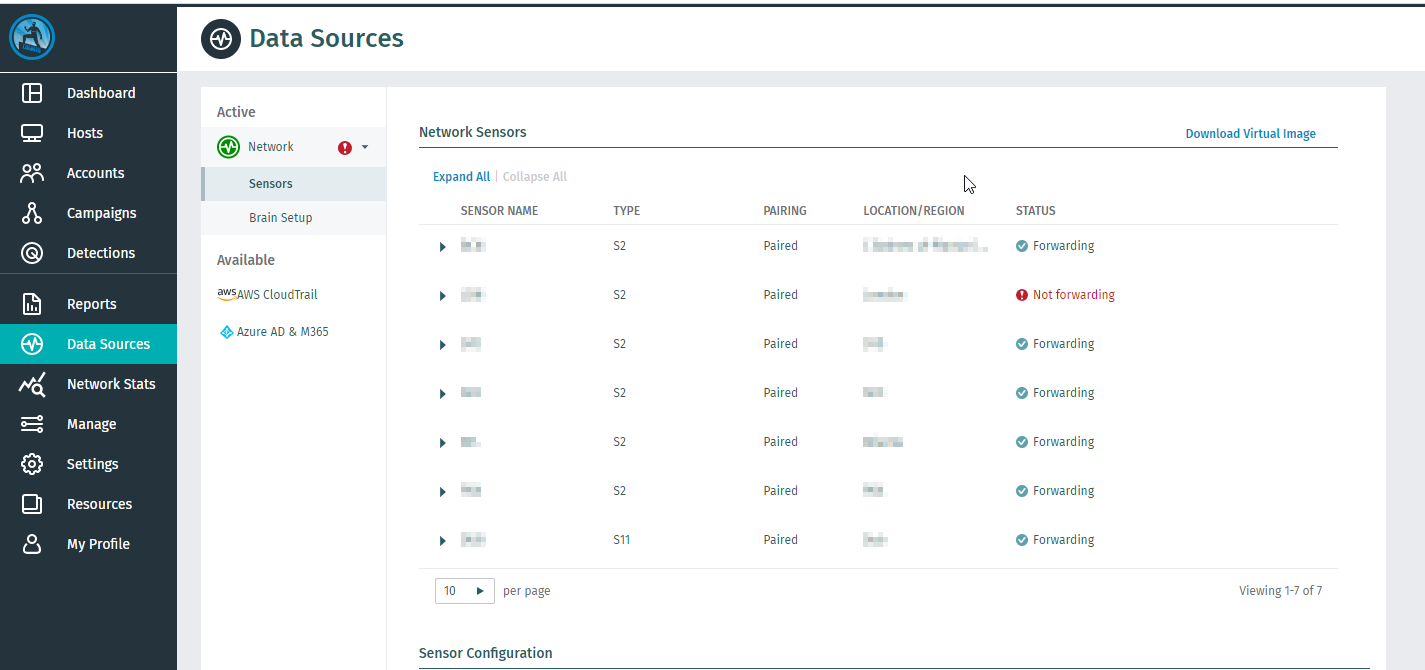
1. You can see the list of paired Sensors and the list of Sensors available for pairing from your UI at: *Configuration → COVERAGE → Data Sources → Network → Sensors.*\
\
The status column indicates whether the Sensor has been paired (i.e. Forwarding / Not-forwarding) or is available for pairing (i.e. Provisioned / Pairing). Sensors that have been paired with other Brain devices are not listed on this screen.
## Steps:
### From the UI
1. Go to *Configuration → COVERAGE → Data Sources → Network → Sensors.*
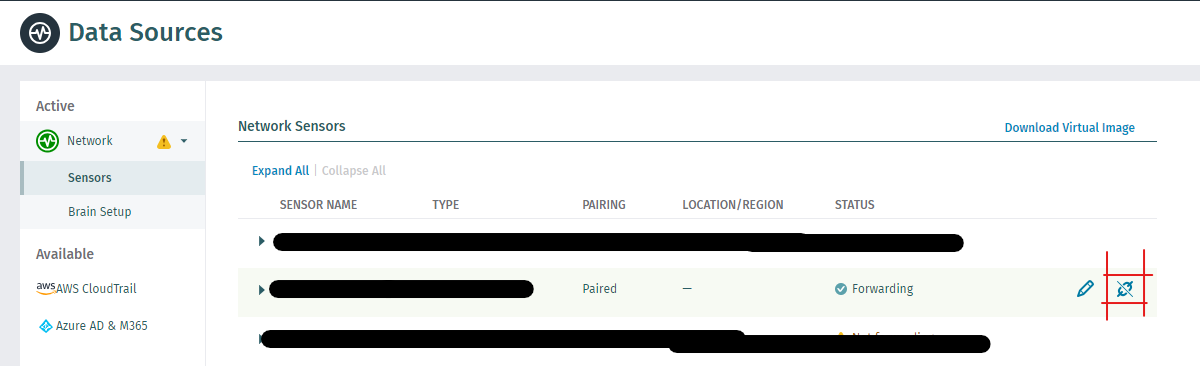
2. Hover the cursor over the sensor you want to unpair; to see the unpair icon (Marked with a red border in the below picture). Click on it.
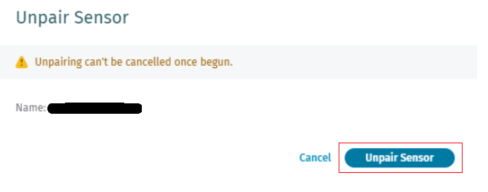
3. The pop-up show like the below screen. Click on the **Unpair Sensor** button\
The status of Sensor will chnage to unpairing.\

4. Wait for approx 5 minutes; the Sensor status should chage to **Provisioned** .\

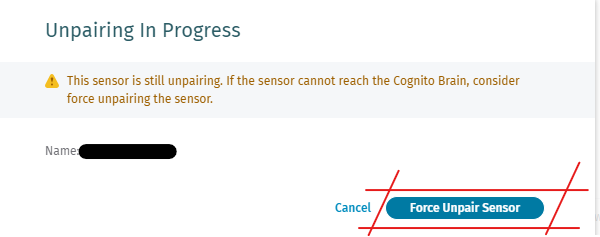
5. There may be situations when the Brain is not able to reach the Sensor; in that case:
1. Click on unpair button again.\

2. The pop-up will appear . Click on **Force Unpair Sensor**.\
\
If the sensor is a Virtual Sensor, just delete the sensor image; and if it's a physical sensor then login to sensor VCLI as a 'vectra' user, and run the command
```ckeditor_codeblock
show brain
del brain
show brain
```
The sensor unpairing is complete now.
### From CLI
1. To list the Sensor:
```language-c
show sensors
```
2. Now, to unpair (*replace \[SERIAL] by the Sensor serial number*):
```language-c
sensor unpair [SERIAL]
```
3. In special cases, for example, if a virtual sensor was deleted from the host before unpairing it, you will can force the removal:
```language-c
sensor unpair --force [SERIAL]
```
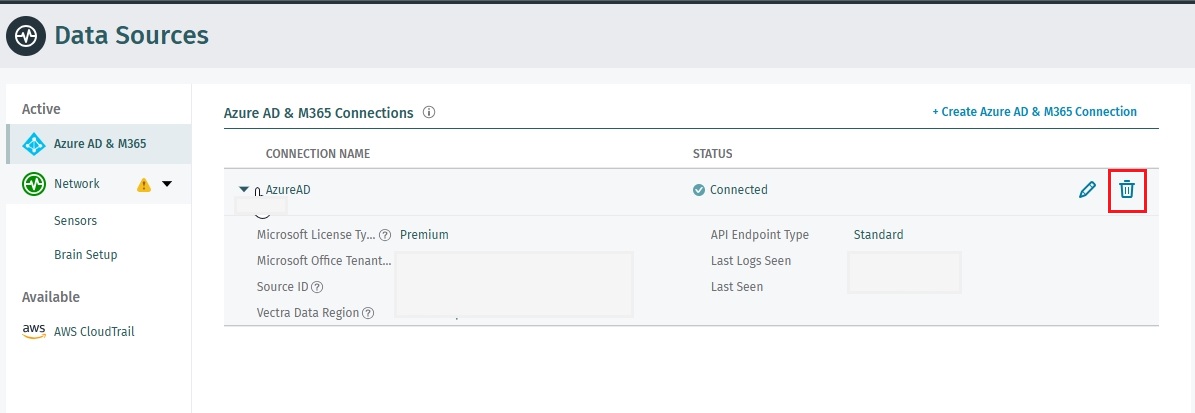
### Unpairing Cloud Sensor (Data Source Connector)
1. Go to *Configuration → COVERAGE → Data Sources → The Cloud Sensor you wish to delete.*
2. Click on the **Delete** icon.
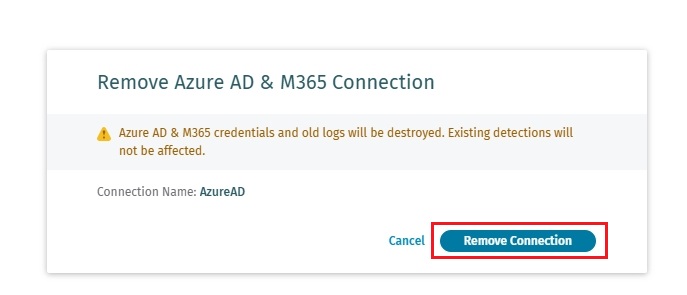
3. It will ask for the confirmation page, select **Remove Connection**.
4. Wait for 2 minutes, and the cloud Sensor will disappear.
## Verification
1. The Sensor state should be at the **Available** state in your Sensors list.
2. In the case of the Physical Sensor, the following VCLI command should give \ result.
```ckeditor_codeblock
show brain
```
## Troubleshooting
If prerequisites are passing then sensor pairing can go as easily as it can be; however in case of any issue please contact Vectra support. If possible, please add the following information to the ticket:
1. Output of VCLI commands on Sensor:
```ckeditor_codeblock
show serial-number
show version
show brain
show interface
```
2. Output of VCLI commands on the brain:
```ckeditor_codeblock
show serial-number
show version
show interface
```
```
```
3\. Screenshot of sensor detail at: *Configuration > Data Sources → COVERAGE → Network → Sensors* then scroll to the Sensor in the subject and click on the tree.
---
# Agent Instructions
This documentation is published with GitBook. GitBook is the documentation platform designed so that both humans and AI agents can read, navigate, and reason over technical content effectively. Learn more at gitbook.com.
## Querying This Documentation
If you need additional information that is not directly available in this page, you can query the documentation dynamically by asking a question.
Perform an HTTP GET request on the current page URL with the `ask` query parameter, and the optional `goal` query parameter:
```
GET https://docs.vectra.ai/deployment/appliance-operations/unpairing-sensor-from-brain.md?ask=&goal=
```
`ask` is the immediate question: it should be specific, self-contained, and written in natural language.
`goal` is optional and describes the broader end goal you are ultimately trying to accomplish on behalf of the user. GitBook uses it to tailor the answer towards what is most useful for that goal.
The response will contain a direct answer to the question and relevant excerpts and sources from the documentation.
Use this mechanism when the answer is not explicitly present in the current page, you need clarification or additional context, or you want to retrieve related documentation sections.